
When your Samsung Galaxy Tab S9 microphone stops working, it can be incredibly frustrating. You might find people can't hear you on calls, your voice recordings are silent, or Google Assistant just won't listen. The good news is, it's often a simple software or settings issue you can fix yourself.
Start by confirming the basics with a free quick mic test. It shows a live level meter and lets you hear a short playback, so you know in seconds whether any signal is coming through.
Let's start by confirming the problem. The easiest way is to open the Voice Recorder app that came pre-installed on your tablet. Tap the red record button, speak a few sentences, and then play it back. If you hear nothing or your voice is muffled, you've confirmed the issue.
You can also test it in a video call app like Google Meet or by trying to use Google Assistant. Say "Hey Google" or press and hold the power button to activate it. If it doesn't respond to your voice, the microphone is likely the culprit.
Start With These Quick Checks
First, take a close look at your tablet. The Galaxy Tab S9 has microphone holes along the top edge and sometimes near the USB-C port. Check these tiny openings for any lint, dust, or debris that could be blocking sound.
If you use a case, especially a rugged or folio-style one, take the tablet out of it. Some cases have poor cutouts or extra material that can accidentally cover the microphone ports. Test your voice recording again without the case to rule this out.
Next, think about any Bluetooth devices. If you have wireless earbuds, headphones, or a speaker connected, your tablet will route all audio through them. Go to Settings > Connections > Bluetooth and turn Bluetooth off temporarily, or disconnect the specific audio device.
Restart and Check App Permissions
A simple restart clears out temporary glitches that can affect hardware like the microphone. Press and hold the Volume Down button and the Side (power) button together for about 10 seconds until you see the Samsung logo, then release.
If the problem is only happening in one app, like Zoom, Discord, or WhatsApp, the app might not have permission to use the mic. Go to Settings > Apps, select the problematic app, then tap Permissions. Make sure the Microphone permission is set to "Allow."
While you're there, force close the app. In the same app info screen, tap Force stop. Then reopen the app and try the microphone again. This refreshes its connection to your tablet's hardware.
Dive Deeper into Sound Settings
Samsung's One UI has several audio features that can interfere. Open Settings > Sounds and vibration > Sound quality and effects. Try turning off any features like "Adapt Sound" or "UHQ upscaler" to see if they're causing a conflict.
Also, check for any "Separate app sound" settings that might be routing audio from your calling app to a different output. You can find this in Settings > Sounds and vibration > Separate app sound.
If you use Samsung DeX mode, be aware that connecting to an external monitor or TV can sometimes change audio routing. Try disabling DeX by pulling down the quick panel and tapping the DeX icon, then test the microphone again in standard tablet mode.
Update Your Software
Software bugs are a common cause of microphone problems, and Samsung regularly releases updates with fixes. Go to Settings > Software update > Download and install.
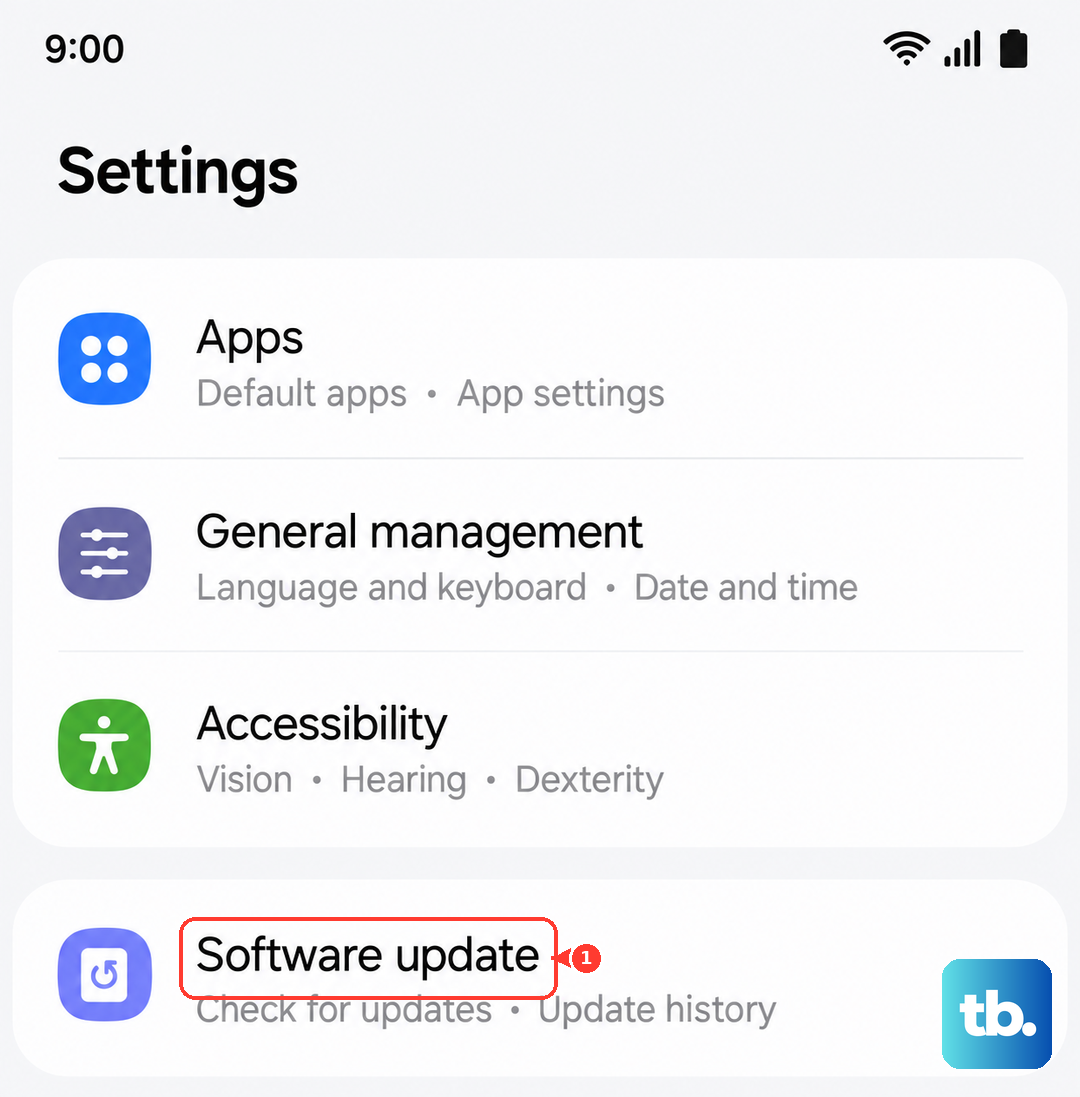
Make sure your tablet is connected to Wi-Fi and has sufficient battery. Installing the latest version of One UI based on Android 14 can resolve a host of audio issues.
It's also worth checking for updates to the specific app where the microphone fails. Open the Google Play Store, tap your profile icon, and go to Manage apps & device > Updates available.
Reset Your Tablet's Settings
If you're still having trouble, a settings reset can help. This won't delete your personal data like photos or apps, but it will revert all system settings to their defaults.
Go to Settings > General management > Reset > Reset all settings. You'll need to re-enter Wi-Fi passwords and reconfigure things like display brightness, but it often clears up persistent hardware communication errors.
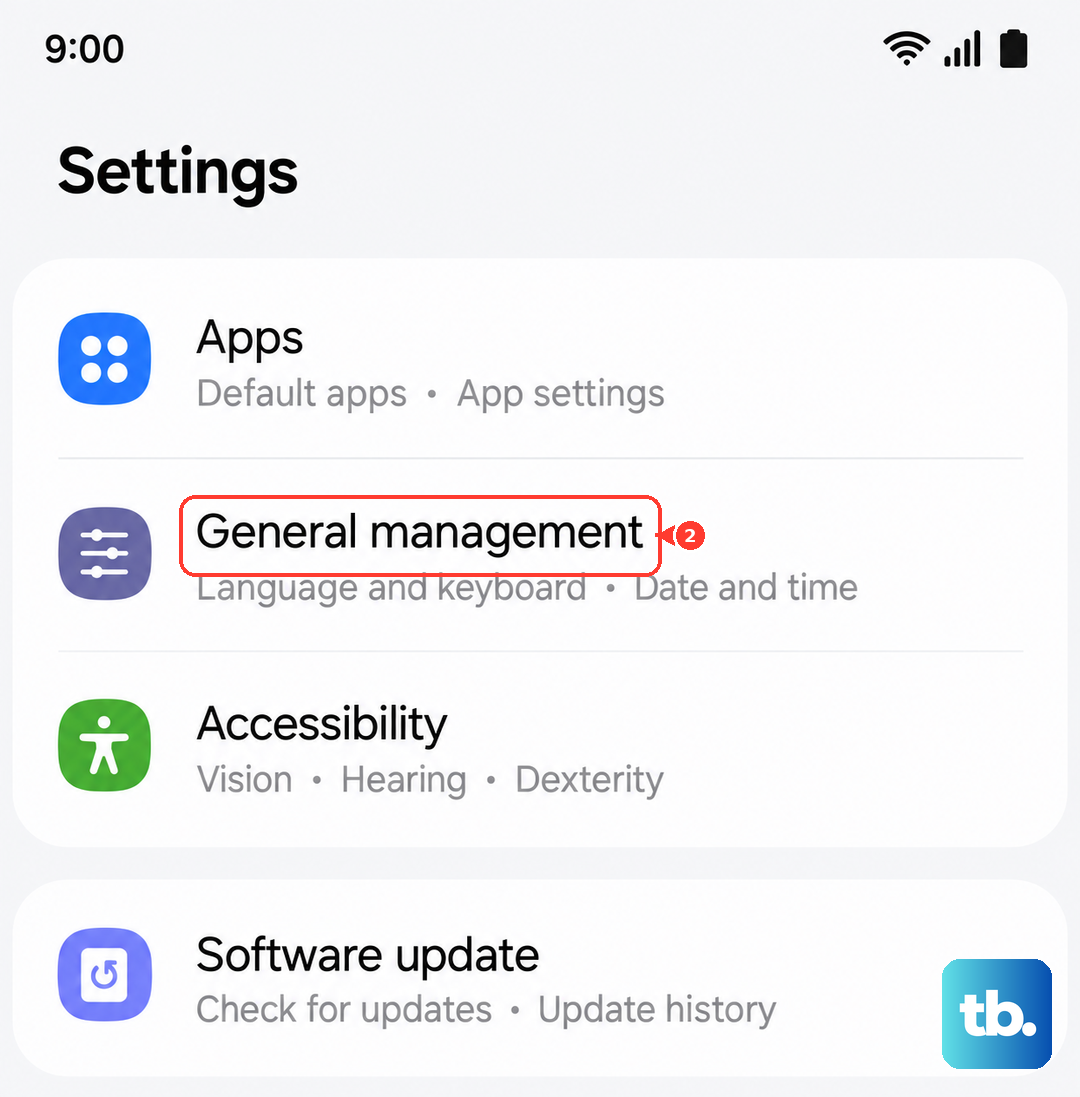
Before you do this, I'd recommend checking your app permissions one last time. Sometimes a recent app update can change a permission without you noticing.
Check for Hardware Issues
If the microphone fails in every single app, Voice Recorder, phone calls, video apps, Google Assistant, after all these steps, a hardware problem is more likely.
Listen closely to the microphone hole while recording. Can you hear a faint hiss or static? Complete silence can indicate a disconnected or damaged internal microphone.
You can also use the Samsung Members app to run a hardware diagnostic. Open the app, tap on "Get help" at the bottom, then select "Diagnostics" or "Tests". There should be an option to test the microphone.