
Press and hold the Volume Down button and the Side button together for about 10 seconds. Keep holding them until you see the Samsung logo appear on the screen. This force restart is the fastest way to clear a temporary software glitch that's freezing the touchscreen.
Start with a free online touch test to confirm where the screen actually responds. Knowing whether the fault is one region or the whole panel changes which steps below matter.
I'd start with this one, as it works for most random touchscreen freezes. The tablet will restart, and you should be able to use the screen normally again. If the screen is completely black and unresponsive, you can still try this button combo.
Clean the Screen and Check for Damage
Turn off the tablet and give the screen a thorough wipe with a soft, slightly damp microfiber cloth. Dry it completely before turning it back on. Oils, lotions, or even a thin film of grime can seriously interfere with the touch sensors.
While you're cleaning, inspect the screen closely for any new cracks, even tiny ones. A damaged digitizer layer underneath the glass will cause dead spots or a completely unresponsive screen. Also, make sure you're not using a screen protector that's too thick or improperly applied, as this can block touch sensitivity.
Boot into Safe Mode
Safe mode temporarily disables all third-party apps. If your touchscreen works perfectly in safe mode, you know a recently downloaded app is the culprit. To enter safe mode, first press and hold the Side button until the power off menu appears.
Then, tap and hold the "Power off" option on your screen. You'll see a prompt to restart in Safe Mode. Tap "OK" to confirm. Your tablet will reboot, and you'll see "Safe mode" in the bottom corner.
Test the touchscreen here. If it works, restart normally to exit safe mode and start uninstalling apps you installed around the time the problem began.
Check for Software Updates
Sometimes a bug in the current software version can cause touch issues, and Samsung releases fixes in updates. Swipe down from the top of the screen twice to open the quick settings panel, then tap the gear icon to open Settings.
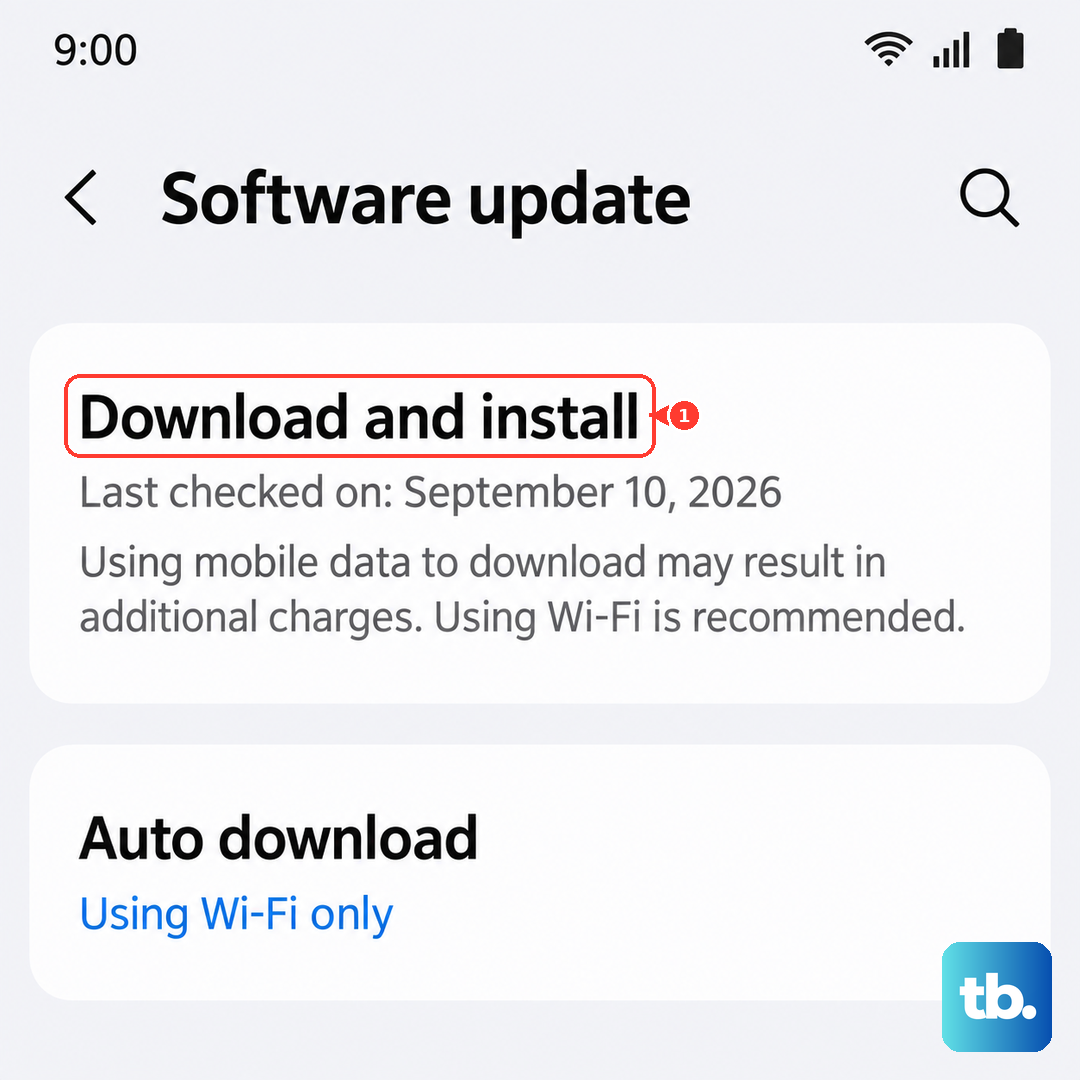
Scroll down and tap Software update, then tap Download and install. If an update is available, make sure your tablet is plugged into a Samsung 45W charger and connected to Wi-Fi before proceeding. An update can often resolve underlying system glitches affecting the display.
Calibrate the Touchscreen
Samsung has a hidden diagnostic menu that lets you test and calibrate the touchscreen. Open your Phone dialer and enter *#0*#. This will launch the secret service menu.
Tap the "Touch" option on the screen. This will bring up a full-screen test where you need to draw lines or tap squares. Follow the on-screen instructions to complete the test. If the test fails or shows unresponsive areas, it points to a deeper software or hardware issue.
Perform a Factory Reset
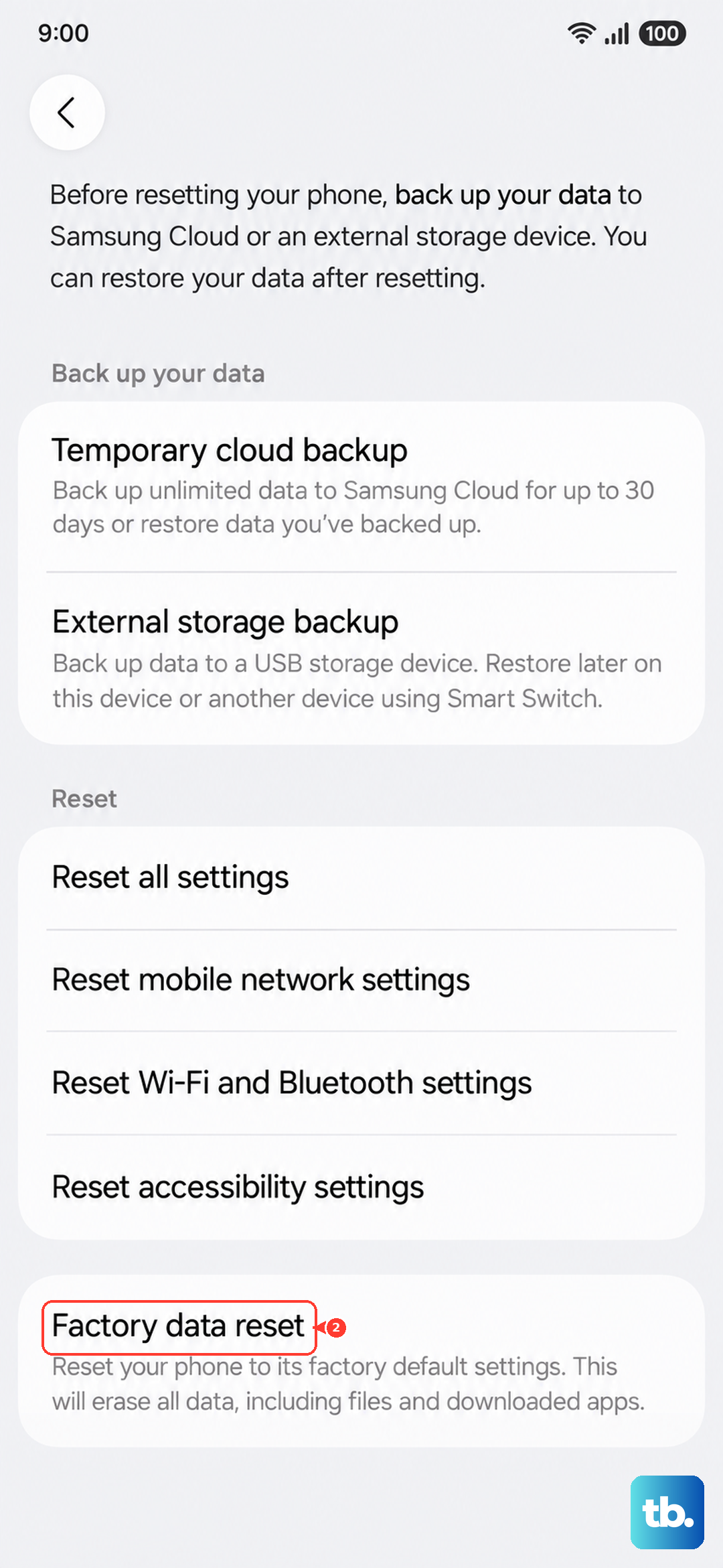
This erases all your personal data and apps, returning the tablet to its original factory state. It's a last resort for persistent software problems. First, back up any important data to Samsung Cloud or a computer.
Then, go to Settings > General management > Reset > Factory data reset. Tap "Reset" and follow the prompts. After the reset is complete, set up the tablet as new and test the touchscreen before restoring your data.
Consider the Charger and Power
While less common, using an underpowered or faulty charger can sometimes cause strange system behavior, including touchscreen lag. The Galaxy Tab S9 supports up to 45W wired charging for optimal speed.
If you're using a low-wattage phone charger, try switching to the official Samsung 45W adapter. Also, if you were using Samsung DeX mode, the tablet can consume power faster than a slow charger can supply it, potentially leading to system instability. Charge the tablet fully with a proper charger and see if the issue persists.