
If your Samsung Galaxy Tab S9 won't connect to your headphones, keyboard, or other accessories, it can be incredibly frustrating. Bluetooth issues on Android tablets are common, but they're usually fixable with a few targeted steps. I've found that starting with the simplest solutions often does the trick.
Before you try anything complicated, run through this quick checklist. Make sure both your Tab S9 and the device you're trying to connect to have enough battery. Keep them within about 30 feet of each other without major obstructions.
Double-check that the accessory is actually in pairing mode. For Samsung-specific gear like Galaxy Buds or a Galaxy Watch, you might need the Galaxy Wearable app for the initial setup. It's also a good idea to test your tablet with a different Bluetooth device to see where the problem lies.
Toggle Bluetooth Off and On
This is the digital equivalent of "turn it off and on again," and it works surprisingly often. Swipe down from the top of your screen to open the Quick Settings panel. Tap the Bluetooth icon to turn it off, wait about 10 seconds, then tap it again to turn it back on.
Once it's back on, try pairing with your device again. If the Bluetooth icon is already off, turn it on and see if your accessory appears in the list. This simple reset clears any temporary glitches in the connection.
Restart Your Tablet and the Accessory
A full restart can clear out software hiccups that a simple toggle won't fix. Press and hold the Volume Down button and the Side button (power button) together for about 10 seconds until you see the Samsung logo.
Let the tablet boot up completely. While you're at it, power cycle the Bluetooth device you're trying to connect to. Turn it off, wait a moment, and turn it back on. Once both devices are fresh, attempt the pairing process from the beginning.
Forget and Re-Pair the Device
Sometimes the pairing information gets corrupted. The fix is to remove the device from your tablet's memory and start over. Open the Settings app on your Tab S9 and go to Connections > Bluetooth.
Find the problematic device in your list of paired gadgets. Tap the gear icon next to its name, then select Unpair or Forget. Confirm your choice. Now, put your accessory back into pairing mode and select it from the "Available devices" list on your tablet to create a fresh connection.
Clear the Bluetooth System Cache
Android's system apps, including Bluetooth services, store temporary cache files. If these get corrupted, they can cause all sorts of connection problems. Clearing them is safe and won't delete your personal data.
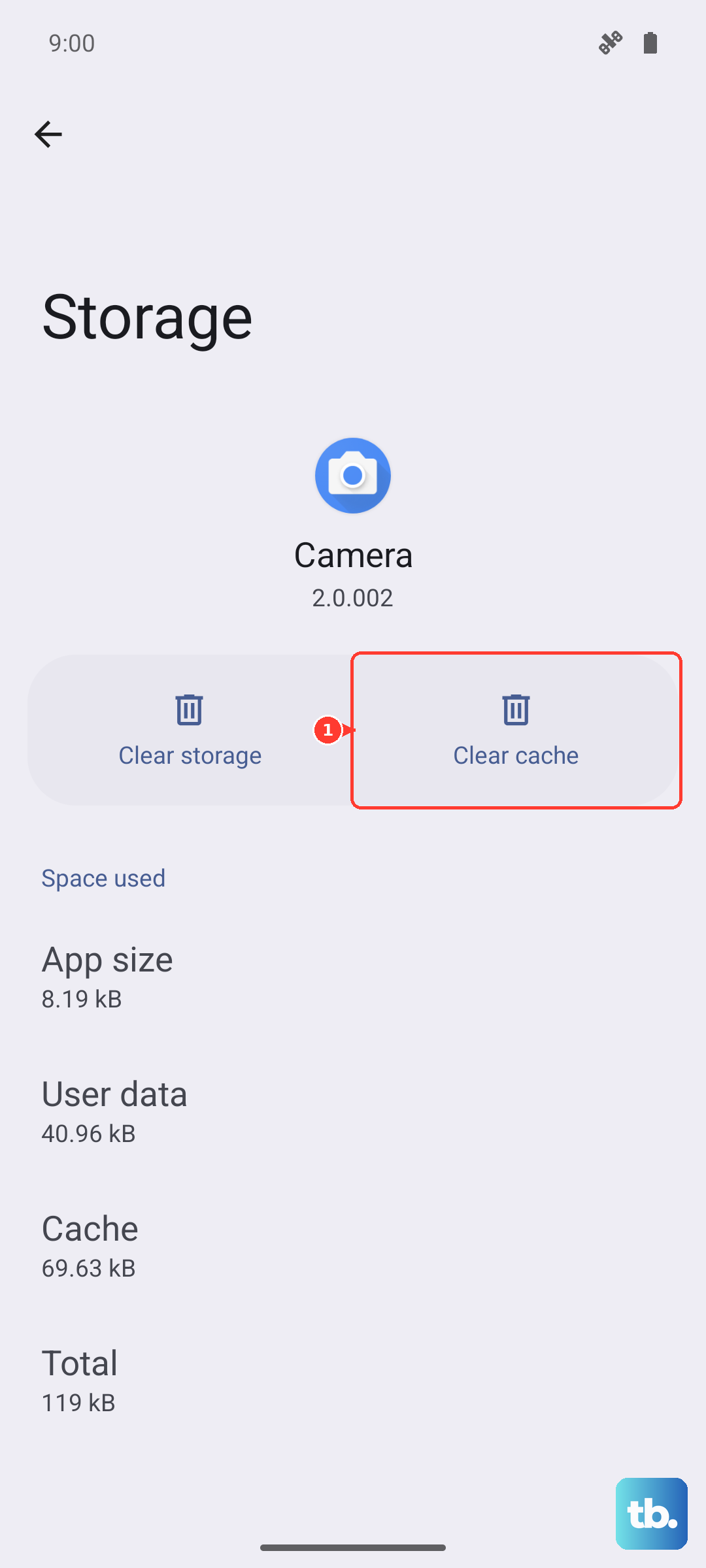
Go to Settings > Apps. Tap the three-dot menu in the top right and select Show system apps. Scroll down and find the app simply named "Bluetooth" in the list. Tap on it, then go to Storage.
Tap Clear Cache. If the problem persists, you can go a step further and tap Clear Data. Be aware that this will forget all your paired Bluetooth devices, so you'll need to set them up again.
Reset Your Tablet's Network Settings
This is a more comprehensive step that resets all network-related features, including Wi-Fi, mobile data (if your model has it), and Bluetooth back to their default states. It's very effective for stubborn issues.
On your Tab S9, navigate to Settings > General management. Tap on Reset, then select Reset network settings. You'll need to enter your PIN, password, or pattern to confirm.
After the reset completes, your tablet will restart. You'll then have to reconnect to your Wi-Fi network and re-pair all your Bluetooth devices from scratch.
Check for Software Updates
Outdated software can have bugs that break Bluetooth functionality. Samsung regularly releases updates that fix these kinds of issues. Make sure your Tab S9 is running the latest version of One UI and Android.
Open Settings and go to Software update. Tap Download and install. If an update is available, follow the prompts to install it. Also, check if the Bluetooth accessory itself has a firmware update available through its own app.
Boot Into Safe Mode
If a recently installed third-party app is causing a conflict, Safe Mode will help you find it. Safe Mode temporarily disables all apps you didn't get from the Galaxy Store or Google Play Store.
To enter Safe Mode, press and hold the Side button until the power menu appears. Then, tap and hold the "Power off" option on your screen. You'll see a prompt to reboot into Safe Mode. Tap "OK."
Once in Safe Mode, which will be indicated in the bottom corner of your screen, try using Bluetooth. If it works perfectly, you know an app is the culprit. Restart normally and try uninstalling recent apps one by one to find the offender.
Review App Permissions
Some apps, especially those for audio or accessories, need explicit permission to use Bluetooth. If this permission was denied or revoked, it can cause connection failures. It's worth a quick check.
Head to Settings > Apps. Find the app for your Bluetooth device (like Galaxy Wearable, Sony Headphones Connect, etc.) or the app you're trying to use audio with. Tap on it, then go to Permissions.
Look for "Nearby devices" or "Bluetooth" in the permissions list and make sure it's set to "Allow." While you're there, also check that the app has permission to run in the background if needed.
Check for Physical or Interference Issues
This might seem obvious, but it's often overlooked. If you're using a case, especially a thick or metal one, try removing it. Some cases can slightly interfere with the tablet's Bluetooth antenna.
Also, consider your environment. Other wireless signals like a crowded Wi-Fi network, microwave ovens, or even USB 3.0 ports on nearby devices can cause interference. Try moving to a different room or turning off other wireless gadgets temporarily.
Perform a Factory Reset
This is your last resort software fix. A factory reset will wipe your tablet back to its original out-of-the-box state, which will eliminate any deep-seated software corruption. This will erase all your data, so you must back up everything important first.
Once you've secured your photos, files, and app data, go to Settings > General management > Reset. Select Factory data reset and follow the on-screen instructions. After the reset, set up your tablet as new and test Bluetooth before restoring your backup, as the backup could restore the problem.











