
You tap the Bixby button or say "Hi Bixby," and nothing happens. The voice assistant on your Samsung Galaxy Tab S11 Ultra sits silently, refusing to respond. This is a common hiccup, and in most cases, it's fixable without much hassle.
Check Your Voice Assistant Settings
First, make sure Bixby or Google Assistant is actually turned on. It sounds simple, but it's easy to overlook, especially after a system update on Android 16.
For Bixby:
Open the Bixby app or go to Settings > Advanced Features > Bixby.
Make sure Wake with "Hi Bixby" is toggled on.
Tap Voice wake-up and retrain your voice if asked.
For Google Assistant:
Open the Google app or go to Settings > Google > Voice Match.
Ensure Hey Google is enabled.
Tap Voice model to retrain it if the assistant isn't responding to your voice.
Microphone Access and Physical Blockages
The Tab S11 Ultra has multiple microphones located around the frame. If they are blocked or the app doesn't have permission to use them, the assistant won't hear you at all.
Take off any case or screen protector that might be covering the microphone grills.
Check for dust in the small holes along the top and bottom edges.
A soft, dry brush works well for cleaning them out.
You should also check the USB-C port on the bottom, a damaged or dirty port can sometimes cause system-level hiccups.
Then verify the permissions within Android 16:
Go to Settings > Apps > Bixby Voice (or Google).
Tap Permissions.
Make sure Microphone is set to Allow only while using the app or Always.
Check Modes and Routines
One of the first places to look is the Modes and Routines feature. Sometimes a Routine automatically activates Do Not Disturb or disables voice commands without you realizing it.
Open Settings > Modes and Routines.
Look for any active modes like Sleep or Driving that might be suppressing the assistant.
You can pause them completely to test if that resolves the issue.
Force Restart the Tablet
A simple restart clears temporary software glitches. If the voice assistant stopped working after a crash or an update, this often fixes it quickly.
How to force restart: Press and hold the Power button and Volume Down button simultaneously for 10-15 seconds until the device restarts.
This won't erase any data. It's just a hard reboot that forces the system to reload cleanly.
If the Battery Completely Drained
The Tab S11 Ultra has a known issue where the battery can drain completely when switched off, making the device temporarily unresponsive to charging. This can also cause system settings, including voice assistant preferences, to reset or act strangely.
If your tablet was dead and you just plugged it in, don't panic. The charging indicator can take up to 10 minutes to appear.
Leave it plugged into a wall outlet directly (not a power strip or extension cord) for at least 20 minutes before trying to power it on.
Once it's booted up, some settings, including your voice assistant preferences, might have defaulted back.
Go back and check the basic settings from the first section to make sure everything is enabled.
Clear the Cache for the Assistant App
Corrupted temporary files can cause the assistant to freeze or not load properly. Clearing the cache forces it to rebuild those files from scratch.
Go to Settings > Apps.
Tap Bixby Voice or Google.
Tap Storage.
Tap Clear Cache. Don't tap Clear Data unless you want to set up the assistant completely from scratch.
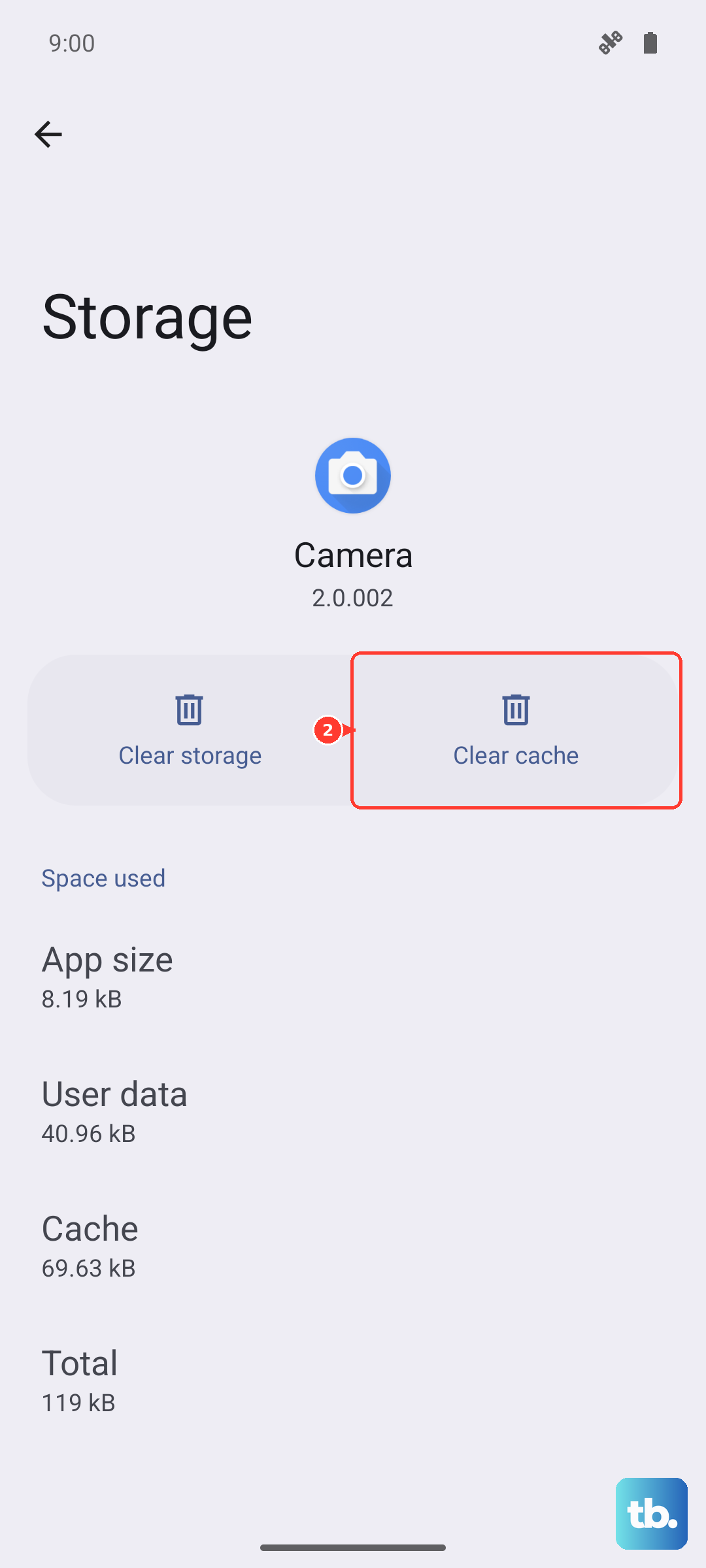
In my experience, this clears up a lot of weird behavior after a major update.
Install the Latest Software Update
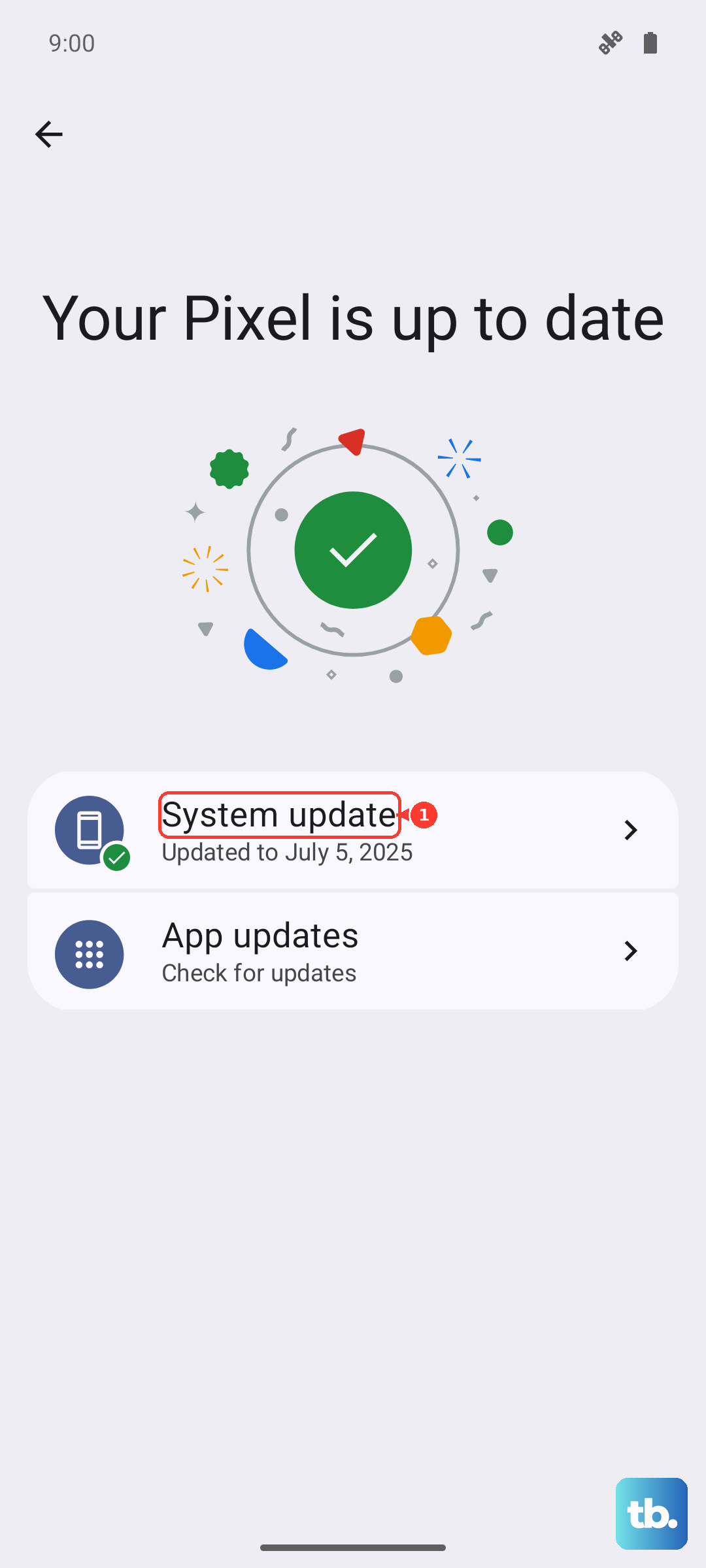
Samsung frequently releases security patches and bug fixes through the One UI interface on top of Android 16. These updates often address issues with voice recognition and system stability.
Open Settings > Software Update.
Tap Download and Install.
If an update is available, install it and restart the tablet.
Retrain Your Voice
If the assistant hears background noise but doesn't respond to your specific voice, the voice model might be out of date or corrupted. Retraining it takes about a minute.
For Bixby: Go to Settings > Advanced Features > Bixby > Voice wake-up > Reset voice wake-up. Follow the prompts to say the wake-up phrases clearly.
For Google Assistant: Go to Settings > Google > Voice Match > Voice model > Retrain voice model. Repeat the phrases in a quiet room for the best results.
Factory Reset as a Last Option
If the voice assistant still doesn't work after trying everything else, a factory reset can clear any lingering software conflicts. This erases all data on the tablet, so back up anything important first.
Go to Settings > General Management.
Tap Reset.
Select Factory data reset.
Follow the on-screen instructions.
After the reset, set up the tablet as a new device and test the voice assistant before restoring all your apps. That way you can be sure it wasn't a corrupted backup causing the problem.