
Imagine settling in to watch a movie on that gorgeous 14.6-inch display, ready to be immersed by the quad speakers tuned by AKG, only to hear silence. It's a real letdown, especially on a premium device like the Galaxy Tab S11 Ultra. Before you start frantically tapping the screen, know that most audio issues are caused by software settings or minor glitches.
To separate hardware from software, open a speaker test and play the channel tones. What you hear, or do not hear, tells you which fixes below matter most.
Let's work through the most common fixes to get your sound back, starting with the quickest checks you can do right now.
Check the Volume and Sound Mode
It sounds almost too basic, but double-checking the volume is the first step. Press the physical volume rocker on the side of your tablet and watch for the slider to appear. Tap the arrow on that slider to expand it and make sure the media volume isn't all the way down.
Next, open Settings > Sounds and vibration > Sound mode. Make absolutely sure it is set to "Sound" and not "Vibrate" or "Mute." It is surprisingly easy to toggle this by accident with a case or while tossing the tablet in a bag.
Make Sure Do Not Disturb Isn't On
Do Not Disturb mode is great for focusing, but it can also silence media sounds without a clear warning. Swipe down from the top of the screen twice to open the full Quick Settings panel. Look for the "Do not disturb" icon. If it is highlighted, tap it to switch it off.
You can also verify the rules by going to Settings > Notifications > Do not disturb. Even if DND is off, double-check that no schedules are set to turn it on automatically without you realizing it.
Disconnect Bluetooth Devices
A very common culprit is your tablet silently sending audio to a Bluetooth device you forgot to disconnect. Swipe down to the Quick Settings panel and tap the Bluetooth icon to turn it off entirely. If sound immediately comes back through the tablet's speakers, a paired device was stealing the audio stream.
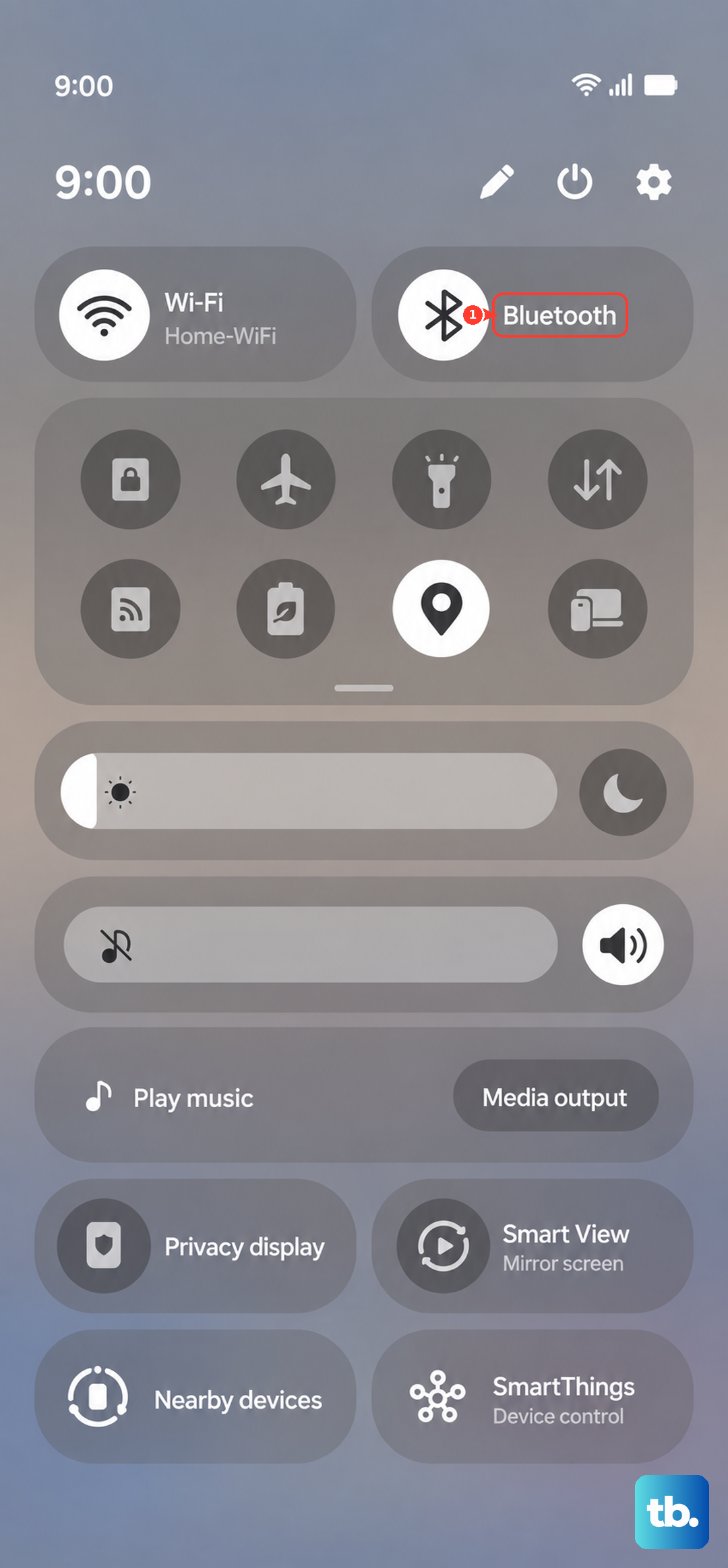
For a permanent fix, go to Settings > Connections > Bluetooth. Tap the gear icon next to any headphones or speakers and select "Unpair." This prevents them from automatically connecting in the future.
Clean the Speaker Grills on Your Tab
The Tab S11 Ultra has a row of speaker grills along the edges. Over time, dust and lint can settle into those tiny holes, muffling the sound or blocking it entirely. Grab a soft-bristled brush, like a clean toothbrush or a dedicated electronics brush, and gently sweep it across the grills.
You can also use a piece of sticky tape to lift away loose debris. Avoid using compressed air or sharp objects like a paperclip or SIM ejector tool. Those can easily push dust deeper into the speaker housing or puncture the delicate membrane. If you notice significant gunk, a dry cotton swab works well for the larger slots.
Boot Into Safe Mode to Find Problem Apps
A buggy third-party app can sometimes take control of your tablet's audio system. To test this, you can boot into Safe Mode, which temporarily blocks all downloaded apps. Hold the Power button until the shutdown menu pops up, then tap and hold the "Power off" icon on the screen. A "Safe mode" prompt will appear; tap it to restart.
Once in Safe Mode, play some music or a YouTube video. If the sound works perfectly, you have confirmed that a downloaded app is the issue. Restart your tablet normally to leave Safe Mode. After that, uninstall any apps you installed right before the problem started, especially audio equalizers, volume controllers, or custom launchers.
Clear the System Cache Partition
Your tablet stores temporary system files that can become corrupted, particularly after a major Android 16 update. This corruption can lead to all sorts of weird behavior, including audio dropouts. Clearing the cache partition doesn't delete your personal files, so it is a safe step to try.
Start by powering off your Tab completely. Press and hold the Power and Volume Up buttons together. Release both when the Android Recovery menu appears. Use the Volume Down button to navigate down to "Wipe cache partition," then press the Power button to select it. When the process finishes, select "Reboot system now."
Install Any Pending Software Updates
Samsung frequently pushes software patches to tackle known bugs. Occasionally, an audio driver issue can slip through a release. Checking for updates is a quick way to see if a fix is already available for you. Go to Settings > Software update > Download and install.
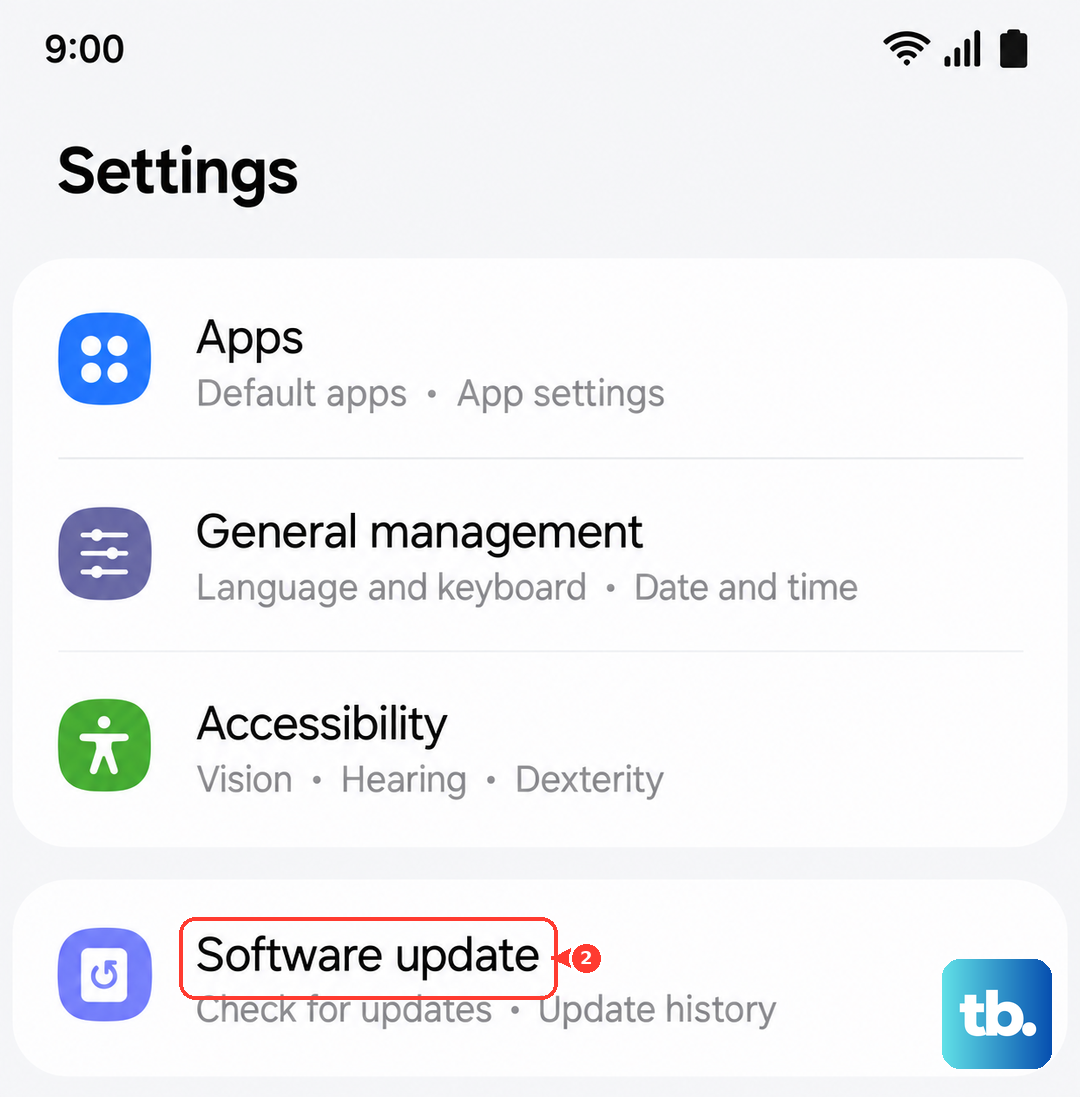
If an update is available, make sure your battery has some charge left, or plug it into a wall outlet with the included USB-C cable. A common issue on the Tab S11 Ultra is that the battery can drain completely even when the device seems off. If your tablet doesn't respond right away to the charger, give it up to 10 minutes before you see the charging indicator. Stick to a wall outlet instead of a power strip or extension cord for the most consistent charging.
Reset All Settings
If you are still struggling with the audio, resetting all system settings can untangle deeper configuration issues. This step does not delete your photos, videos, or apps. It simply returns your system preferences, like Wi-Fi networks, Bluetooth pairings, and home screen layouts, back to their factory defaults.
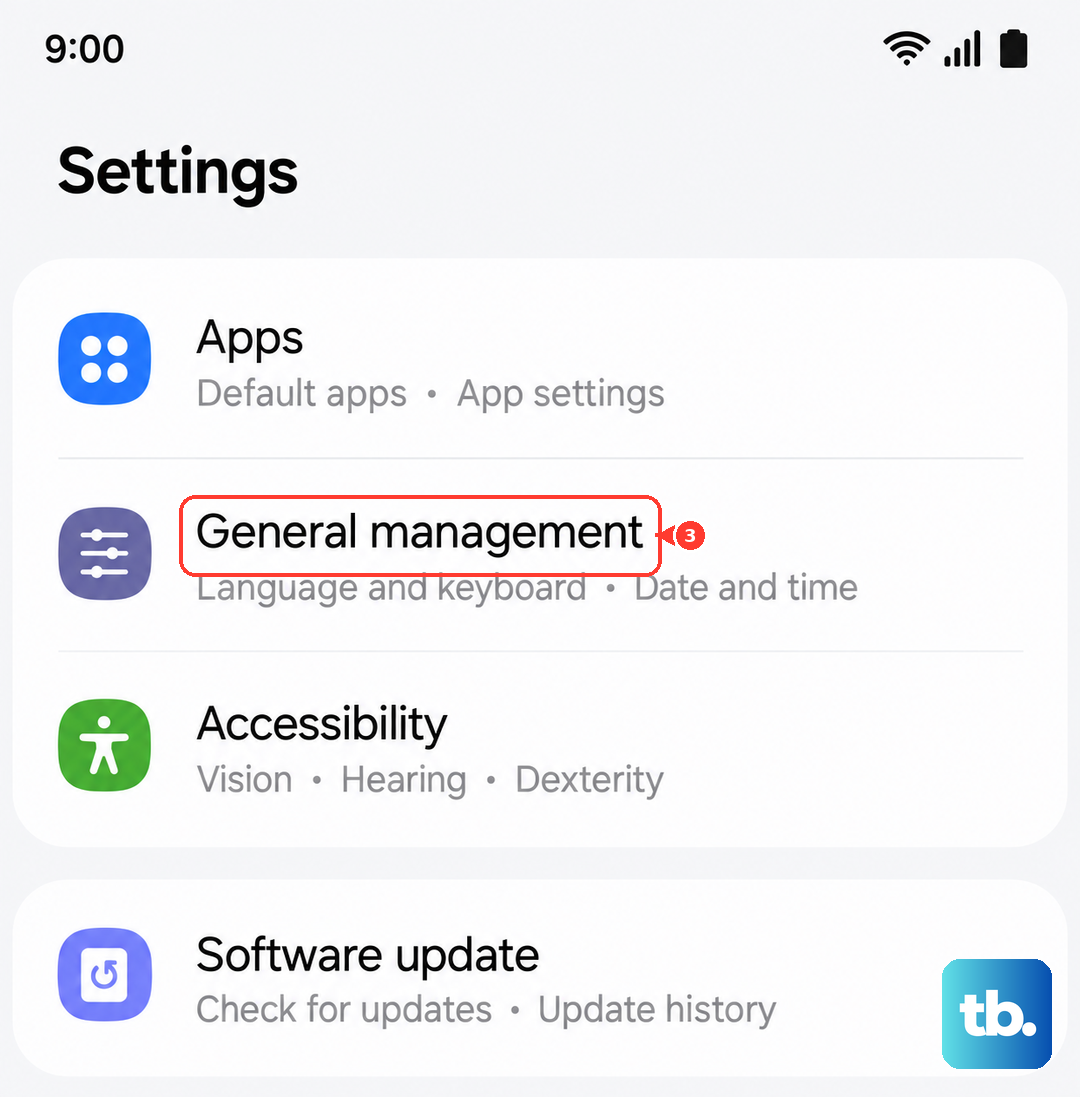
Navigate to Settings > General management > Reset > Reset settings. You will need to tap "Reset settings" one more time to confirm. Your Tab S11 Ultra will restart, and you can immediately test the audio. If your tablet ever becomes completely unresponsive to the touch screen, you can perform a force restart by holding the Power button and Volume Down button simultaneously for 10-15 seconds until it vibrates and boots up.
Try a Factory Reset (Last Resort)
If none of the above steps have worked, a factory reset is the final software solution available to you. This will erase everything on your tablet, reverting it to a completely clean state. Back up all your important photos, files, and documents to the cloud or an external drive before proceeding.
Go to Settings > General management > Reset > Factory data reset. After it finishes and you go through the initial setup, test the sound. If the audio is still missing on a fresh, blank slate of Android 16, it points to a hardware issue with the speakers, the audio chip, or the connection between them.