
Slow internet on a tablet is one of those things that makes you want to throw it across the room. You're trying to stream something, browse the web, or hop on a video call, and everything just crawls. The Samsung Galaxy Tab S11 Ultra is a powerhouse, but even the best hardware can hit a slowdown.
Here's how to get things moving again, starting with the quickest fix and working through the deeper settings.
Clear Your Browser Cache and Data
This is the single most common fix for a slow browsing experience. Over weeks of use, your browser collects cached images, cookies, and other site data that can get bloated or corrupted.
Open the Samsung Internet app (or Chrome, if that's your default) and tap the three-line menu. Go to Settings > Privacy and Security and tap Delete browsing data. Make sure Cached images and files and Cookies and site data are checked, then tap Delete. This clears out the junk without logging you out of everything.
Switch to Adaptive WiFi
The Tab S11 Ultra has a feature called Adaptive WiFi that works a lot like WiFi Assist on iPhones. When your WiFi connection gets weak or unreliable, it automatically switches to mobile data so you don't lose your connection entirely.
Head to Settings > Connections > WiFi. Tap the three-dot menu in the top corner and select Intelligent WiFi. Toggle Switch to mobile data on. You'll hardly notice it happening, but your browsing will stay smooth when the router burps.
Turn on Data Saver
Data Saver is built into Android 16 and prevents apps from using data in the background unless you explicitly allow them. This frees up bandwidth for whatever you're actively doing.
Go to Settings > Connections > Data Usage and tap Data Saver. Toggle it on. You can also tap Allowed apps to let specific apps (like your messaging or navigation) run in the background even with Data Saver active.
Clear App Cache for Problematic Apps
Sometimes a single app is the culprit. If YouTube or Netflix is loading slowly but everything else seems fine, the app's cached data might be the issue.
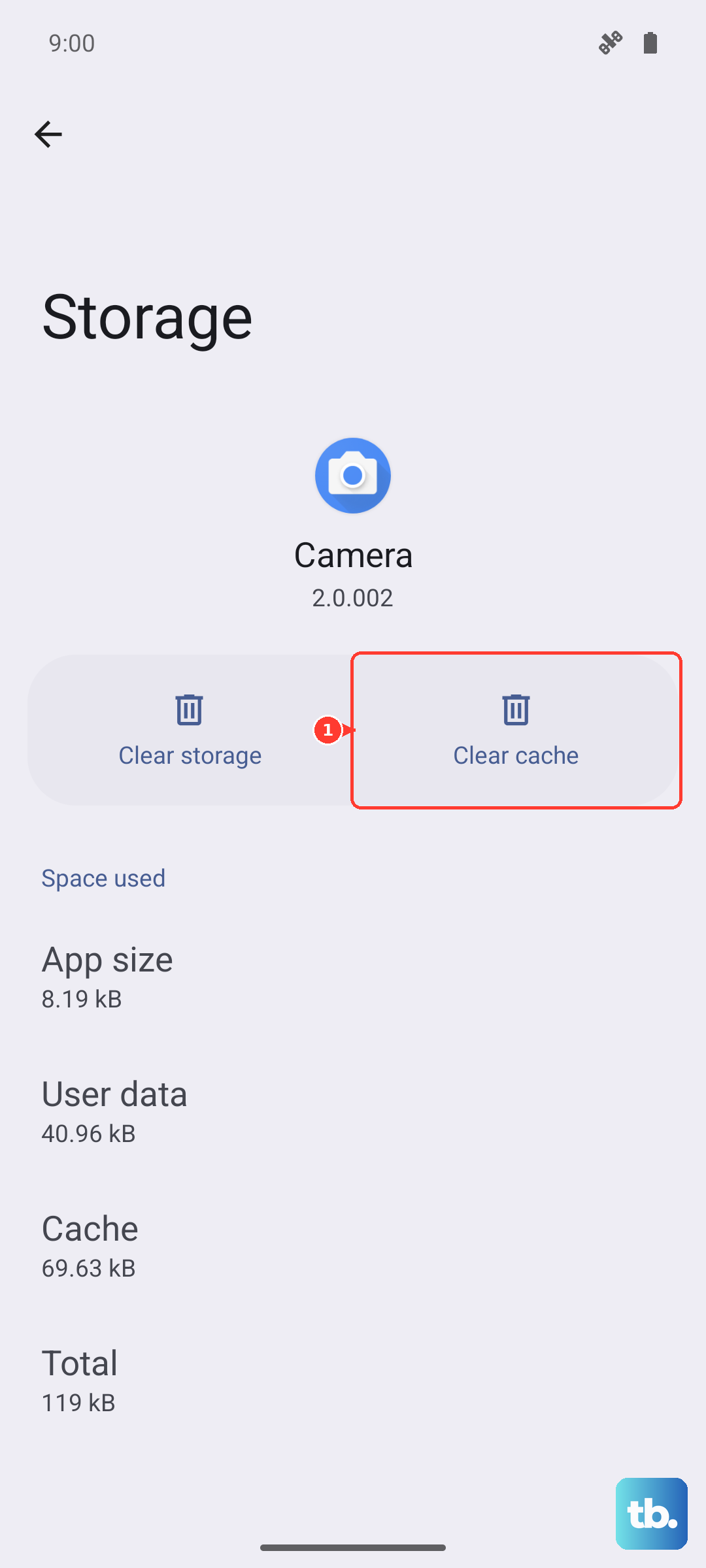
Go to Settings > Apps and find the app that's acting up. Tap Storage, then tap Clear cache. Don't tap Clear data unless you want to reset the app completely (that logs you out and removes your preferences). Clearing cache is safe and takes seconds.
Restrict Background Processes
Apps running in the background can eat up both data and system resources. If you've got several apps refreshing in the background, your tablet's internet connection gets spread thin.
In Settings > Apps, select an app you don't need running constantly. Tap Battery and then Background usage limits. Set it to Put app to sleep if you barely use it, or Restrict background activity if you want it to only work when you're actively in it.
Close Unused Apps
This is an obvious one, but it's worth mentioning because the Tab S11 Ultra's massive screen makes it easy to have a dozen apps open without realizing it. Tap the Recent Apps button (the three lines at the bottom of the screen) and swipe away anything you're not using. This frees up RAM and can help with overall system responsiveness, including network performance.
Check Your Network Connection
Make sure you're actually connected to a strong network. Pull down the notification shade and look at the WiFi icon. If it shows only one or two bars, you might be too far from the router. Move closer and see if things improve.
Also, check whether you're on a 5GHz band instead of 2.4GHz. Open Settings > Connections > WiFi, tap the gear icon next to your network, and look for Frequency band. If it's set to 2.4GHz, switch to 5GHz for much faster speeds (though the range is shorter). The Auto setting usually picks the best band, but sometimes it gets stuck on the slower one.
Disable VPN or Proxy
A VPN can slow down your connection because it routes your traffic through another server. If you have a VPN app installed, try turning it off temporarily to see if speeds improve. The same goes for any proxy settings you might have configured under Settings > Connections > More connection settings.
Reset Network Settings
If the problem has been going on for a while and nothing else has helped, resetting the network settings can clear out any misconfigurations. This will erase saved WiFi networks and Bluetooth pairings, so have your WiFi password handy.
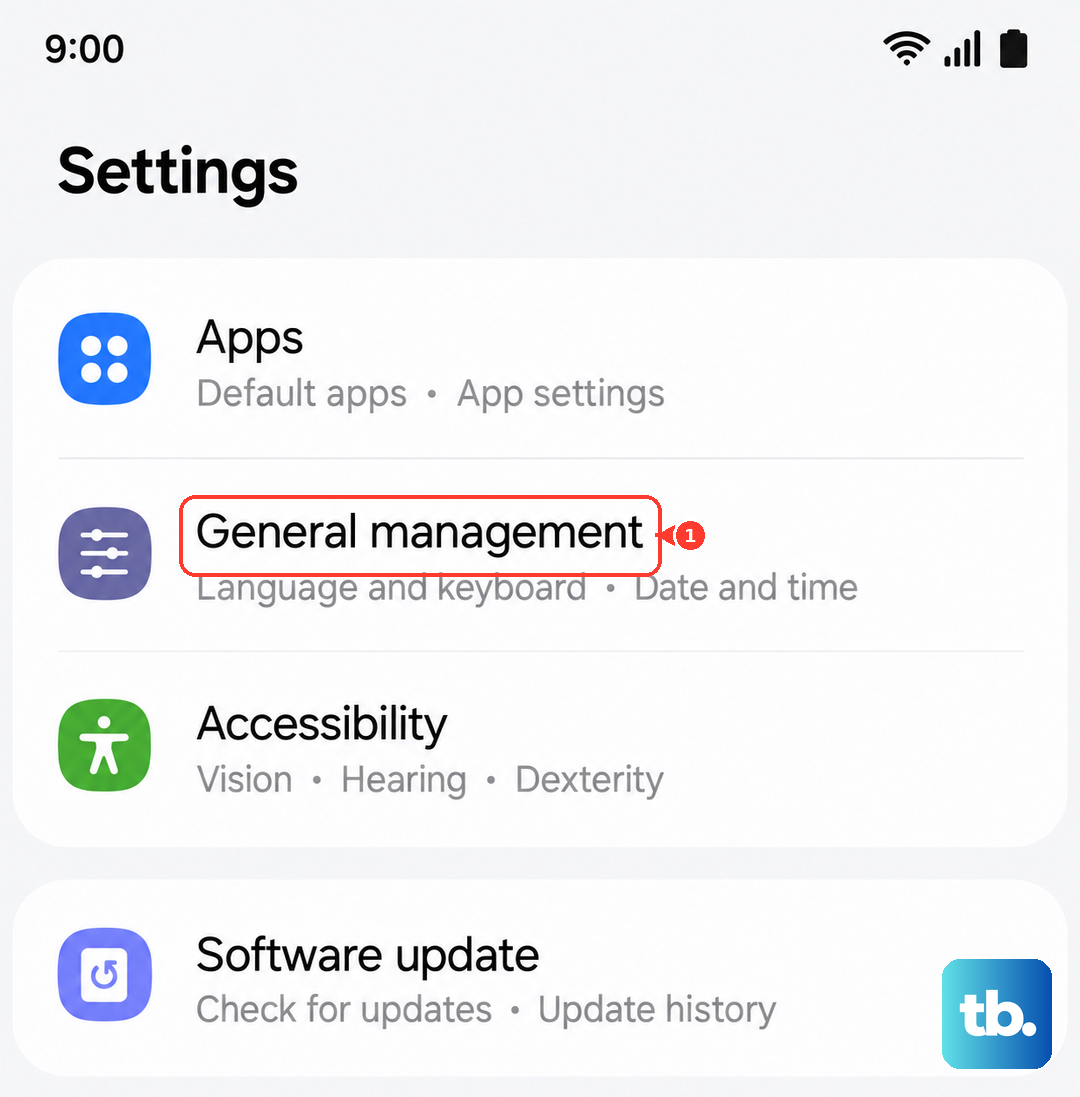
Go to Settings > General Management > Reset and tap Reset network settings. Confirm the action and let the tablet restart. You'll need to reconnect to your WiFi, but this often resolves stubborn slowdowns that other fixes don't touch.
Force Restart the Tablet
Sometimes the Tab S11 Ultra just needs a proper reset to clear out a temporary glitch. Don't just tap restart, do a force restart by pressing and holding the Power button and Volume Down button simultaneously for 10-15 seconds until the device restarts. This is more thorough than a normal restart and can fix issues with the network stack that get stuck.
I'd try the browser cache and Data Saver first, since those are the two things that usually trip up people on Samsung tablets. Move to the force restart and network reset if things are really bad. The Tab S11 Ultra is fast hardware, it's almost always a settings or cache issue that's holding it back.