Your Samsung Galaxy Tab S11 Ultra is a powerhouse, but when it stops taking or making calls, it stops being useful. Whether you're using it as a giant phone or a communication hub for work, missing calls because of a software hiccup or a wonky setting is maddening. Let's narrow it down.
I'll walk you through the fixes that usually do the trick, starting with the quickest checks and working toward more involved steps. By the time you're done here, you should be taking calls again.
Quick fix: Before anything else, make sure Airplane Mode isn't on. Swipe down from the top of the screen and tap the airplane icon to toggle it off. Then turn mobile data off and back on. A lot of call issues are just a stuck network handshake.
Force Restart the Tab S11 Ultra
If the device feels sluggish or the call app isn't responding, a force restart often clears it up. Press and hold the Power button and Volume Down button simultaneously for 10-15 seconds until the device restarts. This is different from a normal restart, it forces the system to reload drivers and clear minor glitches that could be blocking incoming calls.
Check Do Not Disturb and Focus Modes
Do Not Disturb can quietly block all incoming calls without showing a notification. On your Tab S11 Ultra running Android 16, go to Settings > Notifications > Do Not Disturb. Make sure it's turned off. Also check if you have any Focus mode or Bedtime mode schedules active. Swipe down into Quick Settings and look for the crescent moon icon or a little person icon, tap it if it's highlighted.
Review Call Blocking and Spam Settings
Samsung's Phone app has smart features that can accidentally block legitimate numbers. Open the Phone app, tap the three-dot menu, and go into Settings. Look for Caller ID and spam protection. If it's on, try turning it off temporarily to see if calls come through. Also check your Blocked numbers list, remove any contacts you actually want to hear from.
Disable Call Forwarding
Call forwarding can reroute your calls to voicemail or another number without you realizing it. In the Phone app, tap the three-dot menu, go to Settings > Supplementary services or Call forwarding. Make sure all forwarding options (Always forward, When busy, etc.) are turned off. While you're there, check Call barring too, sometimes it's set to block incoming calls.
Reseat or Replace the SIM Card
A loose or dirty SIM card is a common culprit. Power off the tablet, then use the SIM ejector tool to pop the tray out. Wipe the gold contacts on the SIM with a dry microfiber cloth. Put it back in firmly until it clicks. If you have another device you can test the SIM in, do that, it'll tell you if the problem is with the tablet or the card itself.
Reset Network Settings
When the network config gets messed up, calls can fail. Go to Settings > General management > Reset > Reset network settings. This will forget all saved Wi‑Fi networks and Bluetooth pairings, so make sure you have your Wi‑Fi password handy. It won't delete any photos or apps, though. After the reset, reconnect to your network and try making a test call.
Update the Software
Buggy carrier settings or system bugs can cause dropped calls. Go to Settings > Software update > Download and install. If there's an Android 16 patch or a Samsung update available, grab it. Restart the tablet after the update. I've seen this single step fix intermittent call loss on more than a few Galaxy devices.
Clear the Phone App's Cache and Data
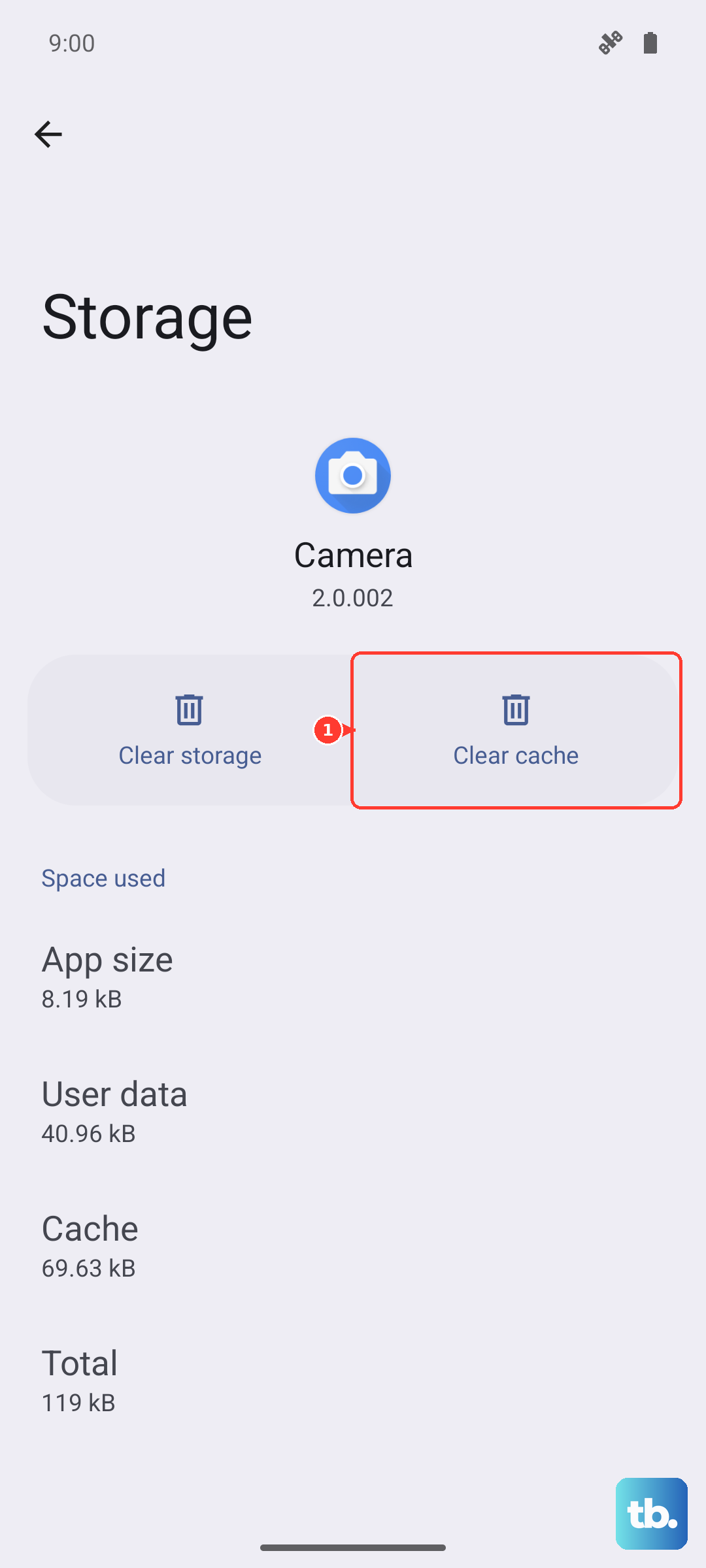
Corrupted cached data inside the Phone app can stop it from ringing or connecting calls. Open Settings > Apps > Phone > Storage. Tap Clear cache first, then Clear data. Don't worry, your contacts and call history are stored in your Google or Samsung account, so they'll come back. Close the Settings and try a call.
Boot Into Safe Mode to Check Third-Party Apps
Some apps interfere with the dialer. Press and hold the Power button, then long‑press Power off until you see the Safe Mode prompt. Tap Safe mode to restart. In Safe Mode, try making a call. If it works, a downloaded app is the troublemaker. Uninstall recently installed ones until the issue goes away. Restart normally when you're done.
Factory Reset (Only If Nothing Else Works)
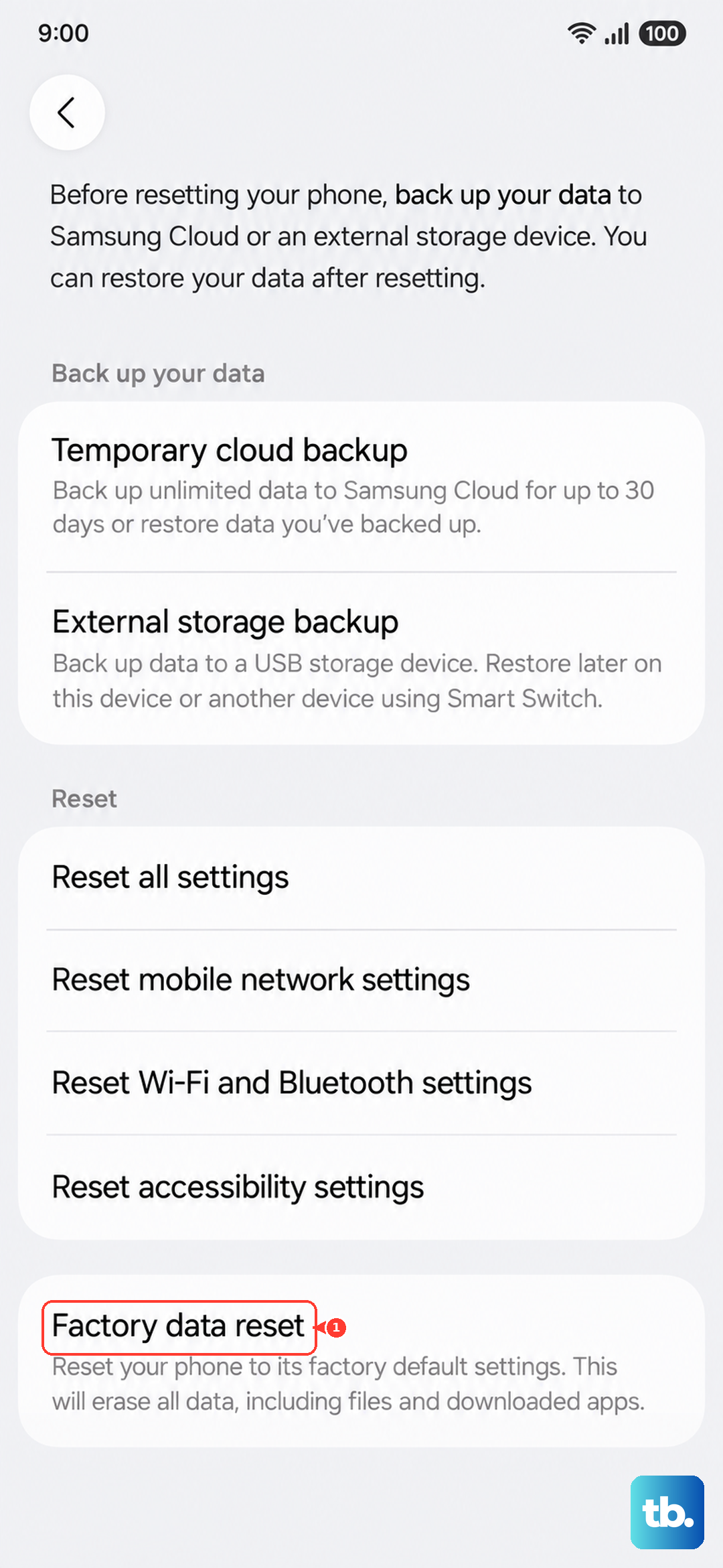
This is the nuclear option. A factory reset returns the tablet to its out-of-the-box state. Before you do it, back up everything, photos, files, contacts, app data, because this wipes it all. Go to Settings > General management > Reset > Factory data reset. Follow the prompts. After the reset, restore your data and see if calls come through again. If they still don't, there might be a hardware fault with the cellular antenna or the SIM slot.