
When people can't hear you on your Samsung Galaxy Tab S11 Ultra, it usually means one of the three built-in microphones is blocked, a setting is routing audio somewhere else, or an app has the mic locked up. The good news is most of these causes are quick to fix yourself.
Check if the Mic Works at All
Before you start digging into settings, run a quick test to confirm where the problem lives. Open the Voice Recorder app (Samsung's built-in one, not a third-party app) and record yourself speaking for 15 seconds. Play it back. If your voice sounds clear, the hardware is fine and the issue is app-specific. If the recording is muffled or silent, you're dealing with a hardware or system-level problem.
Another fast check: open the Camera app, switch to Video mode, and record a short clip while talking. Play it back. Same idea, clear audio means the microphones are working. The Tab S11 Ultra has three mics: one near the USB-C port, one on the top edge near the camera bump, and one on the back near the rear camera array. Which one is affected can tell you a lot.
Quick Fixes That Solve Most Cases
Remove Your Case and Screen Protector
This is the number one culprit on the Tab S11 Ultra. Many third-party cases cover the microphone openings near the USB-C port and the rear camera bump. Even a slightly misaligned screen protector can block the top mic. Pop the case off completely and test the microphone again. I've seen this fix more "broken mic" issues than anything else.
Restart the Tablet
If the mics were working and suddenly stopped, a simple restart clears whatever software glitch might have grabbed the audio channel. Press and hold the Power button and Volume Down button simultaneously for 10-15 seconds. The tablet will restart on its own. That's the force restart method, and it's the fastest way to reset the audio subsystem without losing any data.
Disconnect Bluetooth Audio Devices
The Tab S11 Ultra will route microphone audio to connected Bluetooth devices like headphones, earbuds, or speakers. If you have a pair of Galaxy Buds3 or any Bluetooth headset connected, the tablet might be trying to use their mic instead of its own. Swipe down from the top of the screen to open the Quick Settings panel, tap the Bluetooth icon to turn it off temporarily, then test the mic again.
Clean the Microphone Openings
Dust and pocket lint love to clog the tiny mic openings on this tablet. Take a look at the small hole near the USB-C port, the one on the top edge near the camera, and the rear mic beside the camera lenses. If you see any debris, use a dry, soft-bristled toothbrush or a clean toothpick to gently clear it. Don't use anything metal or sharp, you don't want to damage the mesh covering the mic.
Compressed air works too, but keep the can upright and use short bursts. Tilting the can can spray liquid into the opening.
Software and Setting Fixes
Force Close the Problem App
If the microphone works in Voice Recorder but not in Zoom, Google Meet, or WhatsApp, the issue is almost certainly inside that specific app. Open the Recent Apps screen (swipe up from the bottom and hold), find the app, and swipe it away to force close it. Launch the app again and test the mic right away. This clears any temporary audio lock the app might have held onto.
Check Microphone Permissions
Android 16 is strict about app permissions. Open Settings, go to Privacy, then Permission Manager, and tap Microphone. You'll see a list of every app that has requested mic access. If the app that can't hear you is set to "Deny," tap it and change the permission to "Allow only while using the app." Some apps also need the permission toggled off and back on to reset their audio connection.
Update the Software
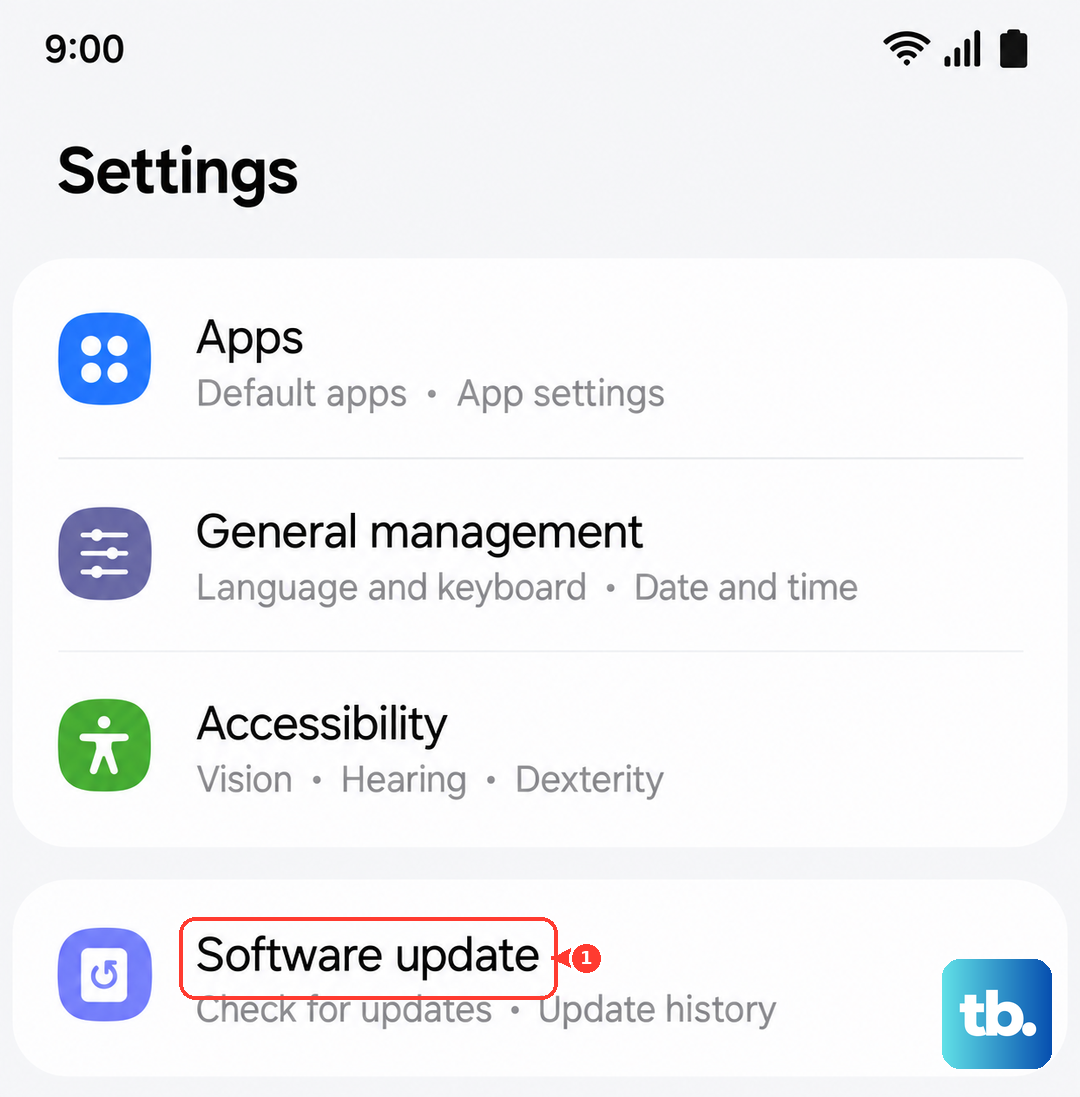
Samsung pushes regular updates to the Tab S11 Ultra, and some of those updates include audio driver fixes. Open Settings, tap Software Update, then Download and Install. If an update is available, install it and restart the tablet. This can fix microphone bugs introduced by previous software versions. The Tab S11 Ultra runs Android 16 with Samsung's One UI 7, and early updates have addressed a few audio-handling quirks.
Turn Off Call Noise Reduction
One UI has a feature called Call Noise Reduction that tries to filter out background sounds during calls. Sometimes it filters too aggressively and makes your voice sound distant or muffled. Go to Settings, tap Accessibility, then Hearing Enhancements, and toggle off Call Noise Reduction. Test the mic again in a call or recording app.
Reset App Preferences
If multiple apps can't access the microphone, your app preferences might be corrupted. This won't delete your data, but it will reset all app defaults and permissions. Open Settings, tap General Management, then Reset, and choose Reset App Preferences. You'll get a warning about what this resets, it's safe. Afterward, you'll need to re-grant microphone permissions to apps when they ask.
When the Mic Stops Working After a Full Battery Drain
The Tab S11 Ultra has a known issue where the battery can drain completely when switched off, and the device may become unresponsive to charging afterward. If you let the battery hit zero and the tablet went dark, the microphones might seem dead when it finally comes back to life. Let the tablet charge for at least 10 minutes on a wall outlet (not a power strip) before trying anything else. The charging indicator can take up to 10 minutes to appear when the battery is completely empty.
Once the tablet has some power, perform the force restart: press and hold Power and Volume Down for 10-15 seconds. This can reinitialize the audio hardware after a full power loss.
Reset All Settings
Resetting all settings returns everything to factory defaults without deleting your photos, apps, or data. Open Settings, tap General Management, then Reset, and choose Reset All Settings. You'll need to re-enter Wi-Fi passwords and reconnect Bluetooth devices, but your files stay put. This clears any misconfigured audio routing that might be sending your voice nowhere.
Factory Reset as a Last Step
If you've gone through everything above and the microphone still isn't working, a factory reset will rule out any remaining software issue. Back up your data to Samsung Cloud or a computer first. Then go to Settings, tap General Management, Reset, and choose Factory Data Reset. This wipes the tablet completely and reinstalls Android 16 fresh.
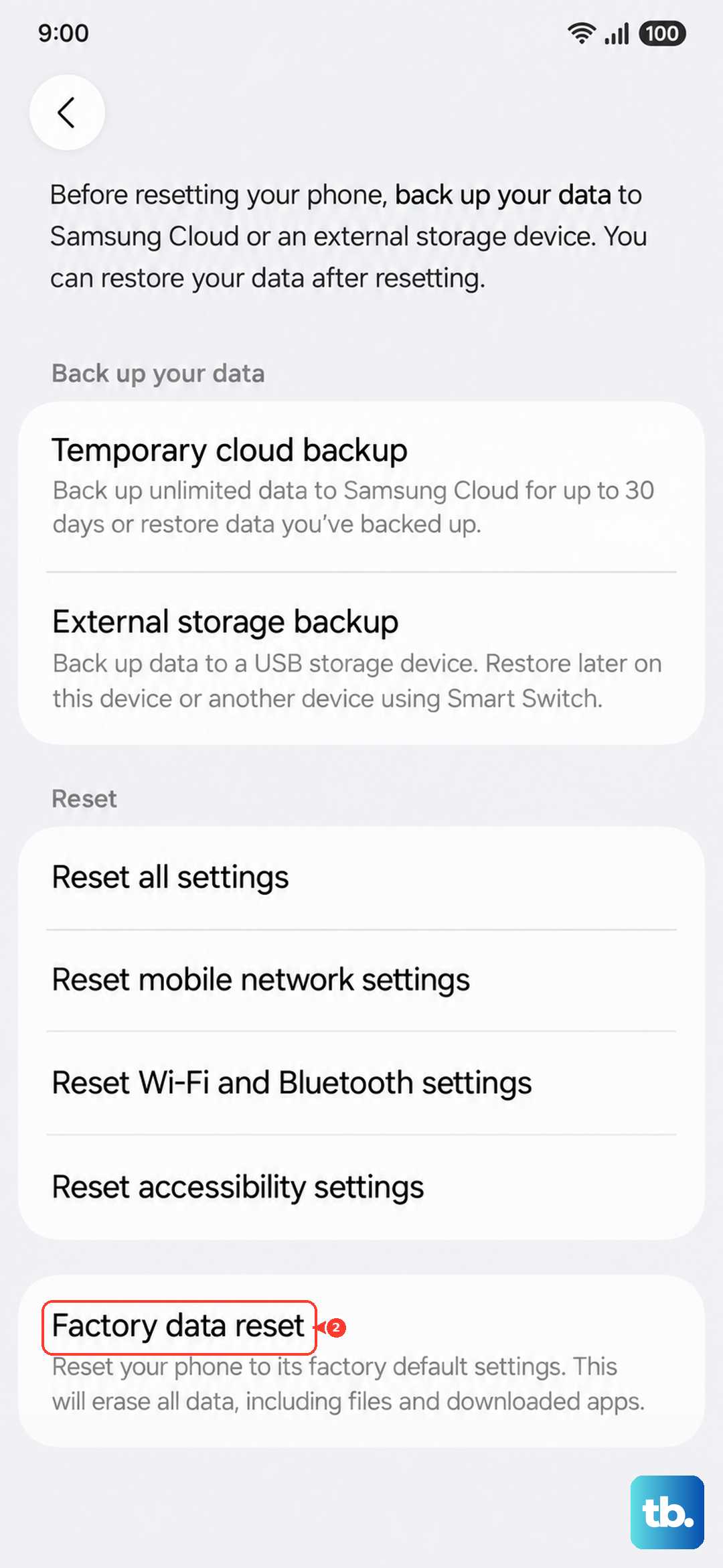
Be careful with this one, there's no undoing it. Only go this route if you're sure the issue isn't physical damage, like a cracked mic opening or liquid exposure.
Most cases end up being a blocked mic opening, a connected Bluetooth device, or an app that grabbed the audio channel and wouldn't let go. Work through the list in order, and you'll likely have your microphone back within a few minutes.