
When your Samsung Galaxy Tab S11 Ultra stops sending or receiving emails, it can grind your workflow to a halt. The good news is that most mail app problems on this tablet have straightforward fixes you can try right now. Whether emails aren't syncing, won't send, or the app keeps crashing, here's what to do.
Start With a Quick Network Check
A lot of mail issues come down to your connection. Swipe down from the top right to open Quick Settings and make sure Wi‑Fi or mobile data is on. Toggle Airplane mode on for about 30 seconds, then turn it off again to reset your radio.
If you're on Wi‑Fi, switch to cellular data (or vice versa) to see if one works better. You can also go to Settings > Connections > Data usage and check that your email app hasn't been restricted in the background.
Check Email Sync Settings
Your Tab S11 Ultra might not be checking for new mail often enough. Head to Settings > Accounts and backup > Manage accounts, tap your email account, and then tap Sync settings. Make sure Sync is turned on and choose a reasonable interval like every 15 minutes or Push if your provider supports it.
Some apps like Gmail or Samsung Email handle this a little differently. Open the app, tap the menu, and look for Settings > your account > Sync frequency.
Clear the App Cache
If the mail app feels sluggish or won't load new messages, a cached data buildup might be the culprit. Go to Settings > Apps, find your email app (Samsung Email, Gmail, Outlook, etc.), tap Storage, and then tap Clear cache. This won't delete your emails or account info.
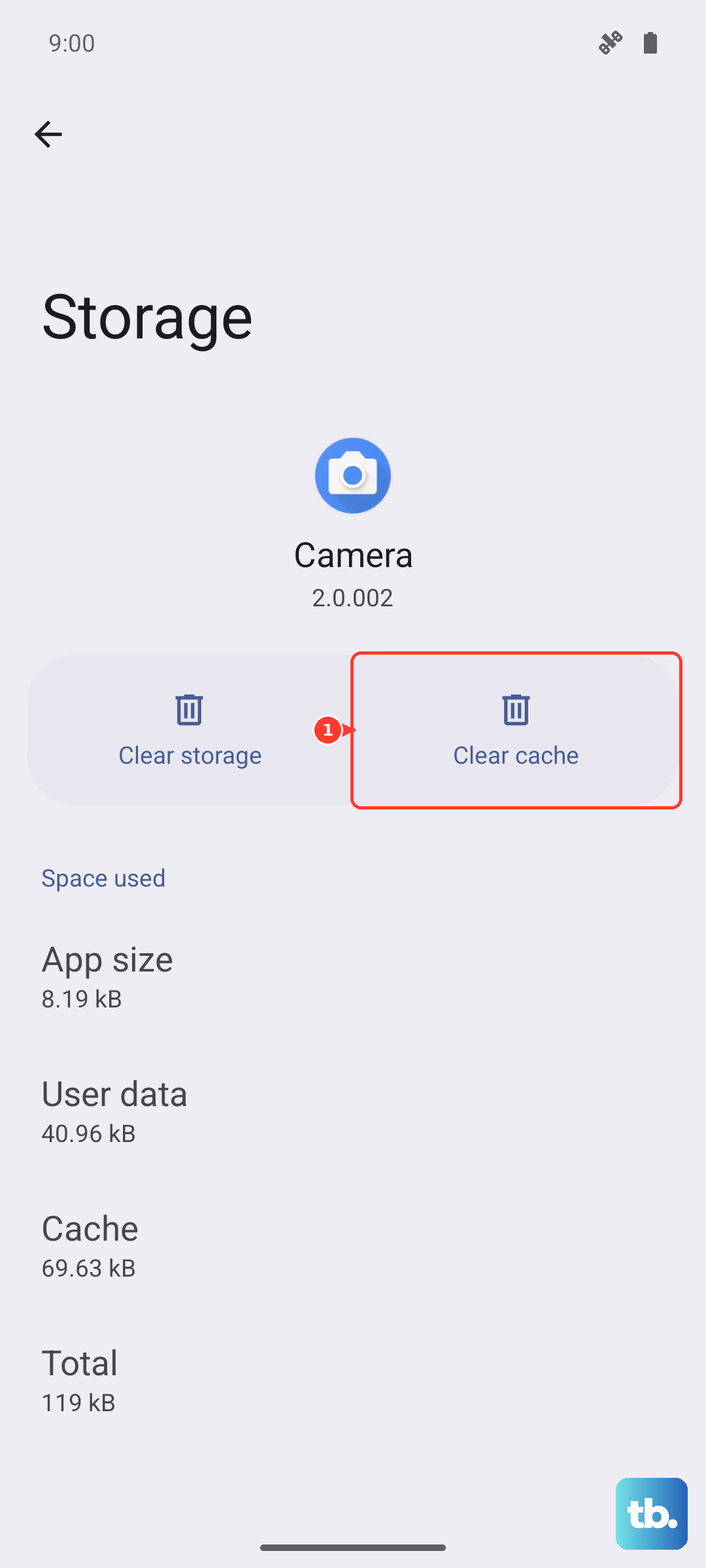
For a more thorough refresh, you can also tap Force stop on that same screen. Then reopen the app from your home screen.
Make Sure Background Data Isn't Blocked
Android 16 lets you control exactly which apps can use data in the background. If your mail app isn't syncing when you're not using it, this setting might be the reason. Go to Settings > Apps > pick your email app > Mobile data and toggle on Allow background data usage.
Repeat the same for Wi‑Fi if you see a separate option. Your tablet also has battery optimization that can put apps to sleep. Open Settings > Device care > Battery > Background usage limits, then add your mail app to the "Never sleeping apps" list.
Is the Tablet Chronically Out of Date?
Incorrect date and time can break the encrypted connection your mail app uses. Go to Settings > General management > Date and time and make sure Automatic date and time is turned on. If it's already on, toggle it off and on again to force a refresh.
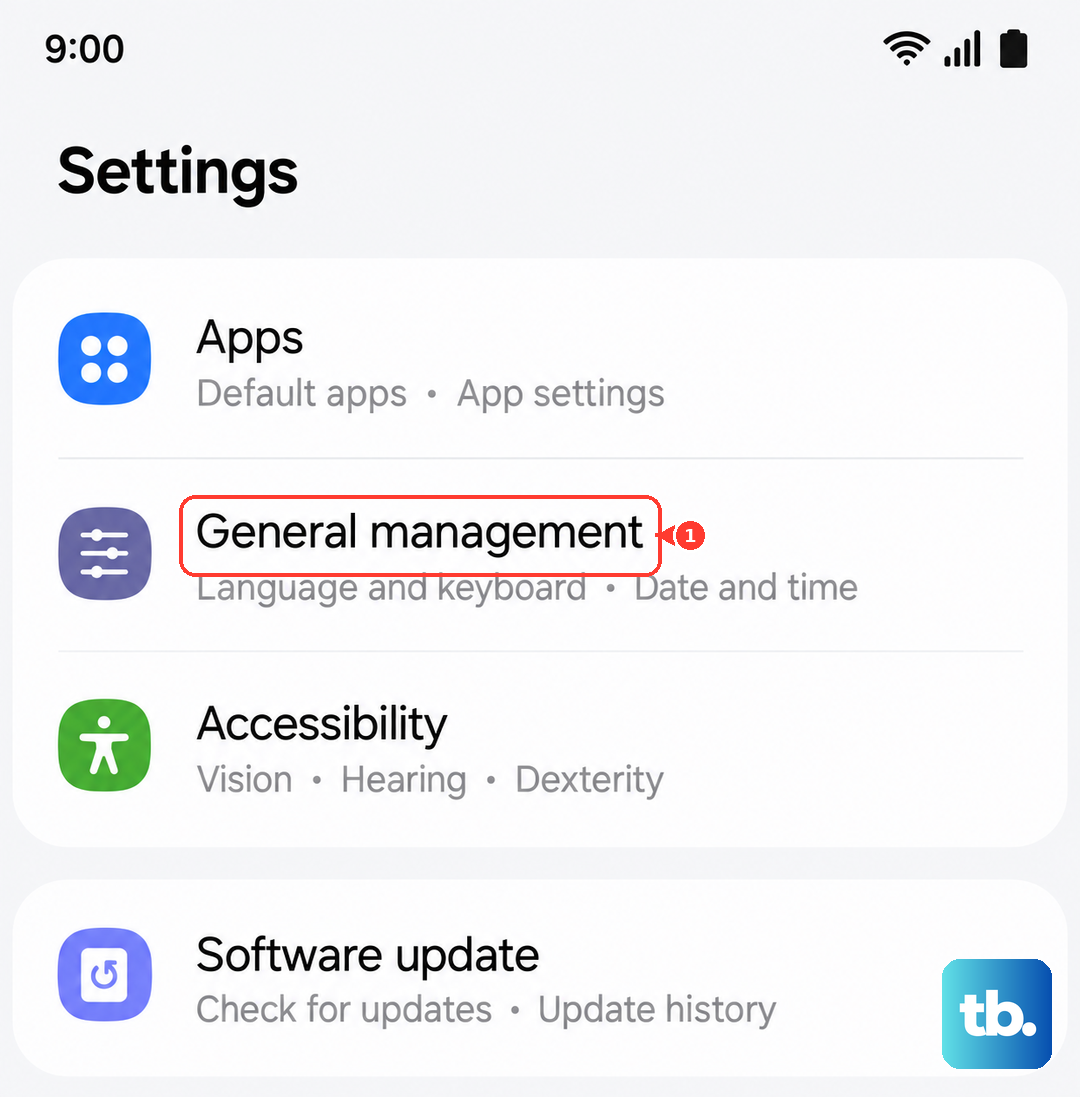
The same goes for your time zone. A mismatch here can cause emails to appear out of order or not sync at all.
When the Tablet Isn't Responding
The Tab S11 Ultra has a known issue where it can become completely unresponsive after the battery drains to zero. If your tablet won't turn on or your mail app isn't working because the device itself is in a weird state, try a force restart. Press and hold the Power button and Volume Down button together for about 10 to 15 seconds. Let go when the Samsung logo appears.
This won't erase any data, but it will reset the hardware and clear out temporary glitches. If the battery was completely dead, plug the tablet into a wall outlet (not a power strip) and wait up to 10 minutes for the charging indicator to appear before you try the force restart.
Disable VPNs and Proxies
A VPN can sometimes block or delay email traffic, especially if it's set to a distant server. Go to Settings > Connections > More connection settings > VPN and disconnect any active VPN. If you're using a third‑party VPN app, turn it off from the app itself.
Also check your Wi‑Fi network for any proxy settings, which are rarely needed for normal email use.
Delete and Re‑Add Your Email Account
If none of the above works, removing the account and setting it up fresh often does the trick. Go to Settings > Accounts and backup > Manage accounts, tap the email account, and select Remove account. Then tap Add account and follow the on‑screen prompts to re‑enter your email address and password.
Before you do this, make sure you know your password. If you've changed it recently, update it in the mail app first rather than deleting and re‑adding.
Update the App and the Tablet
Open the Galaxy Store or Google Play Store, search for your email app, and tap Update if one is available. App updates often include bug fixes for sync issues.
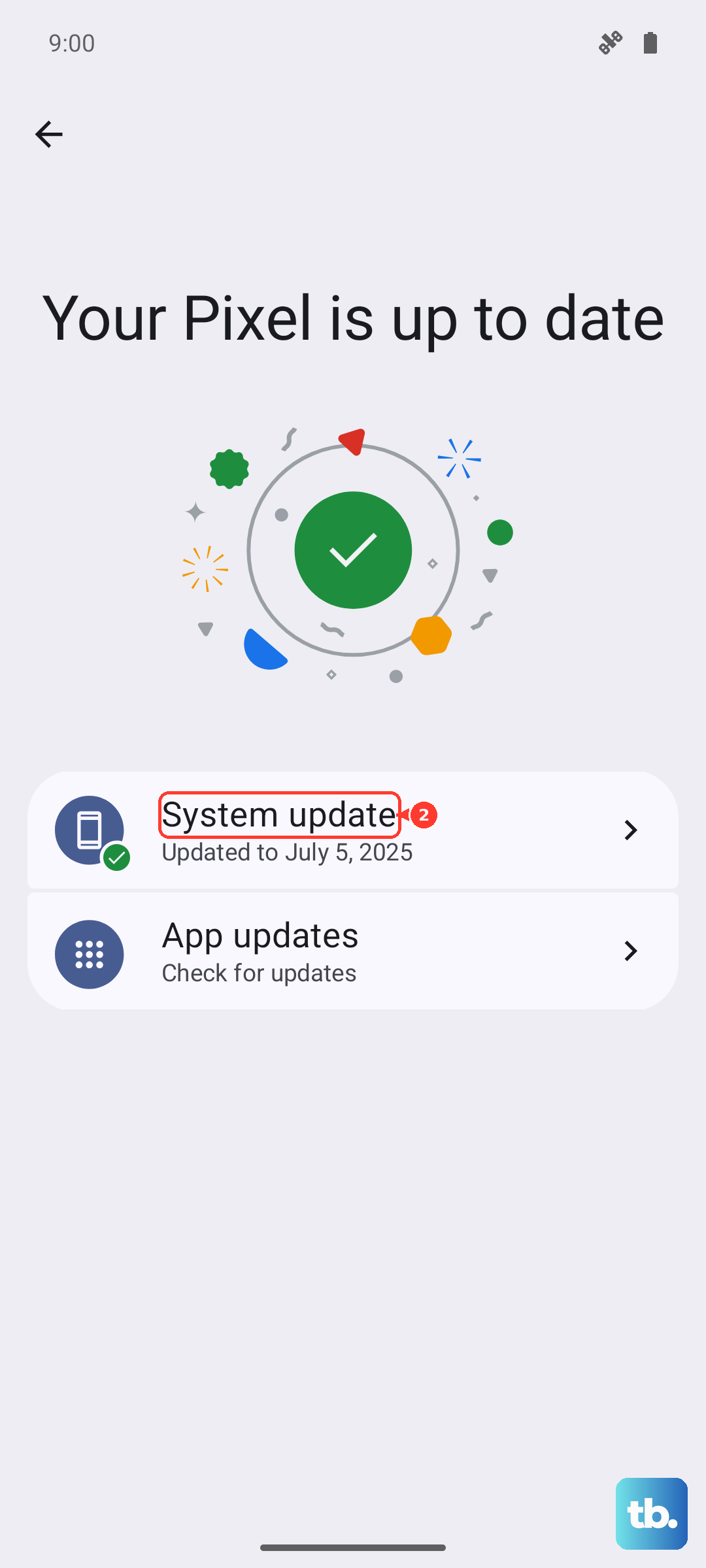
You should also check for a system update. Go to Settings > Software update > Download and install. Samsung regularly pushes patches that address known problems with Wi‑Fi, Bluetooth, and yes, email.
Reset App Preferences (Not Your Data)
If you've disabled any system apps or permissions by accident, resetting app preferences can restore them without wiping your data. Go to Settings > Apps, tap the three‑dot menu, and select Reset app preferences. This won't delete your accounts or files, but it will re‑enable any disabled apps and reset permission prompts.
Be prepared to grant some permissions again the next time you open the mail app.
Last Resort: Reset All Settings
When nothing else has worked, you can reset all settings on the Tab S11 Ultra. This keeps your photos, downloads, and accounts intact but wipes things like Wi‑Fi networks, wallpapers, and notification preferences. Head to Settings > General management > Reset > Reset all settings. Confirm by tapping Reset.
After the tablet restarts, you'll need to reconnect to Wi‑Fi and reapply any custom settings. Your email should start working normally again after you sign back into your account.