
Seeing the "Settings keeps stopping" pop-up on your Galaxy Tab S10+ can really halt your productivity. It usually means the app's data has gotten corrupted or there's a conflict with another service. The good news is you can almost always fix it without losing your data.
Force Restart Your Tablet
This is the quickest thing to try. A force restart clears out the device's temporary memory and can stop a stuck process that's making Settings crash. It's different from a normal restart and often works when a simple reboot doesn't.
Press and hold the Volume Down button and the Power button at the same time. Keep holding them for about 10 seconds, until you see the Samsung logo appear on the screen. Once it boots back up, see if you can open Settings without the error.
Clear the Settings App Cache and Data
Over time, the temporary files (cache) that help Settings load quickly can become corrupted. Clearing them forces the app to rebuild these files from scratch. This is a safe first step that won't delete your personal settings.
Since Settings is crashing, you'll need to get to its app info a different way. Swipe down from the top of the screen to open the Quick Panel, then tap the gear icon in the top right. If it crashes, go to your app drawer and find the Settings shortcut there. Long-press on it and tap the "i" icon for App info.
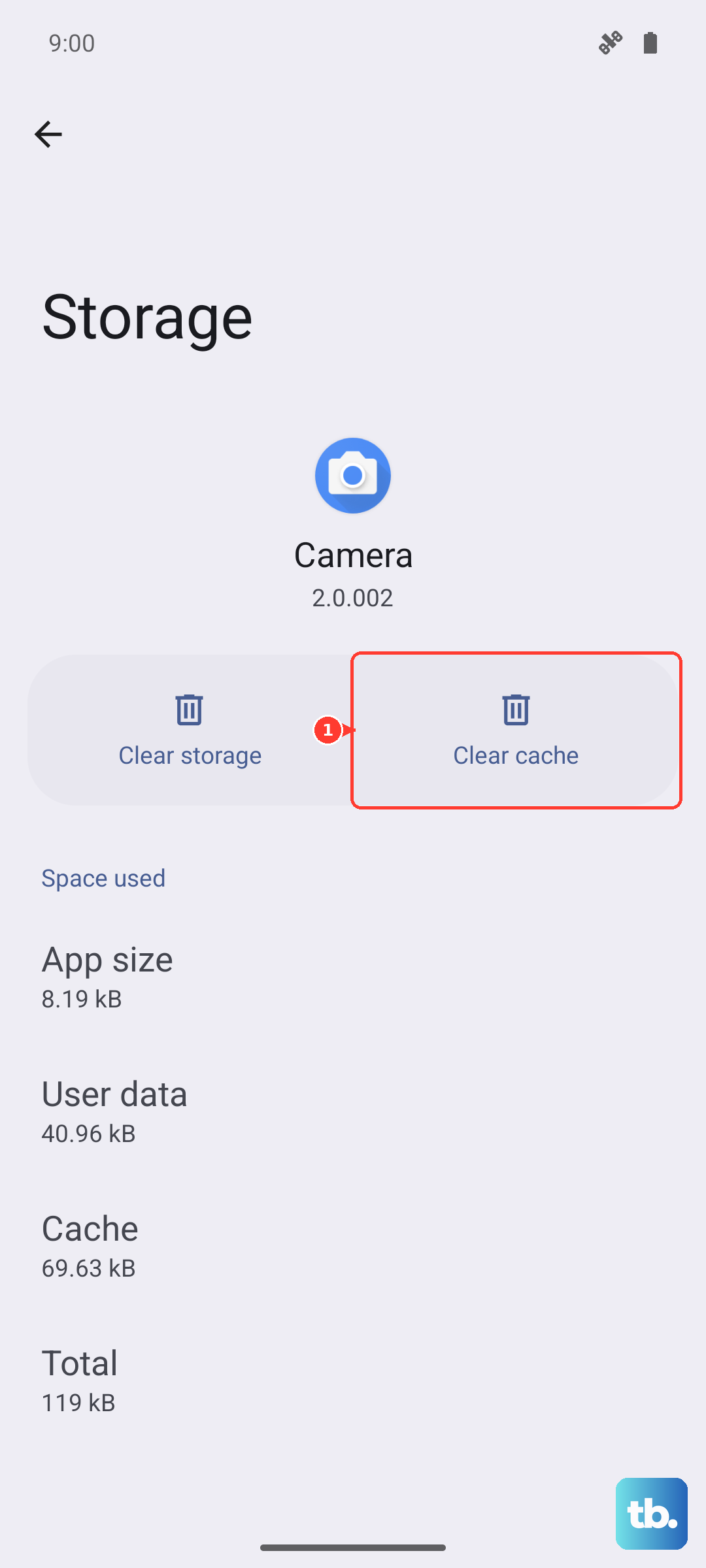
Once you're in, tap on Storage. Here, tap "Clear cache" first. If that doesn't work, go back and tap "Clear data". Don't worry, this only resets the app's internal data, not your Wi-Fi passwords or accounts. The app will restart fresh.
Check for a System Update
Samsung frequently releases updates that fix bugs affecting system apps like Settings. If this crash started after a recent app update or a change you made, a newer system update might contain the patch you need.
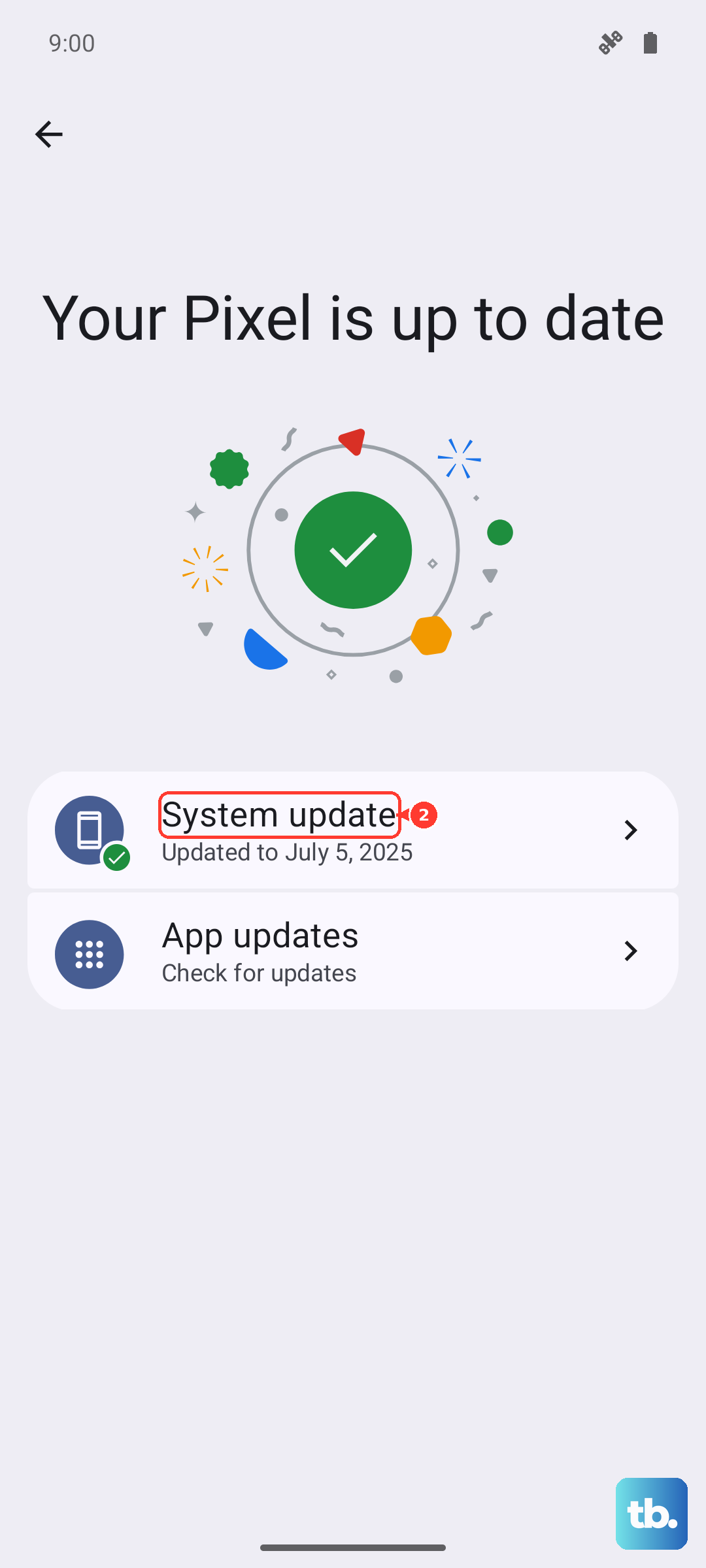
You can try to navigate to Settings > Software update, but if it's crashing, use Bixby or Google Assistant. Say "Open software update settings" to your voice assistant. Tap "Download and install" if an update is available. I'd recommend using a stable Wi-Fi connection and plugging in your 45W charger, as updates can take a while on the Tab S10+'s large system partition.
Review Recently Updated or Installed Apps
Sometimes, an app you installed or updated can interfere with system services. This is especially true for apps that request extensive permissions or overlay functions, like screen dimmers or custom launchers.
Think back to when the crashes started. If it was after you installed something new, try uninstalling that app temporarily. Go to Settings > Apps, find the suspicious app, and tap Uninstall. Restart your tablet and check if Settings stabilizes.
Boot Into Safe Mode
Safe Mode starts your tablet with all third-party apps disabled. If Settings works fine in Safe Mode, you know for sure that a downloaded app is causing the conflict. It's a great way to pinpoint the culprit without guessing.
To enter Safe Mode, press and hold the power button until the power menu appears. Then, tap and hold the "Power off" option on your screen. You'll see a prompt to reboot to Safe Mode. Tap it. Once booted, you'll see "Safe Mode" in the bottom corner. Test the Settings app. If it works, restart normally to exit Safe Mode and start removing recently added apps one by one.
Reset App Preferences
This is a useful middle-ground step. It won't delete any app data, but it will reset all your permission settings, default apps, and background restrictions back to factory defaults. It can fix issues where a system app like Settings is being blocked or restricted by a changed preference.
Go to Settings > Apps. Tap the three-dot menu in the top right and select "Reset app preferences". Confirm the action. You'll need to re-grant permissions to apps when you use them next, but it's a small price to pay to fix a crashing system app.
Consider a Factory Reset
If you've tried everything and Settings is still unusable, a factory reset is the final software fix. This will erase everything on your tablet and return it to its out-of-box state, so backup is absolutely crucial. Use Samsung Cloud or a computer to back up your photos, documents, and app data first.
Since accessing the reset menu in Settings might be difficult, you can use the hardware buttons. Power off your tablet completely. Then, press and hold the Volume Up button and the Power button together. When you feel a vibration, release the Power button but keep holding Volume Up until you see the Android recovery menu.
Use the volume buttons to highlight "Wipe data/factory reset" and press the power button to select it. Confirm your choice. Once it's complete, select "Reboot system now". After the lengthy setup process, your Settings app should be perfectly stable.