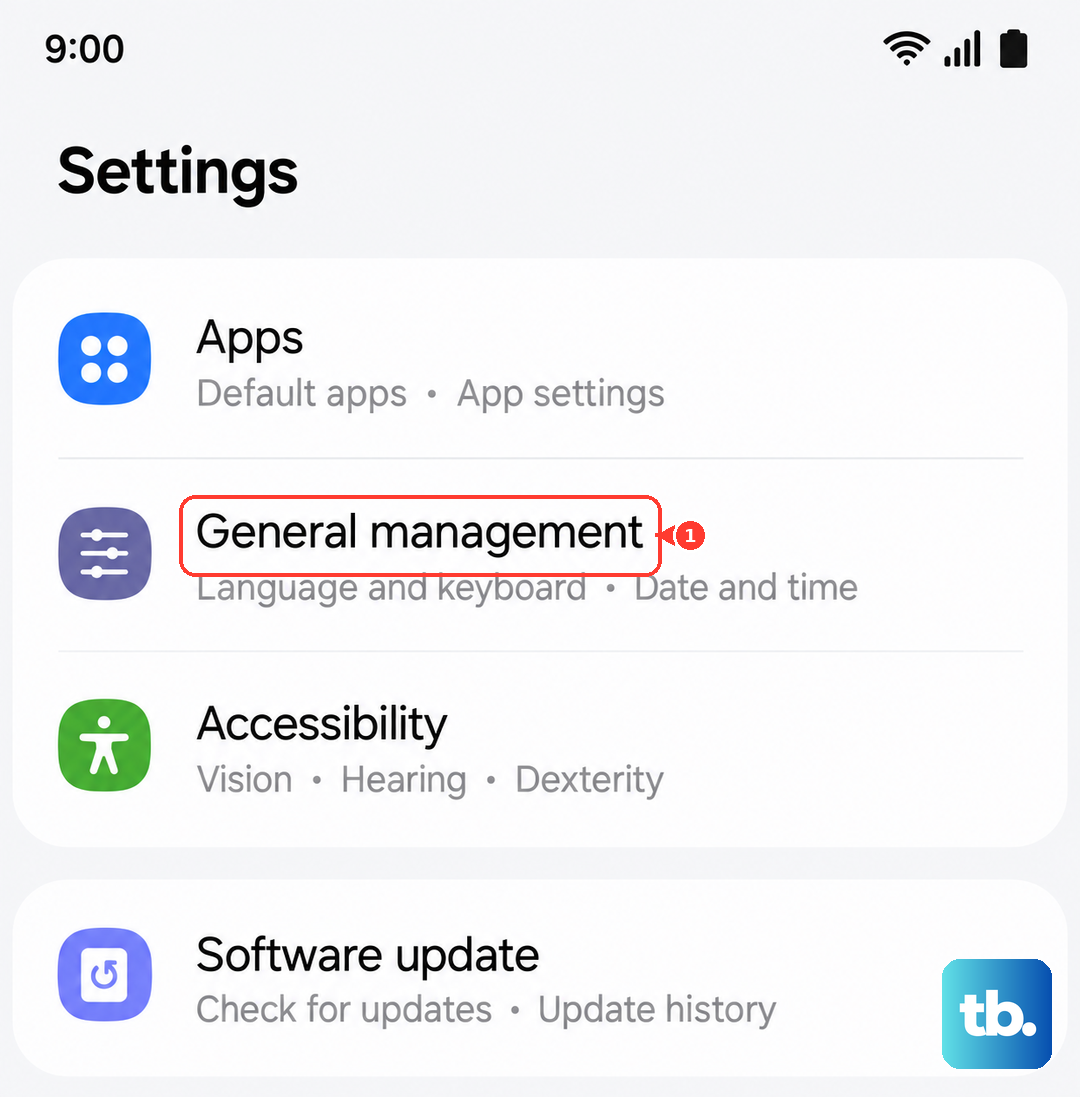
Seeing the "Settings has stopped" error on your Galaxy S24 can stop you in your tracks. It usually pops up when the Settings app crashes or runs into some corrupted data. Let's get it working again.
Force Restart Your S24
This is the quickest thing to try. A force restart clears out temporary glitches in the system memory that can cause apps to misbehave. It's different from a normal restart and often works when the screen is frozen.
On your Galaxy S24, press and hold the Volume Down button and the Side button together. Keep holding them for about 10 seconds until you see the Samsung logo appear, then let go. Your phone will boot up fresh.
Clear the Settings App Cache
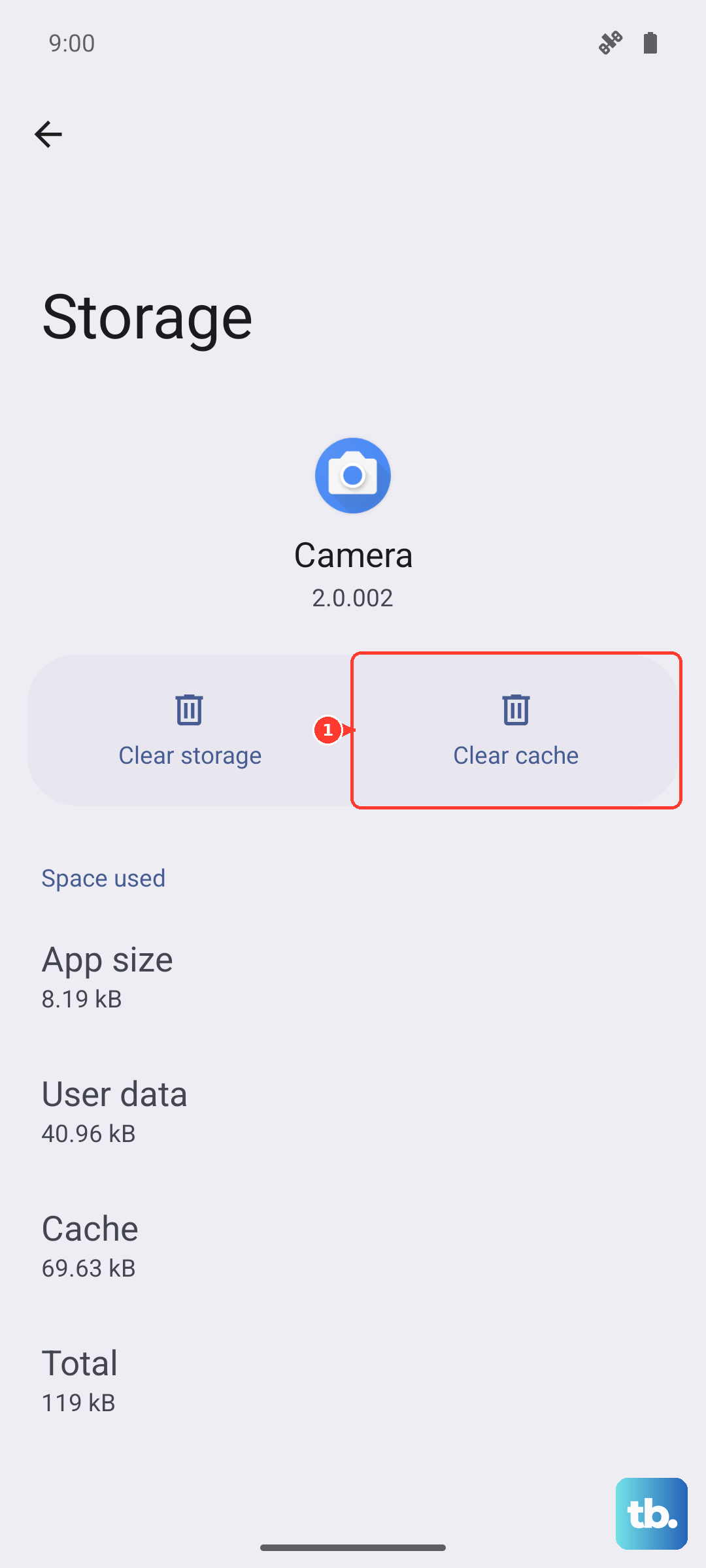
The Settings app stores temporary cache files to help it run faster. If one of those files gets corrupted, it can cause the app to crash. Clearing this cache is safe and won't delete any of your personal settings or data.
You'll need to get into your phone's app management. Swipe down from the top of the screen to open the Quick Settings panel, then tap the gear icon. If Settings crashes immediately, you can also get there by going to Settings > Apps from your app drawer. Find "Settings" in the app list and tap on it.
Tap on Storage, then tap Clear Cache. Go back to your home screen and try opening Settings again. I've found this fixes the issue about half the time on One UI.
Force Stop the Settings App
If clearing the cache didn't help, the next step is to force stop the app. This completely shuts down the Settings process and lets it start fresh the next time you open it.
Navigate back to Settings > Apps, and find "Settings" again. This time, tap the Force Stop button. Confirm the action if prompted. Once it's stopped, try launching Settings from your app drawer or home screen.
Check for a System Update
Sometimes, a bug in the current version of One UI or Android can cause system apps to crash. Samsung regularly releases updates that fix these kinds of issues. It's worth checking even if your phone hasn't notified you.
If you can get into Settings, go to Software Update and tap Download and install. If Settings keeps crashing, you might be able to use the Samsung Members app or Smart Switch on your computer to check for updates. Installing the latest software can resolve underlying compatibility problems.
Manage Google Play Services
Google Play Services works in the background to help apps communicate with Android. If it has a problem, it can affect core apps like Settings. Start by force stopping it.
Go to Settings > Apps, then find and select "Google Play Services". Tap Force Stop. After that, tap on Storage. First, tap Clear Cache. If the problem persists, you can tap Manage storage and then Clear all data. Don't worry, this will reset the service but it will rebuild its data automatically.
Uninstall Updates for the Google Play Store
A recent update to the Play Store itself can occasionally introduce conflicts. Rolling it back to the factory version can help. You'll need to re-update it later, but this can break the cycle of crashes.
Head to Settings > Apps and find "Google Play Store". Tap the three-dot menu in the top right corner and select Uninstall updates. Confirm the action. Your phone will revert the Play Store to the version that came with your S24. Restart your phone, then open the Play Store to let it update itself again.
Boot into Safe Mode
If you're still seeing the error, a third-party app you installed might be causing a conflict. Booting into Safe Mode temporarily disables all downloaded apps, letting you see if one of them is the culprit.
Press and hold the Side button to bring up the power menu. Tap and hold the "Power off" icon on your screen until you see the Safe Mode prompt. Tap to confirm. If Settings works fine in Safe Mode, you know a downloaded app is to blame. You'll need to restart your phone to exit Safe Mode, then uninstall apps one by one (starting with the most recently installed) to find the problematic one.
Reset All Settings
Before considering a full factory reset, try resetting all your settings. This returns all your system preferences (like Wi-Fi passwords, Bluetooth pairings, and display settings) to default without touching your personal files, photos, or apps.
Go to Settings > General Management > Reset. Select Reset all settings. Enter your PIN or password if asked, and confirm. Your S24 will restart. You'll have to reconfigure things like your ringtone and connections, but it can clear out a corrupted setting that's causing the crash.