
When your Samsung Galaxy S23 won't talk to your computer, it stops you from transferring photos, backing up files, or even just charging reliably. The issue is often a simple software hiccup or a finicky cable, and I've found most people can get it working again with a few targeted checks.
Let's jump straight into the most common fix. Grab a different USB-C data cable, preferably the original one that came with your phone, and try a different USB port on your computer. If that doesn't work, a quick restart of both your S23 and your PC can clear out temporary glitches that block the connection.
Check Your USB Connection Mode
This is a frequent point of confusion. Unlock your S23, then plug it into your computer and tap "Allow" if asked for access to phone data. Swipe down to open the notification panel and tap the USB settings notification. Under "Use USB for," select "Transferring files / Android Auto." If you don't see the notification, disconnect the cable and reconnect it.
Sometimes the setting gets stuck. You can also set a default behavior. Go to Settings > Developer options. If you don't see Developer options, go to Settings > About phone and tap "Software information." Then tap "Build number" seven times to unlock it. Back in Developer options, find "Default USB configuration" and set it to "File Transfer."
Inspect and Clean the USB-C Port
The S23's USB-C port can easily collect pocket lint, which physically blocks the cable from seating properly. Power off your phone first for safety. Inspect the port with a flashlight and look for any visible debris.
Then, carefully remove visible debris with a soft, dry brush. Avoid metal objects or liquids, which could damage the port. I've seen phones spring back to life after just clearing out a tiny bit of packed-in fuzz.
Update Your Computer's Drivers
Your Windows PC or Mac might be missing the right driver to recognize your Galaxy S23. For Windows, the easiest method is to use the official Samsung driver. You can download the Samsung Android USB Driver directly from their developer site and install it.
Alternatively, connect your phone, press the Windows key + X, and select "Device Manager." Look under "Portable Devices" or "Other Devices" for your phone, often listed as "MTP" or with a yellow exclamation mark. Right-click it, select "Update driver," and choose "Search automatically for updated driver software."
Install Critical Software Updates
Check whether a software update is available for your S23. On your S23, go to Settings > Software update and tap "Download and install." Make sure your phone is connected to Wi-Fi and has enough battery.
On your Windows computer, check for system updates by going to Settings > Windows Update. For Mac users, check for updates in System Settings > General > Software Update. An outdated operating system can sometimes be the culprit.
Rule Out App Interference with Safe Mode
A third-party app could be causing a conflict. Booting into Safe Mode temporarily disables all downloaded apps. To start Safe Mode, press and hold the Side and Volume down buttons together until the power menu appears. Then, touch and hold "Power off" and tap "Safe mode."
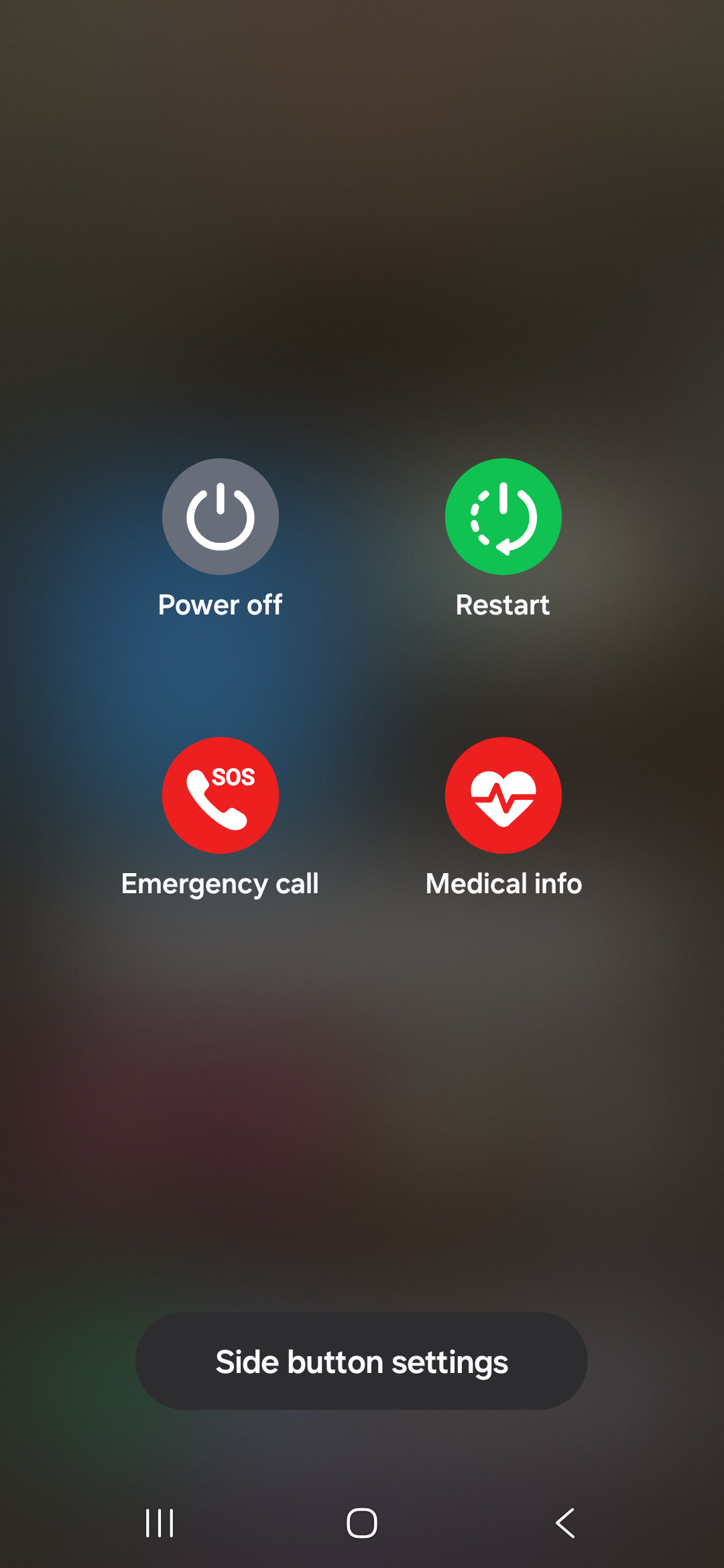
Once in Safe Mode, you'll see "Safe mode" in the bottom corner. Try connecting your phone to your computer again. If it works, you know a downloaded app is the problem. Restart your phone normally to exit Safe Mode and start uninstalling recent apps one by one to find the offender.
Reset USB-Related Settings
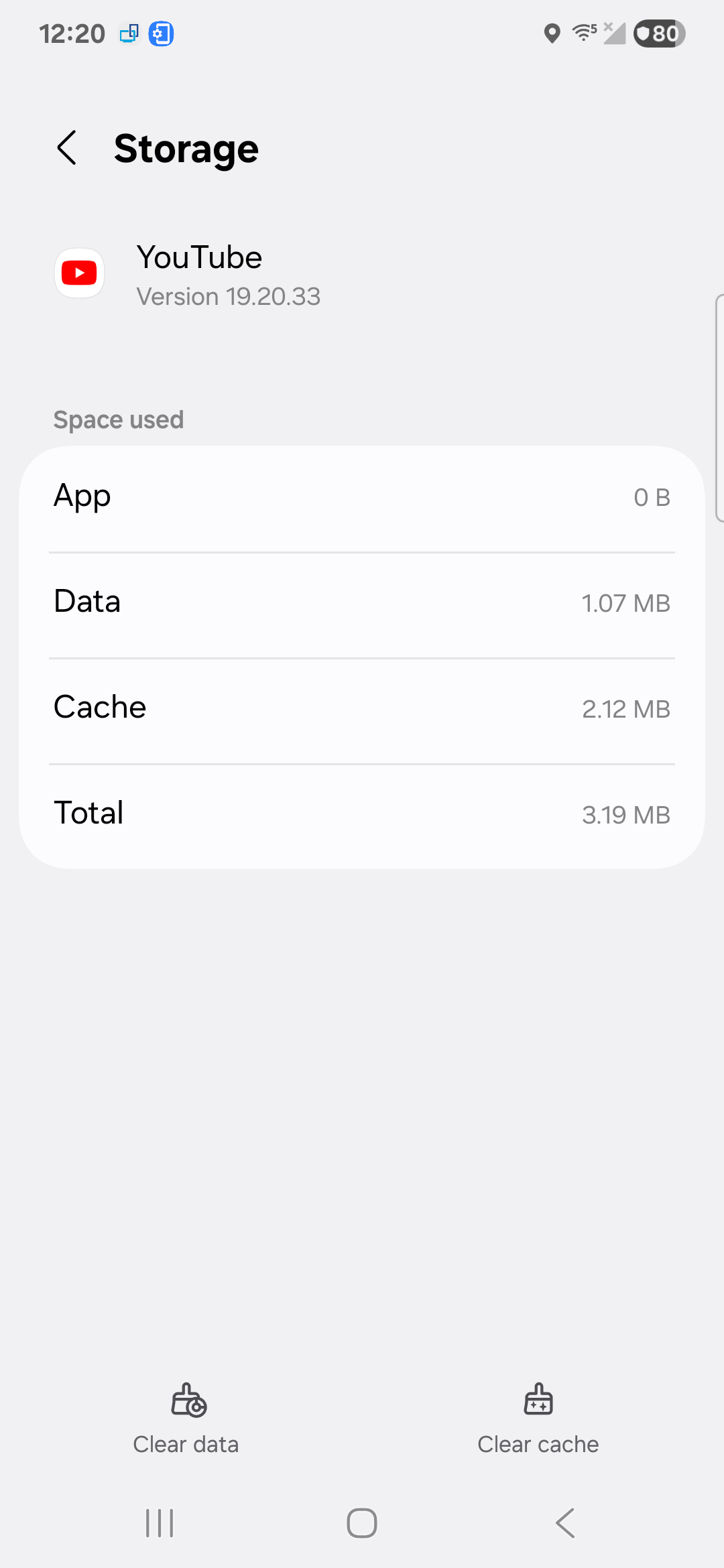
If the connection mode is still acting up, you can reset the relevant settings. Go to Settings > Apps > Filter and sort. Enable "Show system apps" and tap "OK." Select "USB Settings," then "Storage." Tap "Clear cache," then tap "Clear data" and confirm with "Delete." This resets your USB preferences without affecting personal files.
You can also try a broader reset. Navigate to Settings > General management > Reset > Reset all settings. Tap "Reset settings," then "Reset." This restores settings to their defaults while keeping security and language settings, accounts, personal data and settings for downloaded apps.
Try Samsung's Smart Switch Desktop App
Samsung Smart Switch isn't just for transferring data. Installing it on your computer can sometimes bridge a connection gap. Download and install Samsung Smart Switch on your PC or Mac. Open the app, then connect your S23 via USB.
If Smart Switch recognizes your phone, you can use it to back up your files and restore them later. Smart Switch can help Windows install the correct drivers automatically when you connect your phone. If the computer does not recognize your phone, open Smart Switch > More options (three vertical dots) > Reinstall device driver > Confirm, then reconnect the phone and tap Allow if prompted.
Check for Moisture Detection Errors
If you see a "water detected in USB port" warning, first make absolutely sure the port is dry. You can try turning the phone off and letting it sit for a few hours.
If the alert persists, try restarting the phone. Press and hold the Volume down button and the Side button together for more than 7 seconds until the device restarts. After the reboot, check if the warning is gone before trying to connect again.