That "Unfortunately, Settings has stopped" pop-up on your Galaxy S25 is a real roadblock. It usually means the app's data got scrambled or it's clashing with another system process. The good news is you can almost always fix it without losing your stuff.
Force Restart Your Phone
This is the quickest thing to try. A force restart clears out the phone's temporary memory, which can stop a misbehaving app in its tracks. On the S25, you just press and hold the Volume Down button and the Side button together for about ten seconds.
Keep holding until you see the Samsung logo appear on the screen. Once it boots back up, try opening Settings again to see if the crash is gone.
Clear the Settings App Cache
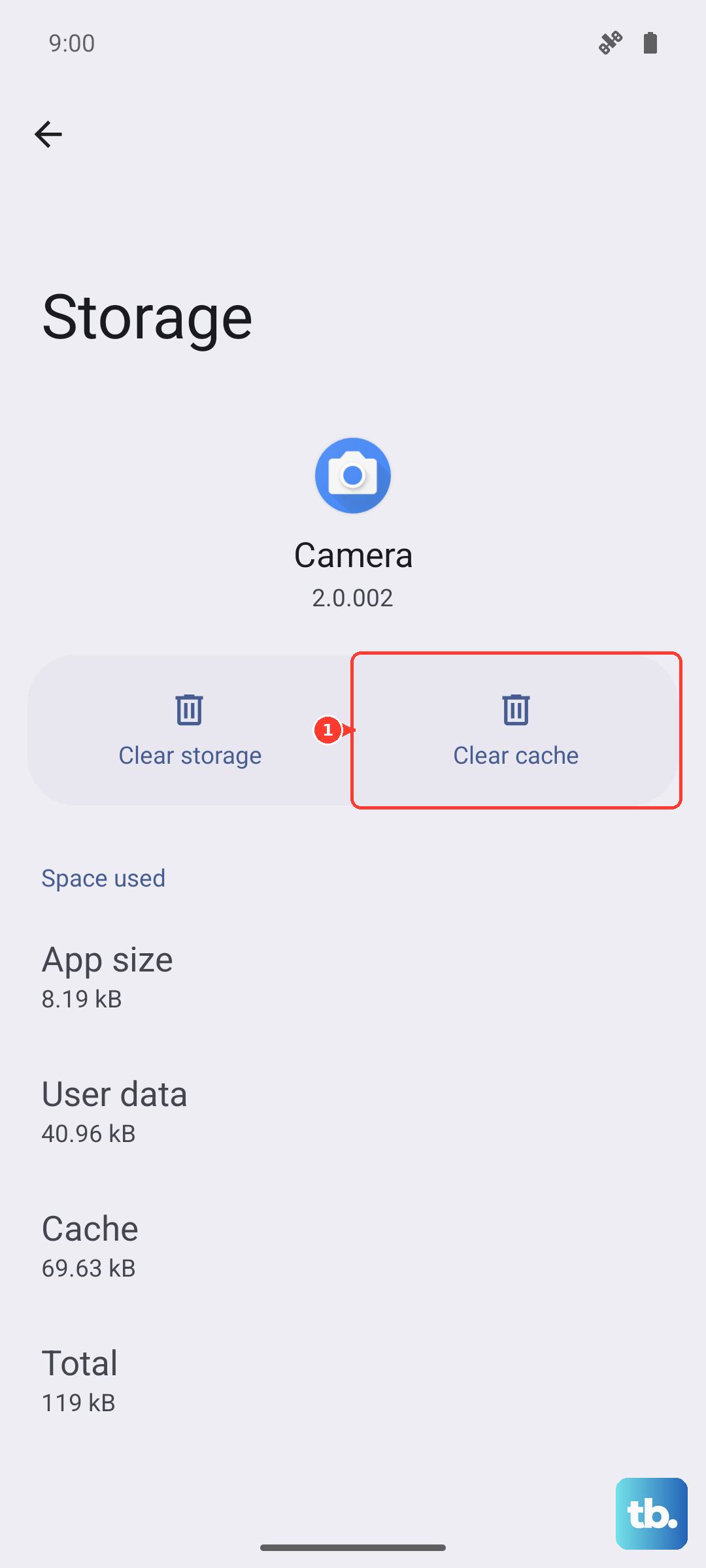
Your phone stores cache files to help apps like Settings load faster. Sometimes these files get corrupted. Clearing them forces the app to rebuild fresh, clean data.
Go to Settings > Apps. Tap the search icon at the top and type "Settings". Select the "Settings" app (the one with the gear icon) from the list. Tap on Storage, then hit Clear Cache. You won't lose any personal data or preferences by doing this.
Update Your Phone's Software
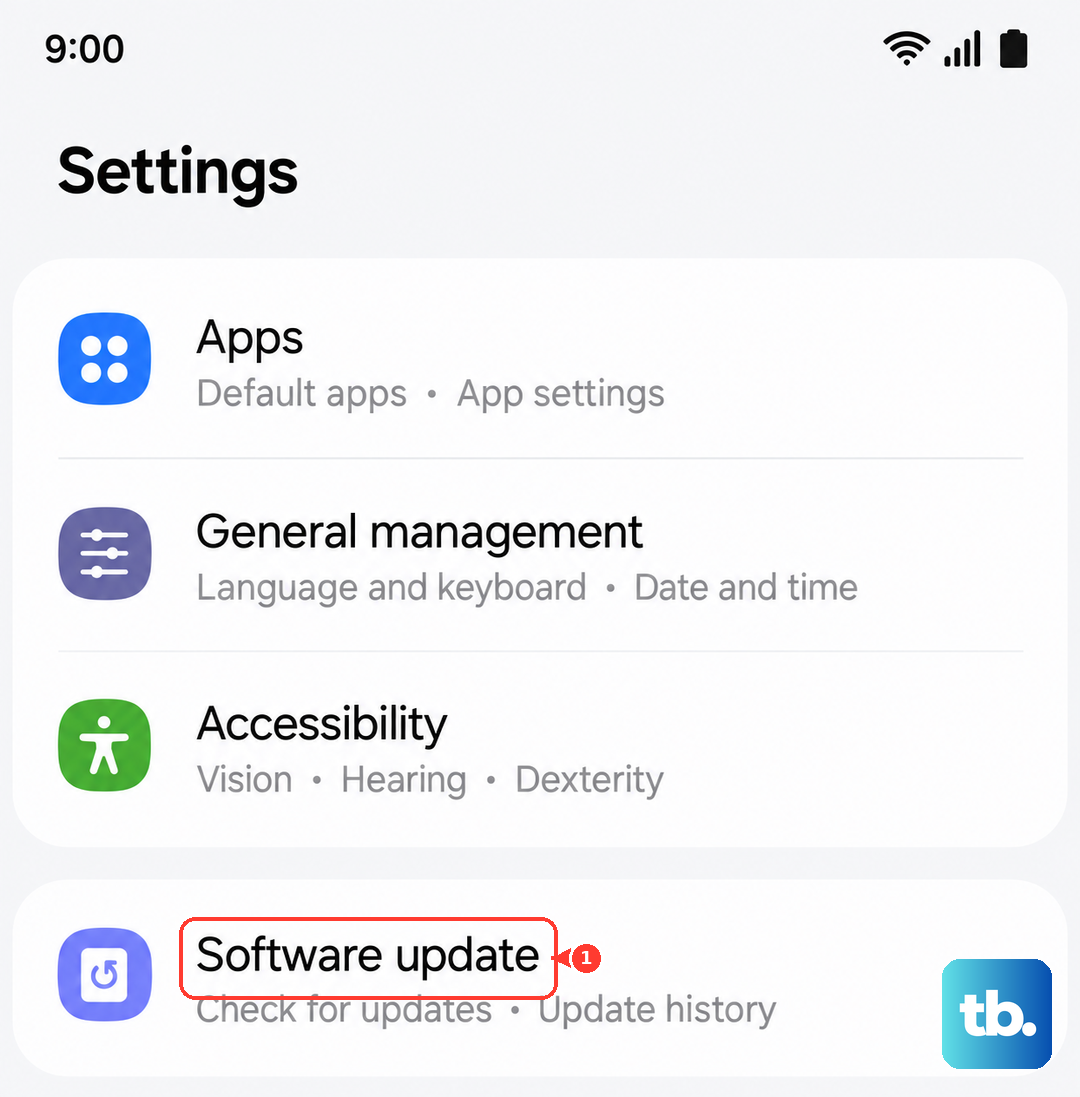
If you're running an older version of One UI, it might have a bug that's causing the crash. Samsung regularly releases updates that fix these kinds of glitches.
Head to Settings > Software update and tap Download and install. Make sure your phone is connected to Wi-Fi and has a decent amount of battery life before you start. After the update installs and your phone restarts, check if Settings is behaving.
Check for Problematic App Updates
Sometimes, an update to another app or a core service like Google Play Services can create a conflict. I'd start by checking Google Play Services, as it handles a lot of communication between apps and the system.
Go to Settings > Apps, find Google Play Services in the list, and tap it. Tap Storage, then Clear Cache. If that doesn't help, you can go back and tap Force stop to give it a fresh start. You can do the same for the Google Play Store app.
Boot Into Safe Mode
This is a great way to figure out if a third-party app you downloaded is the culprit. Safe Mode temporarily disables all apps you installed yourself.
To start, press and hold the Side button until the power menu appears. Then, tap and hold the Power off icon on the screen. You'll see a prompt to reboot to Safe Mode, tap it to confirm. If Settings works perfectly in Safe Mode, you know a downloaded app is causing the trouble.
You'll need to restart your phone normally to get out of Safe Mode. Then, you can start uninstalling recent apps one by one to find the offender.
Reset All App Preferences
This is a less nuclear option than a full reset. It won't delete any of your personal data, but it will revert all your app-specific settings back to default. Things like notification permissions, default apps, and background data restrictions get reset.
Navigate to Settings > General management. Tap Reset, then select Reset app preferences. Tap the reset button and confirm. After your phone applies the change, you'll need to re-grant permissions to apps as you use them, but it can clear up deep system conflicts.
Perform a Factory Reset
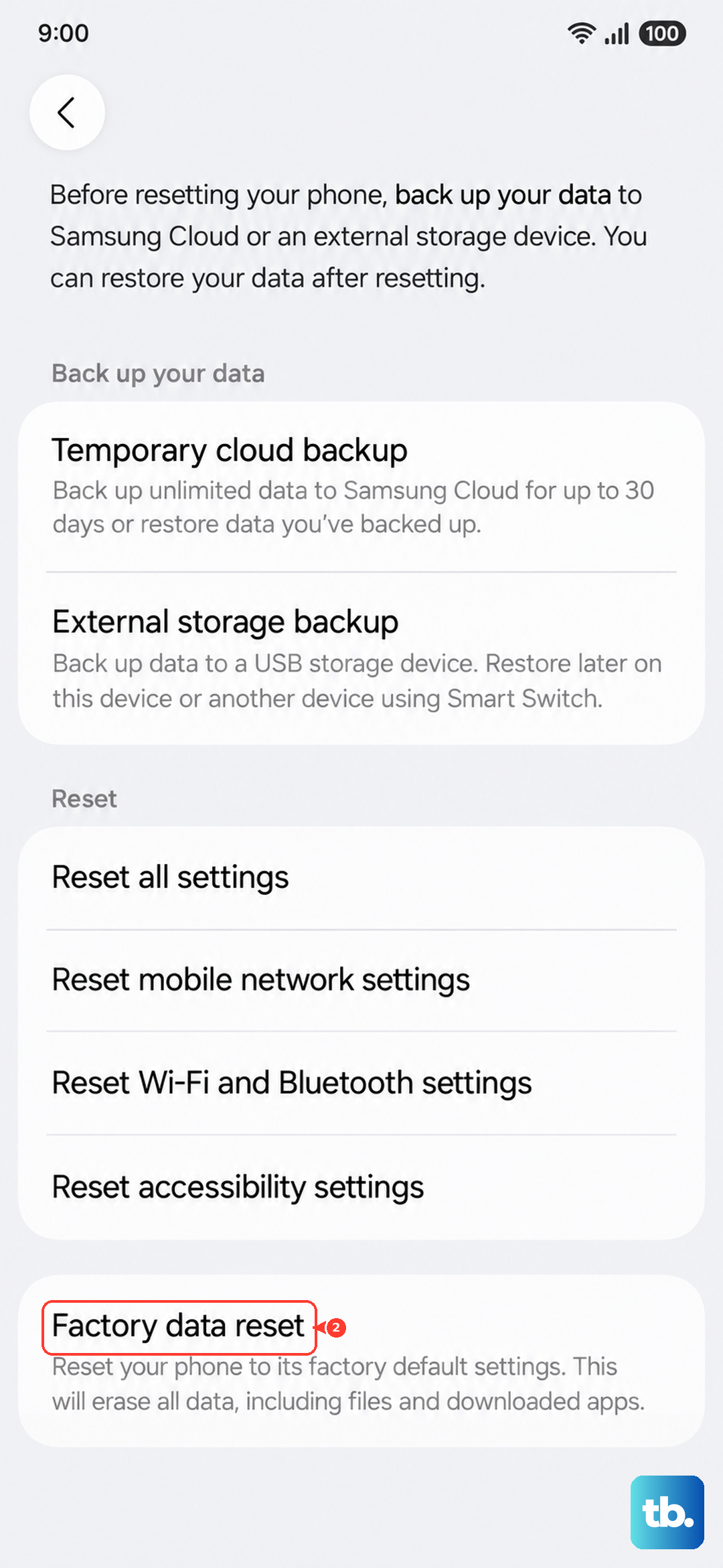
If nothing else has worked, a factory reset is the final step. This will erase everything on your phone and return it to its out-of-the-box state, so it's crucial to back up your photos, messages, and files first. Use Samsung Cloud or Google One to make sure your data is safe.
Once backed up, go to Settings > General management > Reset. Choose Factory data reset and scroll down to tap Reset. After it completes, your S25 will restart and you can set it up as new or from your backup. This should eliminate any persistent software corruption causing the crashes.