
If your Samsung Galaxy A56's Settings app keeps closing, you're probably seeing a pop-up that says "Settings keeps stopping" or something similar. It's a common software hiccup on Android phones, and it usually happens when the app's temporary data gets corrupted or there's a conflict with another system service.
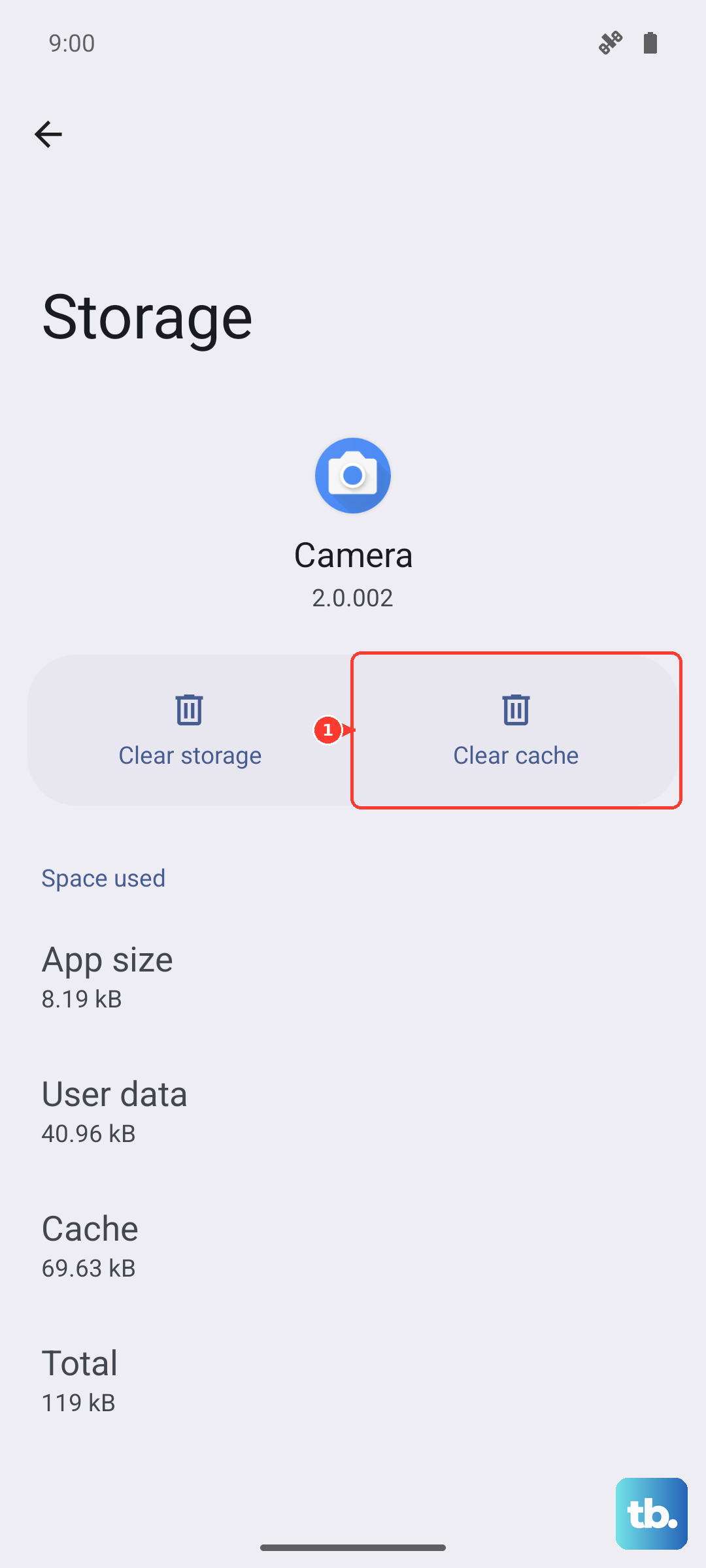
Let's get straight to the quick fix that works most of the time. Go to your phone's Settings, then tap on Apps. Find and select the "Settings" app from the list. Tap on Storage, and then hit Clear Cache. This wipes the temporary files without touching your personal data. After doing that, force stop the app by tapping "Force stop" on the same screen, then open Settings again. I've seen this clear up the issue on most Galaxy A series phones right away.
Restart Your Galaxy A56
Before trying anything more involved, give your phone a fresh start. A simple restart can clear out the random glitch that's causing the Settings app to crash. Just hold down the side button and the volume down button together for about ten seconds until you see the Samsung logo. This is the standard force restart method for the A56 and most newer Galaxy phones.
If the Settings app is still crashing after the restart, the problem is likely a bit deeper, but still very fixable. The next steps involve cleaning up the app's data and checking on related services.
Clear the Settings App Data
If clearing the cache didn't work, the next step is to clear the app's data. This is a bit more thorough because it resets the Settings app back to its default state, like it was when you first got the phone. Don't worry, this won't delete your Wi-Fi passwords or accounts, but it will reset any customizations you've made within the Settings app itself.
Go back to Settings > Apps, find "Settings" again, and tap Storage. This time, tap "Clear data" instead of just clearing the cache. Confirm the action. Once it's done, the app will be completely fresh. You might need to re-navigate through any initial setup prompts it shows, but the crashing should stop.
Check Google Play Services
Google Play Services is a background app that handles a ton of communication between your apps and Android itself. If it's acting up, it can make system apps like Settings unstable. It's worth checking on it.
Head to Settings > Apps again, and this time find "Google Play Services" in the list. Tap on it, then go to Storage. Tap "Clear cache" here first. If the problem persists, you can go back and tap "Manage storage," then "Clear all data." This will reset it. Your phone will rebuild this data automatically, so you don't need to do anything else.
Update Your Phone's Software
Running an old version of One UI or Android can lead to bugs that cause apps to crash. Samsung regularly releases updates that fix these kinds of issues. Make sure your Galaxy A56 is on the latest software.
Open Settings and scroll down to "Software update." Tap it, then tap "Download and install." If an update is available, let it download and install. Your phone will restart during this process. I'd recommend doing this over Wi-Fi, and make sure your battery is above 50% or the phone is plugged into its 25W charger.
Boot Into Safe Mode
Sometimes, a third-party app you installed is causing a conflict with the system. Booting into Safe Mode temporarily disables all apps you downloaded, letting you see if one of them is the culprit.
To get into Safe Mode on the Galaxy A56, press and hold the side button until the power menu appears. Then, press and hold the "Power off" option on your screen. A prompt will appear asking if you want to reboot to Safe Mode. Tap OK. If the Settings app works fine in Safe Mode, you know a downloaded app is causing the problem. You'll need to restart your phone normally and then uninstall apps one by one, starting with the most recently installed, to find the bad one.
Reset All App Preferences
This is a useful middle-ground step that resets permissions, background restrictions, and notification settings for all your apps without deleting any of your data. It can resolve conflicts that cause system apps to misbehave.
Go to Settings > Apps. Tap the three-dot menu in the top right corner and select "Reset app preferences." Confirm your choice. This will revert all app-specific settings back to their defaults. You might have to re-grant permissions to some apps later, but it's a quick and non-destructive fix to try.
Perform a Factory Reset
If you've tried everything and the Settings app is still unusable, a factory reset is the final step. This will erase everything on your phone and return it to its original out-of-the-box state. You must back up all your important photos, messages, and files before proceeding.
Since you might not be able to access the Settings menu, you can perform the reset using the hardware buttons. First, power off your Galaxy A56 completely. Then, press and hold the Volume Up button and the Side button together. When you feel a vibration and see the Samsung logo, release the Side button but keep holding Volume Up until the Android Recovery menu appears.
Use the volume buttons to navigate to "Wipe data/factory reset" and press the side button to select it. Confirm the reset on the next screen. Once it's complete, select "Reboot system now." After the reset, set up your phone as new to see if the problem is resolved.