
If videos on your brand new Samsung Galaxy S26 are stuttering, freezing, or just not playing smoothly, it's incredibly annoying. This can happen for a few different reasons, but the good news is most fixes are pretty straightforward. Since the S26 is running the brand new One UI 8.5, some early software bugs could be the culprit, so I'd start by checking for updates.
Clear the App Cache and Data
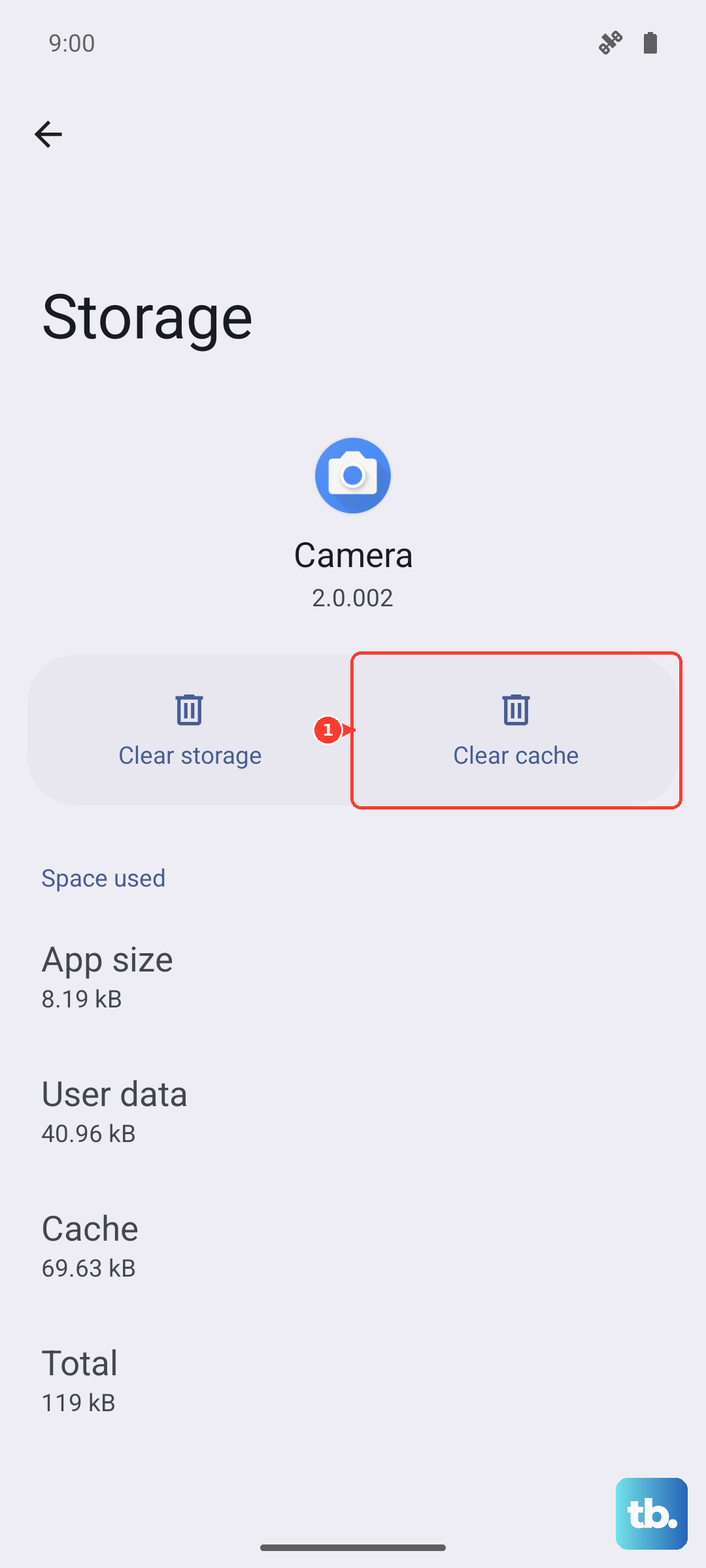
This is often the quickest fix, especially for a specific app like YouTube, Netflix, or the Samsung Gallery. Over time, cached data can get corrupted and cause playback issues. Head to Settings > Apps, select the video app giving you trouble, then tap Storage.
From there, tap Clear cache first. If that doesn't help, you can try Clear data, but be aware this will reset the app and you might need to log back in. It won't delete your downloaded videos or personal files stored elsewhere.
Check for Software Updates
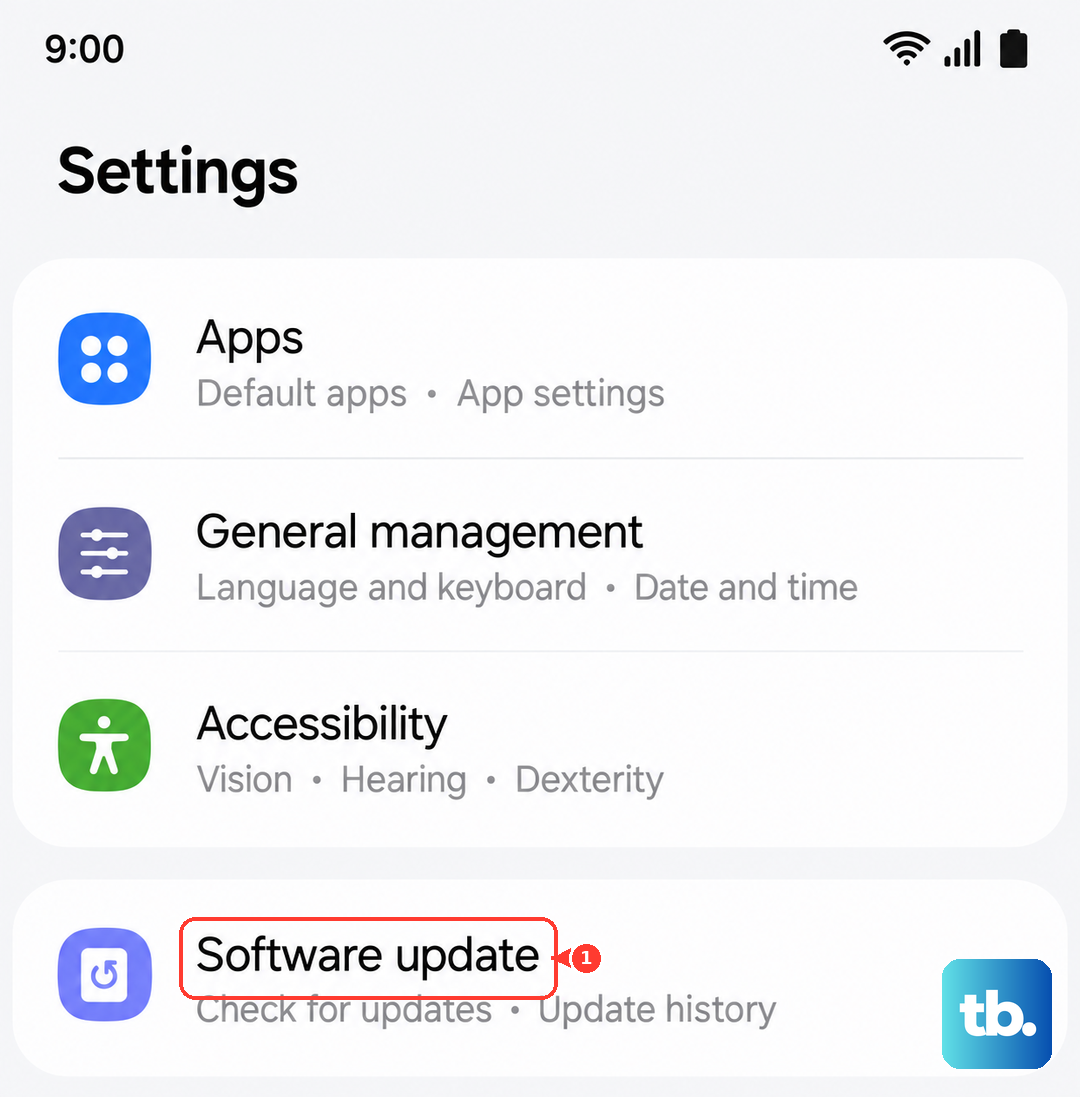
Given that the Galaxy S26 and One UI 8.5 are so new, Samsung is likely pushing out updates to squash early bugs. An update could directly address video codec or performance issues. To check, go to Settings > Software update and tap Download and install.
Make sure your phone is connected to Wi-Fi and has a decent charge before you start. It's a good habit to check this frequently during the first few months with a new device like the S26.
Free Up Storage Space on Your S26
When your phone's storage is nearly full, it can struggle with tasks that need to read and write data quickly, like playing high-resolution video. The S26 can shoot stunning 8K video, and those files are huge.
Go to Settings > Device care > Storage. This screen gives you a clear breakdown of what's using space. If you're running low, consider moving photos and videos to cloud storage or a microSD card if you have one, or clearing out old downloads and app data.
Examine Your Network Connection for Streaming
If the lag is only happening with streaming services like YouTube or Disney+, your internet connection is the first place to look. The S26's brilliant display demands a lot of data for HD or 4K streams. Try switching between Wi-Fi and your 5G cellular data to see if the problem is isolated to one network.
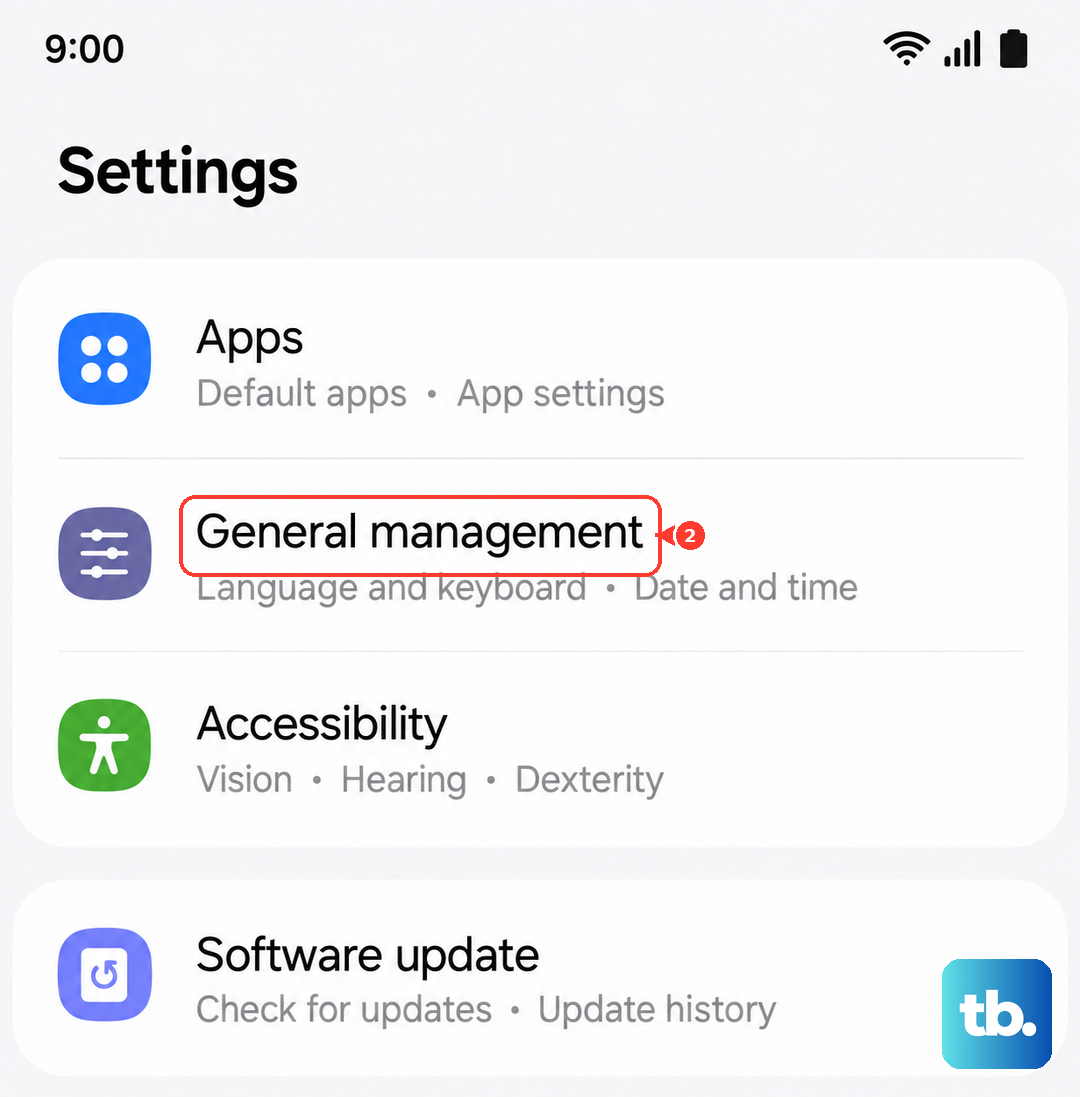
You can also run a quick internet speed test right from your phone. For a more drastic network reset, go to Settings > General management > Reset > Reset network settings. Just remember, this will erase all your saved Wi-Fi networks and Bluetooth pairings.
Close Background Apps and Give It a Restart
Too many apps running in the background can consume the RAM and processing power your video player needs. Swipe up from the bottom of the screen and hold to see your recent apps, then swipe each one away to close it.
If things are still acting up, a force restart can clear out temporary glitches. Press and hold the Volume Down button and the Side/Power button together for about 10 seconds until you see the Samsung logo appear, then release.
Disable Any Battery Saving Modes
Battery savers, including the S26's Adaptive battery feature, work by limiting background processes and sometimes even capping performance. This can interfere with smooth video decoding. Swipe down your notification panel twice and make sure any power saving mode is turned off.
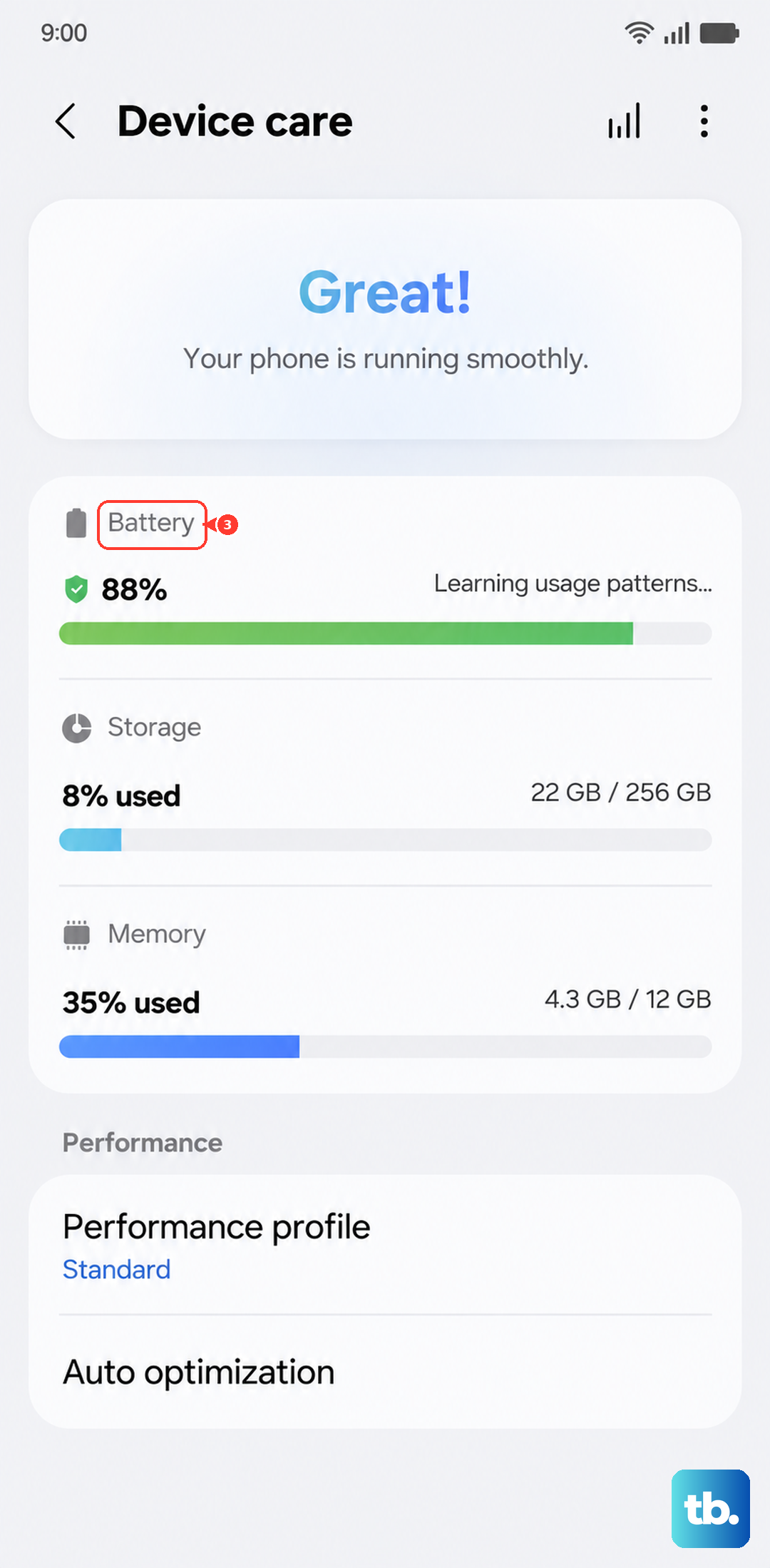
You can also check deeper settings by going to Settings > Battery and device care > Battery. Here, you can see if Adaptive battery is on and adjust other settings that might be throttling performance to save power.
Check Video Player and Codec Settings
Some video players have their own settings that can affect playback. If you're using a third-party app like VLC or MX Player, dig into its settings menu. Look for options related to hardware acceleration, audio/video codec priority, or playback buffering and try adjusting them.
For videos you've recorded on the phone that won't play smoothly, it's possible the file itself is corrupted. Try playing the same video file on a different device or computer to rule that out.
Perform a Factory Reset (Last Resort)
If you've tried everything else and the lag persists across every video app, a factory reset might be necessary. This will wipe your S26 back to its original out-of-the-box state, so this is a last resort.
Make absolutely sure you have a complete backup of your data first. You can back up to your Samsung account or Google Drive. Once you're ready, go to Settings > General management > Reset > Factory data reset. Follow the prompts to erase everything. After the reset, test video playback before you start restoring all your apps and data, just to be sure.