
When your brand new Galaxy S26 Ultra refuses to download apps from the Play Store, it can feel like you're locked out of your own phone. Apps are the whole point of a smartphone, so hitting a download wall is incredibly frustrating. Since this is a 2026 device running the latest One UI 8.5, the issue is often a simple software hiccup or a setting that needs a quick adjustment.
Let's go through the fixes, starting with the most common and simplest solutions that usually get things moving again.
Check Your Internet Connection First
This sounds obvious, but it's the most frequent culprit. The Galaxy S26 Ultra needs a stable connection, whether on Wi-Fi or 5G. Pull down the Quick Settings panel from the top of your screen and make sure the Wi-Fi or mobile data icon is clearly active and not showing an exclamation mark.
If you're on Wi-Fi, try switching to mobile data for a moment. Some public or corporate Wi-Fi networks can block the specific ports the Google Play Store uses. Just tap the Wi-Fi icon to turn it off and the mobile data icon to turn it on, then try your download again.
Restart Your Phone
A quick restart clears out temporary glitches in the system memory and can resolve a surprising number of issues. Since the S26 Ultra is so new, early software bugs are possible and a reboot often clears them.
Just press and hold the Side key and Volume Down button together for about 10 seconds until you see the Samsung logo appear. This force restarts the phone. Once it's back on, open the Play Store and try downloading your app again.
Verify the Date and Time Are Correct
Google's servers use your phone's time to authenticate downloads. If your date or time is wrong, it can silently block app installs. On your S26 Ultra, head to Settings > General Management > Date and time.
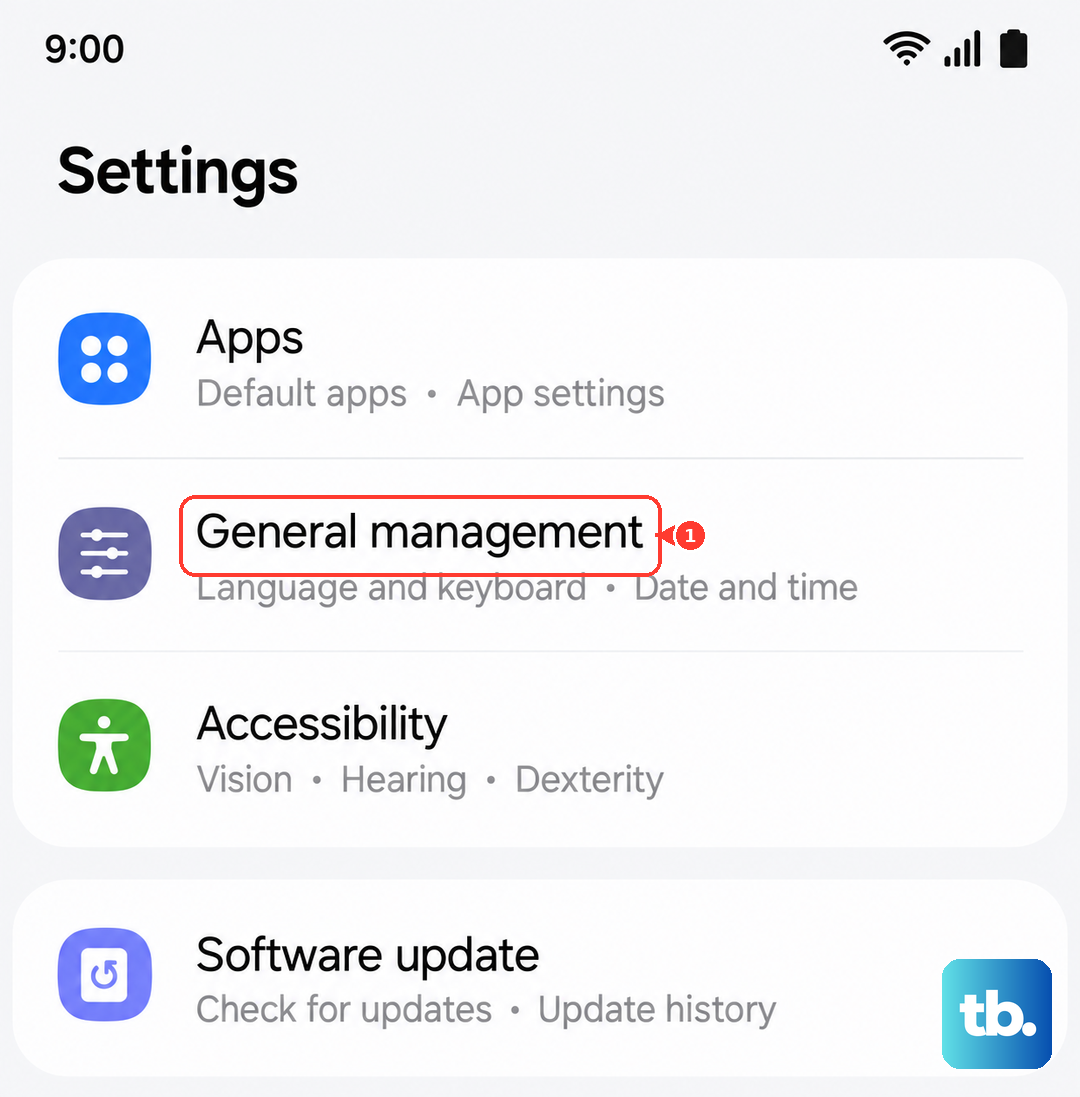
Make sure "Automatic date and time" is switched on. If it's already on and you're still having trouble, try turning it off and back on again, or manually set the correct time zone and time just to be sure.
Clear the Google Play Store Cache
The Play Store app stores temporary data to run faster, but this cache can become corrupted. Clearing it is a safe first step that doesn't delete any of your apps or personal data.
Go to Settings > Apps, then find and tap on Google Play Store. Tap Storage, and then tap Clear Cache. After doing this, open the Play Store again and see if the download works.
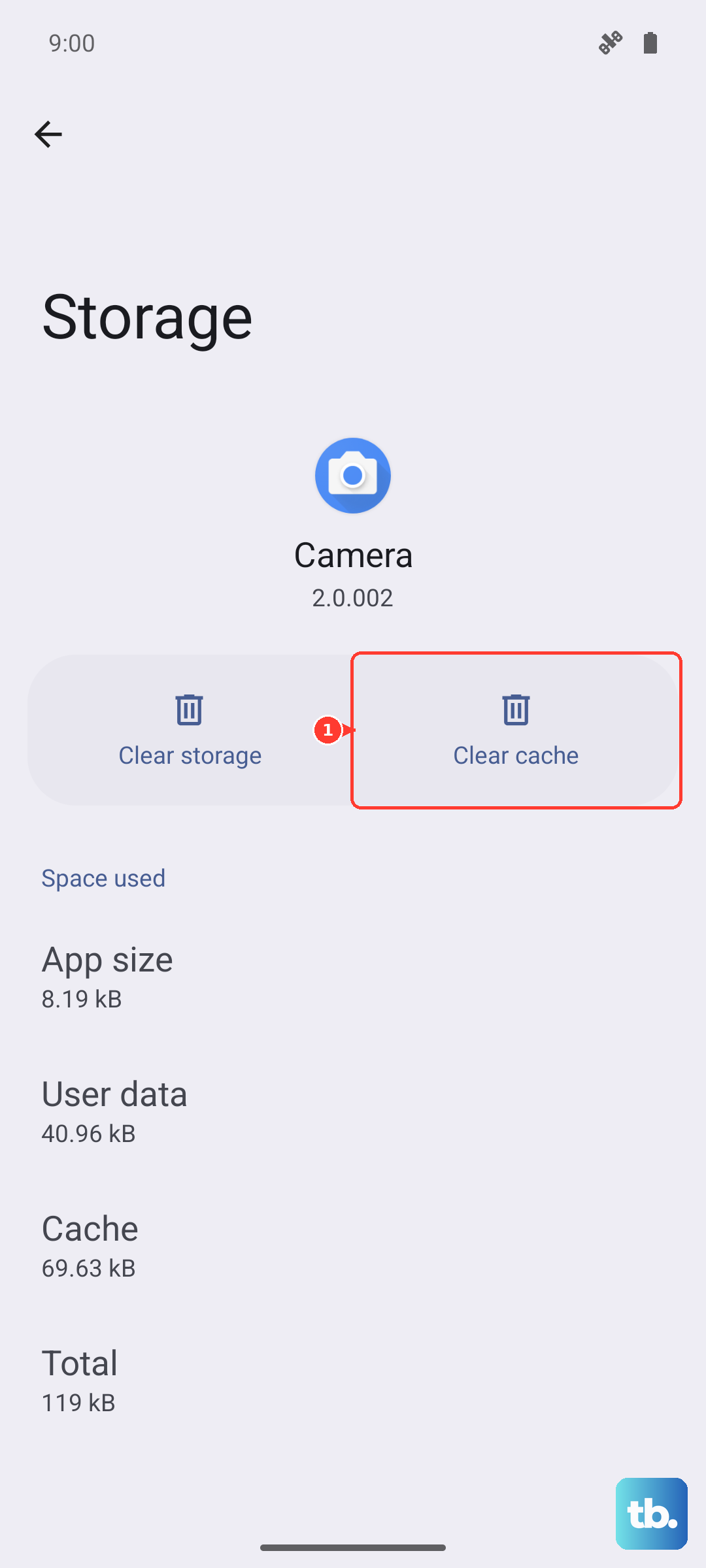
If clearing the cache doesn't help, you can take the next step and tap Clear Data on that same screen. This will reset the Play Store app to its default state, so you might need to sign in again, but it often fixes stubborn download problems.
Clear Google Play Services Data
Google Play Services is the background engine that handles communication between Google apps and your phone. Problems here are a common cause of download failures.
Navigate to Settings > Apps, find Google Play Services in the list (you may need to tap the three-dot menu and select "Show system apps"), and tap on it. Go to Storage, then tap Manage Storage.
On this screen, tap Clear All Data. Don't worry, this won't delete your personal files. It just resets the service. After doing this, restart your S26 Ultra and check the Play Store.
Check for a Software Update
Samsung is likely pushing frequent updates for the S26 Ultra to iron out early bugs. An outdated system can have compatibility issues with the Play Store.
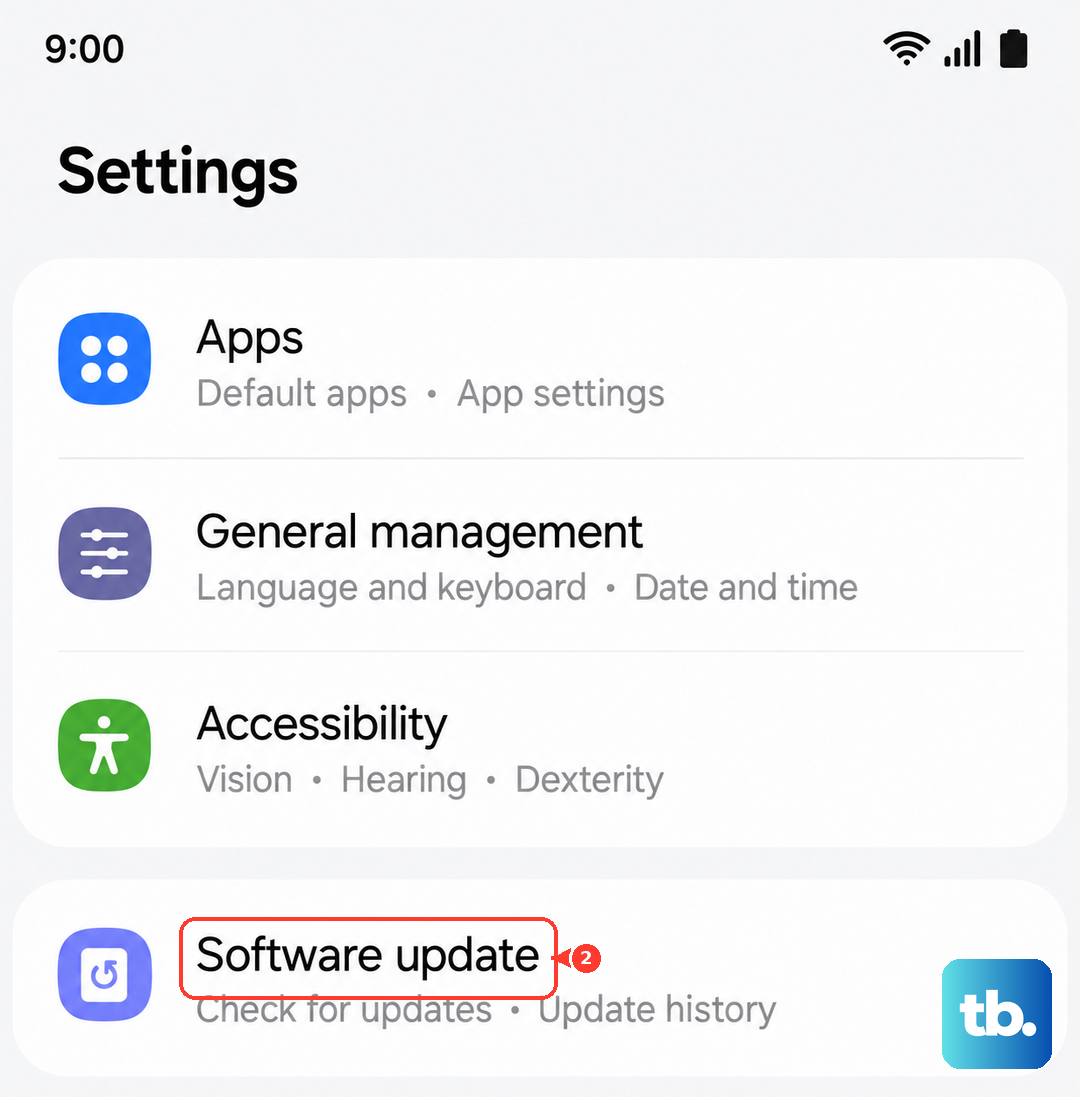
Go to Settings > Software update and tap Download and install. If an update is available, install it. Your phone will restart. I've seen this fix download issues on new Samsung models more times than I can count, as updates often include critical patches for Google services.
Review Your Google Account Sync
Sometimes your Google account's sync gets stuck, which can interfere with downloads. To refresh it, go to Settings > Accounts and backup > Manage accounts.
Select your main Google account. On the account sync page, you can tap "Sync account" to manually trigger a sync. For a deeper refresh, tap the three-dot menu, select "Remove account," then add it back again. You'll need your password handy to re-add it.
Ensure Download Manager is Enabled
Your phone has a system app called Download Manager that handles all downloads, not just apps. It's rare, but it can get disabled. Let's check.
Go to Settings > Apps, tap the three-dot menu, and select Show system apps. Now search for "Download Manager." If you see a "Enable" button, tap it. If it's already enabled, you can try going into its Storage settings and tapping Clear Cache.
Free Up Storage Space
The S26 Ultra has a massive default storage option, but if you see an "Insufficient storage" error, you'll need to clear some room. The phone's 8K video recording and high-resolution photos can fill space fast.
Check your storage by going to Settings > Device care > Storage. You can use the "Clean now" suggestion or manually review and delete large files. Also, remember that by default, Samsung's Battery Protection limits charging to 85% to preserve battery health, but this doesn't affect storage space.
Reset All App Preferences (A Safe Last Step)
This is a useful reset that doesn't delete any personal data. It restores all app permissions, notification settings, and default apps back to their original state. It can fix issues caused by a misconfigured permission for a system app.
Go to Settings > Apps, tap the three-dot menu, and select Reset app preferences. Confirm the action. You'll then need to re-grant permissions to apps as you use them, but it's a very effective troubleshooting step before considering anything more drastic.