
Seeing the "Settings has stopped" error pop up on your new Samsung Galaxy S26 can stop you in your tracks. This usually means the Settings app has crashed or run into some corrupted data. Since the S26 is running the brand new One UI 8.5, early software bugs are a possibility. The good news is you can almost always fix this yourself without losing any data.
Force Restart Your Galaxy S26
This is the quickest thing to try and it solves a lot of temporary glitches. A force restart is different from a normal restart and can clear system-level hiccups that might be freezing the Settings app.
Just press and hold the Volume Down button and the Side/Power button together for about 10 seconds. Let go when you see the Samsung logo appear on the screen. Give your phone a minute to boot back up and then try opening Settings again.
Clear the Settings App Cache
If a restart didn't work, the next step is to clear the Settings app's cache. Cache files are meant to help apps load faster, but they can sometimes get corrupted and cause crashes.
Since you can't get into the main Settings menu, you'll need to access this through your phone's general app management. Swipe up from the bottom of your home screen to open the app drawer and find the "Settings" app icon. Press and hold on it until a menu pops up, then tap "App info".
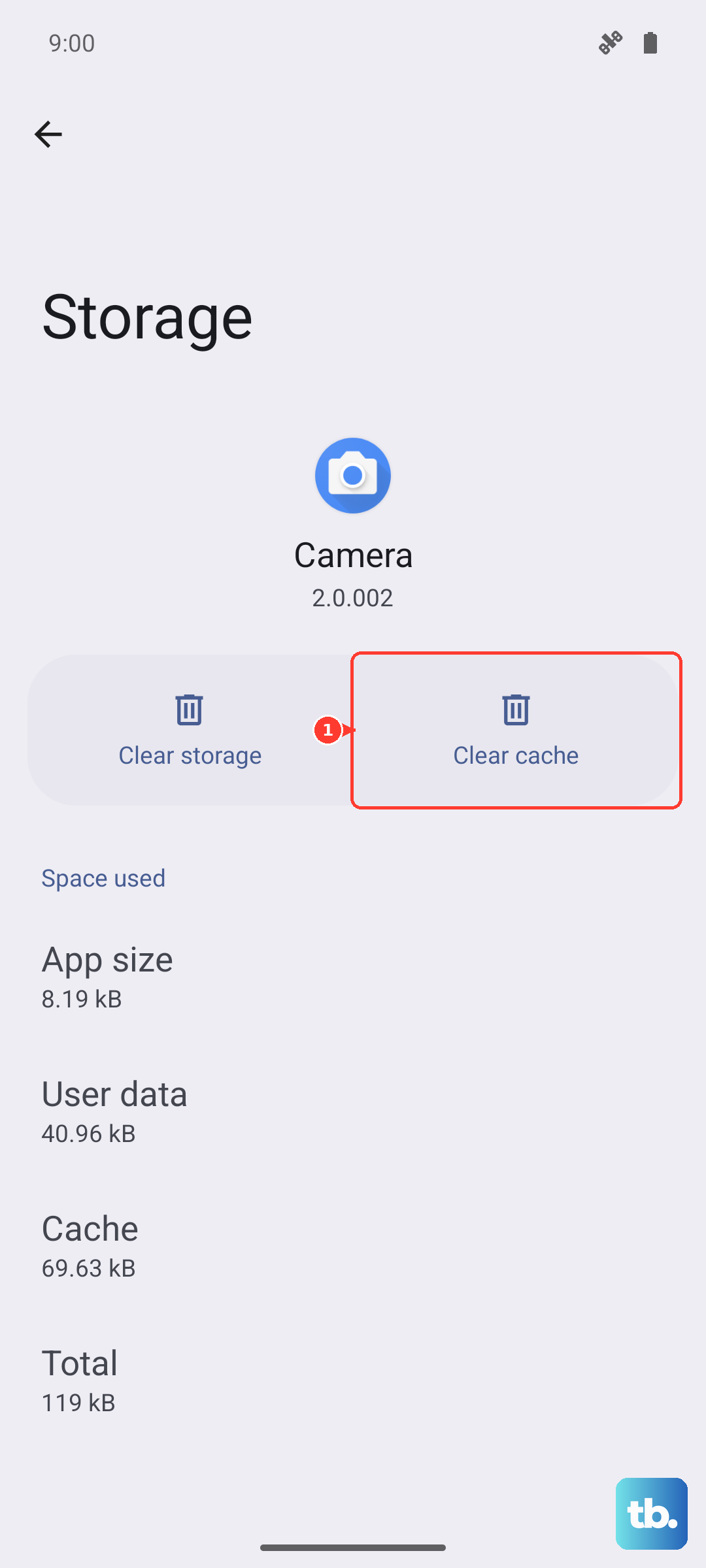
On the App info screen, tap "Storage". You'll see two options: Clear data and Clear cache. Tap "Clear cache" first. This won't delete any of your personal settings, it just removes temporary files. After clearing, go back and try launching Settings normally.
Force Stop the Settings App
If clearing the cache didn't help, you can try force stopping the app. This completely shuts it down and lets it start fresh the next time you open it. It's a good next step for stubborn crashes.
Go back to the App info screen for Settings the same way you did before. This time, instead of Storage, look for the "Force stop" button and tap it. Confirm the action if prompted. Once it's stopped, the button will be grayed out. Now just tap your home button or gesture and try opening Settings again from your app drawer or quick panel.
Check for a Software Update
Your Galaxy S26 is brand new, and One UI 8.5 is a fresh software release. Samsung is likely pushing out updates to fix early bugs, including ones that could crash system apps like Settings. It's worth checking even if you think your phone is up to date.
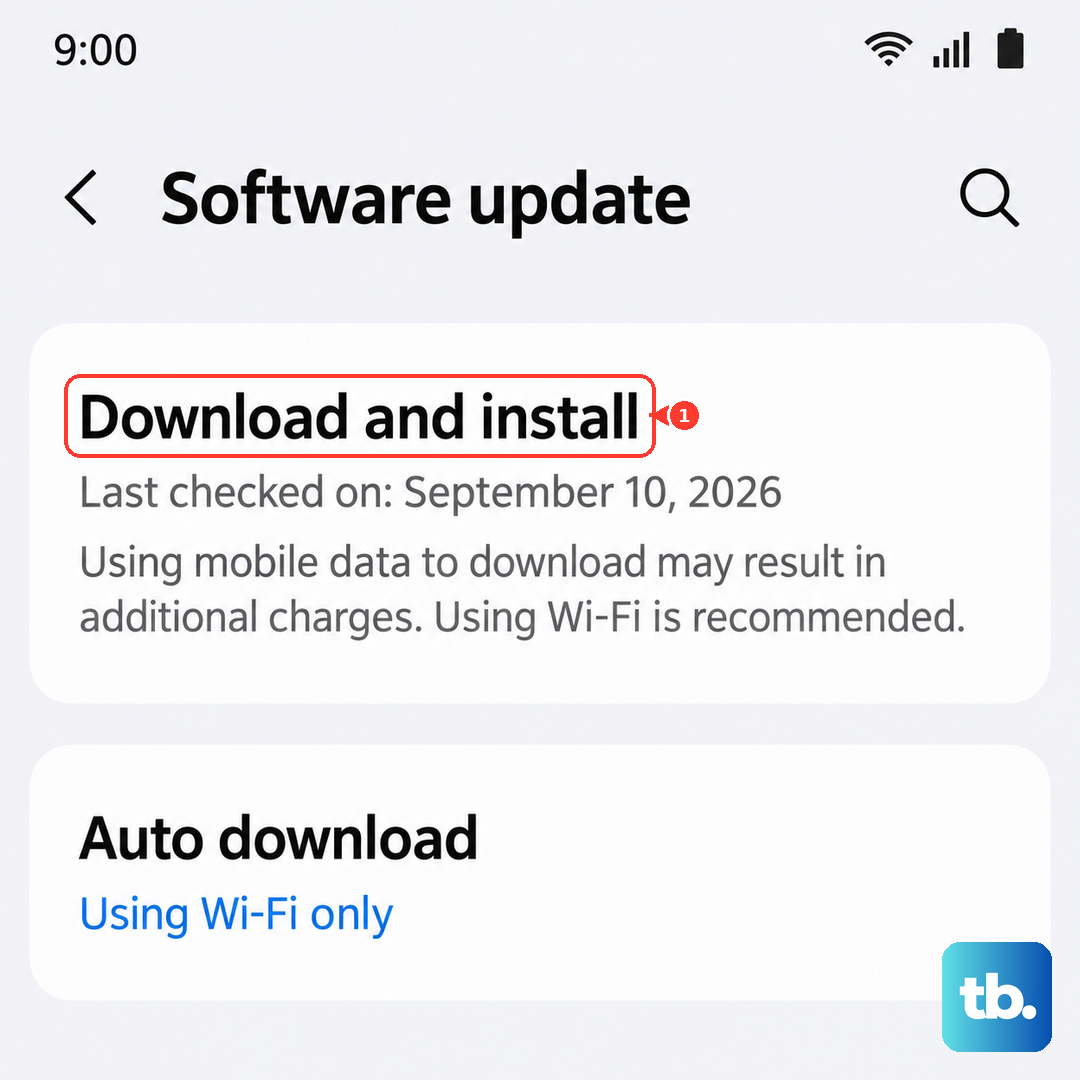
You can often check for updates even if the main Settings app is crashing. Pull down the notification shade twice to open the full Quick Settings panel. Look for the gear icon (Settings) in the top right corner and tap it. If that works, go to Software update and tap Download and install.
If that path is also broken, you can try asking Bixby. Press and hold the Side/Power button to launch Bixby and say "Check for software updates." If an update is available, install it and restart your phone when prompted.
Boot Into Safe Mode
Sometimes, a third-party app you installed can conflict with the system and cause Settings to crash. Booting into Safe Mode temporarily disables all downloaded apps, so you can see if one of them is the culprit.
To start Safe Mode, first turn your S26 off completely. Once it's off, press and hold the Side/Power button. As soon as you see the "Samsung" logo appear on the screen, immediately press and hold the Volume Down button. Keep holding it until the phone finishes booting up. You'll see "Safe mode" in the bottom left corner of the screen.
In Safe Mode, try opening Settings. If it opens without any errors, then a downloaded app is likely causing the problem. You'll need to restart your phone normally to exit Safe Mode, then start uninstalling apps you recently installed one by one, testing Settings after each one.
Reset App Preferences
This is a useful step that resets all your app-related settings back to their defaults without deleting any app data. It can fix issues where default app assignments or permission settings have gotten messed up and are affecting system apps.
Again, you'll need to get to the main system settings. If you still can't, try using the search bar on your home screen. Swipe down on the home screen to reveal the search bar, type "Reset app preferences," and select the result that takes you to the correct menu.
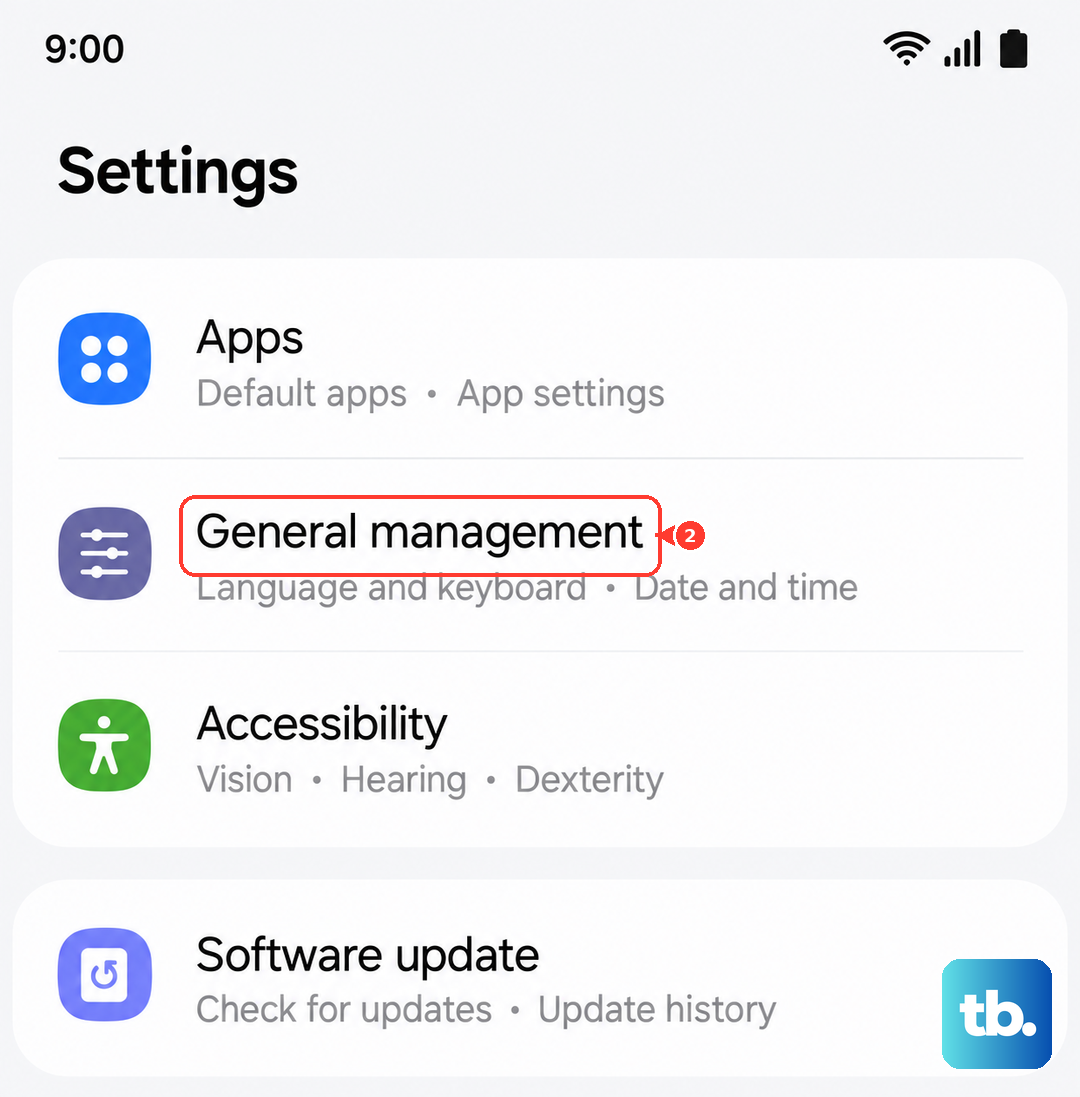
Once there, go to General management > Reset > Reset app preferences. Tap "Reset" on the confirmation screen. This will reset disabled apps, notification restrictions, and default app choices. Your phone may feel a bit different for a moment, but your data is safe.
Consider a Factory Reset
If you've tried everything else and Settings is still crashing, a factory reset is the final step. This will erase all data on your phone and return it to its original out-of-the-box state. You absolutely must back up everything important first using Samsung Cloud or by connecting to a computer.
Since the Settings app is broken, you may need to use hardware buttons to access the recovery menu. First, power your S26 off. Connect it to a computer with a USB-C cable. Then, press and hold the Volume Up button and the Side/Power button together.
When you see the Samsung logo, release only the Power button but keep holding Volume Up. You'll enter the Android Recovery screen. Use the Volume buttons to navigate to "Wipe data/factory reset" and press the Power button to select it. Confirm the reset on the next screen. After it completes, select "Reboot system now."