
Press and hold the Volume Down button and the Side/Power button together for about 10 seconds. Keep holding them until you see the Samsung logo appear on the screen. This force restart is the single most effective step for a Galaxy S26 with an unresponsive touchscreen, as it clears temporary software glitches without affecting your data.
Remove Any Screen Protector or Case
Take off your phone's case and peel off any screen protector, especially if it's a thick tempered glass one. A poorly applied protector or a case that presses on the screen's edges can interfere with the touch sensors.
Once they're off, test the touch response with your bare finger. I've seen this simple fix resolve the issue more often than you'd think, particularly with third-party accessories that weren't designed for the S26's precise touch sensitivity.
Clean the Screen Thoroughly
Turn the phone off and wipe the screen down with a soft, slightly damp microfiber cloth. Smudges, grease, or moisture from your hands can sometimes confuse the touchscreen, making it seem like it's not working.
Make sure the screen is completely dry before turning the phone back on. Avoid using any harsh chemicals or window cleaners, as they can damage the oleophobic coating.
Check for Software Updates
Since the Galaxy S26 runs the brand new One UI 8.5, early software bugs are a possibility. Go to Settings > Software update > Download and install.
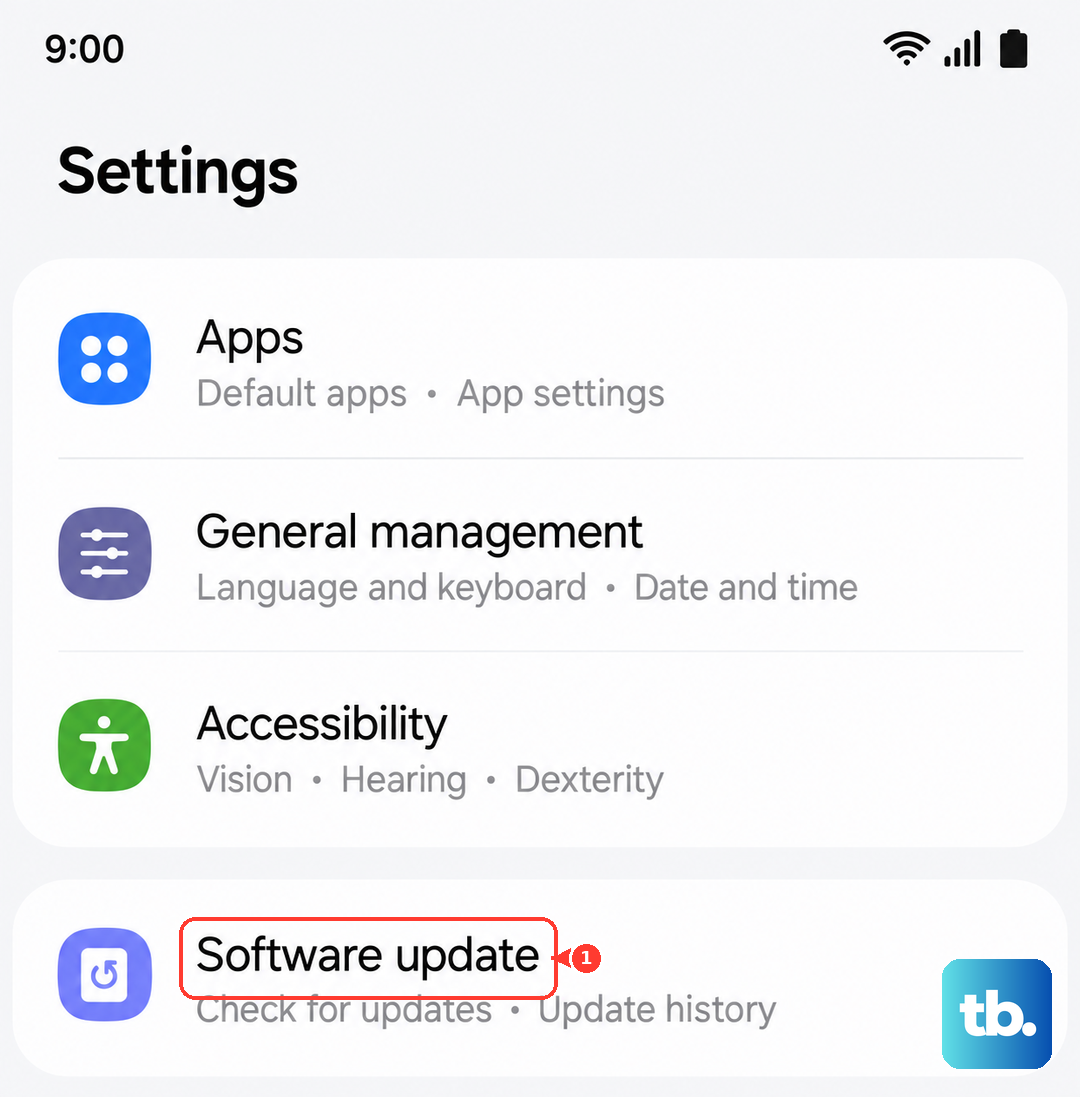
If an update is available, install it. These updates frequently include patches for touchscreen responsiveness and other system stability improvements. It's a good idea to check for updates regularly during the first few months after a major new release.
Boot Into Safe Mode
Safe mode temporarily disables all third-party apps. To enter it, press and hold the power button until the power off menu appears, then tap and hold the "Power off" icon on the screen until you see the "Safe mode" prompt.
Tap "Safe mode" to restart. If the touchscreen works perfectly in safe mode, a recently downloaded app is likely the culprit. You'll need to uninstall apps one by one to find the problematic one.
Calibrate the Touchscreen
Samsung includes a hidden diagnostic menu for testing hardware. Open your Phone app and dial *#0*#. This will launch the service menu.
Tap "Touch" to run the diagnostic. It will draw patterns on the screen for you to trace. If you can't complete the test or it fails, it points to a deeper hardware or driver issue.
Check for Moisture Detection Errors
A false moisture detection warning is a common Samsung issue that can disable charging and sometimes affect other functions. If you see a water droplet icon in your status bar, the system thinks the USB-C port is wet.
Unplug any charger, power off the phone, and use a can of compressed air to gently blow out the port. Let it sit for a few hours in a dry place, then try turning it on again. The alert should clear on its own once the system no longer detects moisture.
Consider a Factory Reset
This erases all data, so it's a last resort. First, ensure your data is backed up to Samsung Cloud or your Google account. Then, go to Settings > General management > Reset > Factory data reset.
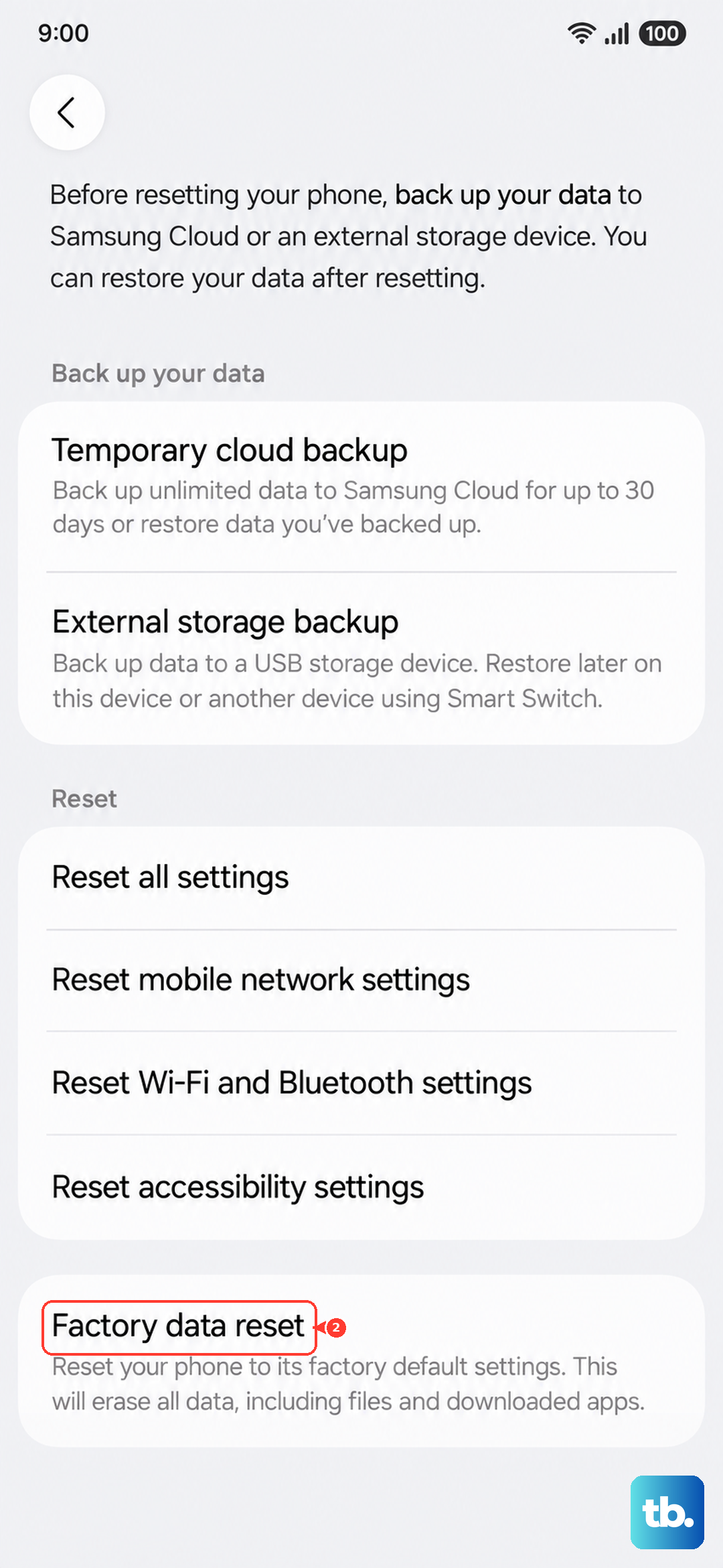
Follow the prompts to reset the phone. If the touchscreen is completely dead and you can't navigate the menu, you can use the hardware buttons. Power off the phone, then press and hold the Volume Up and Power buttons to boot into recovery mode and select "Wipe data/factory reset" from there.