
Press and hold the Volume Down button and the Side/Power button together for about 10 seconds. Keep holding them until you see the Samsung logo appear on the screen. This force restart is the quickest way to jolt the system back to life if it's frozen or unresponsive.
I'd start with this one every time. It works for most temporary software glitches and doesn't delete any of your data. If the screen flickers or the logo appears, you'll know the phone itself is still working.
Check Your Charger and Cable
Plug your Galaxy S26+ into a wall outlet using a different USB-C cable and power adapter. The phone supports 60W Super Fast Charging 3.0, but it doesn't come with a charger in the box in most regions.
If you're using an old or underpowered charger, the phone might not be getting enough juice to wake the screen, even if the battery icon shows it's charging. Try a charger that supports USB Power Delivery (PD) at 25W or higher.
Also, check the USB-C port on the bottom of your phone. Look for any lint, dust, or debris that could be blocking the cable from making a proper connection. Gently clean it out with a dry toothpick or a can of compressed air.
Charge the Phone for an Extended Period
Leave your S26+ plugged into a known-good charger for at least two hours, even if the screen stays black. A completely drained battery can sometimes cause the phone to appear dead when it just needs a significant charge before it can power on.
If you have a wireless charger, try that too. The S26+ supports Qi2 and Wireless PowerShare, so placing it on a compatible pad can rule out a faulty USB-C port. Look for any LED indicator on the charger itself to confirm power is being transferred.
While it's charging, feel the back of the phone. If it's getting warm, that's a good sign the battery is accepting a charge. Be patient, as it might take a while before there's enough power to trigger the screen to turn on.
Look for Signs of a Moisture Detection Error
The Galaxy S26+ has a known issue where its USB-C port can sometimes trigger a false "moisture detected" warning. This safety feature completely disables wired charging to prevent damage.
You might not see the warning if the screen is off, but the phone will refuse to charge. To clear it, power the phone off completely if you can. Then, plug it into a charger and immediately hold down the Volume Down and Power buttons to force a reboot while it's connected.
Another method is to go into recovery mode. With the phone off, hold Volume Up and Power until the Samsung logo appears, then release. In the recovery menu, use the volume keys to highlight "Wipe cache partition" and select it with the power button. This can sometimes clear the error.
Boot Into Safe Mode
Safe mode temporarily disables all third-party apps. If a recently downloaded app is causing the screen to freeze, this will help you confirm it. First, press and hold the Power button until you see the power off menu on screen.
Tap and hold the "Power off" option on the screen. A prompt should appear asking if you want to reboot to Safe Mode. Tap "OK" to confirm.
If the phone boots up and the screen works normally in Safe Mode, you've got a problematic app. You'll need to uninstall apps one by one, starting with the most recent downloads, to find the culprit. Restart the phone normally to exit Safe Mode.
Update Your Software
Since the S26+ is new with One UI 8.5, early software bugs are a possibility. A pending update might fix the unresponsive screen issue. Connect to a strong Wi-Fi network and go to Settings > Software update > Download and install.
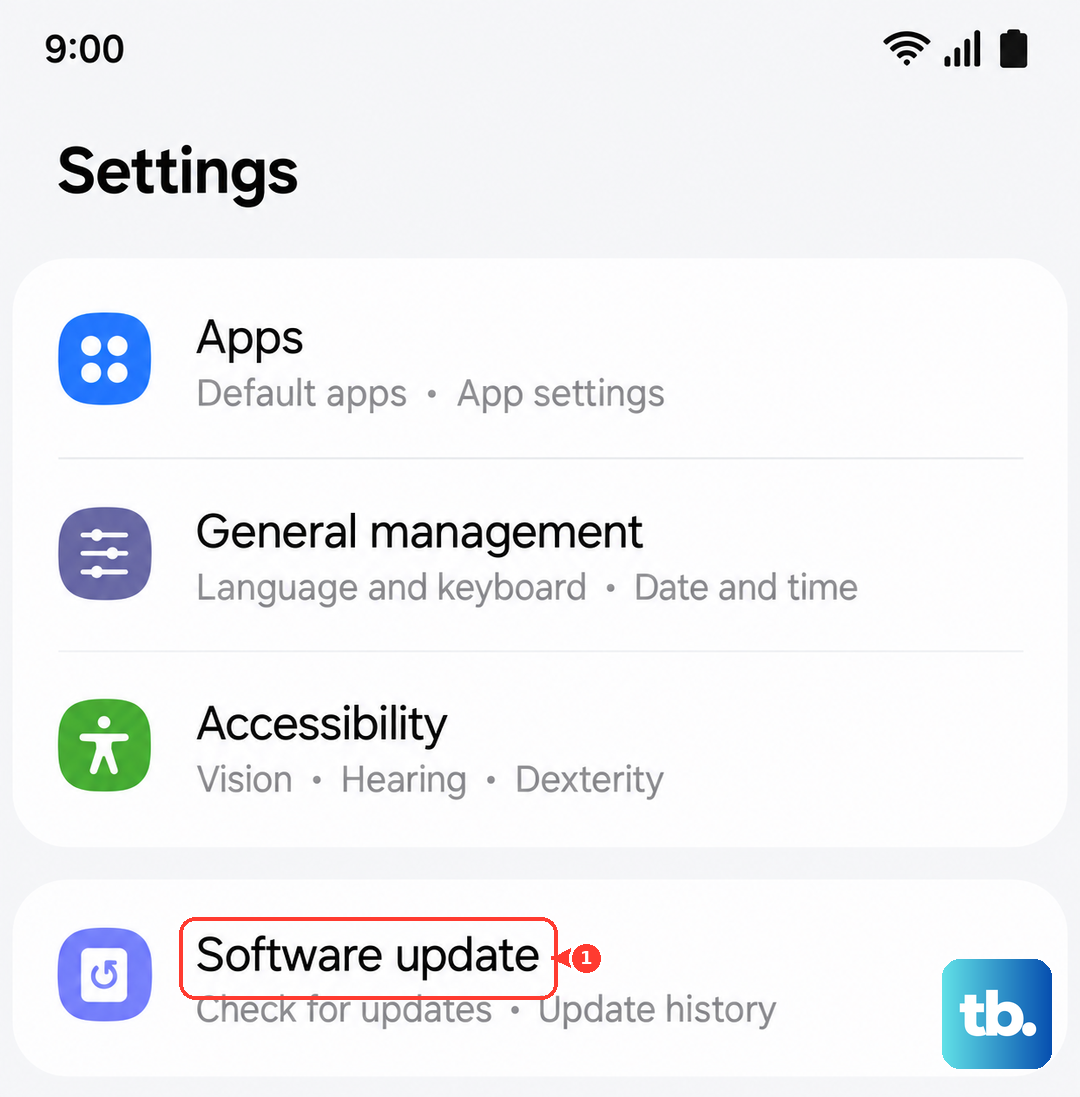
If your screen is working intermittently, try to check for an update as soon as you can. Make sure your battery is above 50% or plug it in during the update process. I've seen day-one patches resolve similar display glitches on other Samsung models.
Also, check if you have "Battery protection" enabled, which stops charging at 85%. If your phone died at what it thought was 0% charge but was actually 15%, it could cause boot issues. You can find this in Settings > Battery > More battery settings.
Consider a Factory Reset
This erases all data on your phone, so it's a last resort. If you can access recovery mode, you can do it from there. First, ensure you've tried everything else. If you have important data, see if the phone is recognized on a computer via USB when in recovery mode for a backup.
To enter recovery, power off the phone. Then, press and hold Volume Up and Power until the Samsung logo appears. Use the Volume Down button to navigate to "Wipe data/factory reset" and select it with the Power button.
Confirm your selection. After the reset is complete, select "Reboot system now." This will return the phone to its out-of-box state, eliminating any deep-seated software corruption that could be causing the screen to fail.