
When your Samsung Galaxy S26 microphone stops picking up your voice, it can turn simple phone calls, video chats, or voice commands into a frustrating experience. The issue might be with the phone's main mic, the call mic, or the ones used for video recording. Let's start by figuring out exactly which microphone is acting up.
It is worth running a online mic test before working through the steps below. The live waveform makes it obvious whether the microphone is picking up sound at all.
Test Your Galaxy S26 Microphones
Your phone has several microphones. The primary one for calls is at the bottom near the USB-C port. There's another at the top for noise cancellation, and ones on the back for video recording. Open your Voice Recorder app, which comes pre-installed on the S26, and make a quick test recording. Speak normally and then play it back.
If the recording is muffled or silent, try making a regular phone call. Ask the person on the other end if they can hear you clearly. You can also open the Camera app, switch to video mode, and record a short clip with audio to test the rear microphones.
For testing voice commands, press and hold the Side key to activate Bixby, or say "Hey Google." If the assistant doesn't respond or misunderstands you, it points to a microphone issue. This helps narrow down whether the problem is with all mics or just specific ones.
Check for Physical Obstructions
This is the most common fix I'd recommend starting with. Take a close look at the small microphone holes at the bottom and top of your S26. These tiny openings can easily get clogged with pocket lint, dust, or even a bit of dried sweat.
Gently brush over the holes with a soft, dry toothbrush or use a can of compressed air held upright to blow out any debris. Be very careful not to push anything further into the microphone. Also, remove your phone case, as some cases are poorly designed and can partially cover these ports.
Disconnect Bluetooth and Accessories
If you have Galaxy Buds, a smartwatch, or any other Bluetooth audio device paired, your S26 might be trying to use that microphone instead. Swipe down from the top of your screen to open the Quick Settings panel and tap the Bluetooth icon to turn it off temporarily.
Also, if you have anything plugged into the USB-C port, like headphones or a charging cable, unplug it. A faulty accessory or even a bit of debris in the port itself can interfere with the microphone circuit. After disconnecting everything, test your voice recorder or make a quick call again.
Restart Your Phone
A simple restart clears out temporary software glitches that can affect hardware like the microphone. Press and hold the Side key and Volume Down button together until the power-off menu appears. Tap "Restart" and wait for your phone to reboot.
If the screen is unresponsive, you can force restart it. Press and hold the Volume Down button and the Side/Power button simultaneously for about 10 seconds until the Samsung logo appears on the screen, then release the buttons.
Verify App Permissions in One UI 8.5
With Android 16 and One UI 8.5, app permissions are more granular. If your microphone only fails in specific apps like WhatsApp, Zoom, or Instagram, those apps might have lost permission. Go to Settings > Apps, select the problematic app, and tap Permissions.
Make sure the Microphone permission is set to "Allow." You can also check a global list by going to Settings > Privacy and security > Permission manager > Microphone. This shows every app that has requested access and lets you manage them all from one place.
Check for Software Updates
Since the Galaxy S26 is brand new with One UI 8.5, early software bugs are a real possibility. Samsung is likely releasing updates to fix these kinds of issues. Go to Settings > Software update and tap Download and install.
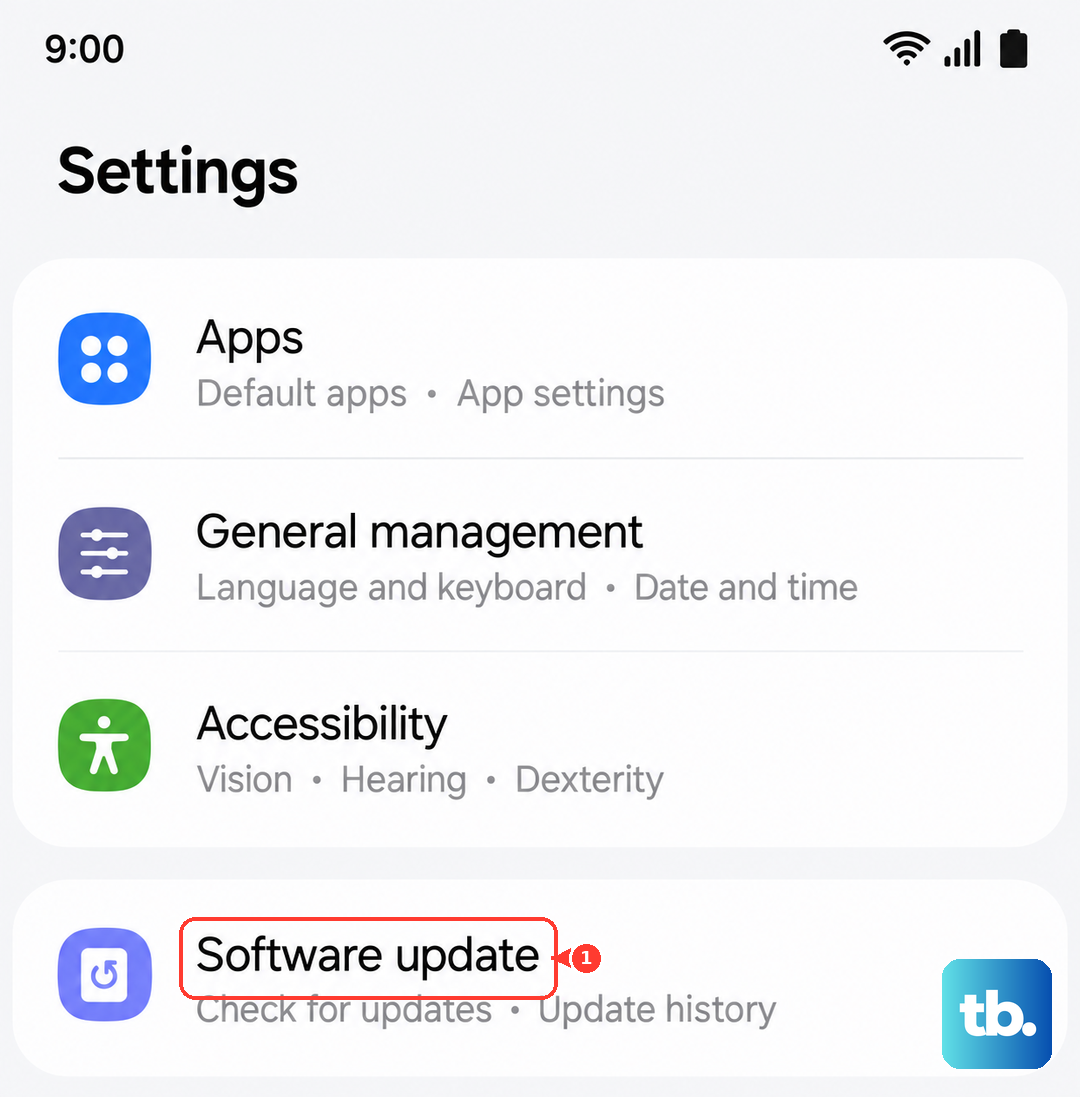
Make sure your phone is connected to Wi-Fi and has sufficient battery. An update can include crucial patches that resolve audio driver problems or conflicts causing the microphone to malfunction. It's a good habit to check for updates weekly during the first few months after a new phone launch.
Clear Cache for Voice-Related Apps
Corrupted app cache data can sometimes cause features like the microphone to stop working within that app. Go to Settings > Apps, then find and select apps like Phone, Google app (for Assistant), or your voice recorder. Tap Storage and then Clear cache.
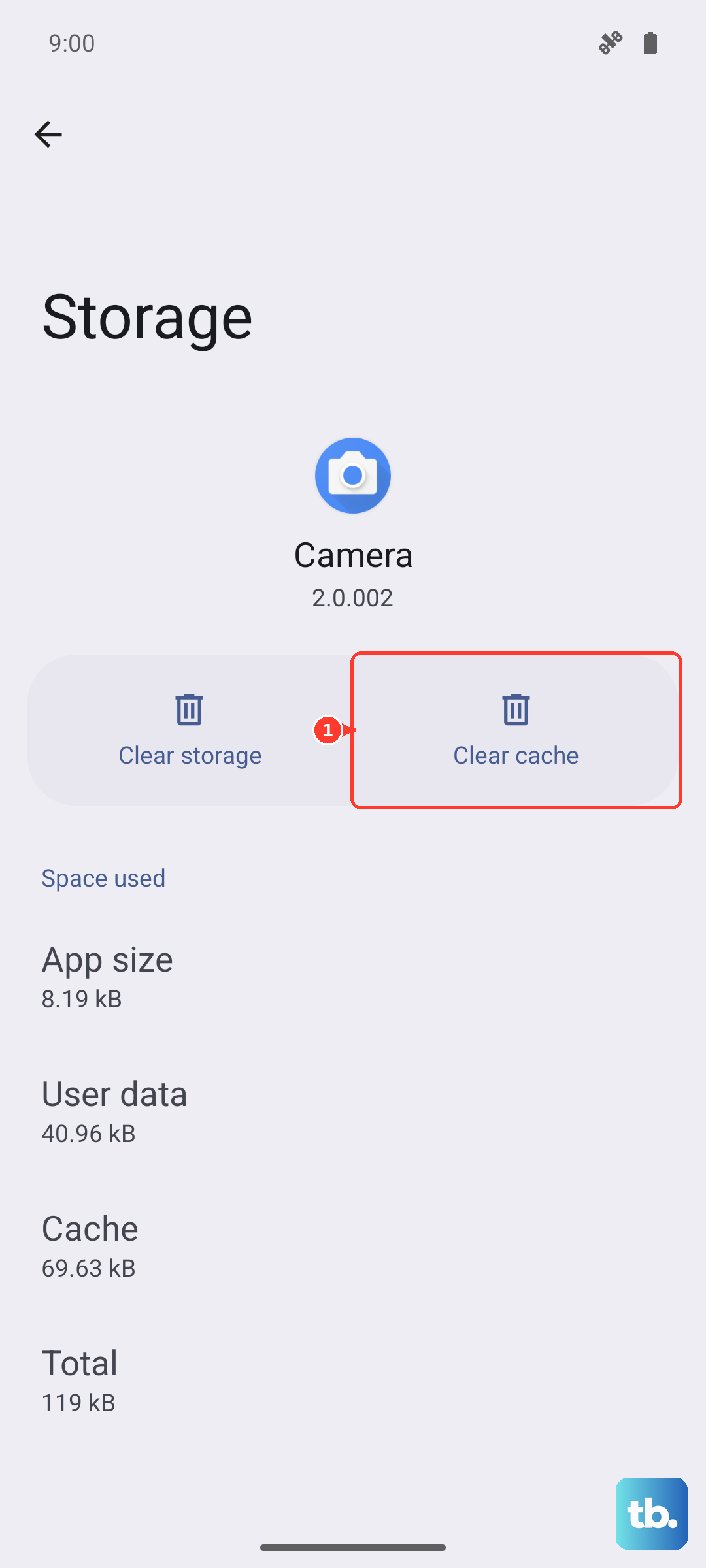
This doesn't delete any personal data like your call history or recordings. It just removes temporary files that might be causing a conflict. After clearing the cache, force close the app and reopen it to see if the microphone starts working.
Boot into Safe Mode
Safe mode temporarily disables all third-party apps you've downloaded. If the microphone works perfectly in Safe Mode, then a recently installed app is likely causing the conflict. To enter Safe Mode, press and hold the Side key and Volume Down key until the power off menu appears.
Then, press and hold the "Power off" option on your screen. A prompt will appear asking if you want to reboot to Safe Mode. Tap "OK." Your phone will restart with "Safe Mode" visible in the bottom corner. Test your microphone here. To exit, simply restart your phone normally.
Reset All Settings
This will revert all your system settings back to default without touching your personal photos, messages, or apps. It can fix issues caused by a misconfigured setting somewhere. Go to Settings > General management > Reset > Reset all settings.
You'll need to re-enter your Wi-Fi passwords and reconfigure things like ringtones and display settings, but it's often faster than a full factory reset. Confirm the action and let your phone restart. Immediately test the microphone after it boots up.
Consider a Factory Reset
If you've tried everything else and the microphone is still dead, a factory reset is the last software step. This will erase everything on your phone, so it's crucial to back up your data first using Samsung Cloud or Google One. Go to Settings > General management > Reset > Factory data reset.
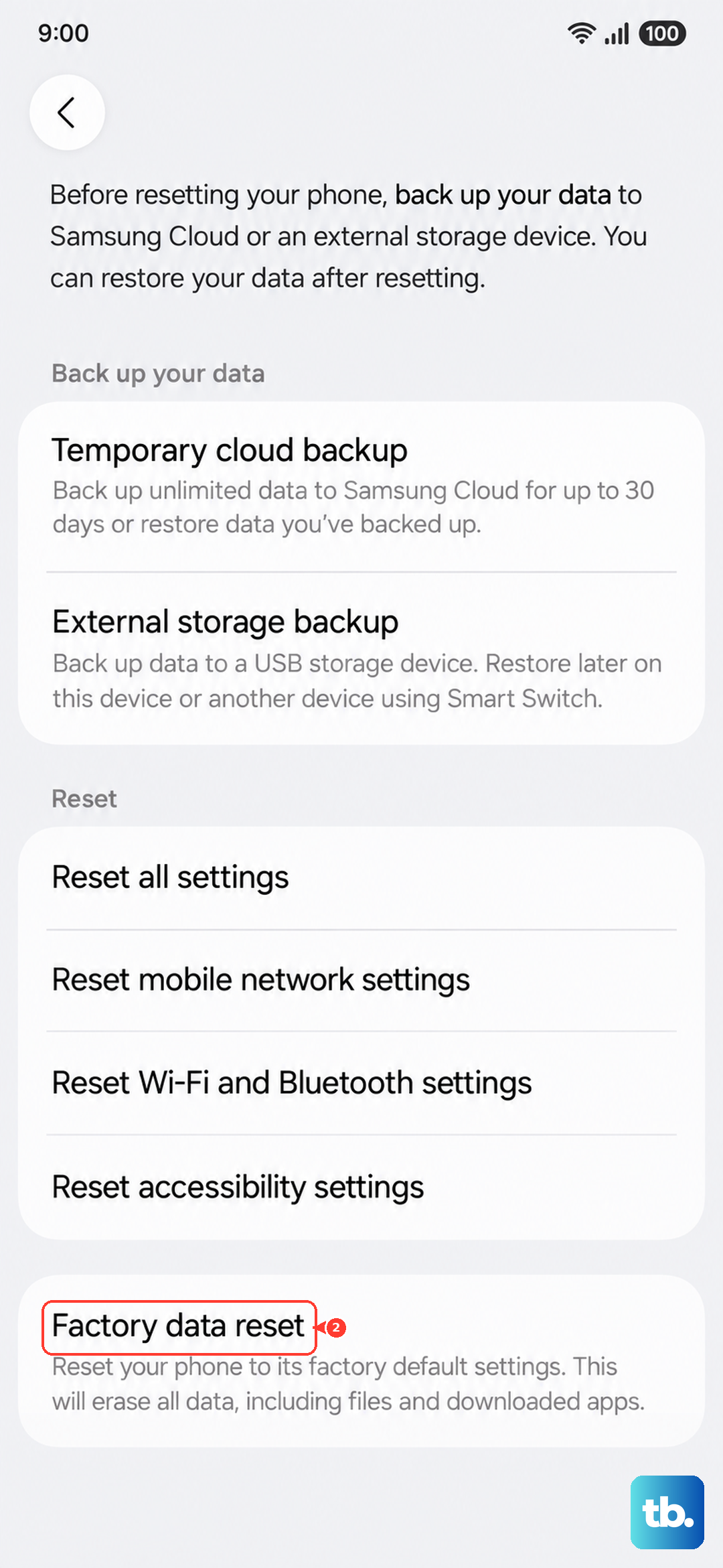
Tap "Reset" and follow the prompts. After the phone erases itself and restarts, you'll go through the initial setup process. Test the microphone during setup when it asks you to say "Hey Google" or before you restore your apps, to see if the problem persists on a clean software slate.