
If your Galaxy S26's fingerprint scanner is acting up, you're in the right place. That little sensor under the screen can be finicky, but there are quite a few things you can try before giving up. Let's start with the most common fix.
First, give the screen a good wipe right over the sensor area. Use a soft, dry microfiber cloth to remove any oils, lotion, or dirt from your finger and the glass. I've found this solves the problem more often than you'd think, especially if you just ate something greasy.
Restart Your Galaxy S26
A quick restart clears out temporary software glitches that can confuse the biometric system. Just press and hold the Volume Down button and the Side/Power button together for about ten seconds until you see the Samsung logo. It's the digital equivalent of taking a deep breath for your phone.
Check for a Software Update
Since the S26 is brand new and running One UI 8.5, there's a good chance an early bug is causing the trouble. Samsung is likely pushing out fixes. Head to Settings > Software update > Download and install.
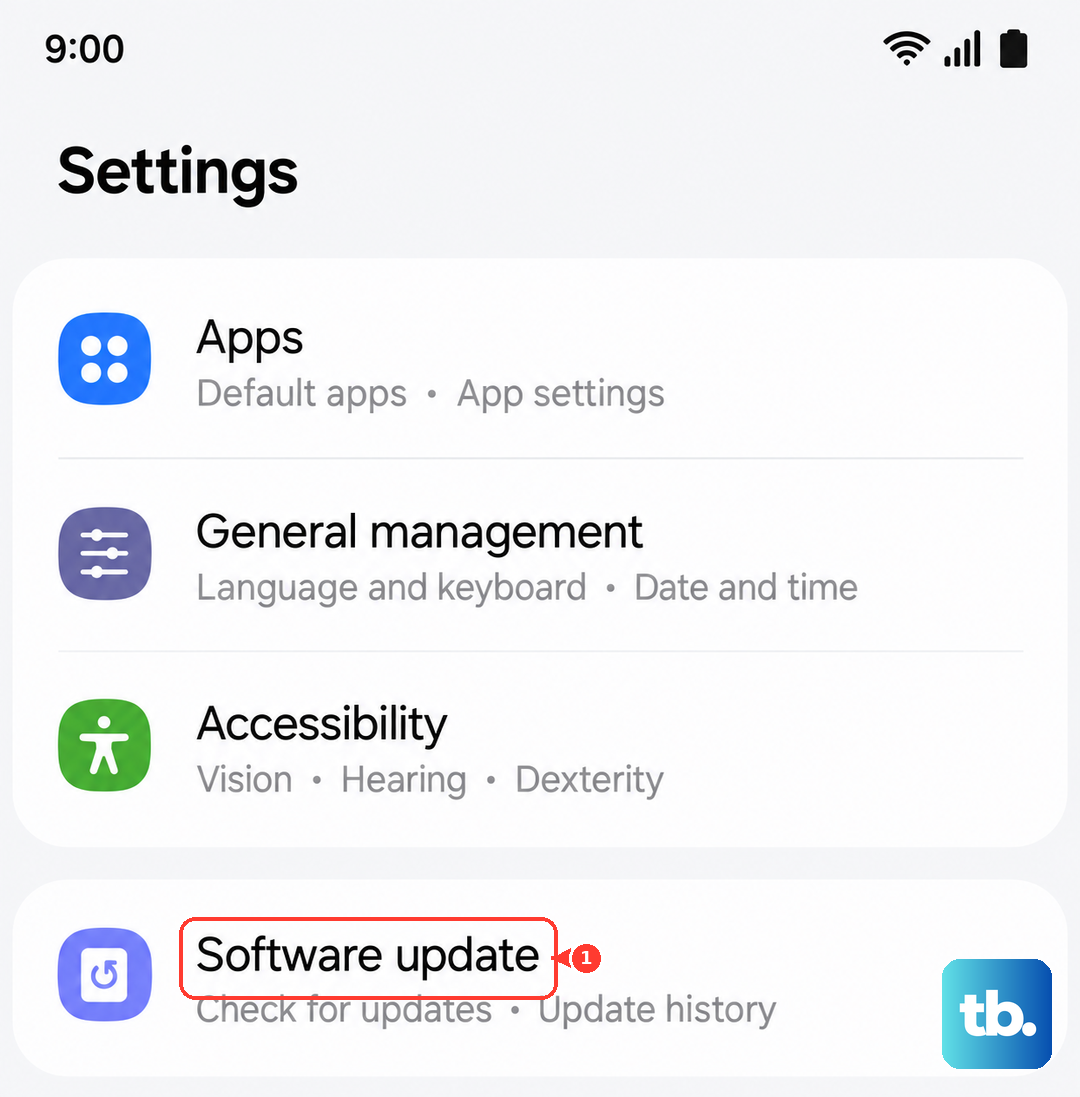
Make sure your phone is connected to Wi-Fi and has enough battery. Installing the latest update can smooth out these kinds of teething problems with a new operating system.
Re-register Your Fingerprint
If the sensor is having trouble recognizing you, it might just need a better map of your print. Go into Settings > Biometrics and security > Fingerprints. You'll need to enter your PIN, password, or pattern first.
Tap on the fingerprint that's failing and select "Remove." Now, add it again. This time, be really deliberate. Press your finger at different angles and make sure to cover the edges as the phone instructs. A thorough re-scan often works wonders.
Inspect Your Screen Protector
This is a huge one for ultrasonic sensors like the one in the S26. Not all screen protectors are created equal. A thick or poorly fitted protector can block the sensor's signals.
Try removing the protector temporarily to see if the fingerprint reader starts working perfectly. If it does, you'll need to look for a protector specifically marketed as compatible with ultrasonic fingerprint sensors. Some even come with a "fingerprint mode" you can enable in settings.
Try a Different Finger or Technique
Sometimes the issue is with your specific finger. Dry skin, minor cuts, or even just the way you press can affect it. Try registering a different finger, like your other thumb or an index finger, to see if it works more reliably.
When you unlock, make sure you're using the same part of your finger you registered. Don't tap too lightly or pull away too quickly. Give the sensor a solid, half-second press.
Clear the System Cache
Corrupted temporary system files can cause all sorts of weird behavior, including biometric failures. Clearing the cache is safe and won't delete your personal data. First, turn off your phone completely.
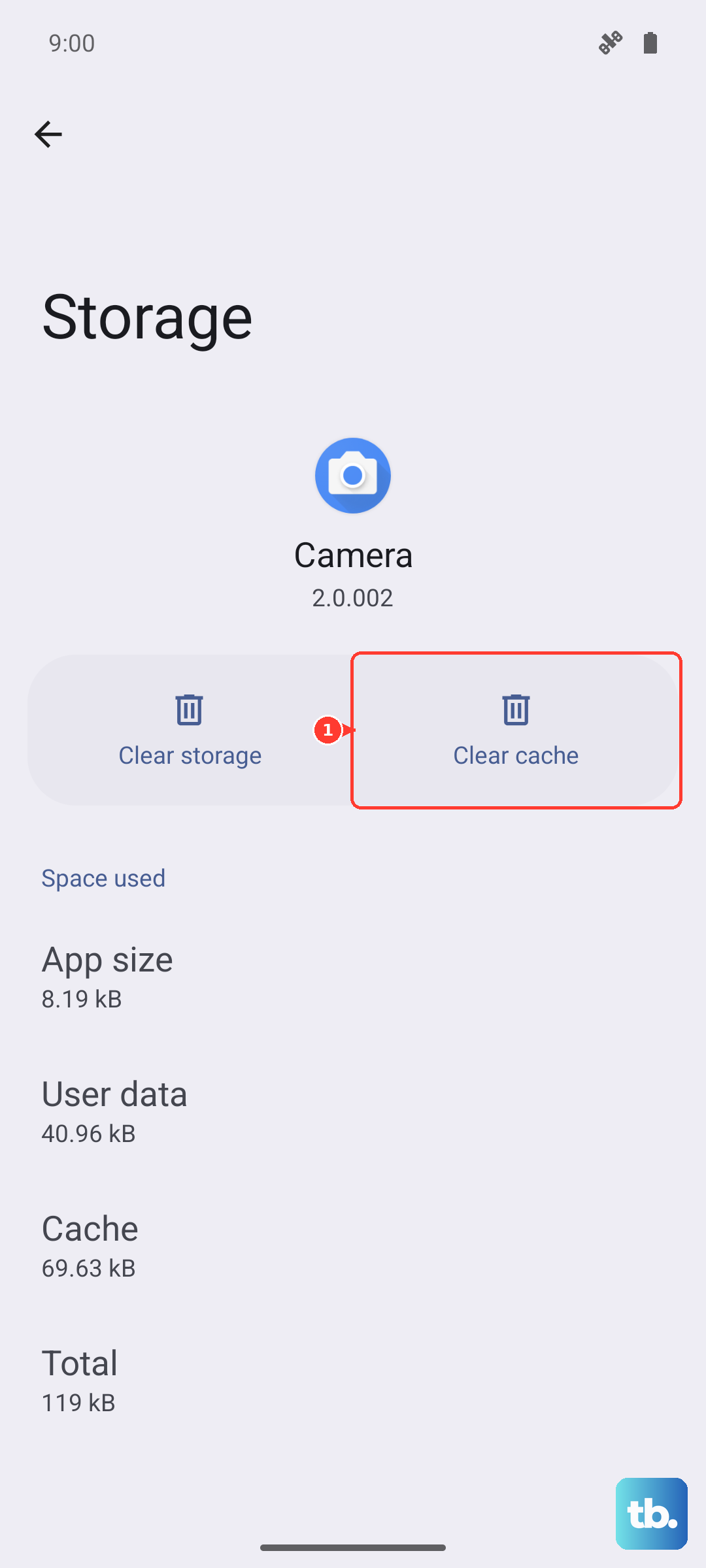
Now, open Settings > Battery and device care and tap Optimize now to clear out temporary system files. Samsung removed the old "Wipe cache partition" option from the recovery menu on recent Galaxy phones, so the S26 relies on Device Care for this instead. You can also clear a specific app's cache under Settings > Apps > select the app > Storage > Clear cache.
Check for Interference
Are you trying to use the scanner while the phone is wirelessly charging? The electromagnetic field from a Qi2 or PowerShare charger can sometimes interfere with the sensitive sensor. I'd test the fingerprint reader with the phone off the charger to rule this out.
Also, make sure your fingers are completely dry. The ultrasonic scanner has a harder time reading through water or sweat compared to an old-school capacitive sensor.
Review Your Security Settings
Dive into the fingerprint settings and see if anything looks off. Go to Settings > Biometrics and security > Fingerprints. Make sure "Fingerprint unlock" is toggled on.
While you're there, note that the S26 does not offer finger-sensor gestures (swiping on the sensor to open the notification panel) because it uses an under-display sensor, so there is no such gesture setting here that could conflict with unlocking.
Register Multiple Fingerprints
This is a good proactive step. The S26 lets you register multiple prints. Add both thumbs and maybe an index finger. This gives you backups if one finger is dirty, injured, or just being stubborn on a particular day.
Always maintain a strong backup PIN or password. That way, you're never locked out of your phone if the sensor decides to take an unexpected break.