
If your Samsung Galaxy S25 is completely black and won't respond when you press the side button, don't panic just yet. A completely drained battery may be the cause, and the fix is often simpler than you think. I'd start by plugging it into a compatible wall charger for at least 1 hour before trying anything else.
Force Restart Your Galaxy S25
If the screen is black but you suspect the phone might be frozen, a force restart is your first real troubleshooting step. This is different from a normal power-off and can clear minor software glitches that cause the phone to become unresponsive.
For the Galaxy S25, press and hold the Volume down button and the Side button together for more than 7 seconds until the device restarts. You should feel a vibration and see the Samsung logo appear as the phone restarts. If it doesn't work on the first try, give it another go.
Check Your Charger and Cable
A dead battery may be the culprit. Your Galaxy S25 supports 25W fast charging, but it needs a compatible charger and cable to work properly. Try using an official Samsung 25W USB-C charger, since the S25 doesn't include one in the box.
If you don't have that, try a different compatible Samsung USB-C cable and wall adapter. Cables can fail internally even if they look fine, and incompatible chargers can cause charging problems. Leave it plugged in for at least 1 hour; the charging indicator may take up to 10 minutes to appear. Then disconnect the charger and hold the Side button for 15 to 20 seconds to try turning it on again.
Look for the Moisture Detection Warning
A "Moisture detected" warning can appear when moisture is detected in the charging port. This safety feature can stop charging to protect the phone from damage. Even on a water-resistant phone, the USB-C port must be completely dry before charging.
If you see this warning on screen, unplug the cable immediately. Gently shake the phone to remove moisture from the charging port, then wipe it with a soft, clean cloth. Leave it in a well-ventilated area using cool air, and wait until the port is completely dry before charging again.
Inspect the Charging Port
Take a close look at the USB-C port on the bottom of your phone. Over time, pocket lint and debris get packed in there, preventing the charging cable from making a solid connection. This can stop your phone from charging and eventually lead to it shutting down.
With the phone powered off, inspect the port with a flashlight. Carefully remove visible debris with a soft, dry brush, without using metal objects or liquids. Clearing debris can help the charging cable make a firm connection again.
Boot Into Safe Mode
If your phone turns on but gets stuck on the Samsung logo or crashes during boot, a recently installed app might be the cause. Booting into Safe Mode temporarily disables all third-party apps so you can check.
First, completely power off the phone. Turn it on, then press and hold the Volume down button when the Samsung logo appears. Keep holding it until you see "Safe mode" in the bottom-left corner of the screen.
If the problem disappears in Safe Mode, a downloaded app is likely causing the conflict. You can then go to Settings and uninstall apps you recently added or updated to find the culprit. Restart normally after each removal to check whether the problem is gone.
Adjust Your Battery Settings
If your phone turns on, it's worth checking your battery settings. Battery protection can limit the charging level, which may explain why charging stops before the battery reaches 100%.
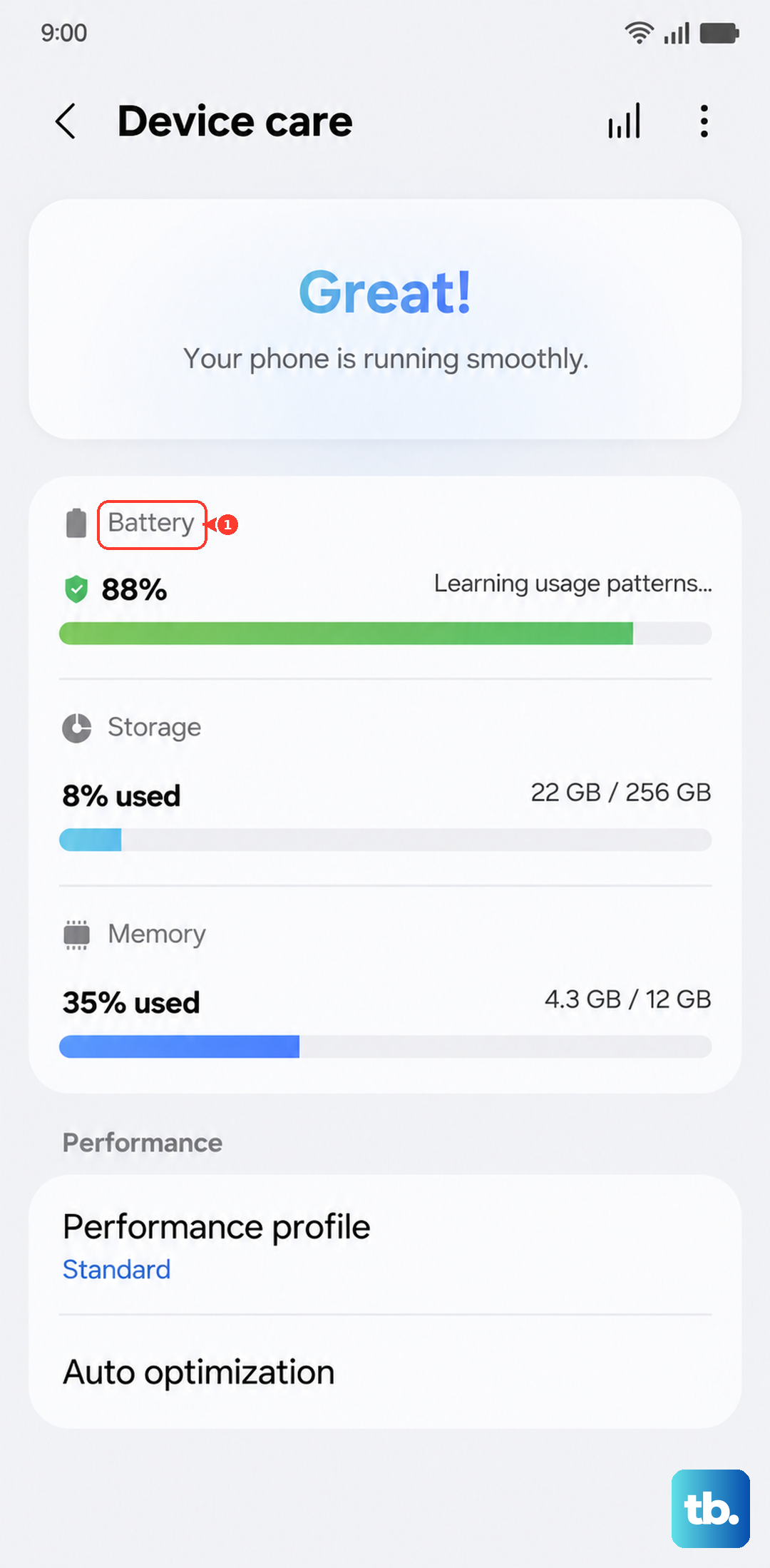
Go to Settings > Battery > Charging settings and turn on Fast charging. To check the charge limit, go to Settings > Battery > Battery protection and select a different option or turn it off temporarily. Maximum mode can cap charging as low as 80%. You can also review battery information in Settings > Device care.
Try Wireless Charging
Your Galaxy S25 supports wireless charging and Wireless PowerShare. If you have a compatible wireless charger handy, this can help you check whether the wired charging connection may be the problem.
Place your phone correctly on the charging pad. If it starts charging wirelessly, the port, cable or wall adapter may be the cause of the wired charging problem. Charging can slow down or stop if the phone gets too warm, so remove any thick case and let the phone cool down before trying again.
Wipe the Cache Partition
Corrupted system cache files can prevent your phone from booting properly. Clearing this cache is a safe operation that doesn't delete your personal data like photos or messages. You'll need to boot into the Android Recovery Mode.
First, power off your phone, then connect it to a computer with a USB-C cable. Then, press and hold the Volume Up button and the Side button together. When you see the Samsung logo, release both buttons. You'll enter a blue recovery menu.
Use the Volume Down button to highlight "Wipe cache partition" and press the Side button to select it. Confirm the action, then select "Reboot system now" when it's done. This clears temporary system files and can resolve boot loops.