When your Samsung Galaxy S25 volume buttons stop responding, it's a real nuisance. You press them and get nothing, no volume change, no haptic feedback. The good news is that most of the time, this is a software hiccup or a simple obstruction that you can fix yourself without a trip to the service center.
I'd start with the quickest solutions first, as they often do the trick.
Remove Your Phone Case
Take your S25 out of its case. A case that's slightly misaligned, worn down, or just too tight can physically block the volume rocker from being pressed fully. It's the easiest thing to check and solves the problem more often than you'd think.
Perform a Force Restart
A force restart clears out temporary software glitches that can make the buttons unresponsive. This is completely safe and won't delete any of your photos, messages, or apps.
For the Galaxy S25, press and hold the Volume Down button and the Side key (power button) together for about 10 seconds. Keep holding until you see the Samsung logo appear on the screen, then let go. Your phone will reboot normally.
Check Your Sound Settings
There's a setting in One UI that could be interfering. Open the Settings app and go to Sounds and vibration. Scroll down and make sure the option for Use volume keys for media is toggled on.
If this is off, your volume buttons might only control the ringtone volume by default, which can be confusing. With it on, they'll adjust media volume when you're watching a video or listening to music, which is how most people expect them to work.
Clean the Volume Rocker
Dust, lint, and pocket debris are common culprits. The slim design of the S25's buttons means even a tiny bit of grit can get lodged in there and prevent a proper press.
Gently blow compressed air around the edges of the volume rocker. You can also use a dry, soft-bristled brush, like a clean makeup brush or a new toothbrush, to carefully sweep away any particles. Avoid using liquids directly on the phone.
Test the Buttons in Safe Mode
Booting into Safe Mode temporarily disables all third-party apps you've downloaded. If your volume buttons work perfectly in Safe Mode, then a recently installed app is likely causing the conflict.
To enter Safe Mode, press and hold the Side key and Volume Down key until the power off menu appears. Then, tap and hold the "Power off" option on your screen. You'll see a prompt to reboot to Safe Mode; tap it. When you see "Safe Mode" in the bottom corner, test your volume buttons.
To exit, just restart your phone normally.
Try the On-Screen Volume Slider
While you're figuring this out, you can still control your volume. Just press any volume button once to bring up the on-screen slider, then drag it with your finger. You can also pull down the notification panel twice to access the quick settings and adjust the slider there.
Check for Software Updates
Samsung regularly releases updates that fix bugs, including ones that might affect hardware controls. It's always worth making sure you're on the latest software.
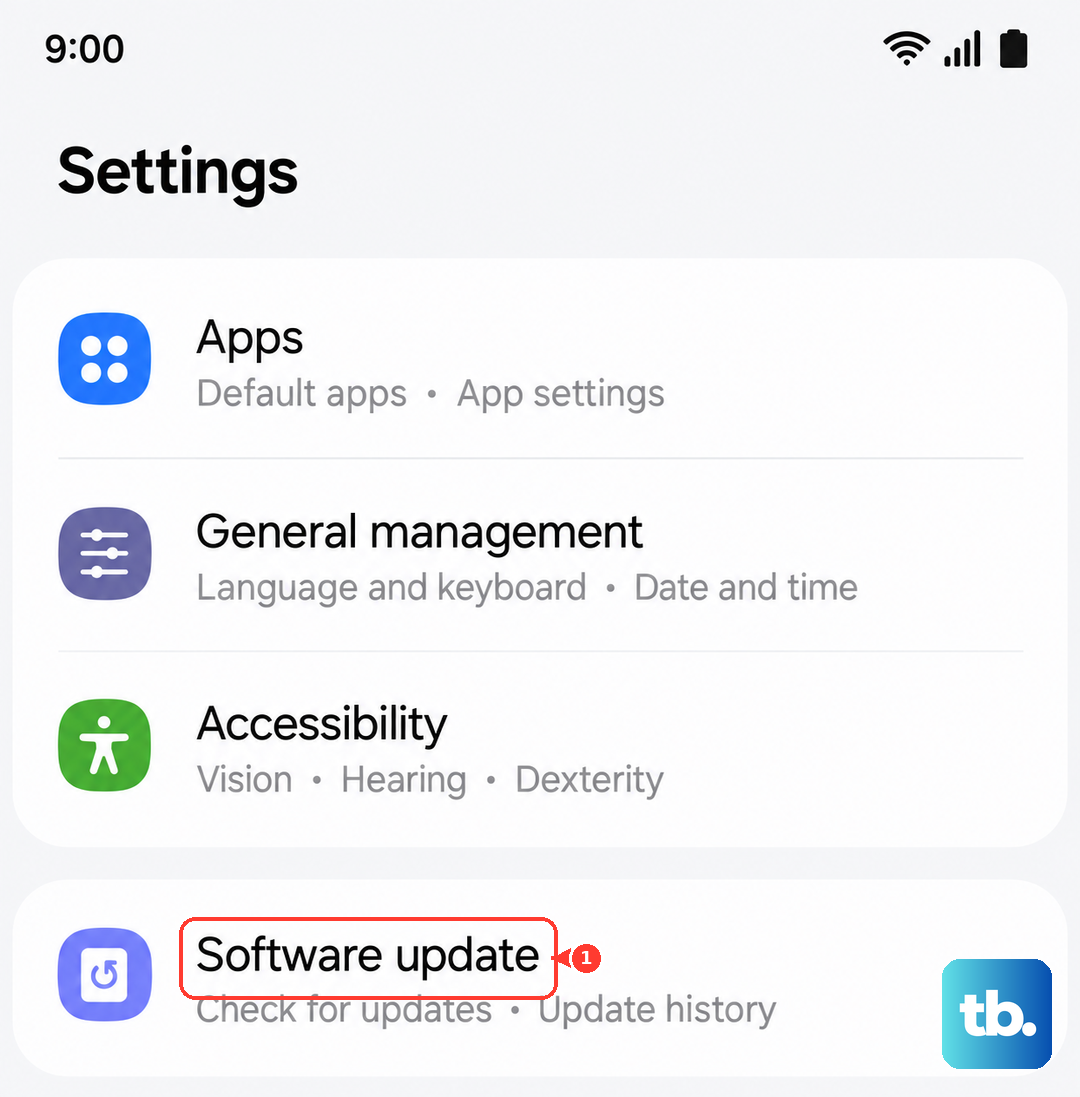
Go to Settings > Software update and tap Download and install. If an update is available, connect to Wi-Fi and let it install. After the phone restarts, test your buttons again.
Inspect for Physical Damage
Take a close look at the volume rocker itself. Has your phone been dropped recently? Even a small dent or bend in the frame near the buttons can affect the internal mechanism.
Press the buttons and feel for the normal, crisp click. If they feel mushy, loose, or stuck in one position, the issue is likely physical. Also, check if the problem is with both the volume up and down, or just one side.
Reset All Settings
This is a stronger reset that won't erase your personal data like photos or contacts, but it will revert all your system settings back to default. Things like Wi-Fi passwords, wallpaper, and app permissions will be reset.
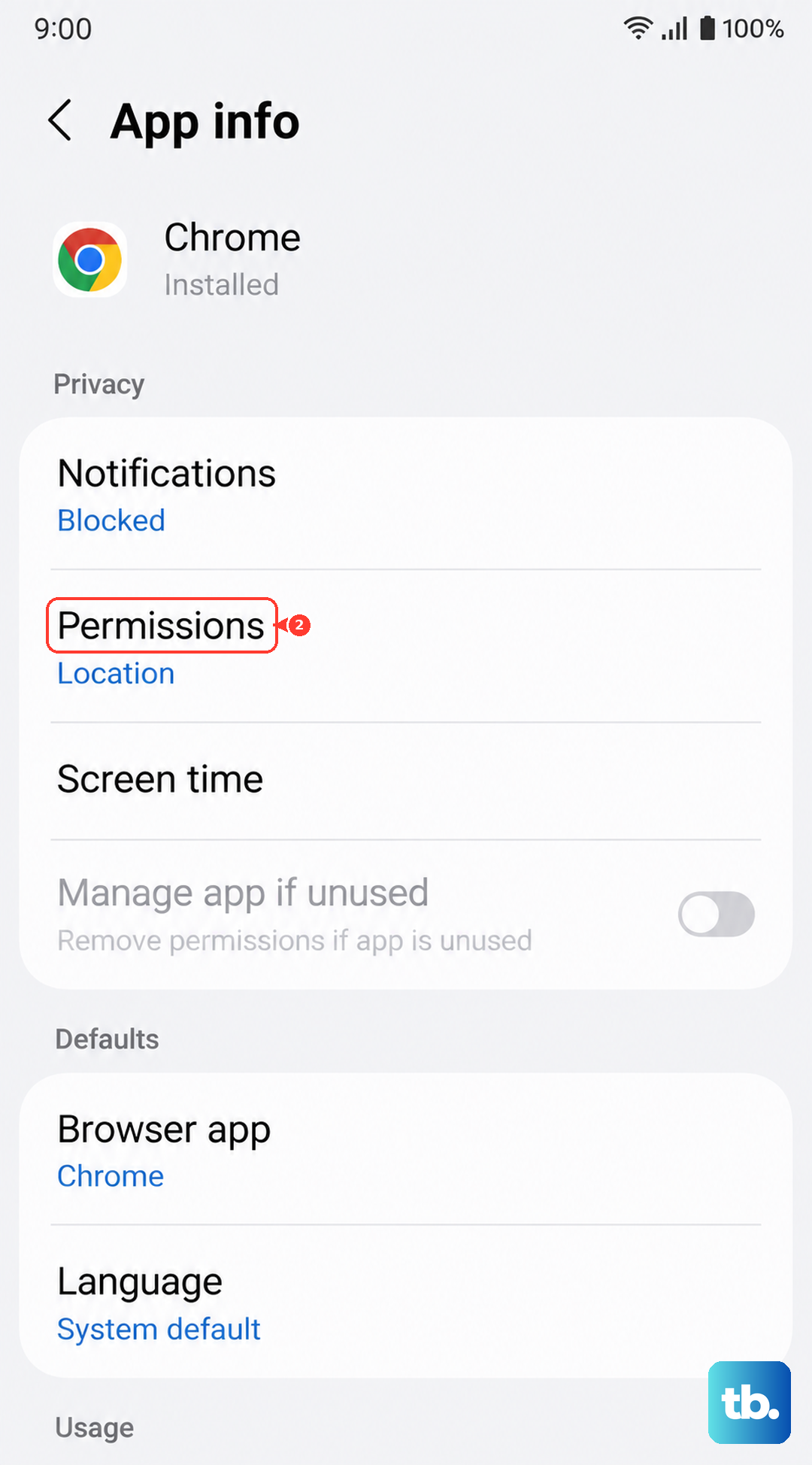
If a misconfigured setting is the root cause, this will clear it. Go to Settings > General management > Reset > Reset all settings. Enter your PIN if prompted and confirm. After the phone reboots, you'll need to reconfigure your preferences, but it's a good step before considering more drastic measures.
Consider a Factory Reset
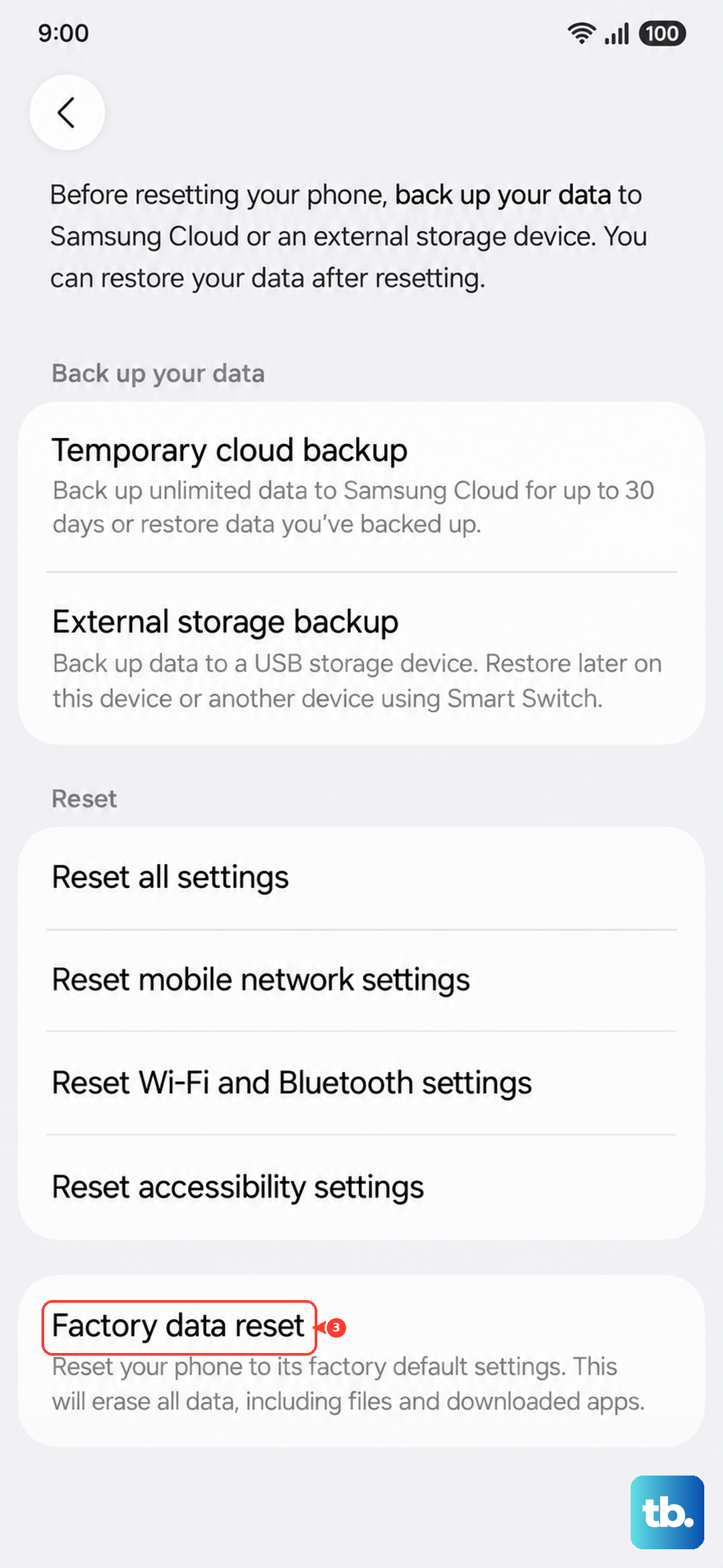
If every other step has failed, a factory reset is the final software fix. This will erase everything on your phone, so it's crucial to back up your data first using Samsung Cloud or by connecting to a computer.
Once backed up, you can initiate the reset by going to Settings > General management > Reset > Factory data reset. Follow the prompts to erase the device. After it restarts and goes through the setup wizard, test the buttons immediately before restoring your data, to see if the problem is truly gone.