
When the Mobile Hotspot on your Samsung Galaxy S25 Ultra stops working, it leaves your laptop or tablet stranded without internet. Whether other devices can't see the network, fail to connect, or get stuck obtaining an IP address, the fixes are usually straightforward.
Toggle Mobile Hotspot Off and On
Open Settings > Connections > Mobile Hotspot and Tethering. Tap the switch next to Mobile Hotspot to turn it off. Wait about 15 seconds, then turn it back on. This quick reset of the hotspot service can clear temporary glitches that prevent it from broadcasting properly.
Force Restart Your Galaxy S25 Ultra
Press and hold the Volume Down button and the Side key together for about 10 seconds. Release when you see the Samsung logo appear. A force restart is more thorough than a standard reboot and can resolve deeper software conflicts affecting the modem and network sharing features.
Verify Your Mobile Data Connection
The hotspot relies entirely on your phone's cellular data. Swipe down for the Quick Panel and make sure the mobile data icon is active. If you're in an area with a weak 5G or LTE signal, the hotspot will be unstable or not work at all. Also, double-check with your carrier that your specific plan includes tethering data, as some plans restrict it.
Reset Your Network Settings
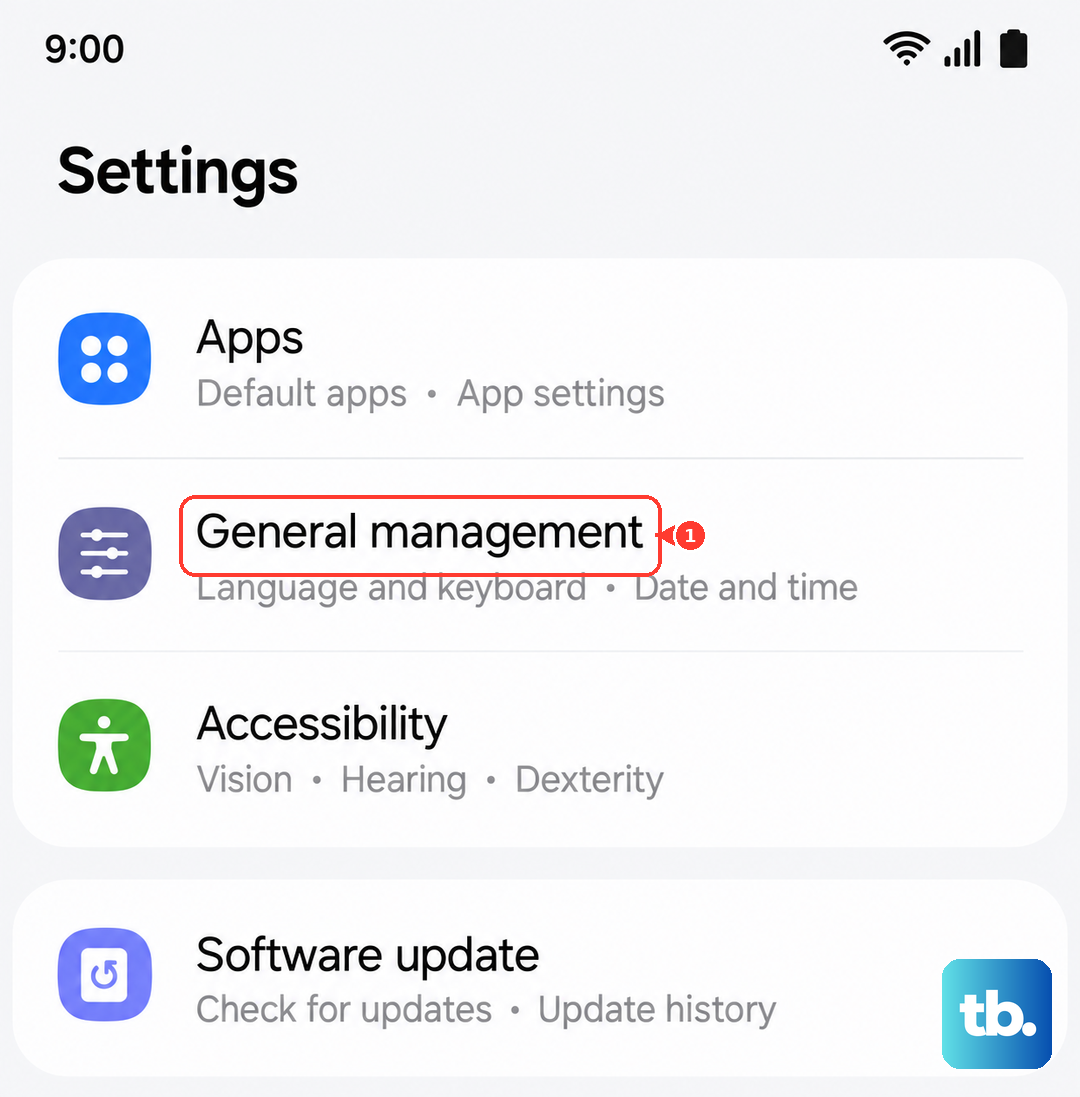
Go to Settings > General Management > Reset > Reset mobile network settings, and if the hotspot still won't work, also tap Reset Wi-Fi and Bluetooth settings in the same menu. Tap to confirm. This will erase all Wi-Fi networks, paired Bluetooth devices, and cellular network preferences, then restore them to default. You'll need to reconnect to Wi-Fi and re-pair Bluetooth accessories, but it's a powerful fix for persistent hotspot issues.
Check for a Carrier Configuration Update
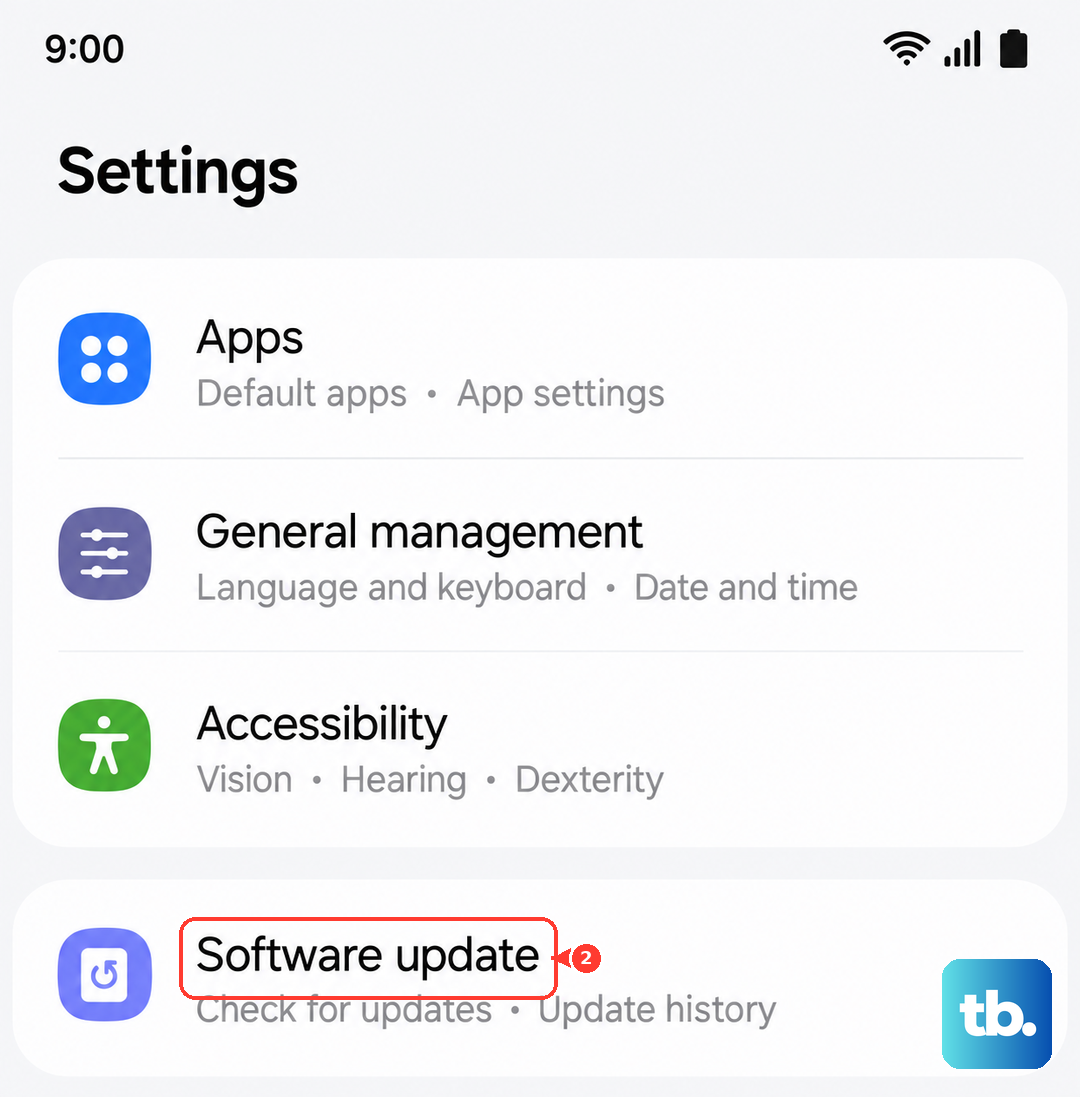
Carrier updates can fix network authentication problems that block tethering. Go to Settings > Software update > Download and install. While this checks for full OS updates, carrier updates often come bundled. You can also try inserting your SIM card into another phone to see if the hotspot works there, which helps isolate a potential account issue.
Forget the Network on the Connecting Device
On the laptop or tablet that won't connect, go into its Wi-Fi settings and find your phone's hotspot name. Choose to forget or remove the network. Then, scan for available networks again, select your S25 Ultra's hotspot, and enter the password fresh. A corrupted saved network profile is a common culprit.
Change Your Hotspot's SSID and Password
In Settings > Connections > Mobile Hotspot and Tethering > Mobile Hotspot, tap on the network name (SSID) or password field. Change one or both to something new and save. This forces a completely new network identity, which can bypass connection handshake errors that occur with the old settings.
Switch Between 2.4 GHz and 5 GHz Bands
Your S25 Ultra's hotspot can broadcast on two frequencies. In the Mobile Hotspot settings, tap on Configure and look for the Band or AP Band setting. Try switching from "5 GHz" to "2.4 GHz" or vice versa. Some older devices have trouble connecting to 5 GHz hotspots, while 2.4 GHz has better range through walls.
Update Your Phone's Software
Navigate to Settings > Software update > Download and install. Samsung frequently releases updates that patch connectivity bugs. If you have the Enhanced processing mode enabled for better performance, try disabling it temporarily, as it can sometimes affect network stability under heavy load.
Confirm Hotspot Access with Your Carrier
If you've tried everything and the hotspot still won't work, the restriction is likely on your carrier account. Contact your provider's support to confirm mobile hotspot is enabled on your line. They can also check for any network outages in your area or refresh your connection on their end, which often solves the problem instantly.