
When the predictive text on your Samsung Galaxy S25 FE stops working, it can really slow you down. You might notice the word suggestions just disappear, or autocorrect starts making bizarre changes that don't make sense. This is usually a software hiccup within the keyboard app or its settings, and it's almost always something you can fix yourself without too much trouble.
Restart Your Galaxy S25 FE
Before diving into settings, give your phone a fresh start. A simple restart clears out temporary glitches in the system memory that can affect apps like the keyboard. Just press and hold the Volume Down and Side button together for about ten seconds until you see the Samsung logo appear. I'd start with this one, as it often resolves the issue in seconds.
Toggle Predictive Text Off and On
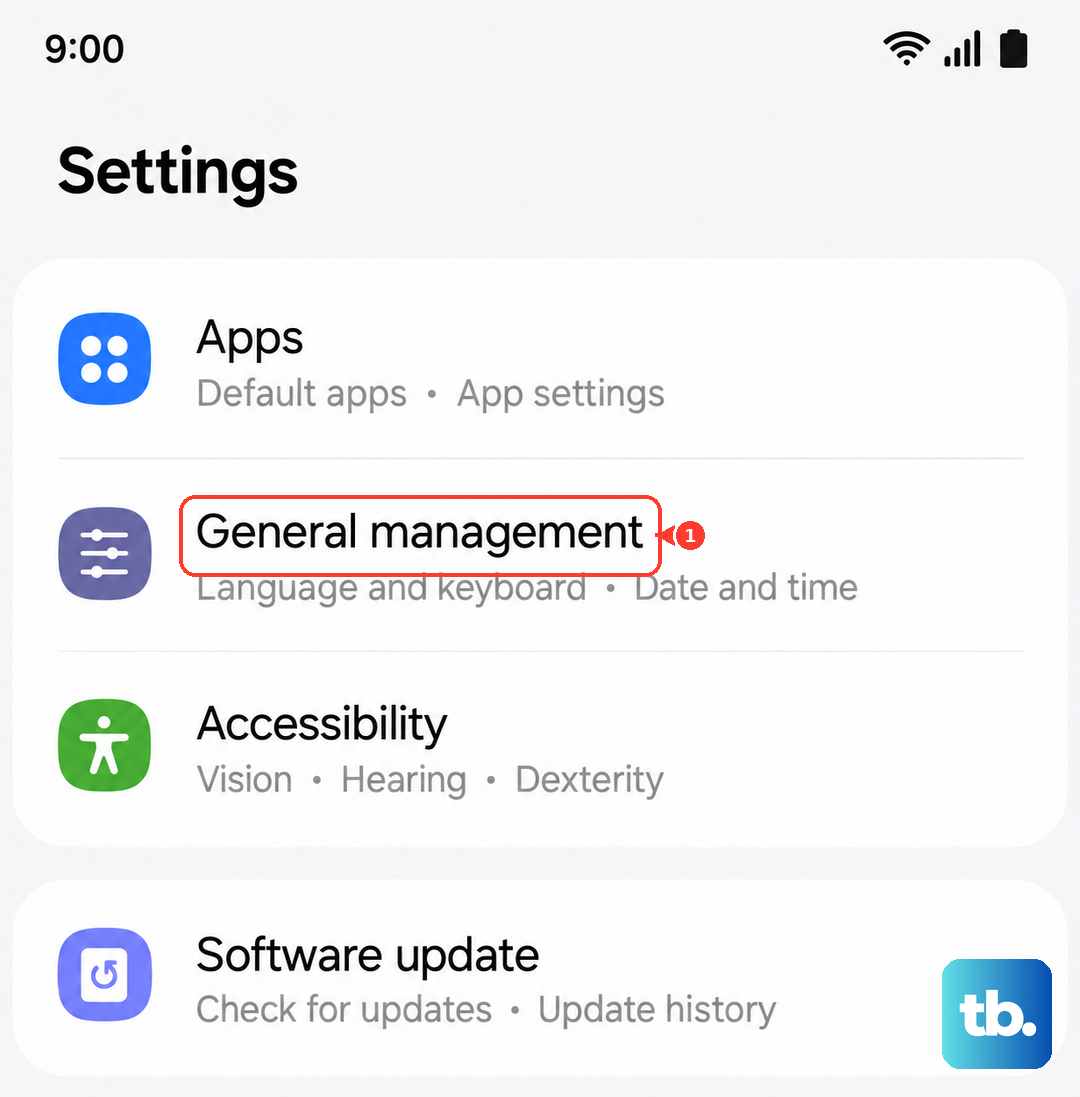
Sometimes the feature just needs a quick refresh. Open your Settings app and go to General Management > Language & Input > On-screen Keyboard. Tap on Samsung Keyboard. Inside, look for Smart typing and tap on it. You'll see the Predictive text toggle. Switch it off, wait a moment, then switch it back on. This resets the suggestion engine without affecting your personal dictionary.
Clear the Keyboard's Cache
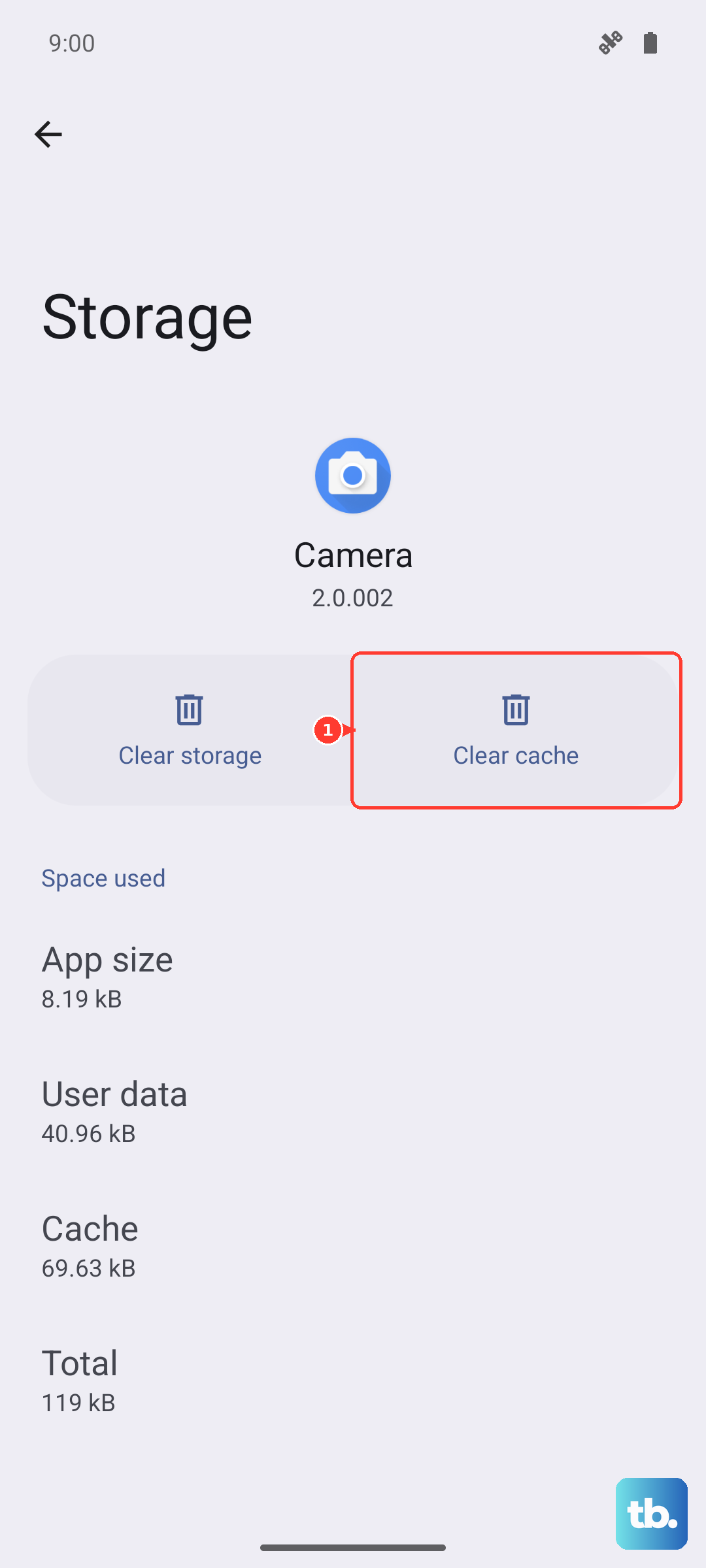
The keyboard app stores temporary data to help it run quickly, but this cache can become corrupted. To clear it, go to Settings > Apps. Tap the three-dot menu in the top right and select Show system apps. Now, find and select Samsung Keyboard. Tap on Storage, then tap Clear Cache. This deletes the temporary files and forces the app to rebuild them fresh, which can immediately fix prediction problems.
Check and Update Your Keyboard Language
If your language pack is out of date, predictions can fail. Go back to Settings > General Management > Language & Input > On-screen Keyboard > Samsung Keyboard. This time, tap on Languages and types. Select your primary language, like English (US), then tap Manage input languages. Tap the three-dot menu in the top corner and choose Check for an update. Download any available updates to ensure you have the latest vocabulary and grammar rules.
Reset the Samsung Keyboard Settings
If the problem started after you changed a bunch of settings, a reset can help. This will revert all keyboard preferences to their factory defaults, but it won't delete your personal learned words. Navigate to Settings > General Management > Language & Input > On-screen Keyboard > Samsung Keyboard. Scroll down to the bottom and tap Reset to default settings. Confirm your choice. After the reset, you may need to re-enable features like keyboard swipe or adjust your theme.
Update the Samsung Keyboard App
Samsung frequently releases updates for its keyboard through the Galaxy Store to fix bugs and improve performance. Open the Galaxy Store app, tap on the menu icon, and go to Updates. Look for Samsung Keyboard in the list. If an update is available, tap to install it. You can also check for updates in the Play Store, as sometimes components are distributed there, but the Galaxy Store is the primary source for Samsung system apps on your S25 FE.
Clear the Keyboard App Data
This is a more thorough step, as it will erase all your keyboard settings and your personal dictionary of learned words. Only try this if other fixes haven't worked. Go to Settings > Apps, show system apps, and select Samsung Keyboard. Tap Storage, then tap Clear Data. Confirm the action. Afterward, you'll need to set up your keyboard preferences again, but any deep-seated corruption causing the predictive text to fail should be eliminated.











