
When the microphone on your Samsung Galaxy Tab A9+ stops working, it can throw a wrench into video calls, voice notes, and using Google Assistant. The good news is, it's often a simple software or settings hiccup. Let's start by figuring out exactly what's going wrong.
First, Test Your Tablet's Microphone
Before trying fixes, confirm the problem. Open your Voice Recorder app (it's pre-installed on the Tab A9+). Tap the red record button, speak for a few seconds, and then play it back. If your voice sounds muffled, distorted, or is completely missing, you've confirmed the issue.
You can also test with a video call app like Google Meet or by asking "Hey Google" a question. If the Assistant doesn't respond, it's another sign the mic isn't picking up sound.
1. Check for Physical Blockages
Your Tab A9+ has a small microphone pinhole, usually located on the top edge or along the side frame. Take a close look at it. Even a tiny bit of lint, dust, or a case that's slightly misaligned can block sound.
Gently use a dry, soft-bristled brush (like a clean toothbrush) or a can of compressed air to clear any debris. Be very careful not to push anything further into the opening.
2. Remove the Case and Test Again
Some tablet cases, especially rugged or folio types, can partially cover the microphone hole. Take the case off completely and run the Voice Recorder test again. I've seen this solve the problem more times than you'd think.
3. Disconnect Any Bluetooth Audio Devices
If you have wireless earbuds, headphones, or a speaker paired, your tablet might be routing all audio through them. Swipe down from the top of your screen to open the Quick Settings panel.
Tap the Bluetooth icon to turn it off temporarily. Now try using the microphone again. If it works, you know the issue was audio routing.
4. Force Restart Your Galaxy Tab A9+
A quick reboot clears out temporary glitches that can affect hardware like the microphone. Press and hold the Volume Down button and the Power button at the same time.
Keep holding them for about 10 seconds until you see the Samsung logo appear, then let go. This forces a fresh start without deleting any of your data.
5. Check App Permissions
In Android 14 with One UI 6, apps must ask for permission to use the microphone. If you accidentally denied it, the app won't hear you. Go to Settings > Apps.
Select the app having trouble (like Zoom, Discord, or Recorder). Tap Permissions and find "Microphone." Make sure it's set to "Allow" instead of "Deny."
6. Close and Reopen the Problem App
If it's just one app acting up, force stop it. Go to Settings > Apps, select the app, and tap Force stop. Then open the app fresh from your home screen.
This is a good first step for apps that might have a stuck process. Given the Snapdragon 695 can struggle with demanding apps, keeping background apps minimal helps overall performance.
7. Update Your Software
Samsung releases updates that fix bugs, including audio issues. Go to Settings > Software update and tap Download and install.
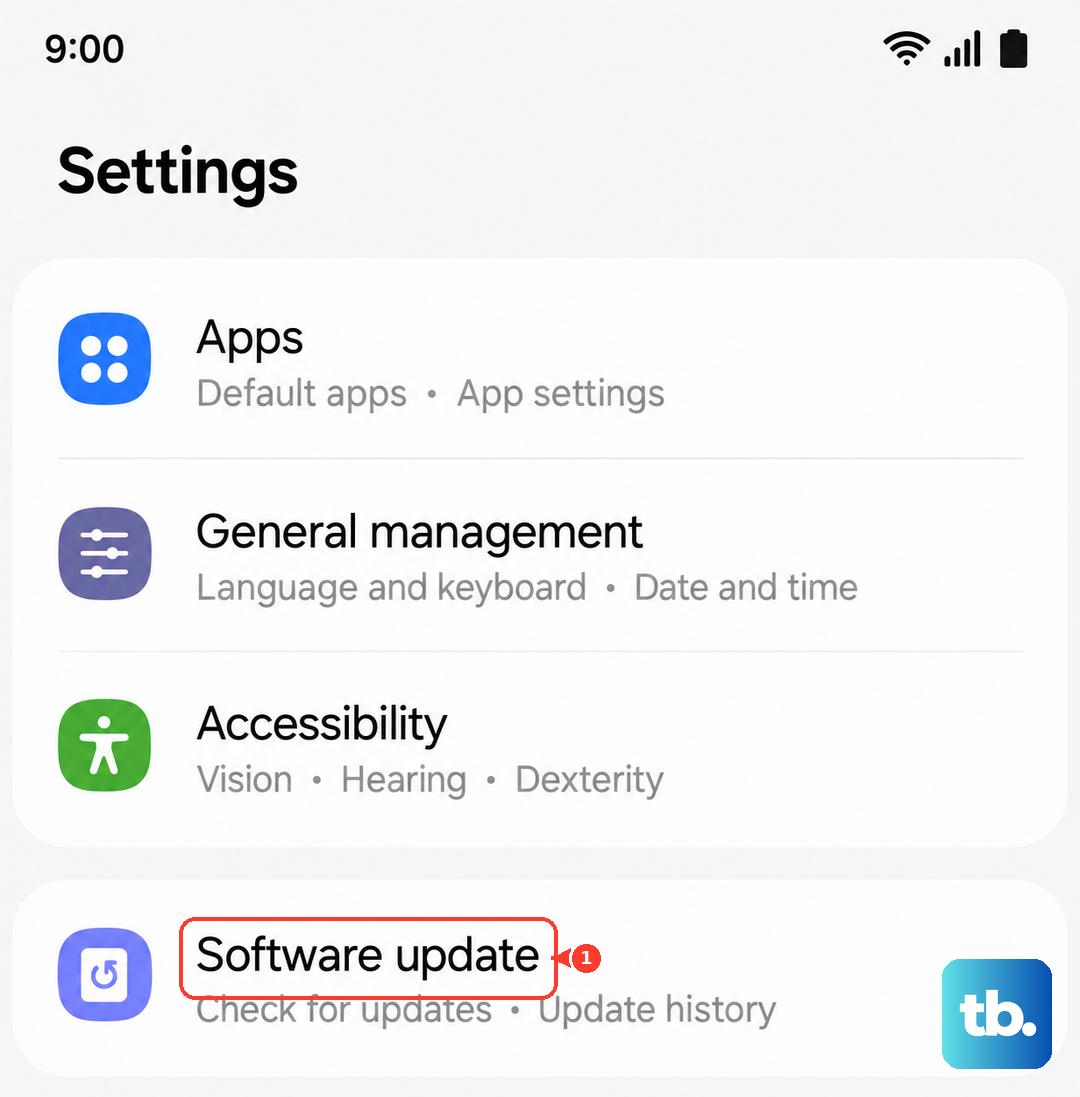
Make sure your tablet is connected to Wi-Fi and has at least a 50% charge, or plug it into its 15W charger. Updates can take a while on the 7040mAh battery, so patience is key.
8. Clear the App's Cache and Data
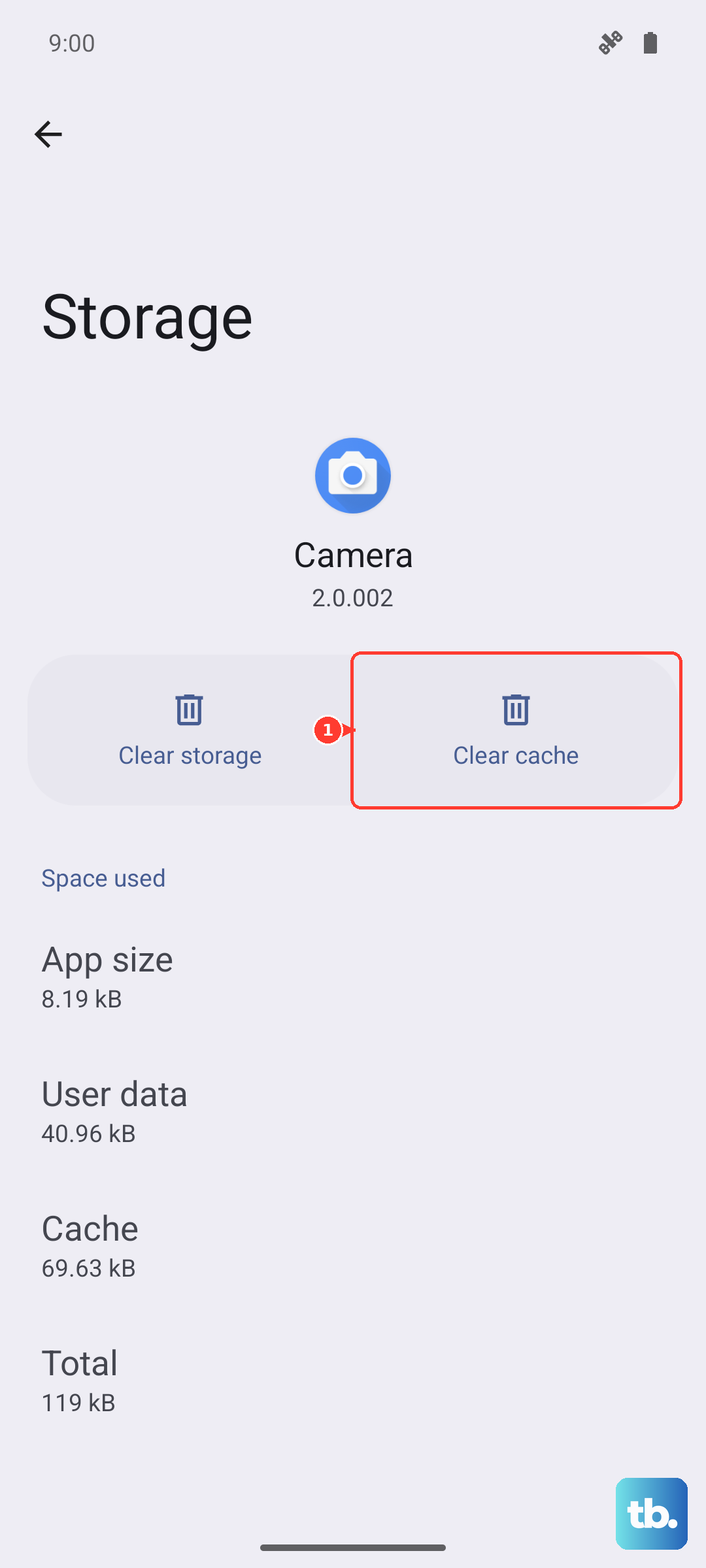
For a stubborn app, corrupted cache files might be the culprit. Go to Settings > Apps, select the app, and choose Storage.
Tap Clear cache first and test. If that doesn't work, you can try Clear data. Warning: this will reset the app to its default state and erase any settings or login info stored within it.
9. Reset All Settings
This will revert all your system settings (like Wi-Fi passwords, Bluetooth pairings, and display preferences) back to default without touching your personal files. It can fix deeper configuration conflicts.
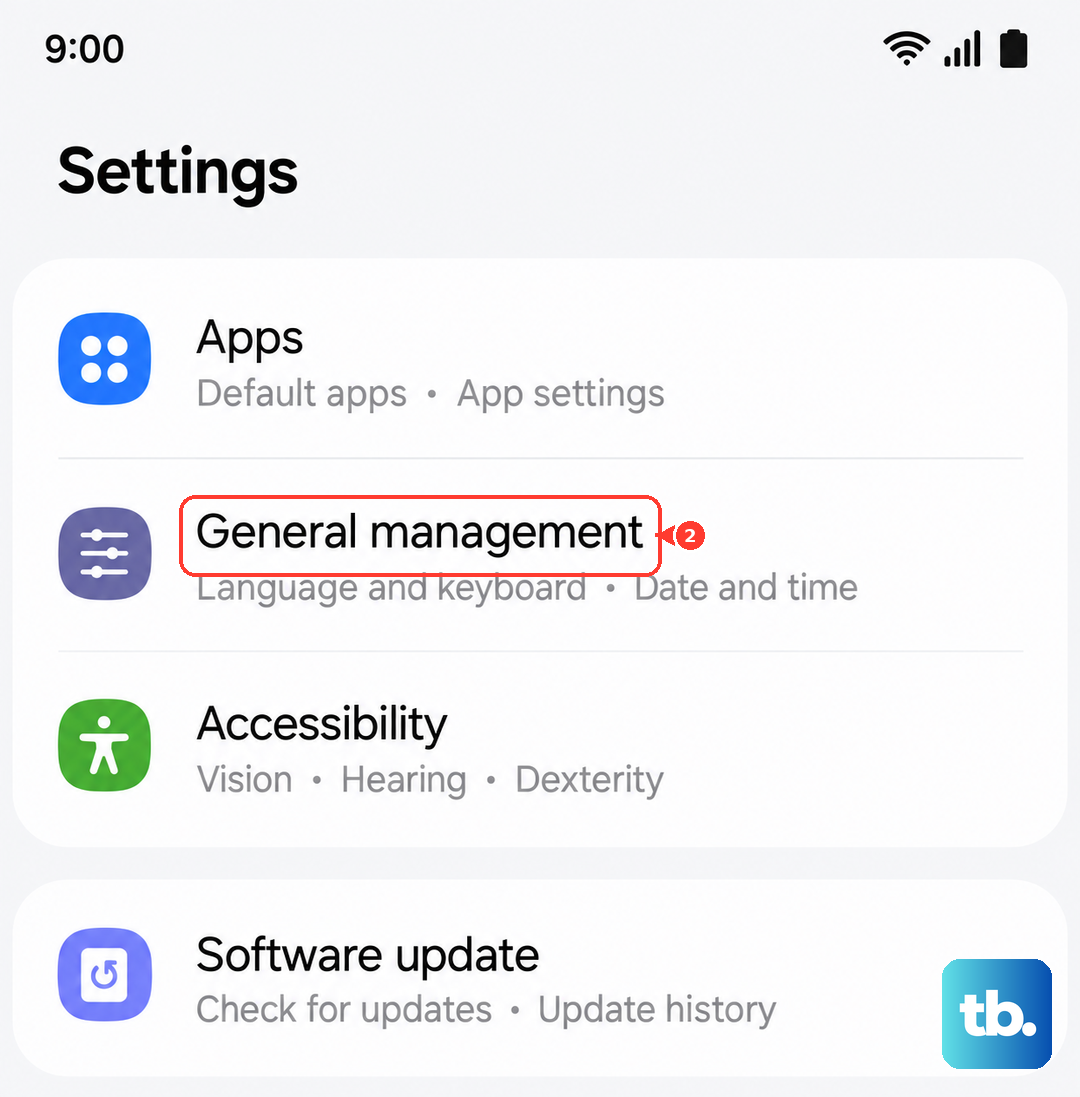
Go to Settings > General management > Reset > Reset all settings. Enter your PIN if prompted and confirm. You'll need to re-pair Bluetooth devices and adjust settings afterward.
10. Check in Safe Mode
Booting into Safe Mode temporarily disables all third-party apps. If the microphone works fine here, a recently downloaded app is likely causing the conflict. To enter Safe Mode, press and hold the Power button until the power menu appears.
Then, tap and hold the "Power off" option on your screen. You'll see a prompt to reboot into Safe Mode. Tap it. Test your microphone. To exit, just restart your tablet normally.











