
If your Samsung Galaxy S25+ is refusing to send picture messages or group chats, it's a frustrating roadblock. This is usually a quick fix related to your data connection or a setting that got out of whack. Let's walk through the most effective ways to get your multimedia messages flowing again.
Start With Mobile Data and a Restart
MMS requires mobile data, not Wi-Fi. Swipe down from the top of your screen to open the Quick Settings panel and make sure the mobile data icon is lit up. If you have a strong signal but messages still won't send, a simple restart can clear out temporary glitches. Press and hold the Volume Down and Side button together for about 10 seconds until you see the Samsung logo.
Verify Your MMS Settings in Samsung Messages
Open the Samsung Messages app and tap the three-dot menu in the top right. Go to Settings > Multimedia messages. Here, ensure "Auto download" is turned on. I'd also recommend enabling "Roaming auto download" if you travel, so you don't miss messages when you're away from home.
Sometimes, being connected to Wi-Fi can interfere. In that same menu, you might see an option for "Send when mobile data is off." If that's enabled, try turning it off to force the phone to use your cellular connection for sending MMS.
Check and Update Your APN Settings
This is a very common culprit. The Access Point Name (APN) tells your phone exactly how to connect to your carrier's MMS service. Go to Settings > Connections > Mobile networks > Access Point Names.
You should see a list of APNs, with one selected (usually your carrier's name). Tap on it to view the details. Don't change anything unless you're sure, but you can note the "MMSC" field, this is the specific address for multimedia messages. If this field is blank or looks wrong, you'll need the correct settings from your carrier.
Clear the Cache for Your Messaging Apps
Corrupted temporary files can cause all sorts of odd behavior. Go to Settings > Apps, then find and select Samsung Messages. Tap Storage and hit Clear cache. This won't delete any of your actual messages.
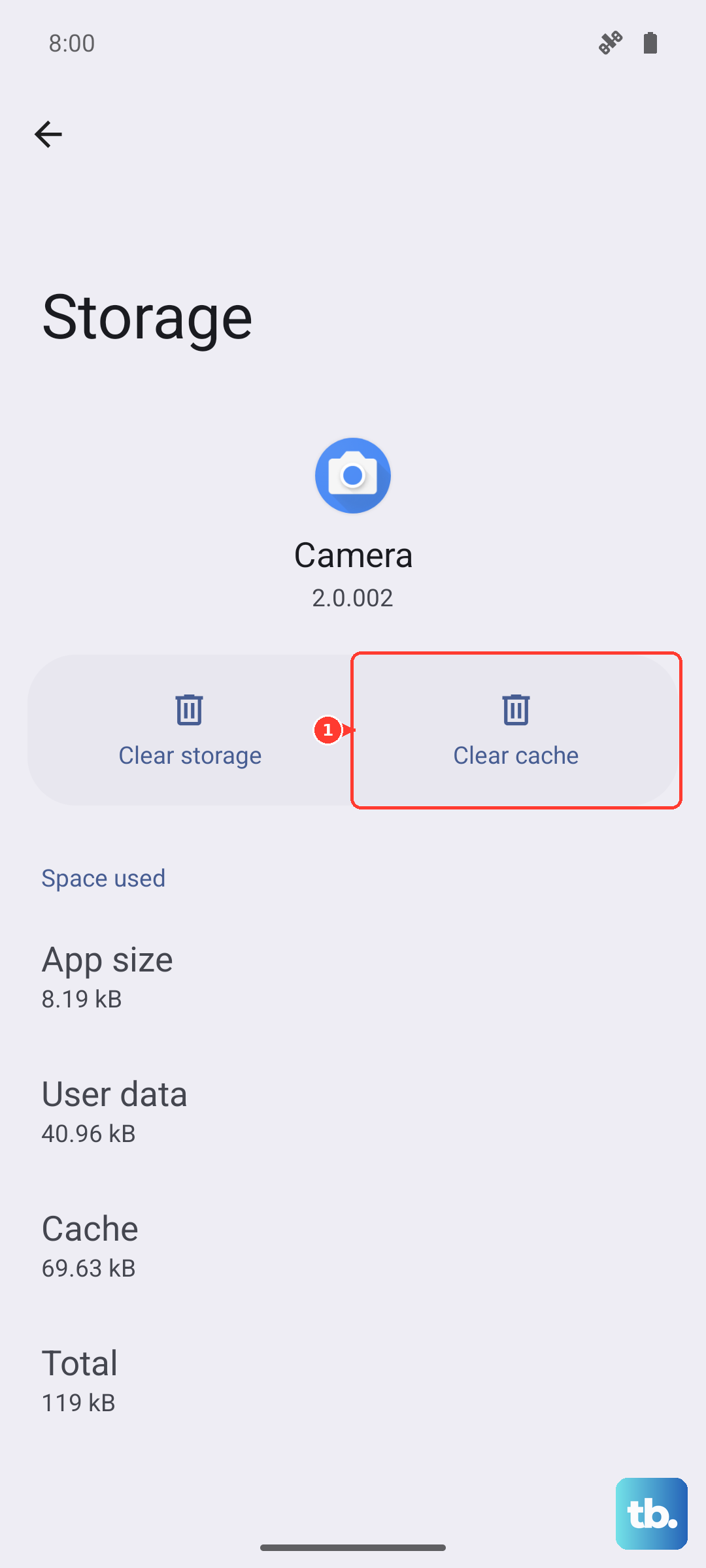
If you're using Google Messages or another app, do the same for that app. For a deeper clean, you can also look for system services. In the Apps menu, tap the three-dot menu and select Show system apps. Look for anything named "IMS Service" or "Messaging Service" and clear its cache as well.
Reset Your Network Settings
If you're still stuck, this step can resolve deeper network configuration issues. It will wipe your saved Wi-Fi networks, Bluetooth pairings, and mobile data settings, so you'll have to reconnect to Wi-Fi afterward. Go to Settings > General management > Reset > Reset network settings. Tap to confirm and let your phone reboot.
Ensure Your Software is Up to Date
An outdated system can have bugs that affect messaging. Samsung regularly releases updates that fix these kinds of problems. Head to Settings > Software update > Download and install. If an update is available, install it and restart your phone.
Check for Storage Space and Large Message Threads
Your phone needs a little free space to process and send multimedia messages. If your storage is nearly full, it can fail. Go to Settings > Device care > Storage to see how much space you have left. Try clearing out some old downloads or cached data.
Also, consider deleting very old message threads, especially ones filled with videos and photos. A single massive conversation can sometimes cause the messaging app to struggle.
Try an Alternative Messaging App
If the problem seems isolated to the Samsung Messages app, switching to another app can be a great workaround. Google Messages is a fantastic alternative and is often the default on many Android phones. Download it from the Play Store, open it, and it will prompt you to set it as your default. Test sending an MMS from there.
Confirm With Your Carrier
It's rare, but sometimes the issue is on your carrier's end. They could be doing maintenance on their MMS servers, or there might be a specific provisioning issue with your line. Give them a quick call or use their online chat support. Ask them to verify that MMS is enabled on your account and that there are no outages.
As a Last Resort, Clear the App's Data
Warning: This will erase all messages currently stored in the app you select. Only do this if you've tried everything else. Back up any crucial conversations first. Go back to Settings > Apps, select your messaging app, tap Storage, and this time choose Clear data. This resets the app to its original, freshly installed state.











