
When your Samsung Galaxy S25 FE's Settings app won't open or crashes immediately, it's usually a temporary software hiccup. The app might freeze, show a black screen, or display an error message like "Settings keeps stopping." This can happen after an update or when cached data gets corrupted.
Force Restart Your Galaxy S25 FE
This is the quickest fix and often solves the problem in seconds. A force restart clears the phone's temporary memory without deleting any of your personal data.
Press and hold the Volume Down button and the Side (power) button at the same time. Keep holding them for about 10 seconds until you see the Samsung logo appear on the screen, then let go. Wait for the phone to boot up completely and try opening Settings again.
Clear the Settings App Cache and Data
If a simple restart didn't work, the next step is to clear the Settings app's stored data. This is safe and won't erase your personal settings, but it will reset any customizations within the Settings app itself to their defaults.
Since you can't open Settings normally, you'll need to use the Apps menu from a long-press on the home screen. Press and hold on an empty area of your home screen, then tap "Settings" or the gear icon that appears. From there, tap "Apps," then find and select "Settings" from the app list.
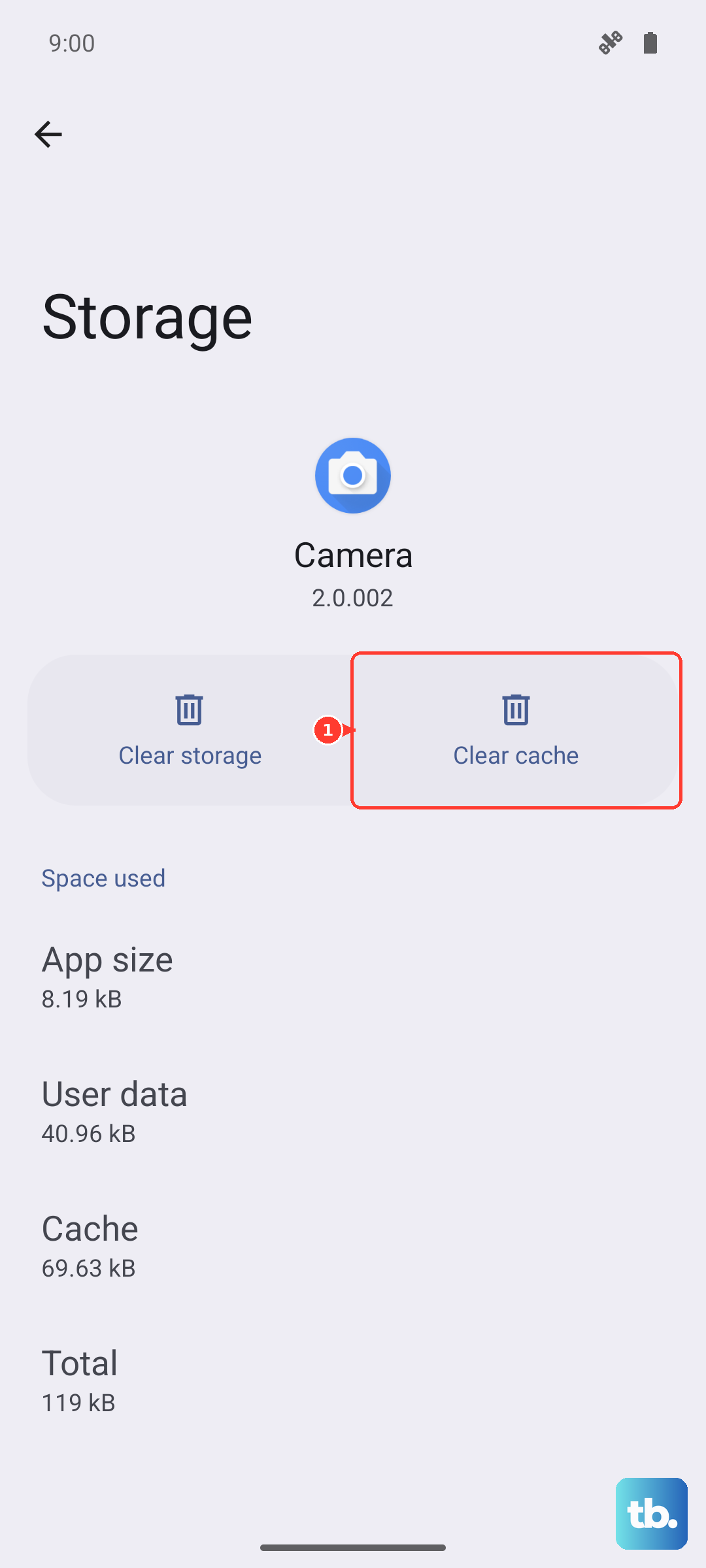
Tap on "Storage," then tap "Clear Cache." After that, go back and tap "Clear Data." Confirm the action, then restart your phone. When you open Settings again, you may need to re-grant some permissions, but the app should launch.
Check for a System Software Update
Sometimes, a bug in the current version of Android or One UI can cause system apps to misbehave. Samsung frequently releases updates that fix these kinds of issues. You can check for updates even if the main Settings app is broken.
Pull down the notification shade twice to open the Quick Settings panel. Tap the three-dot menu in the top right corner, then select "Settings quick panel." Look for an option like "Software update" or use the search bar at the top of that menu to find it. Tap "Download and install" if an update is available.
I've seen this resolve app crashes, especially if the problem started after a recent app update that hasn't been fully optimized for your system yet. The Exynos 2400 chip in the S25 FE is powerful, but occasional software tweaks are needed to keep everything running smoothly.
Boot Into Safe Mode
If the Settings app works in Safe Mode, then a third-party app you installed is likely causing a conflict. Safe Mode temporarily disables all downloaded apps.
To enter Safe Mode, press and hold the Side button until the power menu appears. Then, press and hold the "Power off" option on your screen. You'll see a prompt to reboot to Safe Mode, tap "OK." Your phone will restart with "Safe Mode" in the bottom corner.
Try opening Settings now. If it works, you know a downloaded app is the culprit. Restart your phone normally to exit Safe Mode, then try uninstalling recently added apps one by one until the problem stops.
Reset All App Preferences
This is a broader fix than just clearing Settings data. It resets permissions, default apps, and background restrictions for all applications without deleting any app data. It's a good middle step before considering more drastic measures.
Again, access the Apps menu by long-pressing the home screen and selecting the gear icon. Navigate to "Apps," then tap the three-dot menu in the top right and select "Reset app preferences." Confirm the reset and restart your phone.
After this, you'll need to re-allow notifications and permissions for your apps as you use them, but it can clear up conflicts that are preventing system apps from functioning.
Consider a Factory Reset
If none of the software fixes work, a factory reset is the final step. This will erase everything on your phone and return it to its original out-of-the-box state. You must back up all important data first using Samsung Cloud or by connecting to a computer.
Since the Settings app is inaccessible, you'll need to use the hardware button method. Power off your Galaxy S25 FE completely. Once it's off, press and hold the Volume Up button and the Side button together.
Keep holding them until the Samsung logo appears, then release. You'll enter the recovery menu. Use the Volume Down button to highlight "Wipe data/factory reset," then press the Side button to select it. Confirm the reset on the next screen. Once it's complete, select "Reboot system now."