Seeing the "Settings keeps stopping" pop-up on your Galaxy S25 Ultra can really stop you in your tracks. It usually means the app's data has gotten a bit scrambled, but it's a fixable software hiccup. Let's get it sorted.
Force Restart Your Phone
This is the quickest thing to try and often clears up temporary glitches. On the S25 Ultra, you force restart by pressing and holding the Volume Down button and the Side key (power button) together for about ten seconds.
Keep holding until you see the Samsung logo appear on the screen. Once it boots back up, check if you can open Settings without it crashing.
Clear the Settings App Cache
Corrupted cache files are a common culprit for app crashes. Clearing them forces the Settings app to rebuild its temporary data from scratch.
Go to Settings > Apps. Tap the search icon at the top and type "Settings" to find it. Select it, then tap Storage. You'll see two options: Clear cache and Clear data.
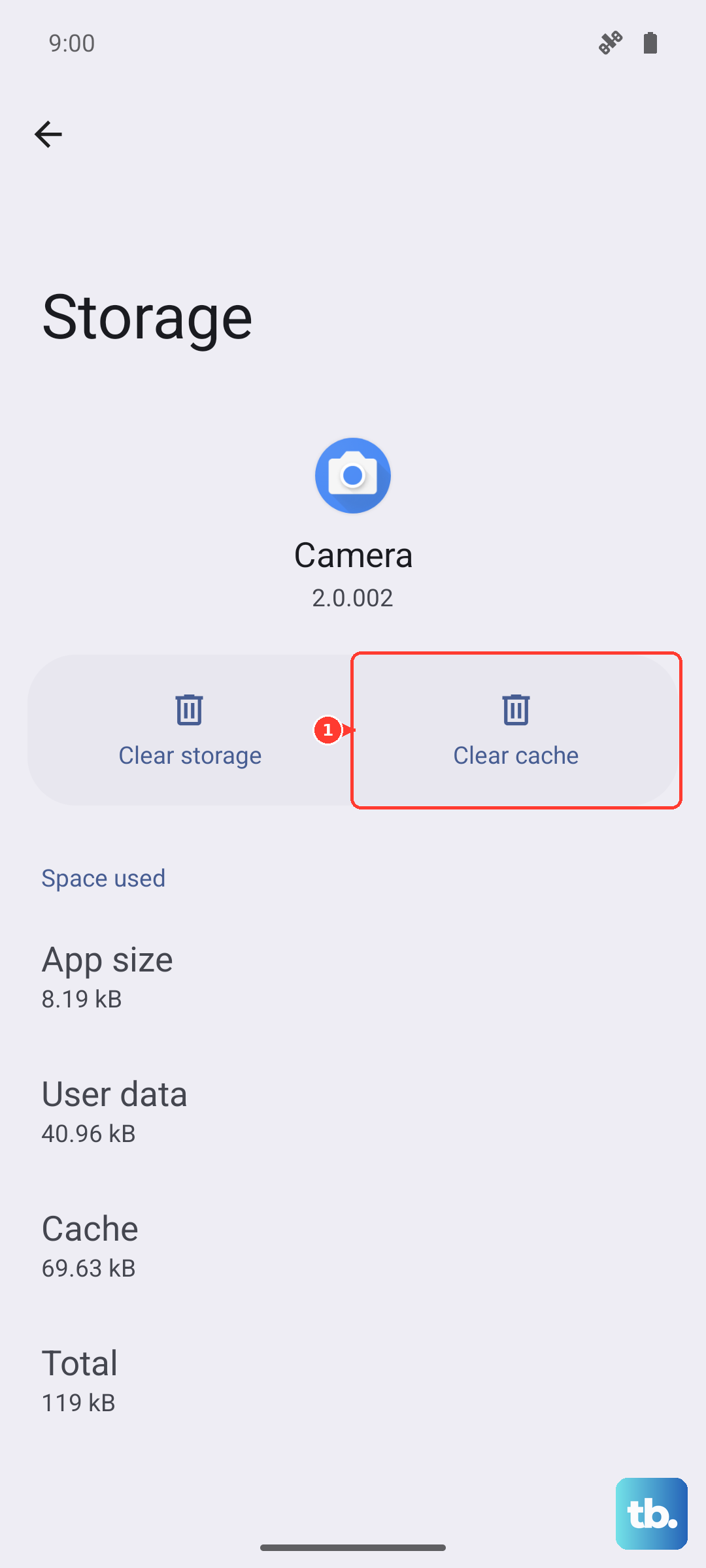
Tap Clear Cache first. This doesn't delete any of your personal settings. After doing this, back out and try opening Settings again to see if it's stable.
Clear Settings App Data
If the cache clear didn't work, the next step is to clear the app's data. This is a bit more thorough and will reset the Settings app to its default state.
Warning: this will erase any customizations you've made within the Settings app itself, like your favorite toggles in the Quick Panel or your order of settings menus. Your actual system settings (Wi-Fi passwords, accounts) won't be affected.
Go back to Settings > Apps > Settings > Storage. This time, tap Clear Data and confirm. The app will close and when you open it again, it will be freshly set up.
Check for a Software Update
An outdated version of Android or One UI can have bugs that cause system apps to misbehave. Samsung frequently releases updates to patch these kinds of issues.
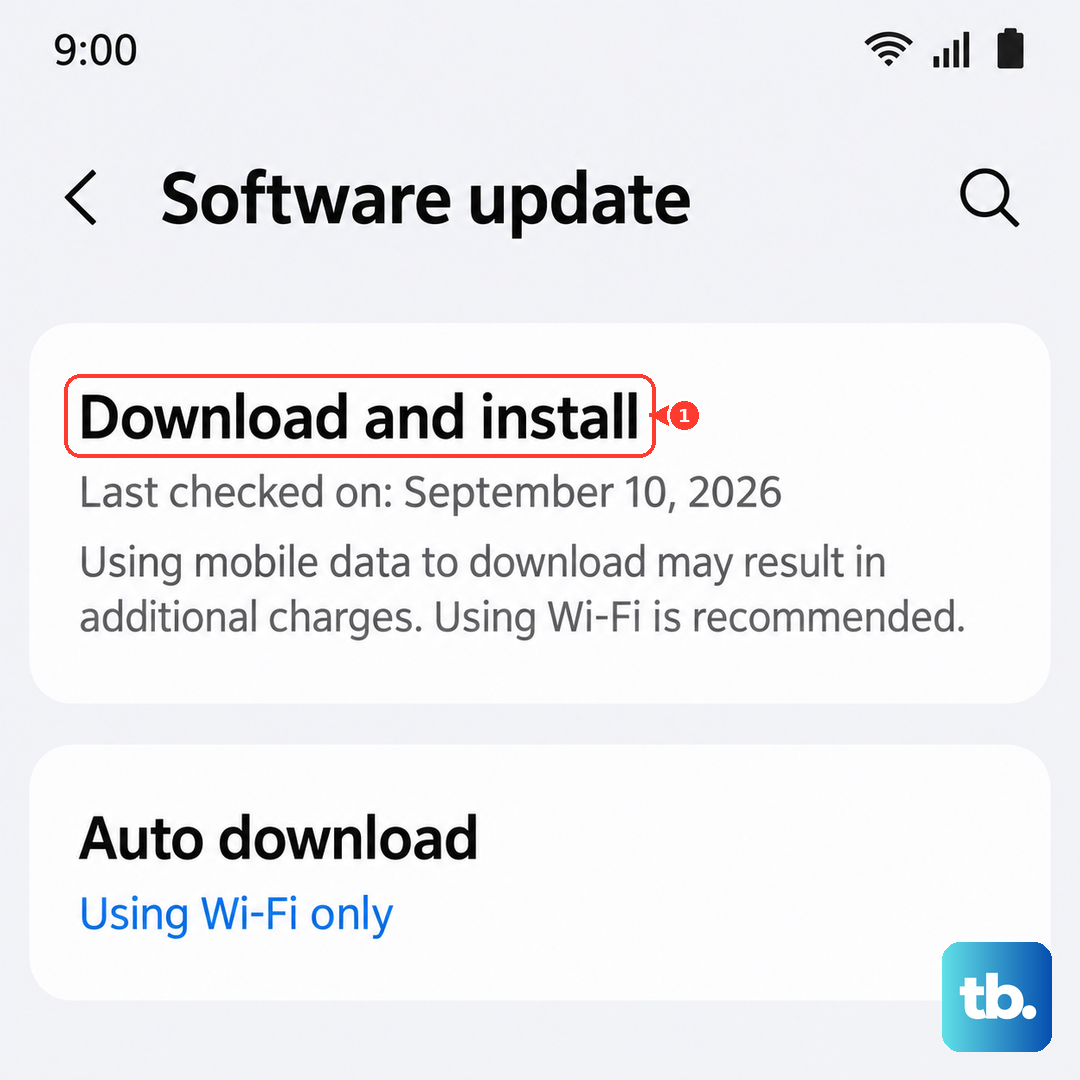
Swipe down twice for the Quick Panel and tap the settings gear. Scroll down and tap Software update, then tap Download and install. If an update is available, let it install completely. Your phone will restart as part of the process.
I've seen updates specifically address "app stability" which often includes fixes for the Settings app crashing.
Boot Into Safe Mode
This starts your S25 Ultra with all third-party apps disabled. If Settings works fine in Safe Mode, you know a downloaded app is causing a conflict.
To enter Safe Mode, press and hold the Side key until the power menu appears. Then, press and hold the "Power off" option on your screen. A "Safe Mode" prompt will pop up, tap it to restart. You'll see "Safe Mode" in the bottom corner of the screen.
Test the Settings app. If it's stable, restart your phone normally to exit Safe Mode. You'll then need to uninstall recently downloaded apps one by one to find the culprit.
Reset App Preferences
This is a useful middle-ground step that resets all your app-related system settings without deleting any app data. It will revert defaults, permissions, and background restrictions back to factory state.
Go to Settings > Apps. Tap the three-dot menu in the top right and select Reset app preferences. Confirm the action. Afterward, you'll need to re-grant permissions to apps when they ask, but it can resolve hidden conflicts affecting system apps.
Perform a Factory Reset
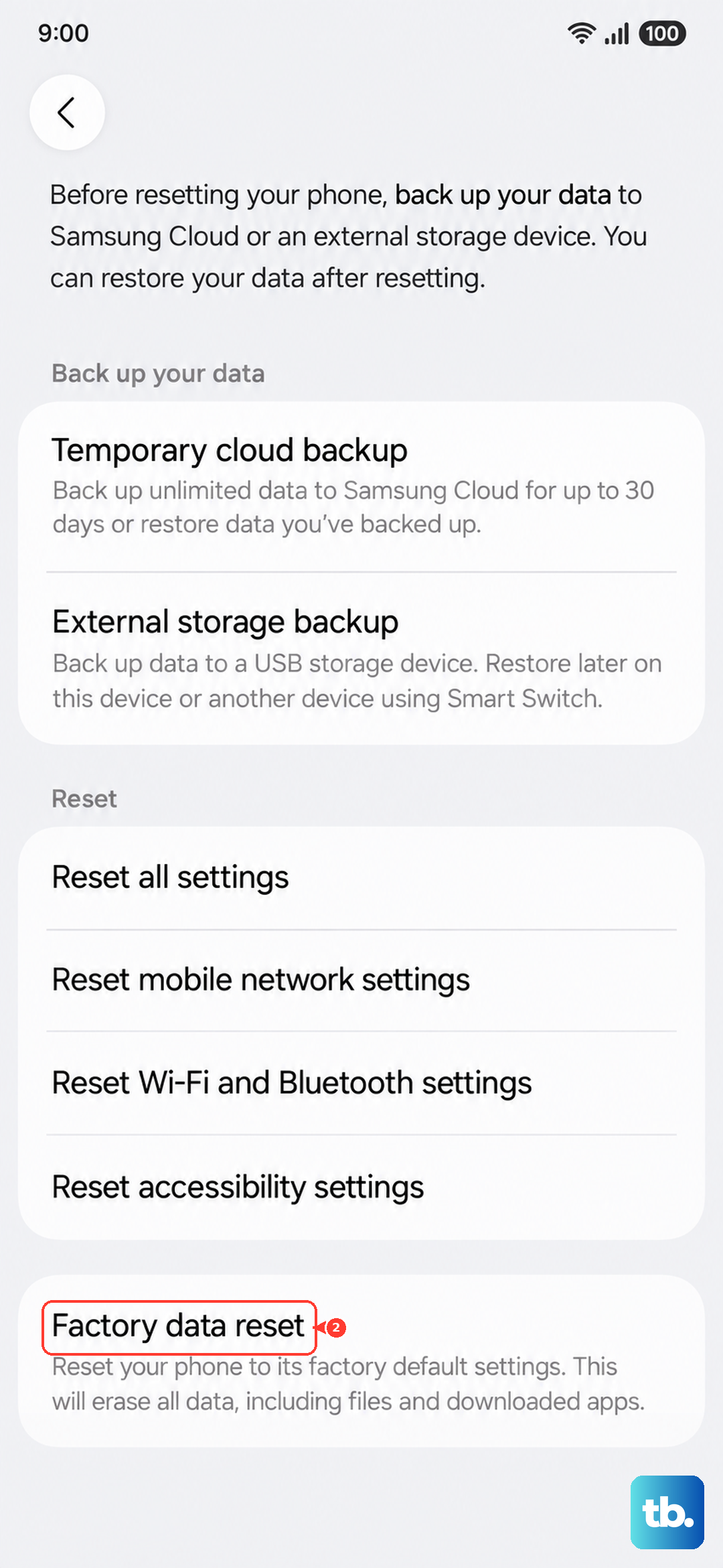
If nothing else has worked, a factory reset is the final software fix. This will erase everything on your phone, so it's crucial to back up your data first using Samsung Cloud or a computer.
Once backed up, go to Settings > General Management > Reset > Factory data reset. Scroll to the bottom and tap Reset. Enter your PIN if prompted. The process will take a few minutes, and your S25 Ultra will restart as if it were brand new.