Seeing the "Settings keeps stopping" pop-up on your Galaxy A36 is a real roadblock. It usually means the app's data is corrupted or there's a conflict with a recent update. The good news is you can almost always fix it without losing your stuff.
Force Restart Your Phone
This is the quickest thing to try. It clears out any temporary glitches in the system memory that might be tripping up the Settings app. Just press and hold the Volume Down button and the Power button together for about ten seconds.
You'll see the screen go black and the Samsung logo appear as it restarts. Once it's back on, try opening Settings again. If it still crashes, move on to the next step.
Clear the Settings App Cache
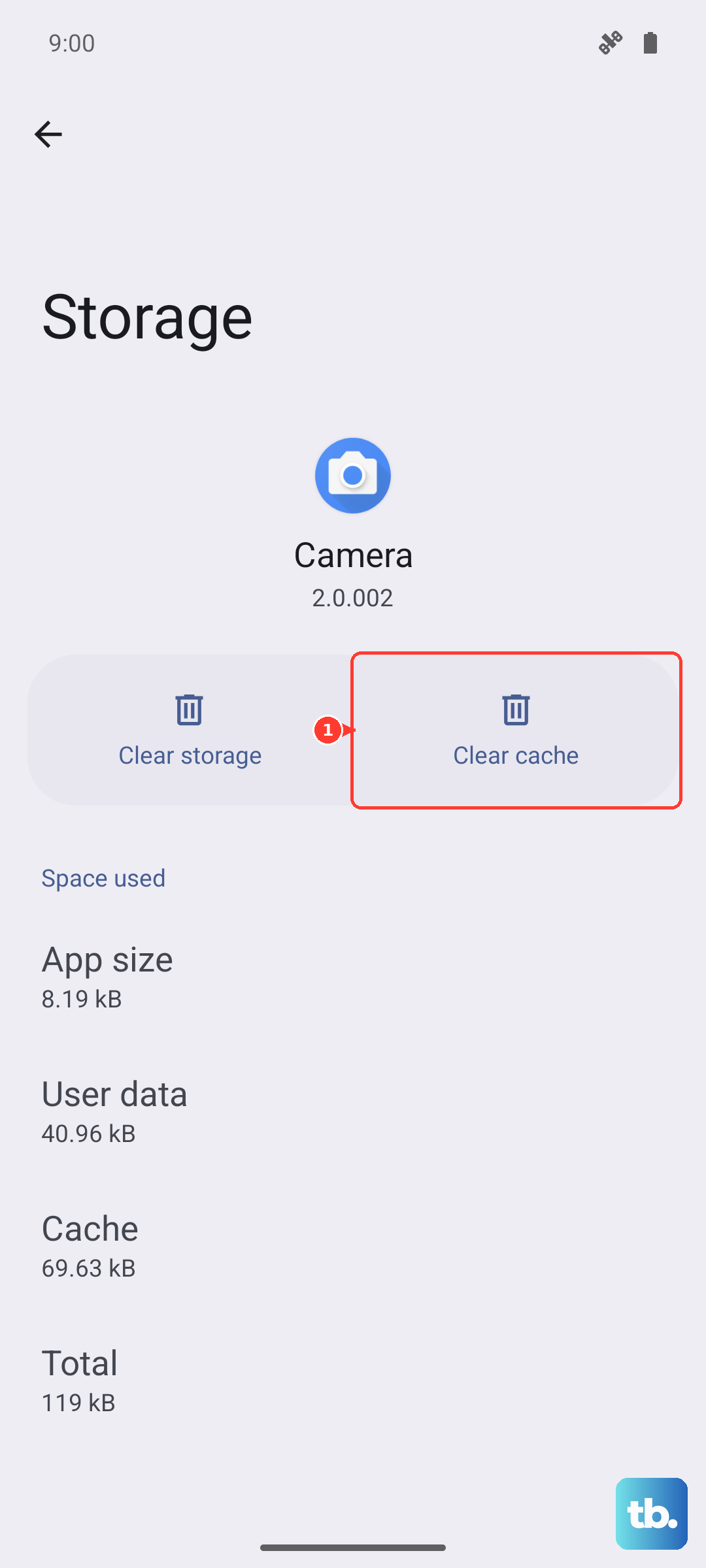
Cache files help apps load quickly, but they can get corrupted. Clearing them forces the app to rebuild fresh data. Go to Settings > Apps, then find and tap on the "Settings" app in your list.
Tap on Storage, and then tap Clear Cache. You won't lose any personal data or preferences by doing this. After clearing it, go back and try opening Settings to see if it's stable.
Update Your Phone's Software
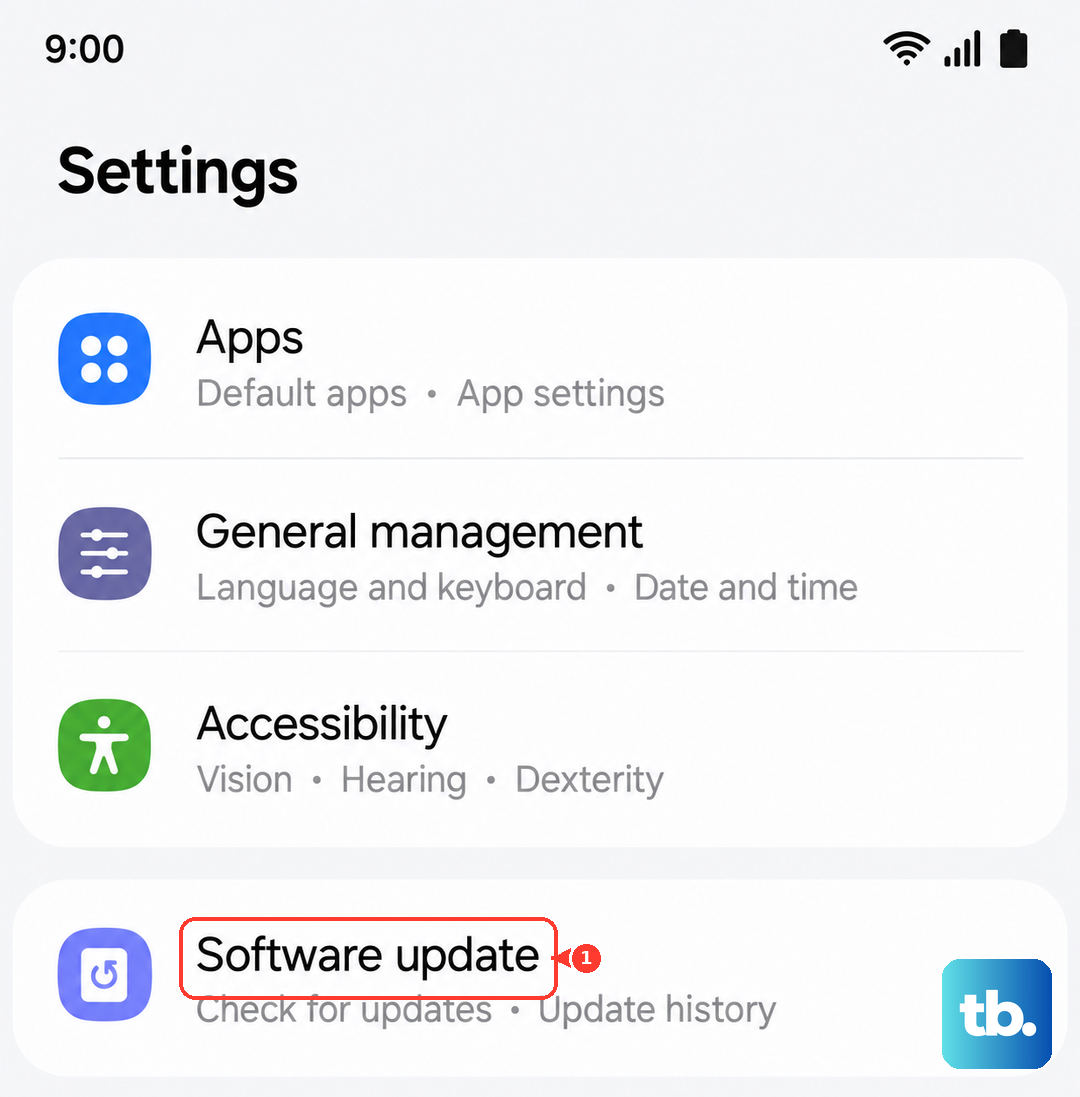
Since the A36 launched with One UI 7, there have been some initial bugs. Samsung regularly releases updates to squash these. An outdated system can definitely cause core apps like Settings to misbehave.
Go to Settings > Software Update and tap Download and install. If an update is available, let it install completely. The phone will restart on its own. I'd recommend using a 45W USB-PD charger to make sure the update doesn't drain your battery mid-process.
Check for Problematic App Updates
Sometimes, an update to Google Play Services or the Google Play Store itself can introduce a conflict. You can roll these back to a stable version. First, go to Settings > Apps, find "Google Play Services," and tap Force Stop.
Then, go back to your apps list, find "Google Play Store," tap the three-dot menu in the top right, and select Uninstall updates. Restart your phone. The Play Store will update itself again automatically, which often resolves the hiccup.
Boot Into Safe Mode
This starts your A36 with all third-party apps disabled. If Settings works fine in Safe Mode, you know a downloaded app is causing the crash. To enter Safe Mode, press and hold the power button until the power menu appears.
Then, tap and hold the "Power off" option on your screen. You'll get a prompt to reboot to Safe Mode. Tap it. If the problem is gone here, you'll need to uninstall recently added apps one by one to find the culprit.
Reset All App Preferences
This is a less nuclear option than a full reset. It resets permissions, background restrictions, and notification settings for all apps back to their defaults without deleting any app data. It can fix odd conflicts.
Navigate to Settings > General Management > Reset. Tap on Reset app preferences and confirm. You'll then need to re-allow notifications or permissions for your apps as you use them, but it's a small price to pay.
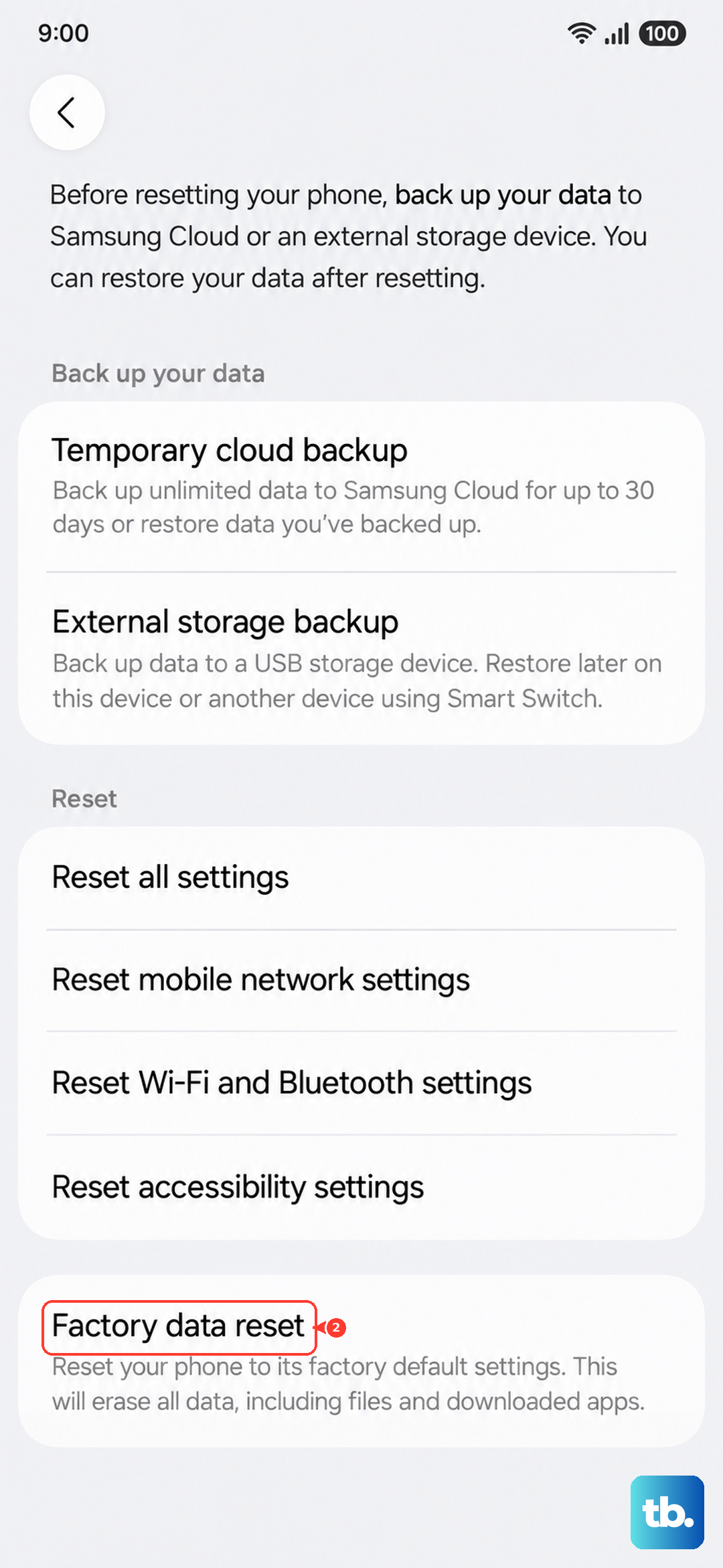
Perform a Factory Reset
If nothing else has worked, a factory reset is the final step. This will erase everything on your phone, so make absolutely sure your photos, contacts, and messages are backed up to your Samsung account or Google Drive first.
Go to Settings > General Management > Reset > Factory data reset. Tap "Reset" and confirm. After the process finishes, set your phone up as new before restoring your backup, to ensure no corrupted data comes back with it.