
When your Samsung Galaxy S25 stops sending or receiving email, it can leave you feeling disconnected. Whether you're missing work messages or can't reply to friends, the silence is frustrating. The good news is that most email problems on your S25 have a simple fix you can handle yourself.
Before we jump into the specific steps, let's cover a few universal checks. Make sure you have a solid internet connection, either through Wi-Fi or your mobile data. It's also worth checking your email provider's status page online to rule out a widespread service outage. Finally, double-check that you're using the correct email address and password.
Restart Your Email App
This is the quickest fix and often the most effective. A simple restart clears out any temporary glitches in the app's memory. Swipe up from the bottom of your screen and hold to enter the recent apps view. Find your email app, whether it's Gmail, Samsung Email, or Outlook, and swipe it all the way up to close it. Wait a moment, then tap the app icon to reopen it and see if your emails start flowing.
Check Your Sync and Fetch Settings
Your S25's email sync settings control how often it checks for new messages. If these are set incorrectly, you might not get emails in real-time. Open the Samsung Email app, tap the three-line menu icon, and go to Settings. Select your email account and look for Sync settings or Email check frequency.
Make sure sync is turned on and set to a frequent interval, like "Every 15 minutes" or "Push" if your provider supports it. For Gmail users, open the Gmail app, tap your profile picture, go to Settings > your account, and ensure Sync Gmail is enabled. I've found that a simple toggle off and on here can sometimes kickstart a stalled sync.
Toggle Airplane Mode
Airplane mode acts as a hard reset for all your phone's radios. This can clear up temporary network conflicts that might be blocking email traffic. Swipe down twice from the top of your screen to open the full Quick Settings panel. Tap the airplane icon to turn it on, wait about 15 seconds, and then tap it again to turn it off.
Your phone will reconnect to Wi-Fi and cellular data. Give it another minute, then check your email app. This forces a fresh connection to your email servers, which often resolves sending and receiving issues instantly.
Switch Between Wi-Fi and Mobile Data
Sometimes the problem is with one specific network. If you're on Wi-Fi and emails aren't working, try turning Wi-Fi off to force the phone to use your mobile data. You can do this from the Quick Settings panel. If emails work on mobile data, the issue is likely with your Wi-Fi network.
Conversely, if you're only using mobile data, try connecting to a trusted Wi-Fi network. Some email providers or company servers have specific port settings that work better on one type of connection than the other. Testing both helps you pinpoint where the blockage is.
Verify Your Account Password and Security
Email services occasionally require you to re-authenticate your account, especially if you've recently changed your password elsewhere. The simplest test is to open a web browser on your phone and try to log into your email account's website. If you can't log in there, you know the problem is with your credentials, not your phone.
If you've recently enabled two-factor authentication (2FA) on your account, you'll need to generate an app-specific password for your S25. Don't use your main account password. Log into your email account's security settings on a computer to create this special password, then update it in your phone's email account settings.
Clear the Email App's Cache and Data
Over time, an app's cached files can become corrupted. Clearing them is safe and won't delete your emails, as they are stored on the server. Go to Settings > Apps, then find and select your email app. Tap Storage, and then tap Clear Cache.
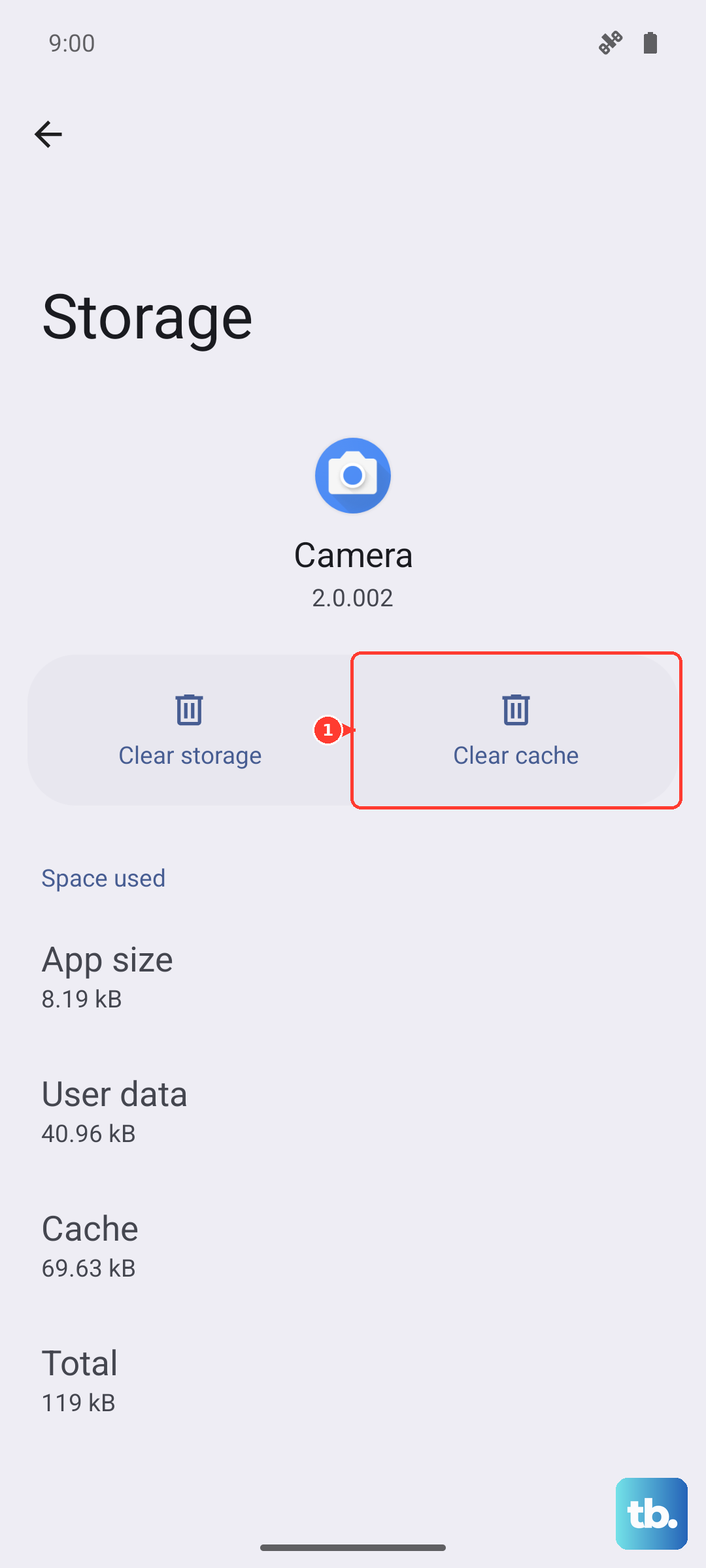
If the problem persists, you can go a step further and tap Clear Data. Just be aware this will remove the app's settings and you'll need to log back into your account. It's a more thorough refresh that often resolves stubborn sync issues.
Check for App and System Updates
Outdated software is a common culprit. First, check for updates to your email app itself. Open the Galaxy Store for Samsung apps or the Google Play Store for others like Gmail or Outlook. Tap your profile icon, go to Updates, and see if your email app is listed.
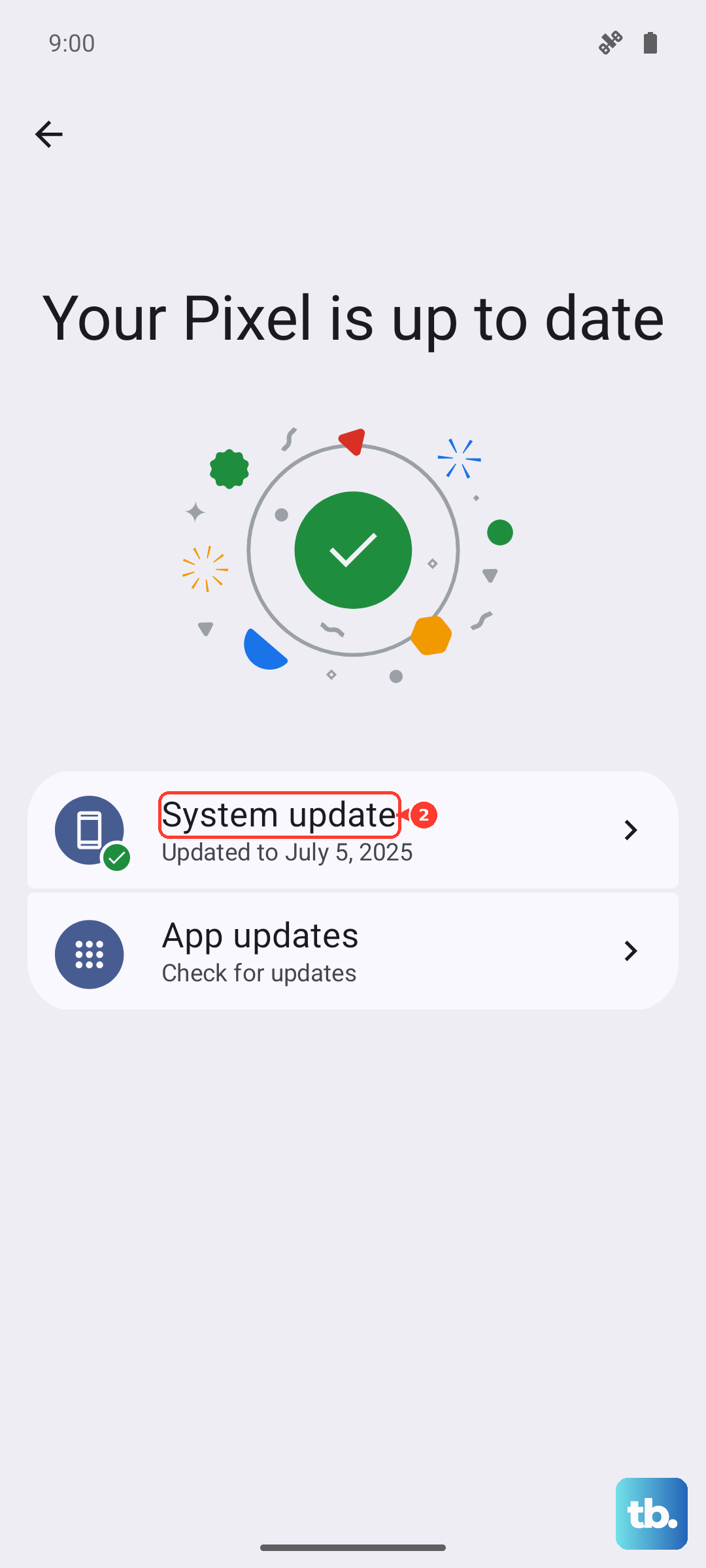
Next, check for a system update. Go to Settings > Software update > Download and install. Updates to One UI 7 often include fixes for connectivity and app performance bugs that could be affecting your email.
Review Battery Optimization Settings
One UI 7's battery optimization is aggressive and can sometimes put email apps to sleep, preventing them from checking for new messages in the background. Go to Settings > Battery > Background usage limits.
Look for your email app in the "Sleeping apps" or "Deep sleeping apps" list. If it's there, tap on it and select Remove. This tells your S25 not to restrict that app's background activity, allowing it to sync emails freely.
Disable Any Active VPN
While VPNs are great for privacy, they can interfere with the specific ports and protocols email apps use. If you have a VPN running, it's a quick test to turn it off. You can usually do this from the VPN app's notification or by going to Settings > Connections > More connection settings > VPN and toggling it off.
Try sending and receiving an email with the VPN disabled. If it works, you know the VPN is the issue. You may need to adjust your VPN's settings or use a split-tunneling feature to exclude your email app from the VPN tunnel.
Ensure Mobile Data is Enabled for Email
If you're trying to send or receive emails while not on Wi-Fi, you need to make sure mobile data is allowed for your email app. Go to Settings > Connections > Data usage > Mobile data usage. Scroll through the list of apps and ensure the toggle next to your email app is turned on.
This setting is sometimes turned off accidentally, or after an update, which would explain why emails only work on Wi-Fi. It's a simple check that takes two seconds.
Remove and Re-add Your Email Account
This is the nuclear option for your account settings, but it works. It clears out any corrupted configuration data. In the Samsung Email app, go to Settings > select your account > and tap Remove account. In Gmail, go to Settings > your account > Remove account.
After removing it, go through the process of adding the account again from scratch. Your S25 will re-download all the server settings, which often fixes persistent authentication or sync problems. Your emails are safe on the server and will repopulate.
Check Your Notification Settings
If emails are arriving but you're not getting alerts, the issue is with notifications, not delivery. Long-press on your email app's icon and tap App info. Go to Notifications. Here, make sure "Allow notifications" is turned on at the top.
Scroll down and ensure the specific notification categories, like "New messages," are also enabled and set to your preferred sound or vibration. Sometimes updates can reset these permissions.
Perform a Network Settings Reset
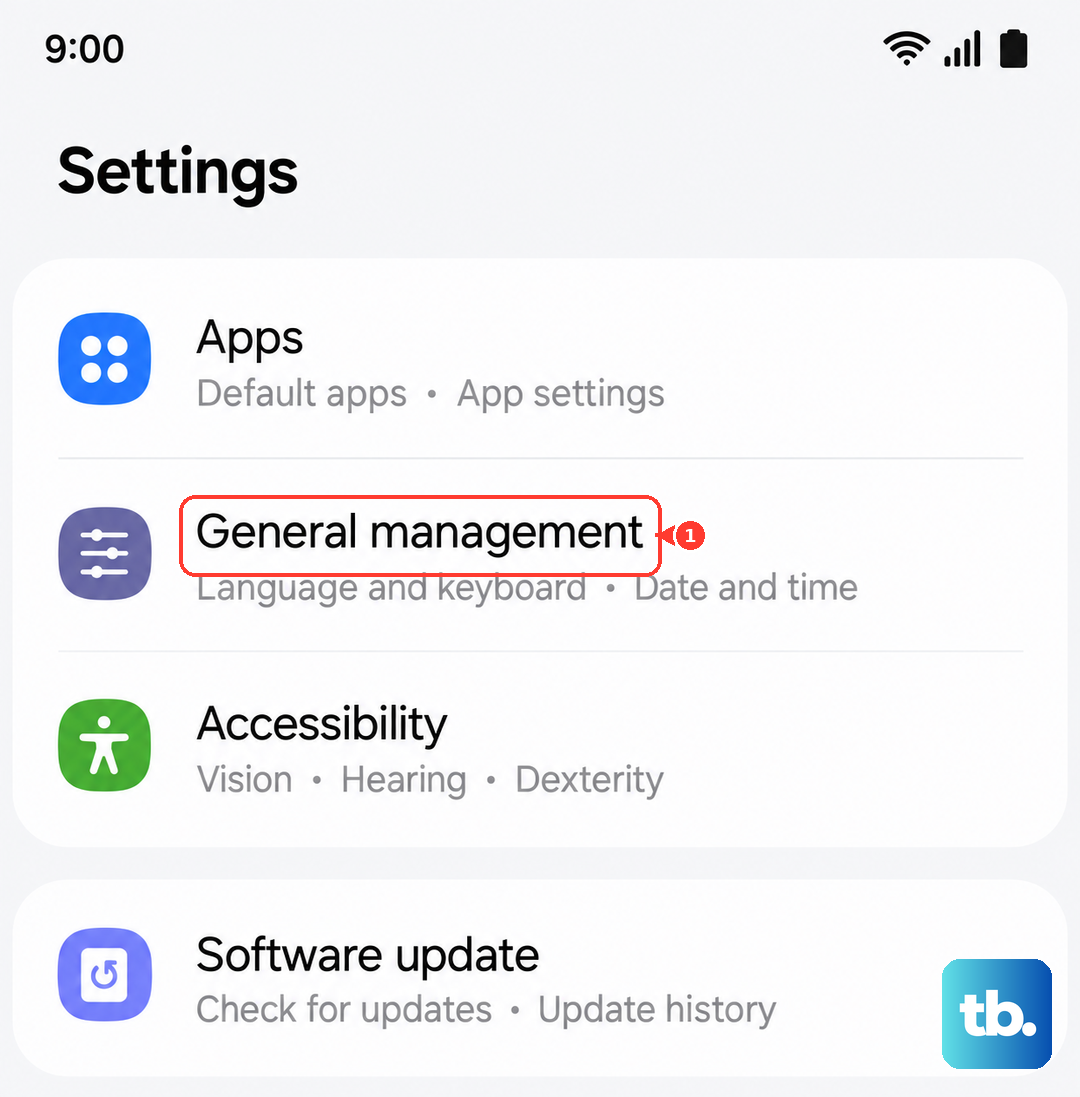
This resets all your Wi-Fi, Bluetooth, and mobile network configurations back to default without touching your personal data. It's a powerful step for connectivity issues. Go to Settings > General management > Reset > Reset network settings.
You'll need to re-enter Wi-Fi passwords and re-pair Bluetooth devices afterward. This process clears out any network configuration errors that could be preventing a stable connection to your email servers.
Force Restart Your Samsung Galaxy S25
A standard restart is good, but a force restart is better for clearing deeper system hiccups. Press and hold the Volume Down button and the Side key (power button) together for about 10 seconds. Release when you see the Samsung logo appear on the screen.
This forces a clean reboot of the entire system. Once the phone is back on, give it a minute to re-establish all connections before testing your email again. It's a simple step that can resolve a surprising number of issues.