
The fingerprint scanner on your Samsung Galaxy S25 Edge is a great convenience until it stops recognizing your finger. Whether you're seeing a failed scan or the sensor just won't respond, a few targeted fixes usually get it working again. Here's what to try.
Start with Clean Fingerprints and a Clean Screen
The S25 Edge uses an in-display ultrasonic fingerprint sensor. That means any grime, oil, or screen protector residue on the glass can block the ultrasonic pulse and cause failed reads. Wipe the screen area where you place your finger with a soft, lint-free cloth. Avoid any liquids or harsh cleaners that could damage the oleophobic coating.
Also make sure your fingers are dry and clean. Moisture, lotion, or dirt on your fingertip will confuse the sensor. Wash and dry your hands, then try scanning again.
Check for a Screen Protector that's Causing Trouble
Many screen protectors, especially thicker tempered glass ones, can interfere with ultrasonic fingerprint sensors. If you installed a screen protector and the fingerprint stopped working soon after, remove it temporarily and test the scanner. You might need a compatible protector designed for the S25 Edge's ultrasonic sensor.
Some transparent films work fine, but cheap glass protectors are common culprits. Try the scanner without it before moving on.
Register a Fresh Fingerprint (and Do It Right)
If the scanner still doesn't work, delete your existing fingerprint and re-register it. Go to Settings > Biometrics and security > Fingerprints. Enter your PIN or pattern, then tap the registered fingerprint and choose Remove. Confirm removal, then tap Add fingerprint to start over.
During registration, rotate your finger slowly to capture the edges and center. Don't just press the same spot. I've seen people miss the edges, which makes the sensor fail in real use. Cover the full print area on screen.
If you regularly use more than one finger (say, thumb and index), register each one separately. You can store up to four fingerprints on the S25 Edge.
Restart the Phone and Hard Restart if Needed
A simple restart clears temporary software glitches that might be blocking the sensor. Press and hold the Side and Volume Down buttons together for about 10 seconds until the Samsung logo appears. That's a force restart and works even if the phone is frozen. Let it boot up fully and test the fingerprint.
Clear the System Cache
Corrupted system cache data can cause random sensor issues. Clearing it won't delete your personal data:
- 1.Turn off the S25 Edge completely.
- 2.Press and hold the Volume Up and Side buttons together until the Samsung logo appears, then release.
- 3.Use the volume keys to navigate to Wipe cache partition and press the Side button to select.
- 4.Confirm by selecting Yes, then reboot by choosing Reboot system now.
This takes about 30 seconds and often resolves stubborn fingerprint issues.
Disable Fingerprint Gestures
The S25 Edge lets you use the fingerprint sensor for gestures like opening the notification panel. Sometimes that feature can interfere with normal unlocking. Try disabling it:
Go to Settings > Advanced features > Motions and gestures and turn off Finger sensor gestures. Restart the phone and check if the scanner works better.
Keep the Software Updated
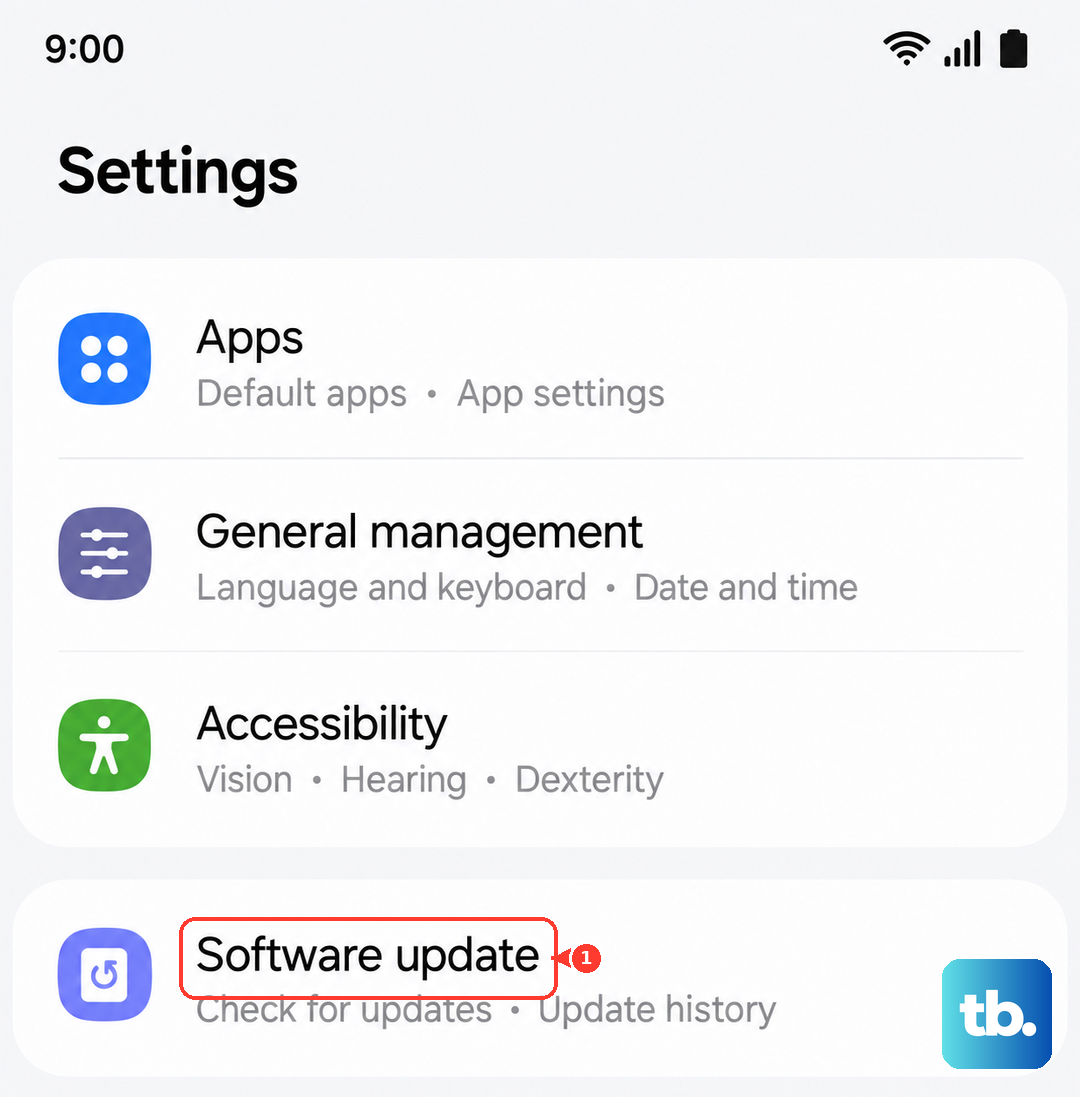
Samsung releases updates that include sensor improvements. Go to Settings > Software update > Download and install to see if any update is available. Install it even if it's a minor patch, as it can fix fingerprint-related bugs.
Watch Your Finger Placement
Even with a clean screen, the sensor needs proper contact. Don't tap and lift too fast; press and hold for a fraction of a second. Center your finger over the scanner area it's roughly near the bottom center of the screen. If you're using a thumb, make sure the whole pad contacts the glass, not just the tip.
Register Multiple Fingers and an Alternate Unlock Method
If one finger isn't working well, register another. Also set up a PIN, pattern, or password as a backup. You can use that until you figure out the fingerprint issue.
Go to Settings > Biometrics and security > Fingerprints and add a second finger. And under Secure lock settings, make sure you have a backup method enabled.