
If the fingerprint sensor on your Galaxy Z Fold 6 has suddenly stopped responding, it can lock you out of your phone and your apps. This is a common hiccup, but it's usually something you can fix yourself in a few minutes.
Let's start with the quickest fix. Press and hold the Volume Down button and the Side button together for about ten seconds. Keep holding them until you see the Samsung logo appear, then let go.
This force restart clears out any temporary software glitches that might be freezing the sensor. It's the first thing I'd try, and it often gets things working again right away.
Clean the Sensor and Your Finger
The sensor on the Z Fold 6 is built into the power button on the side of the phone. Over time, natural oils from your skin, lotion, or just everyday pocket lint can build up on it.
Take a soft, dry microfiber cloth and gently wipe the entire side button area. Make sure your own finger is clean and completely dry, too. Even a little moisture can prevent the ultrasonic sensor from reading your print properly.
Re-register Your Fingerprint
If a simple clean and restart didn't do it, the next step is to delete your old fingerprint and scan it again. This refreshes the data the phone uses to recognize you.
Open Settings and go to Biometrics and security, then tap Fingerprints. You'll need to enter your PIN, password, or pattern to proceed.
Tap on the fingerprint you're having trouble with, then select Remove. Once it's deleted, tap Add fingerprint and follow the on-screen prompts. Press your finger to the side button at different angles until the scan is complete.
Check for a Software Update
Sometimes, a bug in the phone's software can cause the biometric sensors to act up. Samsung regularly releases updates that fix these kinds of issues.
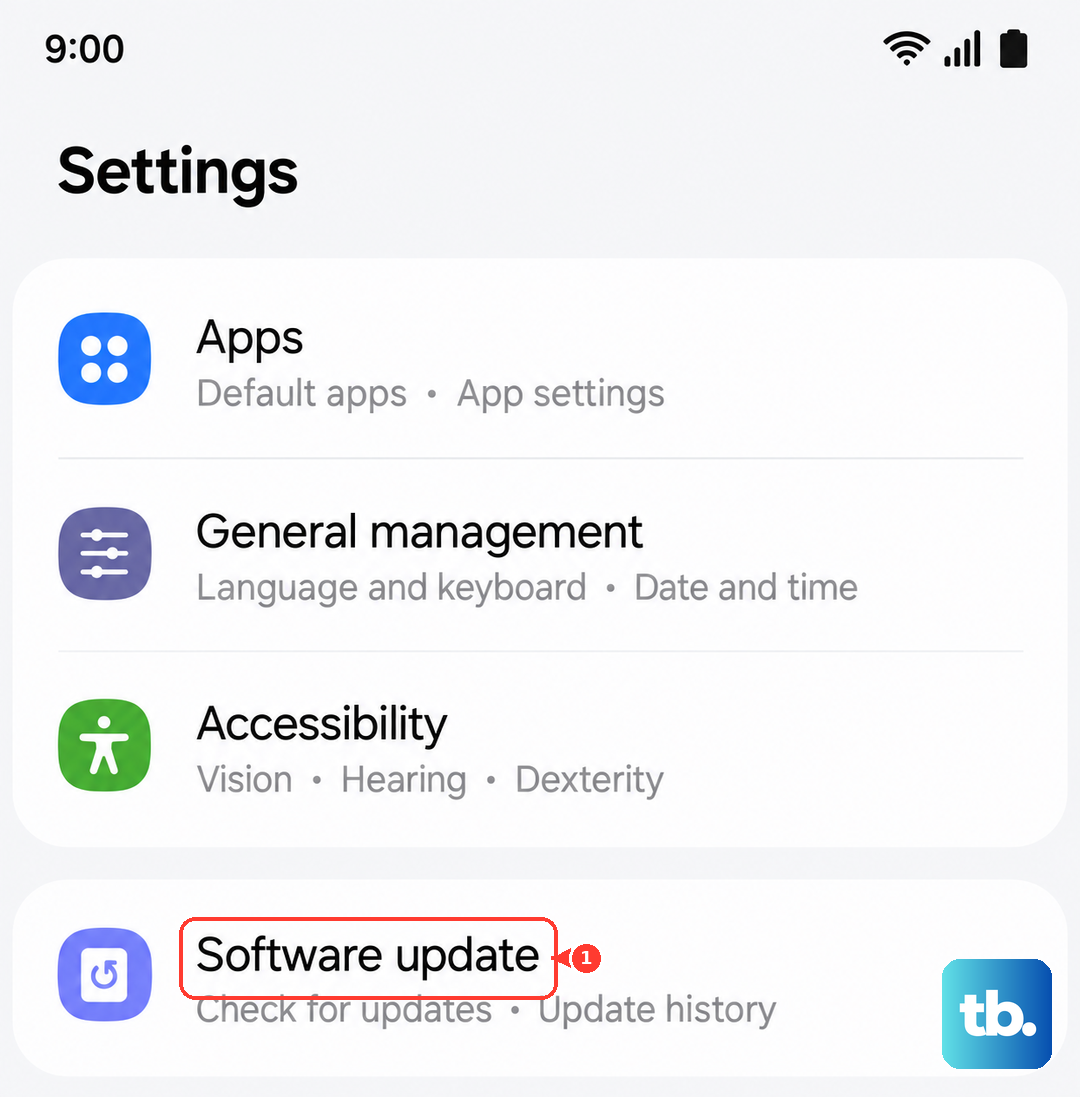
Go to Settings > Software update and tap Download and install. If an update is available, let it install completely. Your phone will restart, and you should test the fingerprint sensor again afterward.
Consider Your Screen Protector
This is a big one for the Z Fold 6. If you've applied a third-party screen protector, especially on the inner display, it can sometimes interfere with the phone's overall sensor performance.
Samsung strongly recommends using only their approved screen protectors. If you're using something else, it might be worth carefully removing it temporarily to see if your fingerprint sensor starts working again.
Clear the System Cache
Corrupted temporary system files can cause all sorts of strange behavior, including a non-responsive fingerprint reader. Clearing this cache is safe and won't delete your personal data.
First, turn off your phone completely. Now, press and hold the Volume Up button and the Side button at the same time. When you see the Android recovery menu, release the buttons.
Use the volume keys to highlight Wipe cache partition, then press the side button to select it. Confirm the action, then select Reboot system now.
Review Your Fingerprint Settings
There are a couple of settings buried in the Z Fold 6's menus that could be affecting the sensor. Let's check them.
First, go to Settings > Advanced features and look for Finger sensor gestures. If this is on, try turning it off. This feature lets you swipe on the sensor, and disabling it can sometimes improve basic recognition.
Also, head back to Settings > Biometrics and security > Fingerprints. Make sure the toggle for Fingerprint unlock is still enabled. It's possible it was accidentally switched off.
Mind the Hinge and Charging
The unique design of the Fold can introduce some specific issues. The hinge mechanism can attract dust and debris over time. If enough gets inside, it could potentially affect internal components.
It's a good habit to gently clean the hinge area regularly with a can of compressed air. Also, try using the fingerprint sensor when the phone is not charging, either wired or on a wireless pad. Electrical interference during charging, while rare, can sometimes disrupt the sensor.
If you've worked through all these steps and the sensor is still completely dead, the problem is likely hardware-related. The fingerprint sensor is integrated into the power button assembly on the side frame. In my experience, this usually means a visit to a repair center is needed to replace the module.