
Screen flickering on your Samsung Galaxy S25 FE is incredibly distracting, turning a simple task into a frustrating one. You might see the display flash, blink, or show horizontal lines, especially after a recent software update. This can be caused by a temporary software glitch, a problematic display setting, or, less commonly, a hardware issue. Let's get it sorted.
Force Restart Your Phone
This is the quickest fix for a temporary software hiccup causing the flicker. Press and hold the Volume Down button and the Side (power) button simultaneously for about 10 seconds. Keep holding until you see the Samsung logo appear, then release. The phone will restart. I'd start with this one, as it clears the phone's temporary memory and often resolves display glitches immediately.
Disable Adaptive Brightness
Your phone's light sensor can sometimes act up, causing the screen to flicker as it struggles to adjust. Go to Settings > Display and toggle off Adaptive brightness. After turning it off, manually adjust your brightness slider to a comfortable level and see if the flickering stops.
Turn Off Eye Comfort Shield
This feature, which reduces blue light, can sometimes interact poorly with certain apps or system processes. To check if it's the culprit, swipe down twice from the top of your screen to open the Quick Settings panel. Look for the "Eye comfort shield" tile and tap it to turn it off. You can also manage its schedule in Settings > Display > Eye comfort shield.
Check for a Software Update
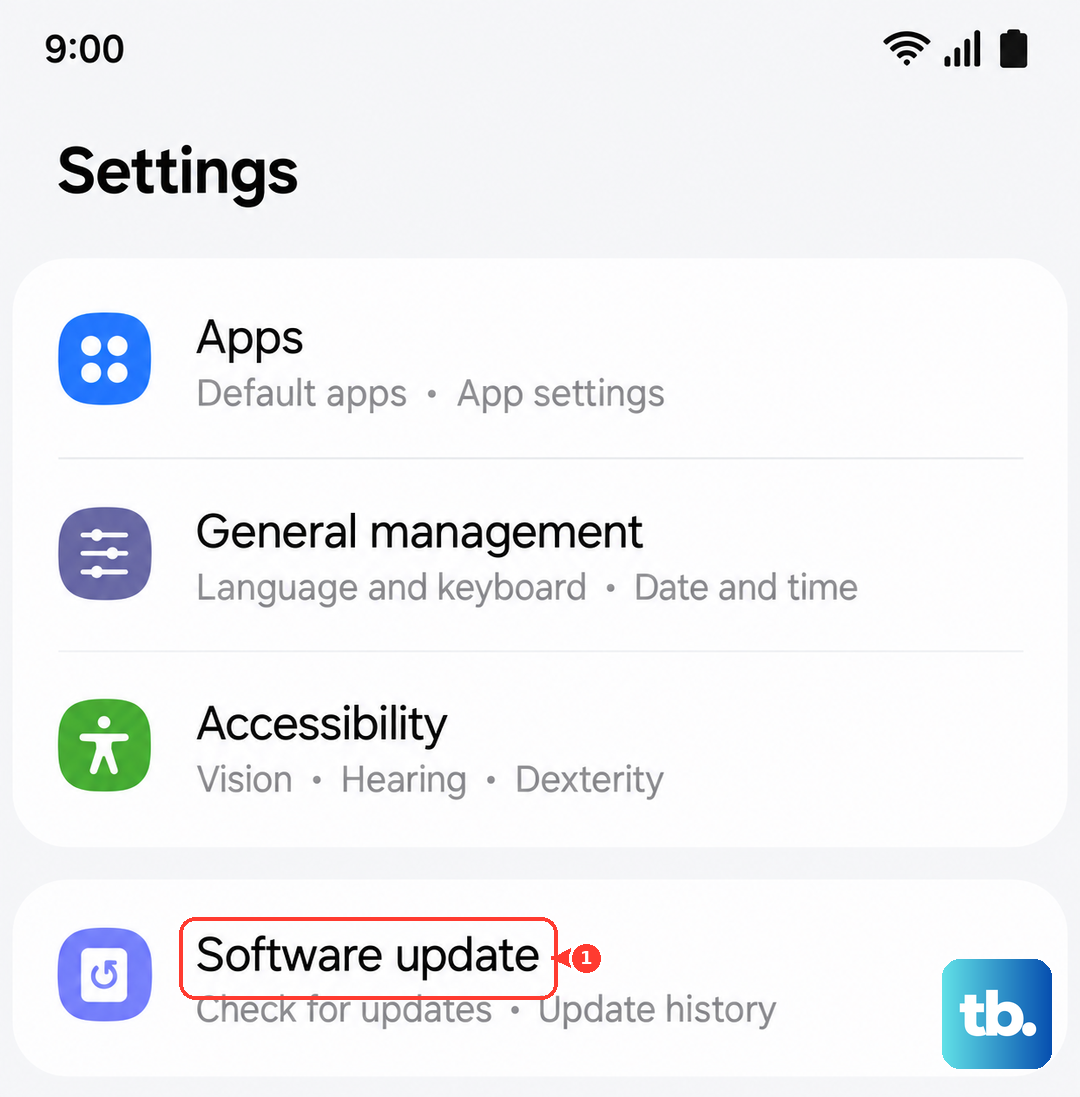
Samsung regularly releases updates that fix bugs, including display-related ones. Go to Settings > Software update > Download and install. If an update is available, install it. Given that some users have reported occasional flicker after updates, a subsequent patch is likely to address it. Make sure your phone is connected to Wi-Fi and has sufficient battery before starting.
Close All Recent Apps
A specific app might be causing graphical corruption. Swipe up from the bottom of the screen and hold to enter the recent apps view. Tap "Close all" at the bottom. Alternatively, you can swipe up on each app individually to close them. Once all apps are closed, check your home screen and see if the flickering persists. If it stops, you can reopen your apps one by one to identify which one was causing the trouble.
Boot Into Safe Mode
Safe Mode temporarily disables all third-party apps. If the flickering stops in Safe Mode, you know a downloaded app is to blame. To enter Safe Mode, press and hold the power button until the power menu appears. Then, tap and hold the "Power off" option on your screen. You'll see a prompt to reboot to Safe Mode; tap it. Your phone will restart with "Safe mode" visible in the bottom corner. Test the display. To exit, simply restart your phone normally.
Reset All Settings
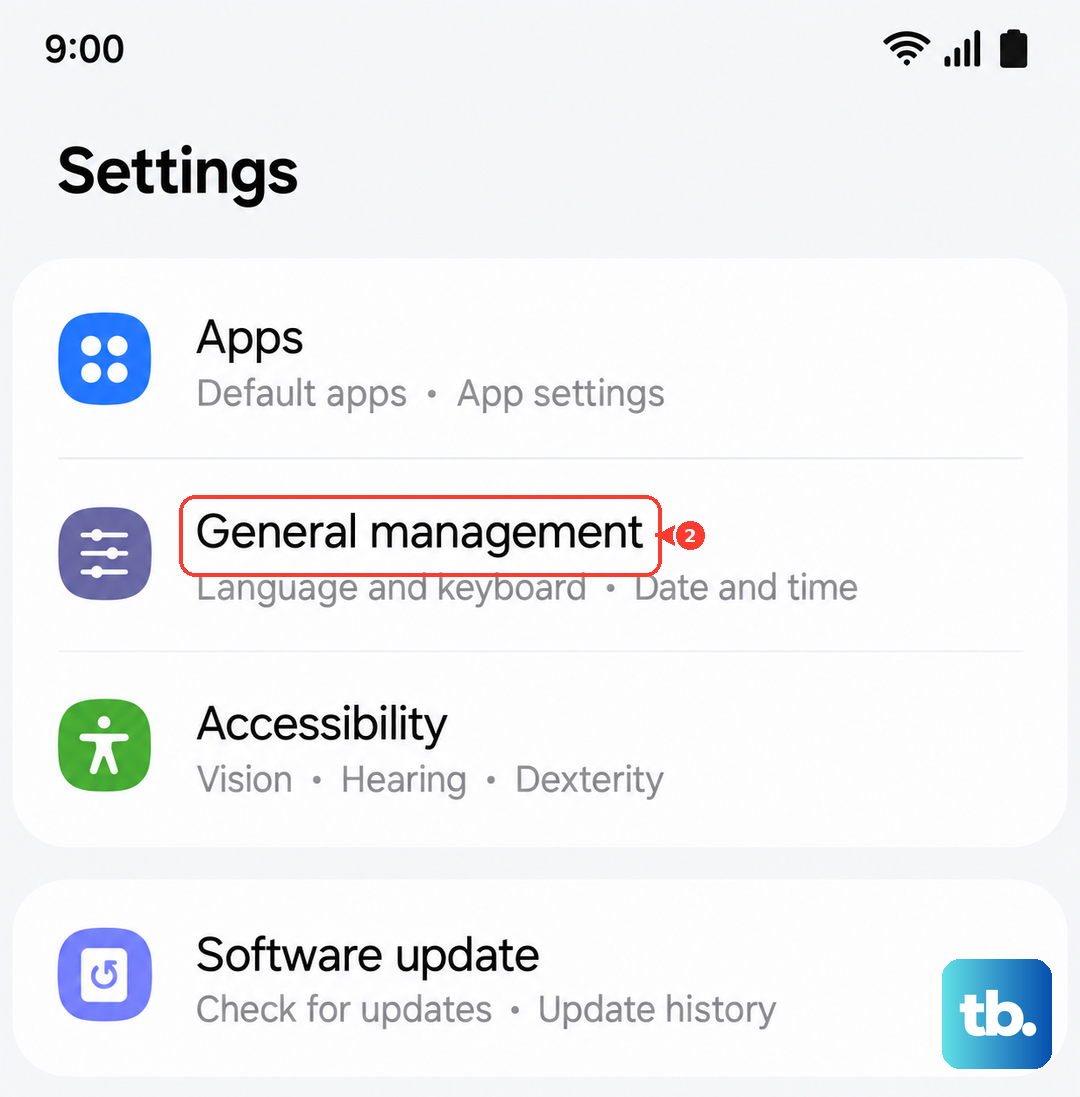
This resets every system setting on your phone, like Wi-Fi, Bluetooth, display, and sound, back to factory defaults without touching your personal data or apps. It can fix deeper configuration conflicts. Go to Settings > General management > Reset > Reset all settings. You'll need to enter your PIN or password. After the reset, you'll have to reconfigure things like your wallpaper and connections, but it often clears up persistent software issues.
Check for Physical Damage or Loose Connections
If the flickering started after a drop or impact, the internal display cable could be slightly loose or the screen itself could be damaged. Look closely for any hairline cracks, pressure marks, or areas of discoloration. Even a small bump can sometimes jar a connection. Physical damage isn't common for this issue, but it's worth considering if the problem is constant and the software fixes did nothing.
Consider a Factory Reset
This is a last resort before looking at hardware. A factory reset will erase all data from your phone, so you must back up everything important first. You can back up to your Samsung account or Google Drive. Once backed up, go to Settings > General management > Reset > Factory data reset. Follow the prompts to erase the phone. After it restarts, set it up as new without restoring your apps immediately. If the flickering is gone on a fresh system, it was a software problem. If it remains, the issue is likely with the display hardware itself.