If your Samsung Galaxy S24 suddenly goes quiet or the volume is way too low, it can feel like you're carrying around a very expensive paperweight. The good news is that most sound problems are caused by a simple setting or a temporary software hiccup. I'd start with the quickest checks first, as they often solve the issue in under a minute.
It is worth confirming the basics with a quick quick sound test. If neither channel plays a tone, you are looking at a hardware or connection problem rather than a settings issue.
Check Your Volume and Sound Mode
It sounds obvious, but it's the most common fix. While playing music or a video, press the volume up button on the side of your S24. Make sure you're not in Silent or Vibrate mode by checking the quick settings panel you pull down from the top of the screen.
For more granular control, go into Settings > Sounds and vibration > Volume. Here you can adjust the sliders for Media, Notifications, and System sounds independently. If one is all the way down, that could be your culprit.
Disconnect Bluetooth and Other Audio Routes
Your S24 might be trying to send sound somewhere else. If you have Bluetooth headphones, a smartwatch, or a car system paired, the audio could be routing there even if you're not actively using them.
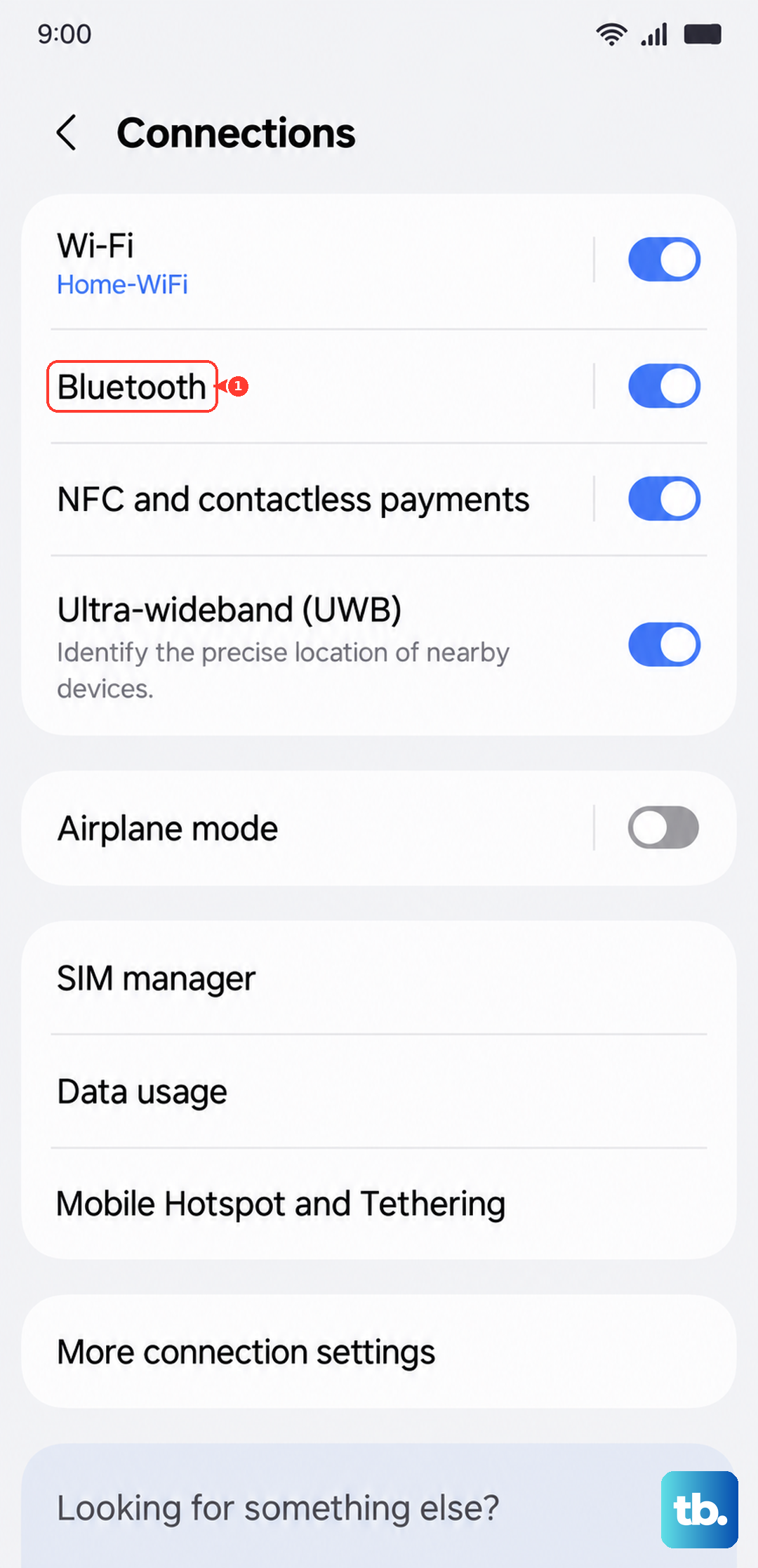
Head to Settings > Connections > Bluetooth and toggle it off temporarily. Also, check for the "Separate app sound" feature in Settings > Sounds and vibration. If this is on for a specific app, it can redirect that app's audio to a different device, making it seem like your phone speaker is broken.
Clean the Speaker Grills
The S24's bottom-firing speaker and earpiece can easily get clogged with pocket lint or dust. Take a close look with a flashlight. You can use a soft, dry toothbrush or a clean, dry cotton swab to gently brush away any debris.
Be very careful not to push anything further into the grill. Never use sharp objects like pins or compressed air, as you can easily damage the delicate speaker components. A gentle brush is almost always enough.
Review Do Not Disturb and Accessibility Settings
Certain system modes override all your volume settings. Swipe down twice from the top to open your full quick settings panel and make sure the "Do Not Disturb" icon isn't highlighted. If it is, tap it to turn it off.
Next, check your accessibility settings. Go to Settings > Accessibility > Hearing enhancements. Look for any options like "Mute all sounds" or "Audio balance" sliders that are set all the way to one side, which could mute one speaker entirely.
Force Restart Your Galaxy S24
A quick force restart clears out temporary glitches in the system that can affect audio. On the S24, press and hold the Volume Down button and the Side (power) button together for about 10 seconds.
Release the buttons when you see the Samsung logo appear on the screen. Let the phone boot up normally and then test your sound again. This doesn't erase any data, it just gives the system a fresh start.
Check for Software Updates
Samsung regularly releases updates for One UI that fix bugs, including audio-related ones. It's worth making sure you're running the latest software.
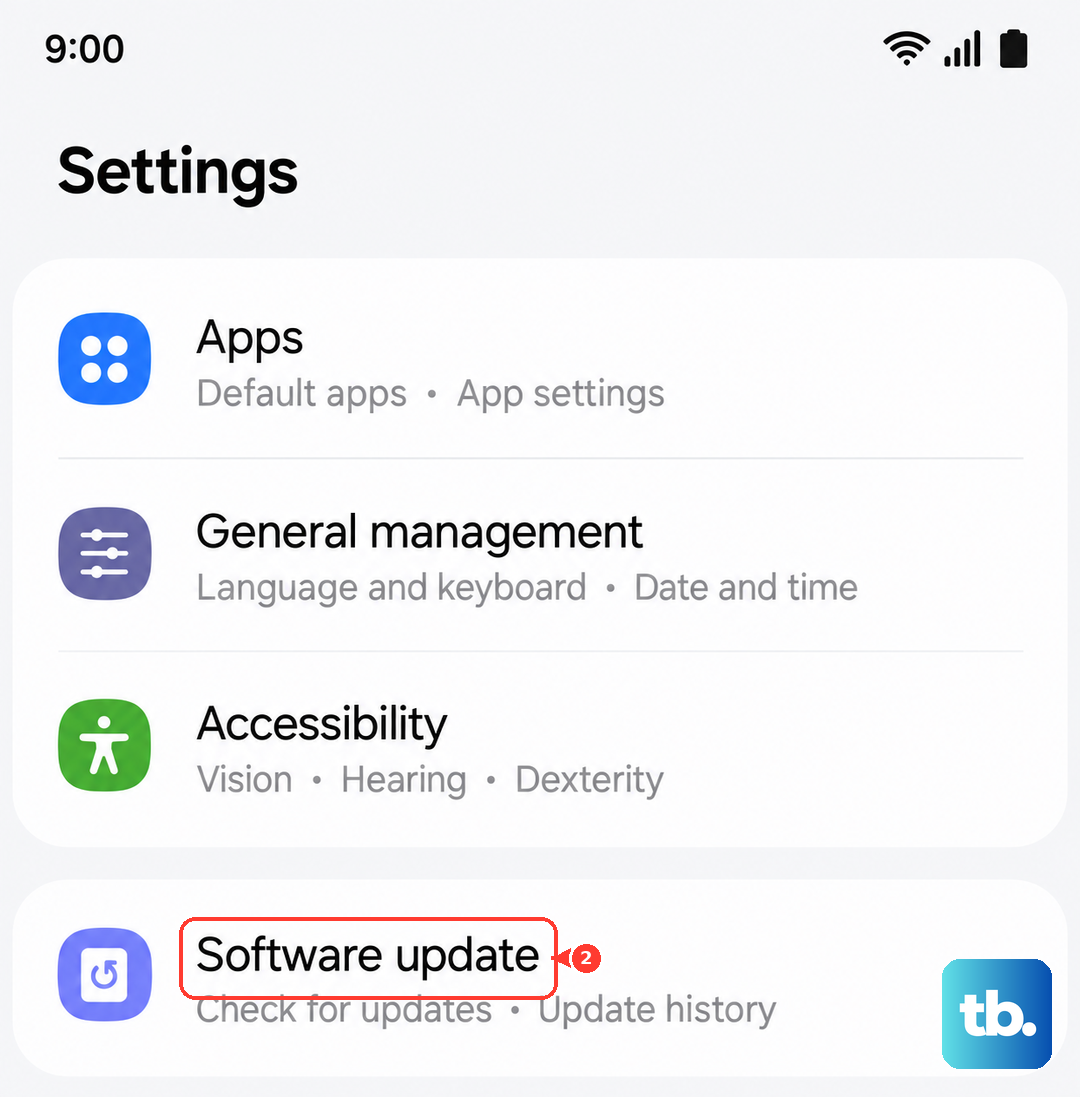
Go to Settings > Software update > Download and install. If an update is available, connect to Wi-Fi and let it install. After the phone restarts, your sound issue might be resolved if it was caused by a known software bug.
Boot Into Safe Mode
If the problem started after installing a new app, that app could be interfering. Booting into Safe Mode temporarily disables all third-party apps.
To enter Safe Mode, press and hold the Side button and Volume Down button until the power off menu appears. Then, tap and hold the "Power off" option on your screen. A prompt will ask if you want to reboot to Safe Mode. Tap "OK". If your sound works perfectly in Safe Mode, you'll know a downloaded app is the cause. You can then restart normally and uninstall recent apps one by one to find the offender.
Clear the System Cache Partition
Corrupted system cache files can cause all sorts of odd behavior, including audio problems. Clearing this cache is safe and doesn't touch your personal data like photos or messages.
First, turn off your S24 completely. Now, press and hold the Volume Up button and the Side button at the same time. When you see the Samsung logo, let go of both buttons. You'll be in the Android Recovery Menu. Use the Volume Down button to highlight "Wipe cache partition," then press the Side button to select it. Confirm the action, and then select "Reboot system now."
Reset All Settings
If you're still having trouble and you've ruled out hardware and app issues, resetting your phone's settings can help. This will revert all your sound, display, network, and other preferences back to factory defaults, but it won't delete any of your personal files, photos, or apps.
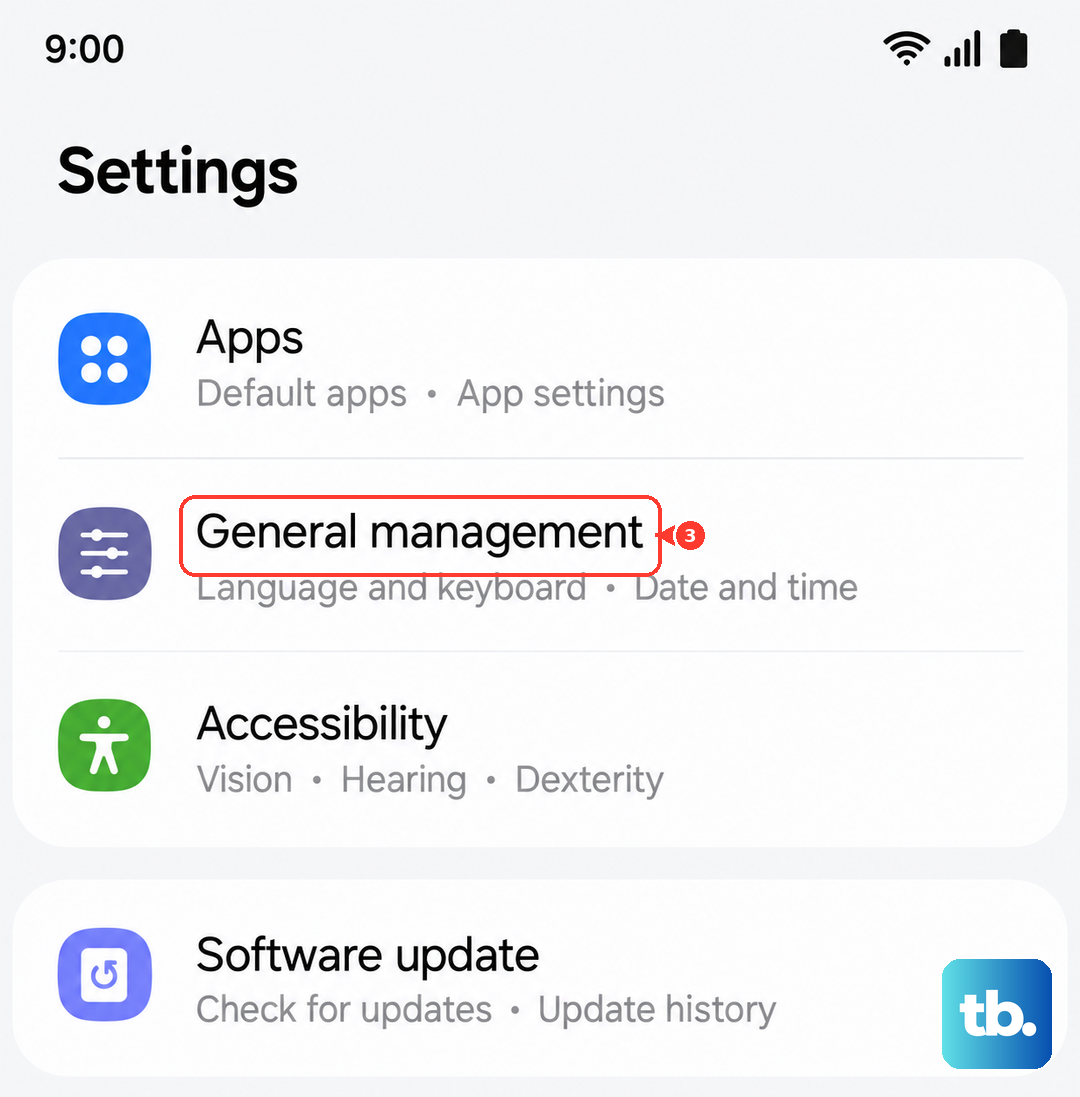
Go to Settings > General management > Reset > Reset all settings. You may need to enter your PIN. Confirm the reset and let the phone reboot. Afterward, you'll need to reconfigure things like Wi-Fi passwords and wallpaper, but it often clears up persistent software conflicts causing the sound to fail.