
Press and hold the Volume Down button and the Side button together for about 10 seconds. Keep holding them until you see the Samsung logo appear on the screen. This force restart is the quickest way to jolt the system back to life if the touchscreen has become unresponsive.
I'd start with this one every time. It's a soft reset that doesn't erase any of your data, and it often resolves temporary software glitches that freeze the screen. If the phone is completely frozen and the screen is black, you might not feel a vibration, so just watch for the logo.
Clean the Screen and Remove Any Protector
Turn the phone off and give the screen a thorough clean with a soft, slightly damp microfiber cloth. Oils, lotion, or even a small amount of moisture can interfere with the capacitive touch sensors. Make sure the screen is completely dry before turning it back on.
If you're using a screen protector, especially a cheap or poorly installed glass one, it could be the culprit. Try carefully peeling it off and testing the bare screen. Some thick or low-quality protectors don't play nicely with the S24's touch sensitivity.
Boot Into Safe Mode
Safe mode temporarily disables all third-party apps. If the touchscreen works perfectly in safe mode, you know a recently downloaded app is causing the conflict. To enter safe mode, press and hold the power button until the power off menu appears.
Then, tap and hold the "Power off" option on your screen. You'll get a prompt to reboot into safe mode. Tap "OK" to confirm. Once in safe mode, test the touch response. If it's fixed, you'll need to uninstall apps one by one, starting with the most recent.
Check for Software Updates
Outdated software can have bugs that affect touchscreen performance. Go to Settings > Software update > Download and install. If an update is available, connect to Wi-Fi and let it install.
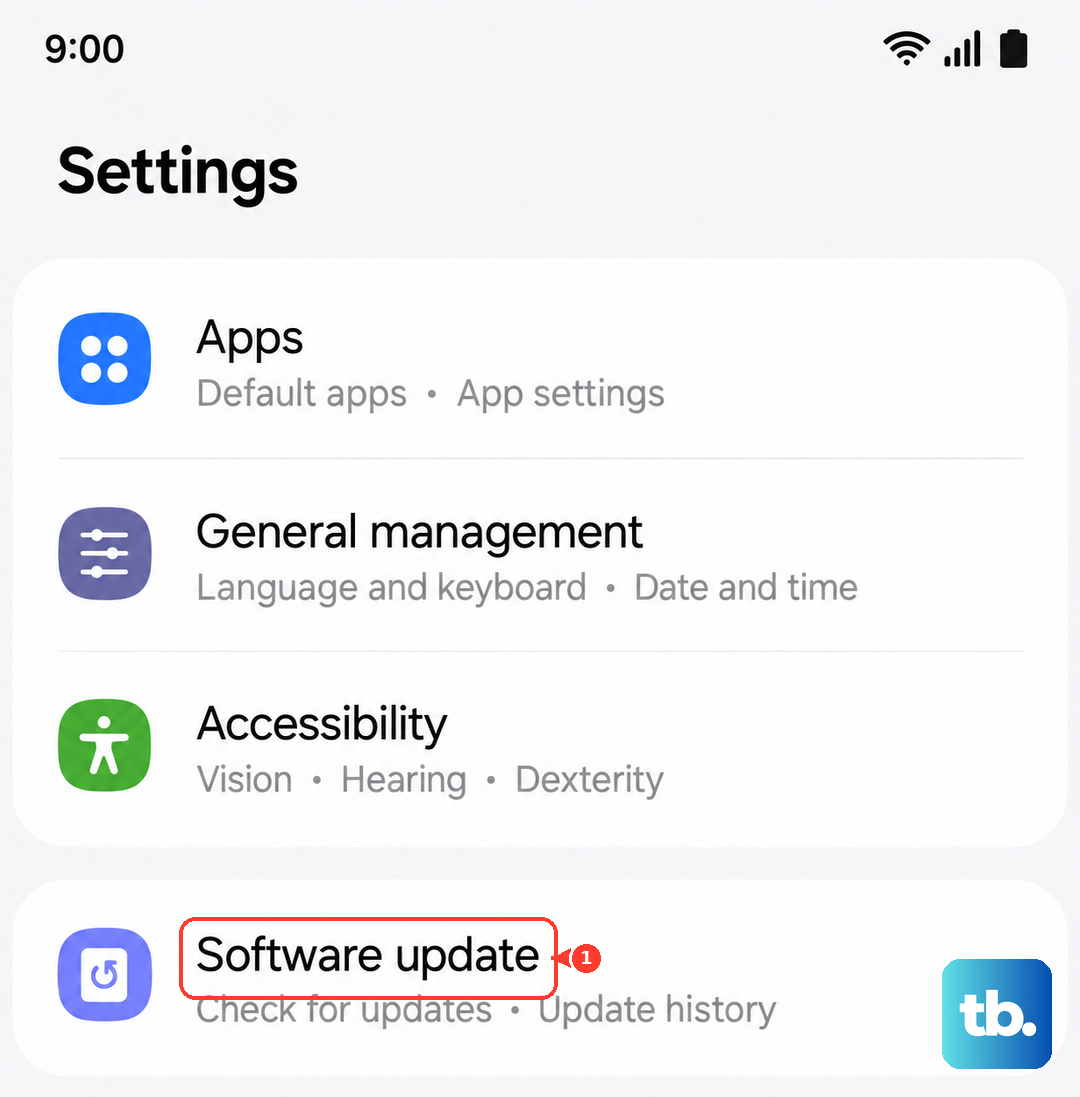
I've seen this fix issues on several S24 models after a major One UI update. Samsung often releases patches for specific hardware and software bugs, so keeping your phone updated is crucial. Make sure your battery is above 30% before starting the update.
Calibrate the Touchscreen
While Samsung doesn't have a built-in calibration tool in settings, you can use a hidden diagnostic menu. Open your phone app and dial *#0*#. This will launch the secret service menu.
Tap on "Touch" to run the diagnostic. It will display a grid on your screen. Simply drag your finger across the entire grid, filling it in. This test can sometimes recalibrate the touch sensors. When finished, press the back key a few times to exit the menu.
Reset All Settings
This will revert all your system settings back to default without deleting your personal data like photos or messages. It can fix conflicts caused by a misconfigured setting. Go to Settings > General management > Reset > Reset all settings.
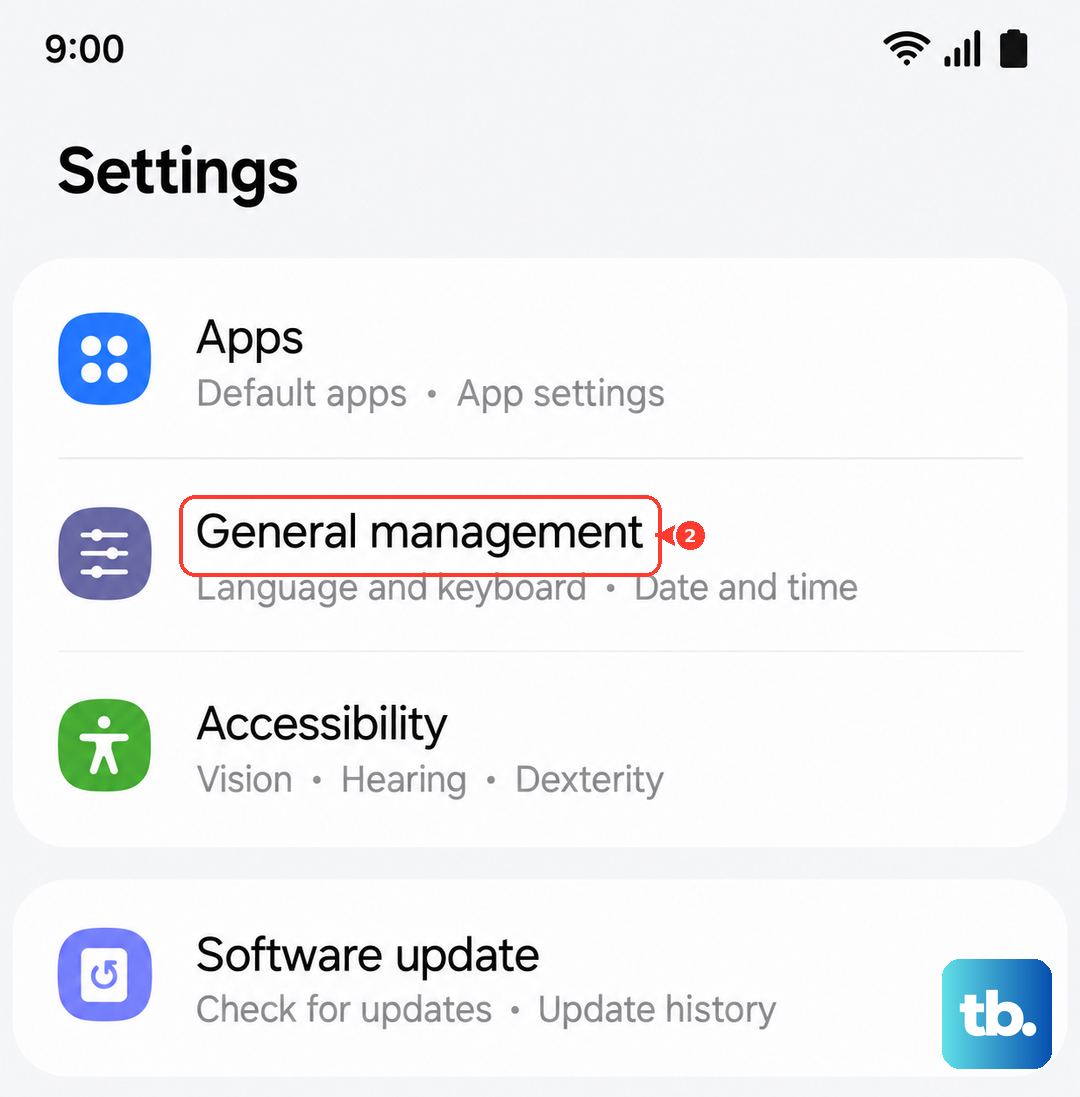
You'll need to enter your PIN or password to confirm. After the reset, you'll have to reconfigure things like Wi-Fi passwords, wallpapers, and display settings, but it's a strong step before considering a full factory reset.
Check for Physical or Moisture Damage
Inspect the screen closely for any new cracks, even hairline ones, especially near the edges. A cracked digitizer underneath the glass can cause dead spots. Also, look for any signs of liquid damage.
The S24 is known for occasional false "moisture detected" warnings in the USB-C port, but actual moisture can definitely affect the screen. If you see condensation under the glass or the phone has been exposed to liquid, power it off completely and leave it in a dry, warm place for at least 24 hours before trying to use it again.
Perform a Factory Reset
This is your last resort software fix, as it will erase everything on your phone. Before you begin, ensure you have a recent backup. With the phone on, go to Settings > General management > Reset > Factory data reset.
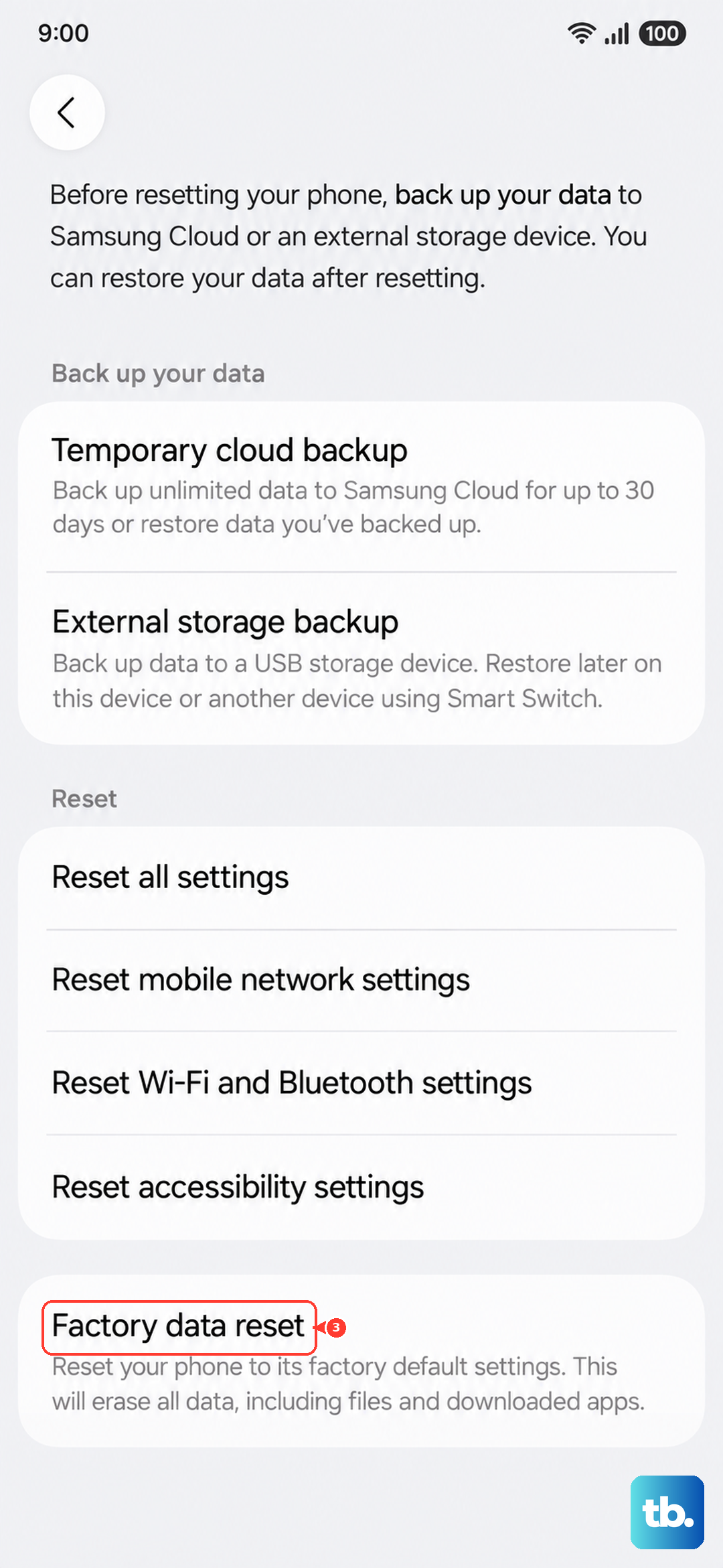
Tap "Reset" and follow the prompts. If the touchscreen is too unresponsive to navigate menus, you can use hardware buttons. Power off the phone and connect it to a computer with a USB cable (on the S24 this connection is required), then press and hold the Volume Up and Side buttons together until the Android Recovery screen appears. Use the volume buttons to navigate to "Wipe data/factory reset" and select it with the side button.