
When your Samsung Galaxy S24's autocorrect starts suggesting bizarre words or stops working entirely, it can make typing feel like a battle. This is usually a software hiccup within the keyboard app itself, not a sign of a bigger problem. The quickest thing to try is a simple restart of your phone. Press and hold the Volume Down and Side button together for about ten seconds until you see the Samsung logo appear. This clears out any temporary glitches that might be messing with the keyboard's brain.
Clear the Keyboard's Cache and Data
If a restart didn't help, the next step is to clear the keyboard app's stored temporary files, known as the cache. This gets rid of corrupted data without touching your personal settings. Go to Settings > Apps, tap the three-dot menu and select Show system apps. Find and select Samsung Keyboard, then tap Storage and hit Clear Cache.
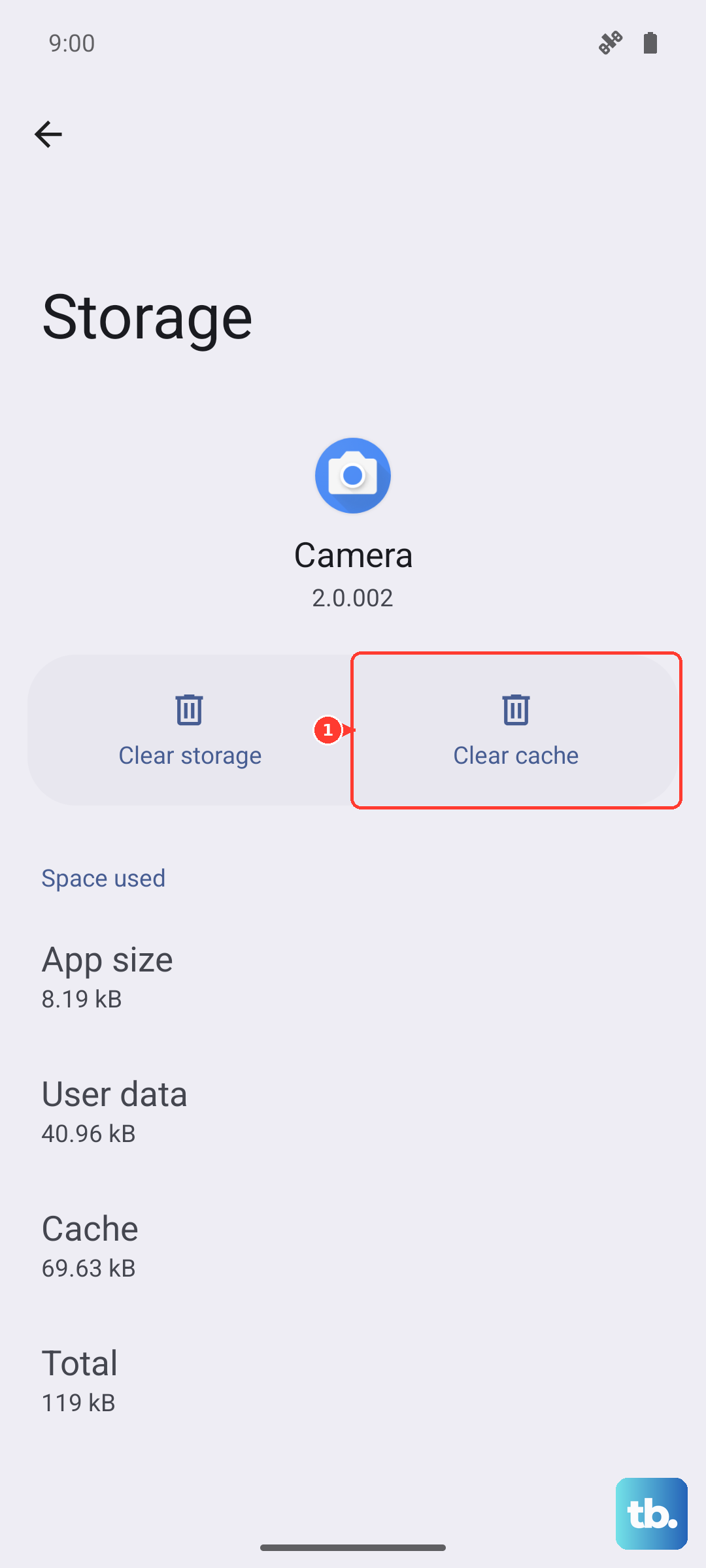
For more stubborn issues, you can clear the app's data. This is a more thorough reset that will erase your saved custom words and any personalized keyboard settings, so you'll have to set those up again. In the same Samsung Keyboard > Storage menu, tap Clear Data and confirm. I've found this often fixes persistent autocorrect loops on the S24.
Check Your Keyboard's Smart Typing Settings
Sometimes the problem is just a single setting that got turned off or is conflicting. It's worth taking a minute to verify everything is configured correctly. Head to Settings > General Management > Samsung Keyboard Settings > Smart typing.
Make sure Predictive text is toggled on. Right below it, check the Auto replace setting, which is the actual autocorrect function. Try turning it off, closing the settings, then going back and turning it on again to refresh it. Also ensure Auto spacing and Auto capitalization are set to your preference.
Update Your Keyboard Language and App
An outdated language pack can cause autocorrect to behave strangely. To update it, go to Samsung Keyboard Settings > Languages and types. Tap on your language (like English US), then tap Download next to it if an update is available. This ensures the dictionary it's referencing is current.
Next, make sure the Samsung Keyboard app itself is up to date. Open the Google Play Store, tap your profile icon, and go to Manage apps & device. Look for "Samsung Keyboard" in the list of apps with updates available. If you see it, tap update. Samsung frequently releases updates that squash bugs related to typing and prediction.
Reset the Keyboard to Its Default State
If autocorrect is still acting up, a full reset of the keyboard will wipe all its settings back to factory default. This is a good nuclear option before considering anything more drastic. Navigate back to Settings > General Management > Samsung Keyboard Settings.
Scroll all the way to the bottom and tap Reset to default settings. Confirm your choice. This will clear all your personalized dictionaries, shortcuts, and layout changes, so you'll start fresh. After the reset, give the keyboard a few minutes to re-learn your common phrases, as its suggestions will improve with use.
Try Using Gboard as a Temporary Fix
While you're troubleshooting the native keyboard, installing Google's Gboard from the Play Store can be a great workaround. It offers a different prediction engine and might work flawlessly while you sort out the Samsung keyboard issue. After installing it, you'll need to enable it by going to Settings > General Management > Keyboard list and default and setting Gboard as your default keyboard.
Using an alternative keyboard like Gboard can help you determine if the problem is isolated to the Samsung app or is a deeper system issue. If Gboard works perfectly, it points squarely to a problem with the Samsung Keyboard app's data or configuration.