When your Samsung Galaxy S24 keeps closing apps unexpectedly, it usually comes down to a few common issues with One UI 7. The quickest fix is to force stop the problematic app and clear its cache. Head to Settings > Apps, select the app that's crashing, tap Storage, and then hit Clear Cache. This gives the app a fresh start without deleting your personal data.
Restart Your Galaxy S24
It sounds too simple, but a restart clears out temporary glitches in the system memory. Just press and hold the volume down button and the side key together for about ten seconds. You'll feel a vibration and see the Samsung logo as the phone reboots. I'd start with this one every time.
Update Your Apps and One UI
Outdated apps are a prime culprit for crashes on the S24. Open the Galaxy Store and Google Play Store to check for updates. For the system itself, go to Settings > Software update and tap Download and install. Samsung frequently releases patches that fix stability issues with specific apps.
Make sure you're on a stable Wi-Fi connection before downloading large updates. If you see an error during the process, a quick phone restart often resolves it.
Free Up RAM and Storage Space
Your S24 has plenty of memory, but having dozens of apps open can still cause hiccups. Swipe up from the bottom and hold to enter the recent apps view, then tap Close all. For a deeper clean, check your storage in Settings > Device care > Storage.
If you're below 10GB of free space, apps can struggle to create temporary files. Delete old downloads, offload photos to Samsung Cloud or Google Photos, and uninstall apps you no longer use.
Clear an App's Cache and Data
If a single app, like Instagram or Chrome, keeps closing, its cached files might be corrupted. Go to Settings > Apps, find the app, and select it. Tap on Storage and then Clear cache. This is safe and won't delete your login info.
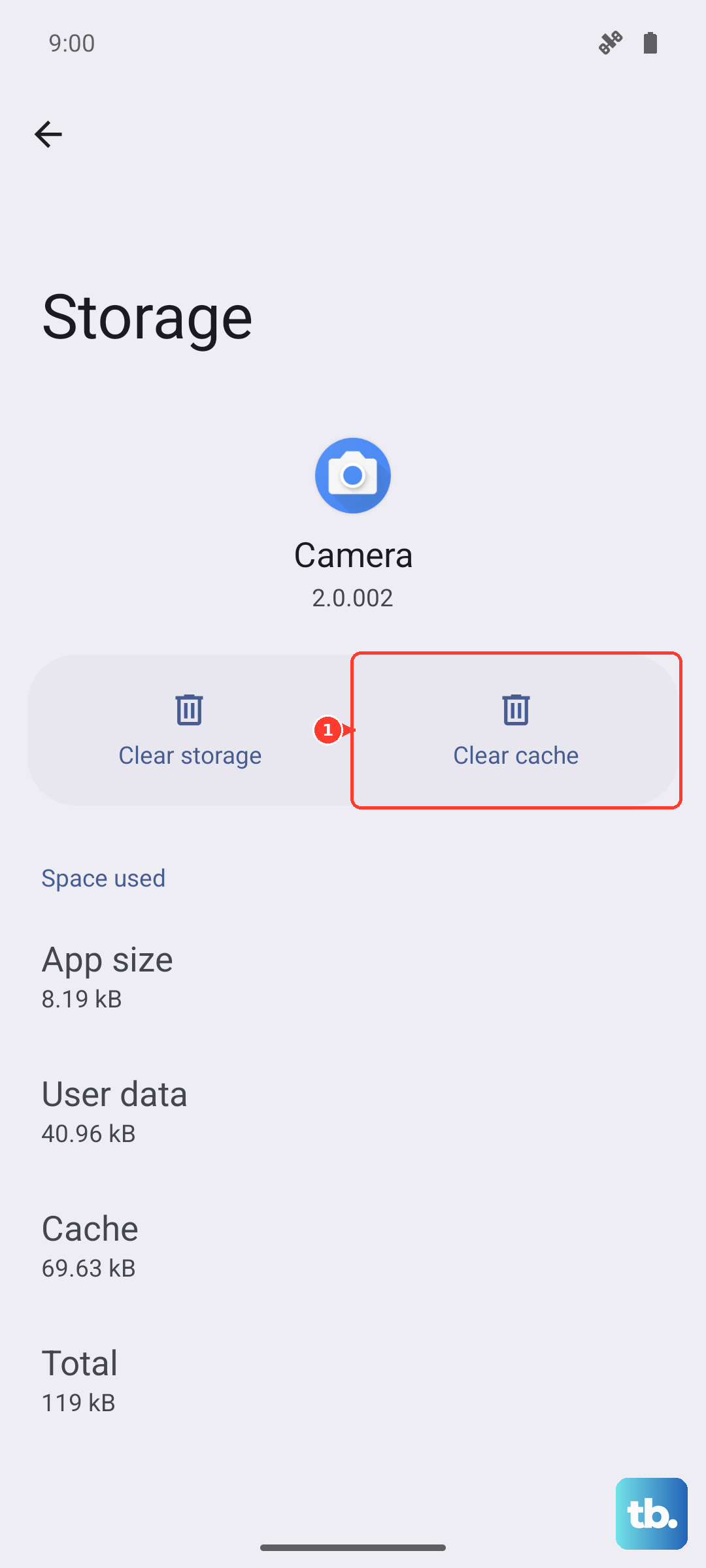
If the app is still misbehaving, you can tap Clear data next. Just be warned, this will reset the app to its original state, so you'll need to sign back in and may lose saved preferences within that app.
Check for Problematic Power Settings
One UI has aggressive battery optimization features that can sometimes close apps in the background too eagerly. To check this, go to Settings > Apps, select the problematic app, and tap Battery. Make sure it's not set to "Restricted."
You can also try disabling adaptive battery temporarily. Go to Settings > Battery > More battery settings and turn off Adaptive battery. See if the crashing stops, and you can always turn it back on later.
Boot Into Safe Mode
This helps you figure out if a third-party app you installed is causing the trouble. To enter Safe Mode, press and hold the side key and Volume down key until the power menu appears. Then, tap and hold the "Power off" icon on your screen until you see the Safe Mode prompt. Tap it to restart.
If your apps work fine in Safe Mode, a recently downloaded app is likely the villain. Start uninstalling your most recent downloads one by one until the crashing stops.
Reset All App Preferences
This resets all your app permissions, notifications, and default app assignments without deleting any personal data. It's a good middle-ground step. Go to Settings > Apps, tap the three-dot menu in the top right, and select Reset app preferences.
You'll need to re-grant permissions like camera or location access the next time you use each app, but it can resolve conflicts that cause apps to close.
Perform a Factory Reset
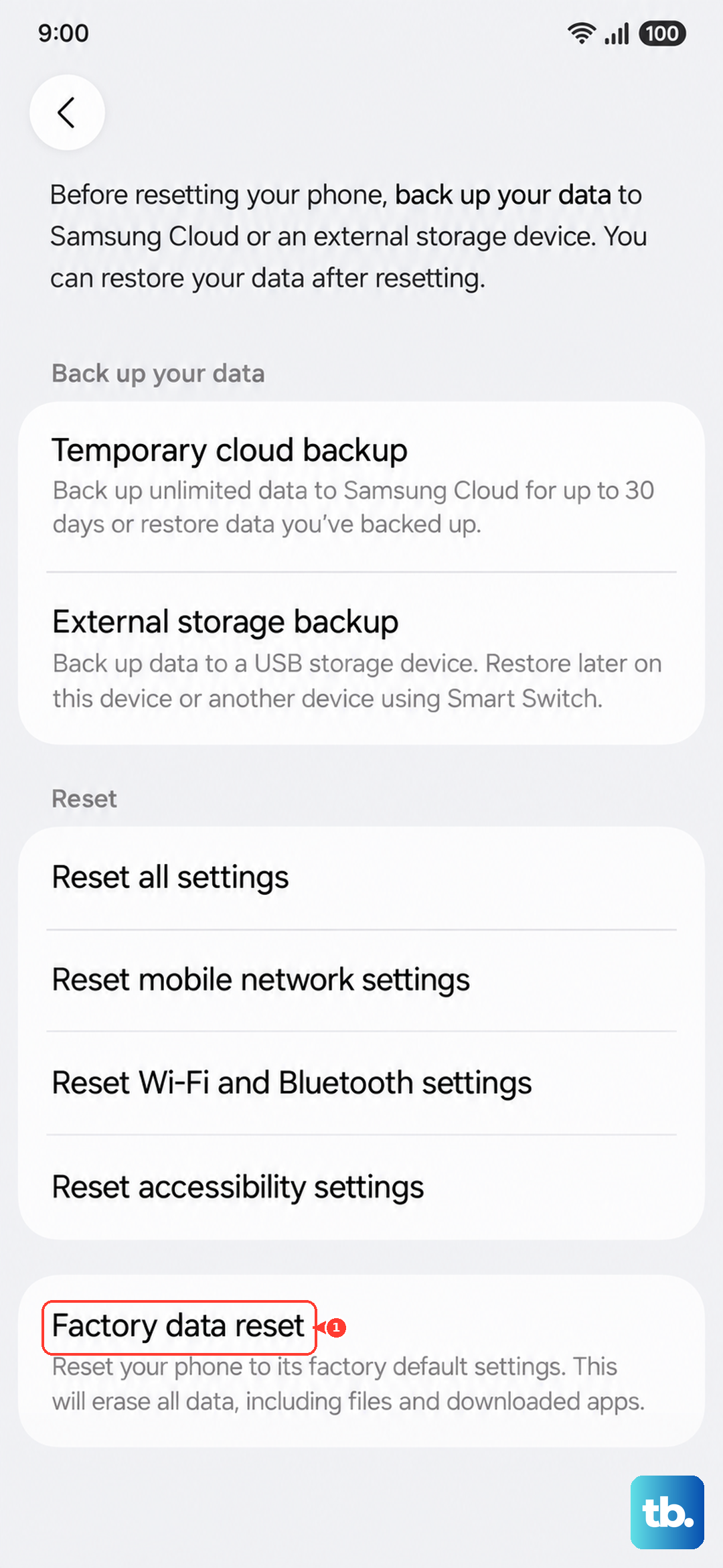
If every other fix has failed, a factory reset is the final step. This will erase everything on your phone, so you must back up your photos, contacts, and important files first. Use Samsung Cloud or Smart Switch on a computer.
Once backed up, go to Settings > General management > Reset > Factory data reset. Tap Reset and follow the prompts. After the phone restarts, you can set it up as new or restore your backup, though setting up as new avoids potentially restoring the original problem.