
When your Samsung Galaxy S24 starts rebooting on its own, it's usually a software hiccup that you can fix yourself. Before you try anything, it's a good idea to make sure your photos and important files are backed up to your Samsung account or Google Drive, just in case.
Force Restart Your Galaxy S24
This is the quickest fix for a frozen phone or random restarts. It clears the phone's temporary memory without deleting any of your stuff. Just press and hold the Volume Down button and the Side button (the power button) together for about 10 seconds.
Keep holding until you see the Samsung logo appear on the screen, then let go. Your phone will boot up normally. I'd start with this one, as it resolves a lot of temporary glitches.
Check for Problematic Apps
A misbehaving app is a very common cause. Think about if the restarts started after you installed something new. You can boot your S24 into Safe Mode to check. First, turn the phone off completely.
Then, press and hold the Side button to turn it on. As soon as you see the Samsung logo, release the Side button and immediately press and hold the Volume Down button. Hold it until the phone finishes starting up; you'll see "Safe mode" in the bottom corner.
If the phone is stable in Safe Mode, a third-party app is the culprit. Restart normally to exit Safe Mode, then try uninstalling recent apps one by one to find the offender.
Clear the App Cache and Data
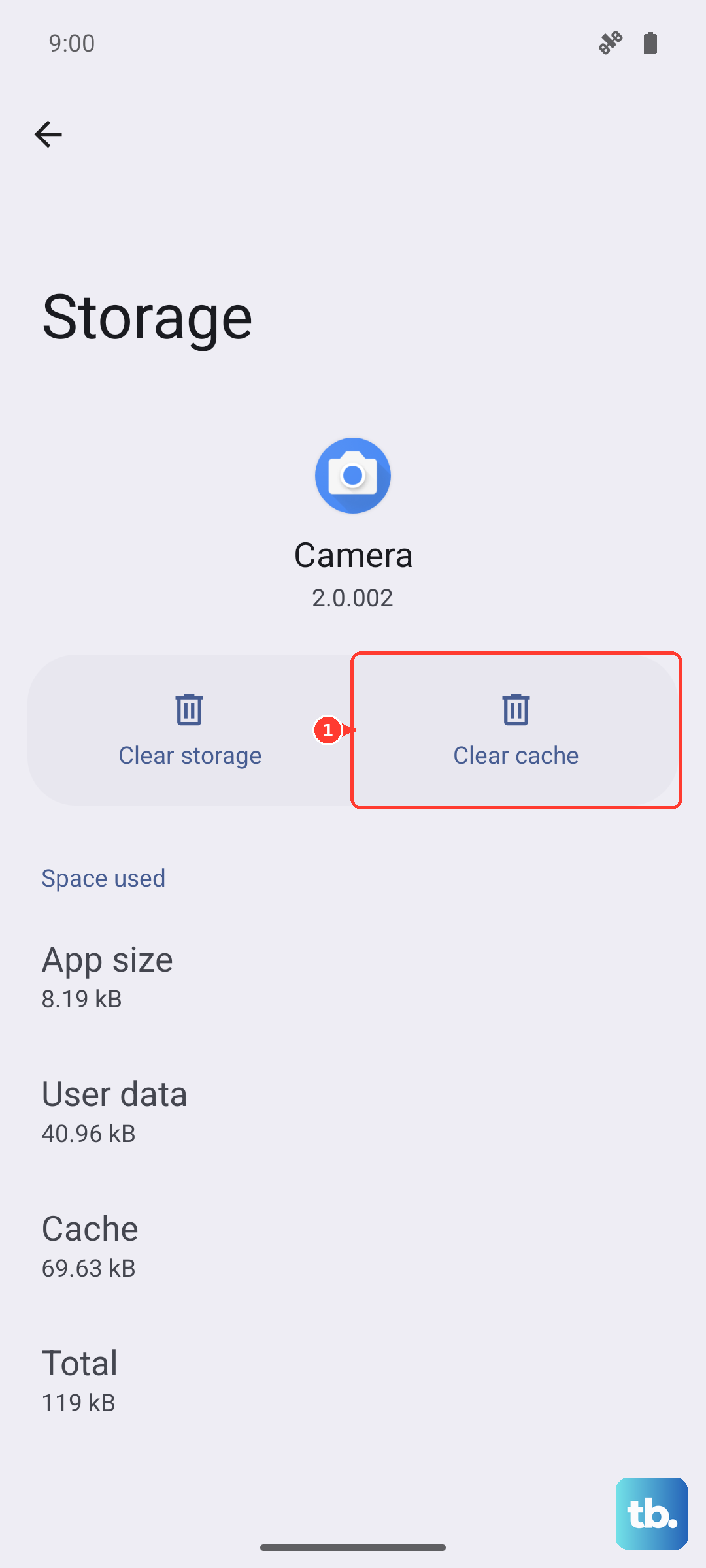
Sometimes an app's stored data gets corrupted. For apps you can't uninstall, like system services, clearing the cache can help. Go to Settings > Apps, select the suspicious app, and tap on Storage.
Tap "Clear cache" first. If the problem continues, you can tap "Clear data," but be aware this will reset the app to its default state and erase any saved logins or preferences within that app.
Update Your Apps and Software
Running outdated software is a classic cause of instability. First, check for app updates in the Galaxy Store and Google Play Store. Open each store, tap your profile icon, and look for updates.
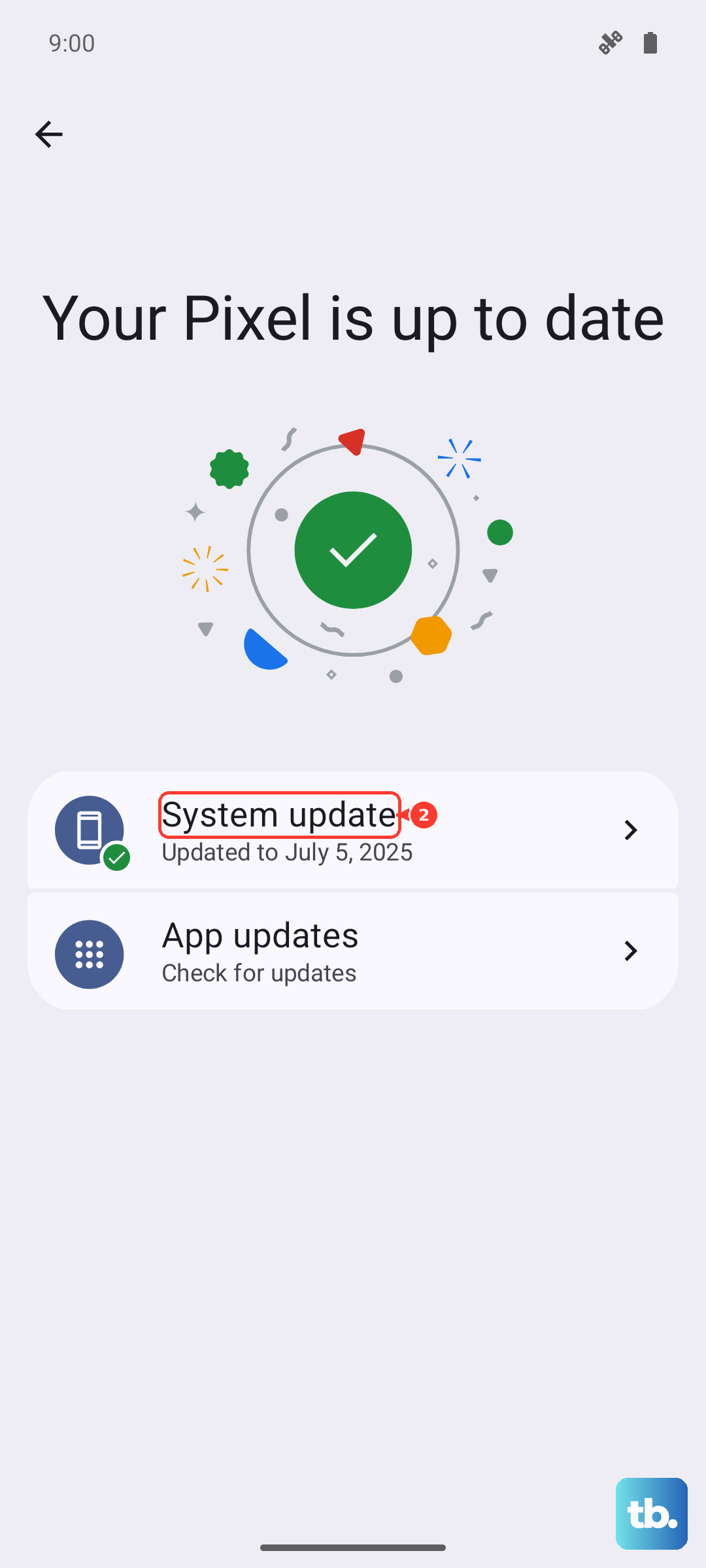
More importantly, check for a system update. Go to Settings > Software update and tap "Download and install." Samsung frequently releases patches for known bugs, and an update might contain the exact fix for your restart issue.
Free Up Storage Space on Your Phone
When your phone's storage is critically full, the system can struggle to operate, leading to crashes. Check your status by going to Settings > Device care > Storage.
The phone will give you recommendations, like clearing cached data or deleting large files. Using features like Samsung Cloud or Google Photos to offload videos and pictures can free up a lot of space quickly.
Reset All Settings
If the restarts are tied to a specific setting that got messed up, this will revert everything to factory defaults without touching your personal data. You'll lose your Wi-Fi passwords, Bluetooth pairings, and custom display settings, though.
Go to Settings > General management > Reset > Reset all settings. Enter your PIN or password and confirm. Your phone will reboot, and you'll need to reconfigure your preferences, but your apps and files will remain.
Check for Overheating and Battery Settings
The S24 can restart if it gets too hot. Remove any thick case and avoid using it while it's charging, especially with fast charging. Also, check your battery protection settings.
Go to Settings > Battery > Battery protection. If you use the Maximum option, your Galaxy can stop charging at the limit you choose, such as 80%, 85%, or 90%, to reduce long-term battery wear. This isn't a cause for restarts, but it can explain why the phone stops below 100%.
Wipe the Cache Partition
This clears temporary system files that can become corrupted, different from an app cache. First, power off your phone. Connect it to a computer with a USB cable, then immediately press and hold the Volume Up and Side buttons.
When the Android Recovery screen appears, use the Volume buttons to highlight "Wipe cache partition" and press the Side button to select it. Confirm, then select "Reboot system now." This process takes about 30 seconds.
Perform a Factory Reset
This is the last software step and will erase everything on your phone. Ensure your data is backed up. You can do this through the settings menu by going to Settings > General management > Reset > Factory data reset.
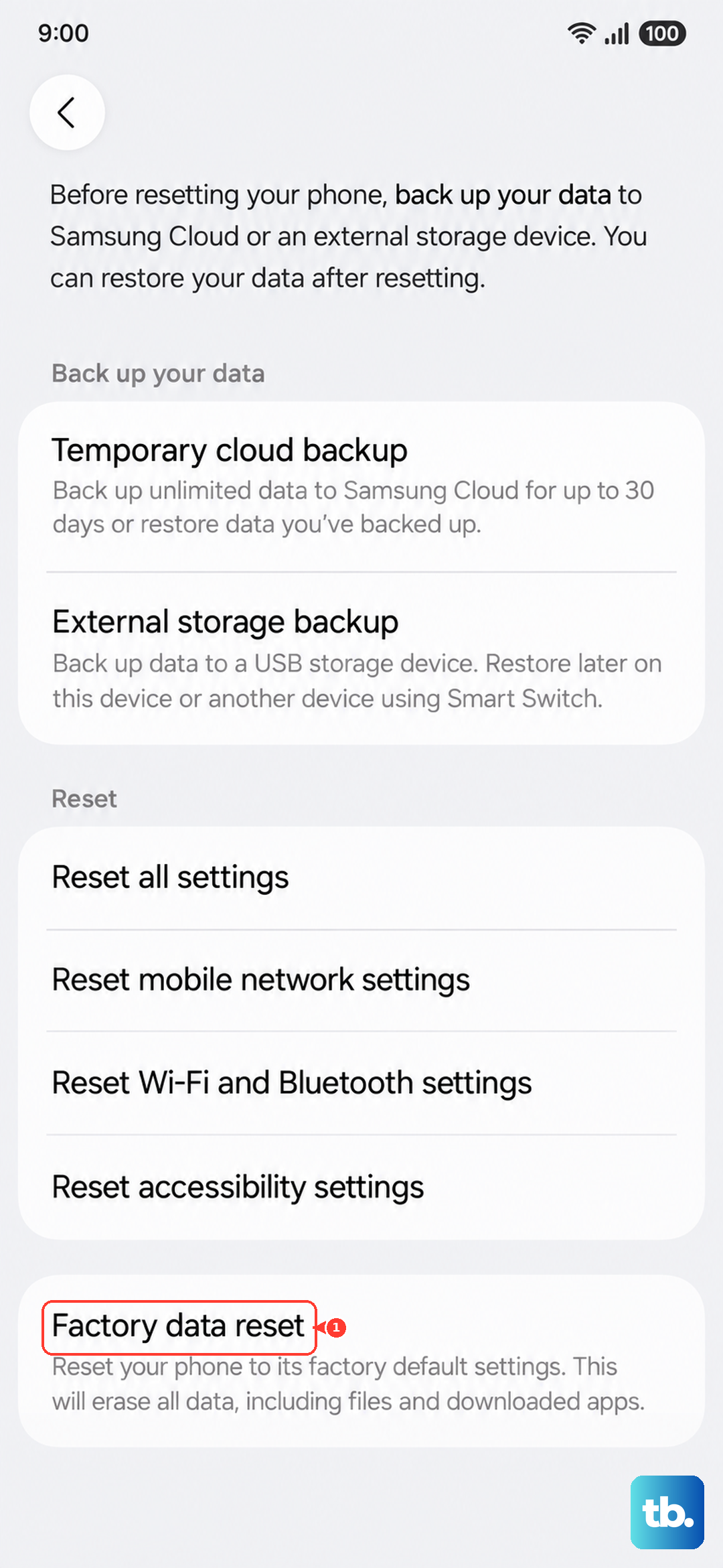
If your phone is stuck in a restart loop and you can't access settings, you can use the hardware keys. Power off, then press and hold Volume Up and the Side button to enter Recovery Mode. Use the volume keys to navigate to "Wipe data/factory reset" and select it with the power button.