
When your Samsung Galaxy S24's email stops working, it can throw your whole day off. Whether you're missing important messages or can't send anything out, these problems usually have a fix you can handle yourself.
Before we get into the specific steps, let's quickly check a couple of universal basics. Make sure you're connected to the internet, either via Wi-Fi or mobile data. It's also a good idea to quickly check your email provider's status page online to rule out a widespread service outage.
Restart the Email App
Let's start with the simplest fix. A quick restart of the Samsung Email app, or whatever app you're using like Gmail, can clear out a temporary glitch. Swipe up from the bottom of your screen and hold to enter the recent apps view.
Find your email app in the list and swipe it all the way up to close it. Wait a few seconds, then tap the app icon to open it fresh. I've seen this resolve sync issues more often than you'd think.
Check Your Sync and Fetch Settings
Your S24's sync settings control how often it checks for new mail. If these are set incorrectly, emails might not arrive automatically. Open the Samsung Email app and tap the three-line menu icon in the top-left corner.
Go to Settings and select your email account. Look for an option like Sync settings or Email check frequency. Make sure it's not set to "Never" or an infrequent manual schedule. Setting it to "Push" or "Auto" is usually best.
Toggle Airplane Mode
This is a classic network reset trick that works just as well on Android. Swipe down from the top of your screen twice to open the full Quick Settings panel. Tap the Airplane mode icon to turn it on.
Wait about 30 seconds for all connections to fully disconnect, then tap the icon again to turn it off. Your phone will reconnect to Wi-Fi and mobile data, which can clear up a stuck connection.
Switch Between Wi-Fi and Mobile Data
Sometimes the issue is with one specific type of network. If you're on Wi-Fi, try turning it off to force the phone to use your mobile data. You can do this from the Quick Settings panel.
If emails start working on mobile data, the problem might be with your Wi-Fi router or network. Conversely, if you're on mobile data, try connecting to a known good Wi-Fi network to test.
Verify Your Email Account Password
Passwords expire, get changed on other devices, or accounts require re-authentication. The quickest test is to open a web browser on your phone and try to log into your email account's website.
If you can't log in there, you'll need to reset your password with your email provider. Once you have the new password, you'll need to update it in your phone's account settings.
Allow Background Data for the Email App
Data Saver and per-app data limits can prevent some apps from sending or receiving data in the background, which can stop mail from refreshing when the app is closed. Go to Settings > Connections > Data usage > Data saver and turn Turn on now off.
If you want to keep Data Saver on, tap Allowed to use data while Data saver is on and allow your email app. You can also go to Settings > Connections > Data usage > Mobile data usage, select the email app, and leave Allow background data usage turned on.
Check for App Updates
Outdated apps can have bugs that break functionality. Open the Google Play Store and tap your profile icon in the top right. Go to Manage apps & device and then Updates available.
If you see your email app listed, tap Update. If you're using the Samsung Email app, also check the Galaxy Store for updates, as some system apps are updated there.
Clear the Email App's Cache
Corrupted temporary data (cache) can cause apps to misbehave. Go to Settings > Apps, select your email app, and tap Storage. You'll see an option to Clear cache.
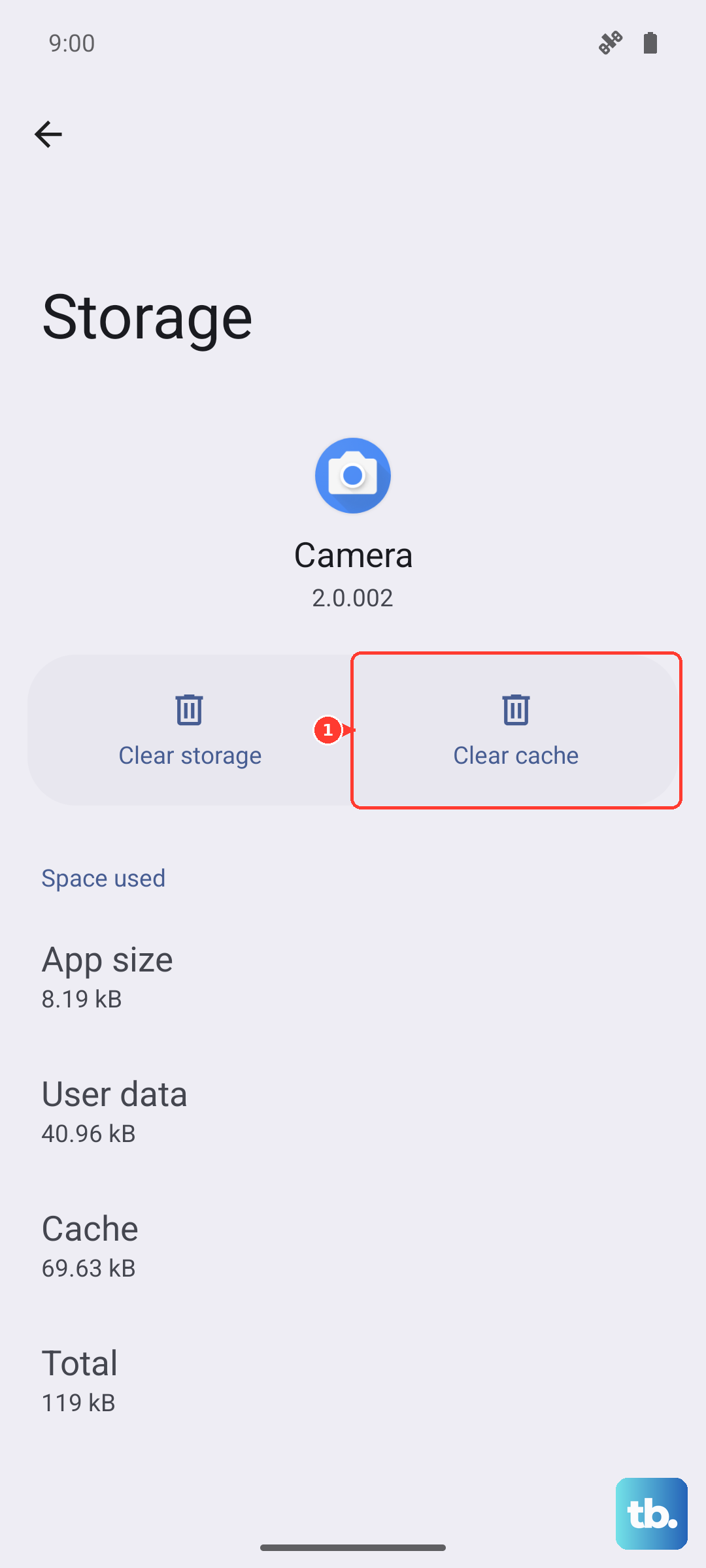
Tap it. This deletes temporary files without touching your login info or saved emails. It's a safe first step before trying more drastic measures.
Remove and Re-add Your Email Account
This refreshes the connection between your phone and the email server. In the Samsung Email app, go to Settings and select the problematic account. Tap Remove account or the trash can icon and confirm.
Then, go back to the app's main settings and tap Add account to set it up again from scratch. Have your email address ready, and use the sign-in method your provider requires. Some third-party mail setups may need an app-specific password instead of your normal account password.
Disable Any Active VPN
A VPN can sometimes interfere with the specific ports or connections your email service uses. Open your Quick Settings panel and look for a VPN tile. If it's active, tap it to disconnect.
You can also go to Settings > Connections > More connection settings > VPN to see and manage any configured VPN profiles. Try accessing email with the VPN completely off.
Ensure Automatic Date & Time is On
Incorrect date and time settings can break secure connections to email servers. Go to Settings > General management > Date and time.
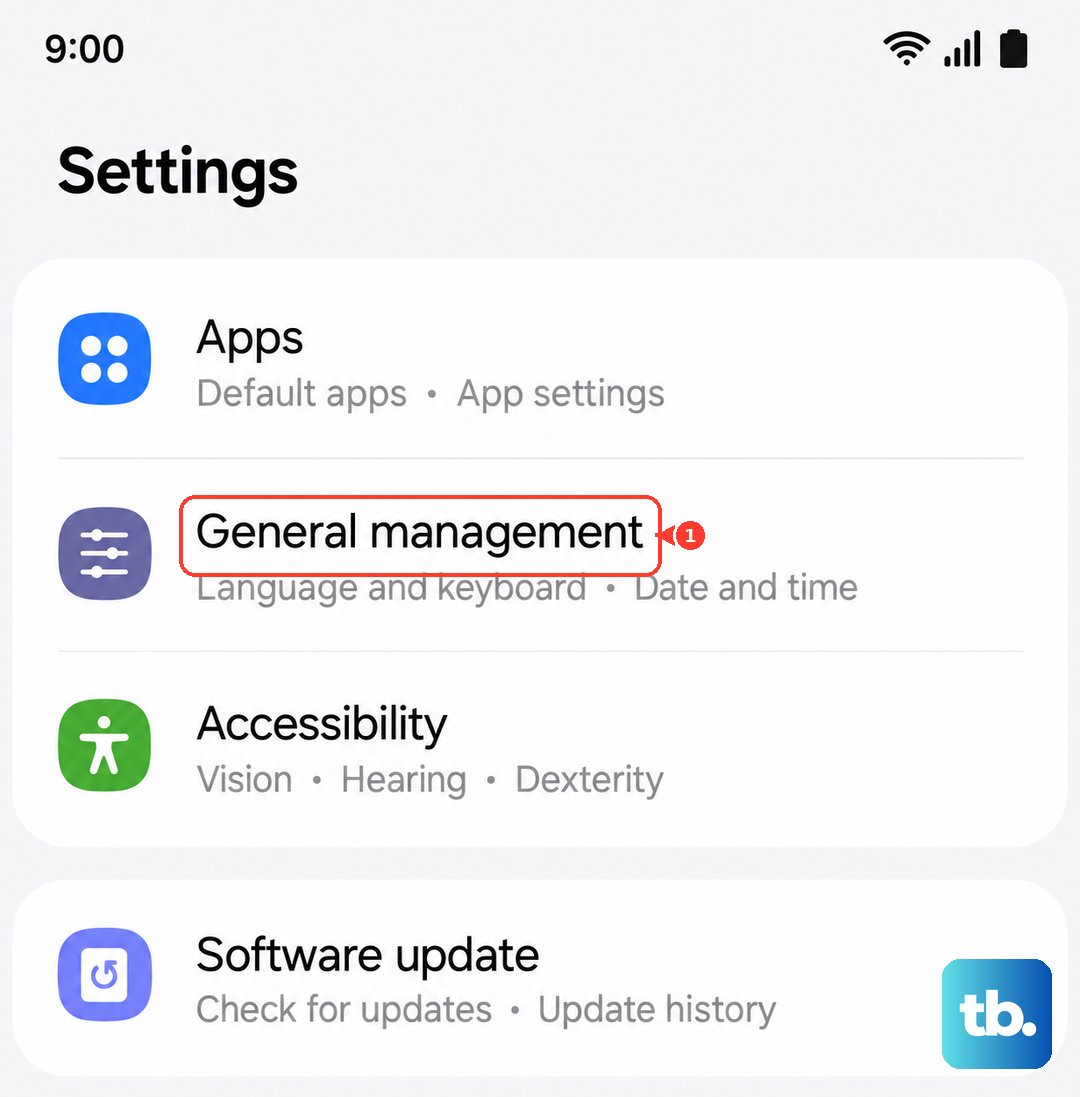
Make sure the switches for Automatic date and time and Automatic time zone are both enabled. This lets your phone sync its clock with network time.
Check Your Notification Settings
If emails are arriving but you're not getting alerts, the notification settings might be off. Long-press on your email app's icon on the home screen and tap App info.
Tap Notifications. Here, make sure notifications are turned on for the app overall. You can also drill into specific notification categories, like "New messages," to ensure they're enabled and set to alert you.
Restart Your Galaxy S24
A full phone restart can clear out system-wide software hiccups. Press and hold the Volume Down button and the Side key (power button) together for about 10 seconds.
Release the buttons when you see the Samsung logo. Your phone will reboot. This is different from just turning the screen off and on, as it refreshes all the phone's core processes.
Update Your Phone's Software
System updates from Samsung often include fixes for app compatibility and connectivity issues. Go to Settings > Software update and tap Download and install.
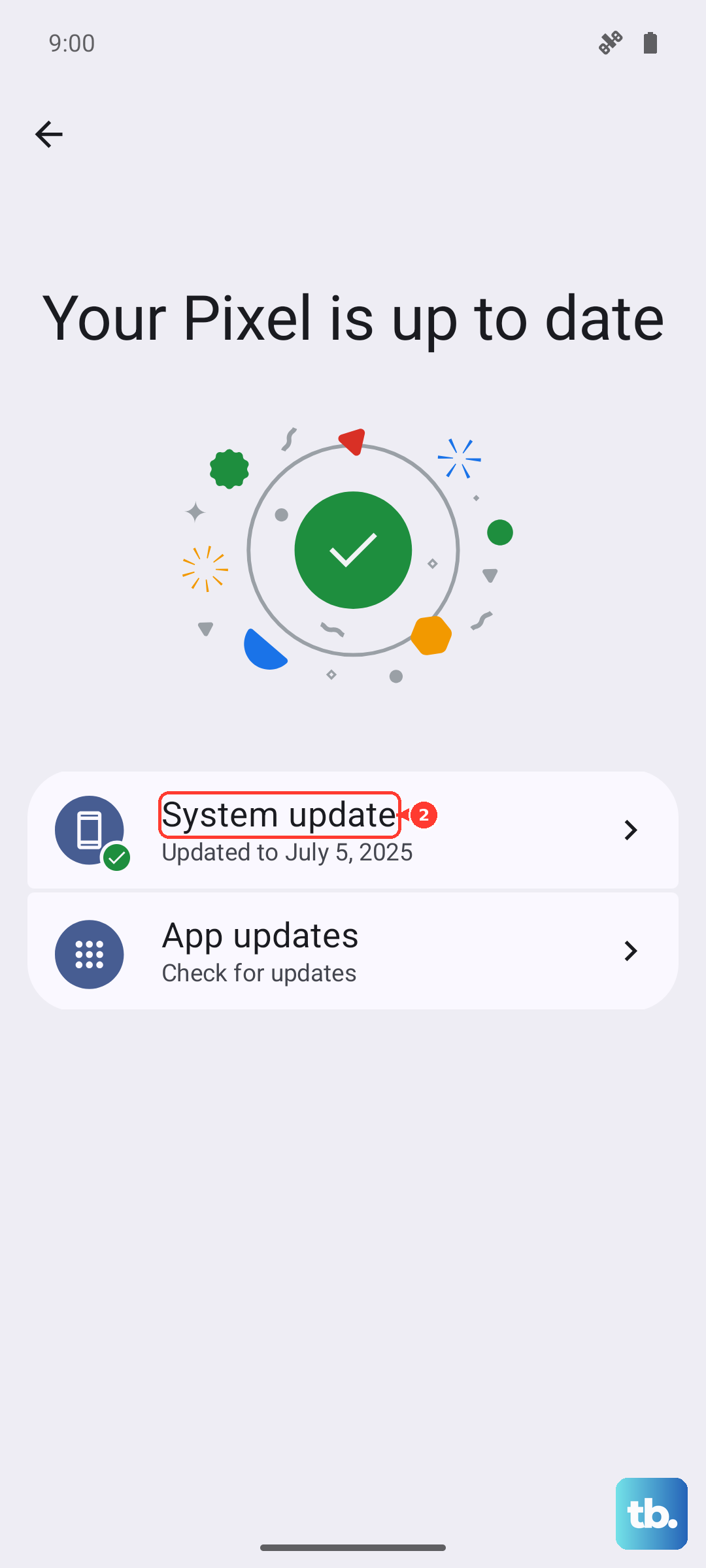
If an update is available, follow the prompts to install it. It's best to do this while connected to Wi-Fi and with your phone charged above 50%.
Reset App Preferences
This is a broader fix that resets permissions, background data restrictions, and notification settings for all apps back to their defaults, without deleting any app data. Go to Settings > Apps.
Tap the three-dot menu icon in the top right and select Reset app preferences. Confirm the action. Afterward, you may need to re-grant notification permissions to your email app, but it can resolve deeper configuration conflicts.