
When your Galaxy S23 suddenly goes silent, it's usually a quick software setting or a bit of pocket lint. The good news is you can almost always fix it yourself in a few minutes. I'd start by checking the basics, as that solves most cases right away.
A browser based left and right speaker test helps narrow this down fast. If test tones play clearly, the speakers work and the problem lives in an app or setting.
Check Your Volume and Sound Mode
First, press the volume up button on the side of your phone. If you see a volume slider on screen, you know the hardware is responding. Make sure the slider for media or ringtone isn't all the way down.
Next, pull down the quick settings panel from the top of your screen. Look for the sound mode icon, which might say "Sound," "Vibrate," or "Mute." Tap it until it's set to "Sound." Sometimes a case can press these volume buttons by accident, so it's worth checking.
Disconnect Bluetooth and Accessories
Your S23 might be trying to send audio to a device you've forgotten about. Swipe down and tap the Bluetooth icon to turn it off completely. This will force all audio back to your phone's speakers immediately.
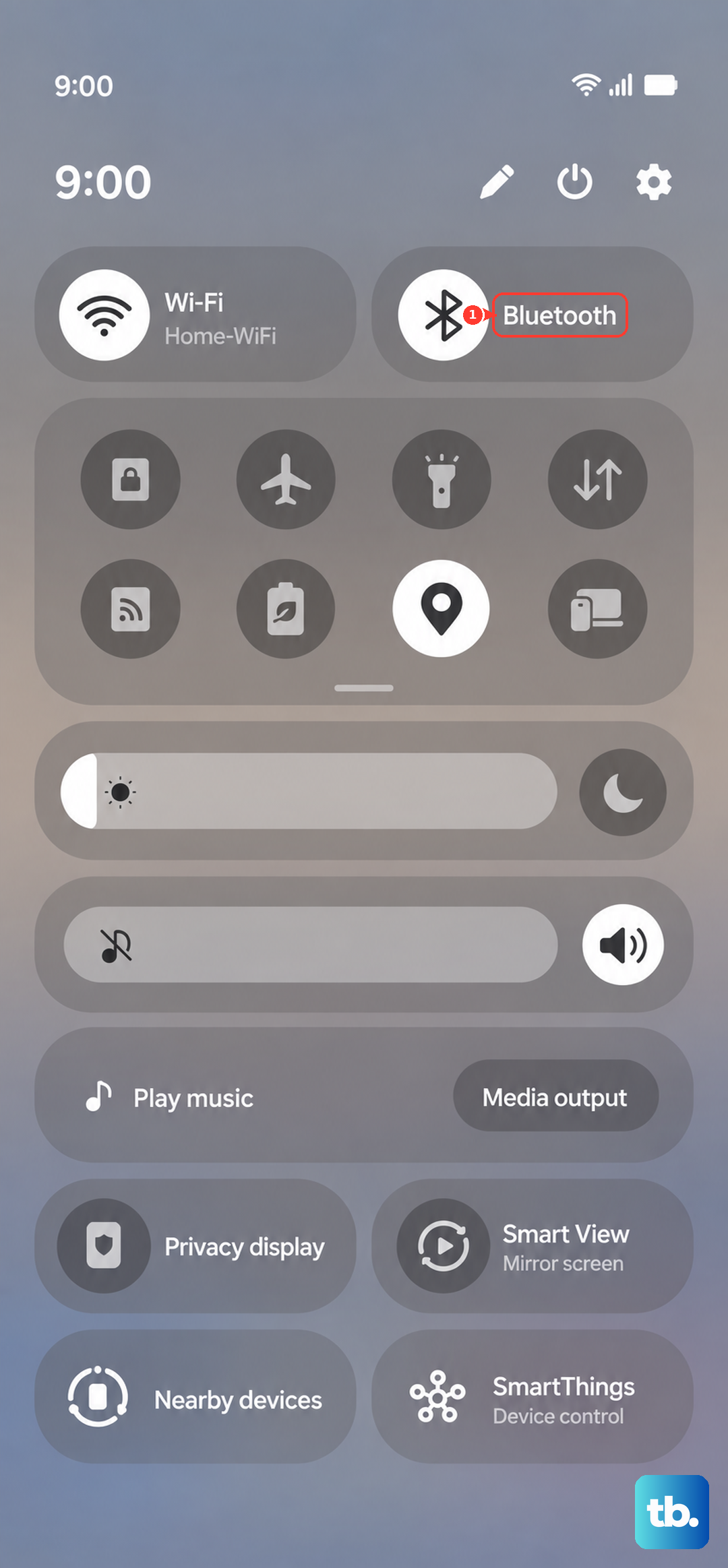
Also, unplug any headphones or USB-C accessories. Samsung's software can sometimes get stuck thinking an audio device is still connected even after you unplug it. A quick restart after disconnecting everything often clears that up.
Clean the Speaker Grills
The bottom speaker opening can collect debris. Inspect it under good light. If you see debris in the speaker holes, clean the opening lightly with a soft, scratch-free brush.
Do not push anything into the speaker holes, and do not use air guns or strong air pressure. Samsung warns that strong air pressure injected into speaker, receiver, or microphone holes can damage internal parts.
Review Advanced Sound Settings
Samsung lists these controls directly under Settings > Sounds and vibration. Open Separate app sound and turn it off if an app is set to play through a Bluetooth speaker or headset instead of the phone speaker.
For effects, open Settings > Sounds and vibration > Sound quality and effects. If audio sounds distorted or uneven, review Equalizer there.
Check Do Not Disturb and Accessibility
Go to Settings > Notifications > Do Not Disturb. Make sure it's turned off, or check its schedules and exceptions. A scheduled DND could be why you're not hearing notifications.
Also, visit Settings > Accessibility > Hearing enhancements. Ensure "Mute all sounds" is disabled. Some accessibility features, while helpful, can inadvertently silence your device.
Force Restart Your Phone
This is different from a normal restart and clears the phone's temporary memory. Press and hold the Volume Down button and the Side Key (power button) together for about 10 seconds.
Release when you see the Samsung logo. This won't delete any data. It's a great way to fix temporary glitches, especially if the sound cut out after an app update.
Boot Into Safe Mode
Safe Mode disables downloaded apps. If your sound works there, a recently installed or updated app is likely involved. To enter Safe Mode from the Power menu, press and hold the Volume Down button and the Side button together until the power menu appears, or swipe down from the top right and tap the power icon.
Touch and hold Power off, then tap Safe mode. Test your sound with a ringtone or another built-in sound. To exit, restart your phone normally.
Clear the System Cache
Corrupted system cache files can cause all sorts of weird behavior, including audio problems. Turn off your S23 completely. Now, press and hold the Volume Up button and the Side Key.
When the Samsung logo appears, let go of both buttons. You'll see the Android Recovery menu. Use the volume buttons to highlight "Wipe cache partition" and press the Side Key to select it. Confirm, then select "Reboot system now."
Update Your Software
Samsung has released several updates for the S23 that address various bugs, including some related to audio and Bluetooth. Go to Settings > Software update > Download and install.
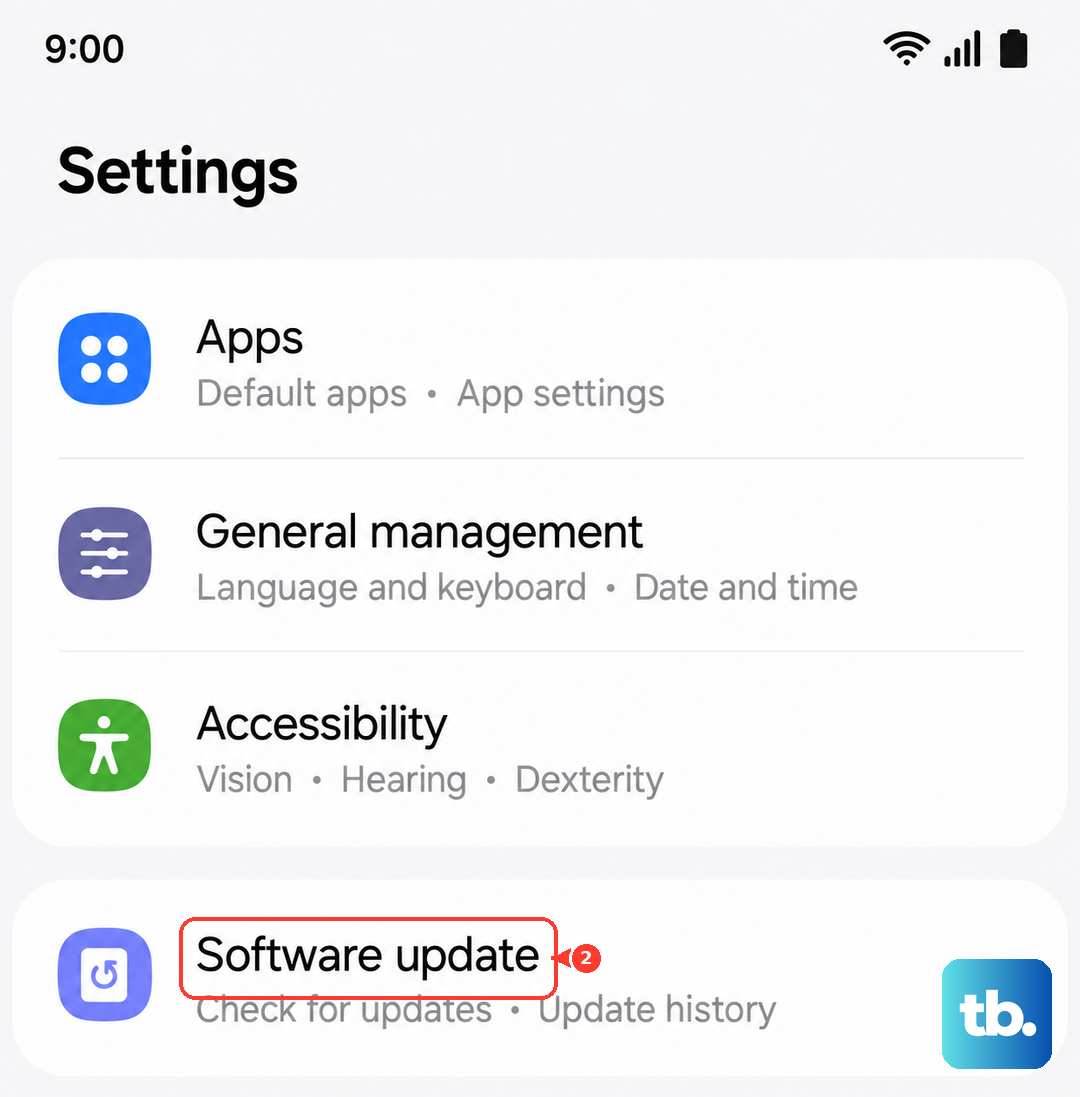
If an update is available, install it. It's a good idea to be on Wi-Fi and have your phone charged above 50% before starting. Updates often contain patches for issues you might not even know were there.
Reset All Settings
If you're still having trouble and you've ruled out hardware, this resets every system setting back to default without touching your photos or apps. Go to Settings > General management > Reset > Reset all settings.
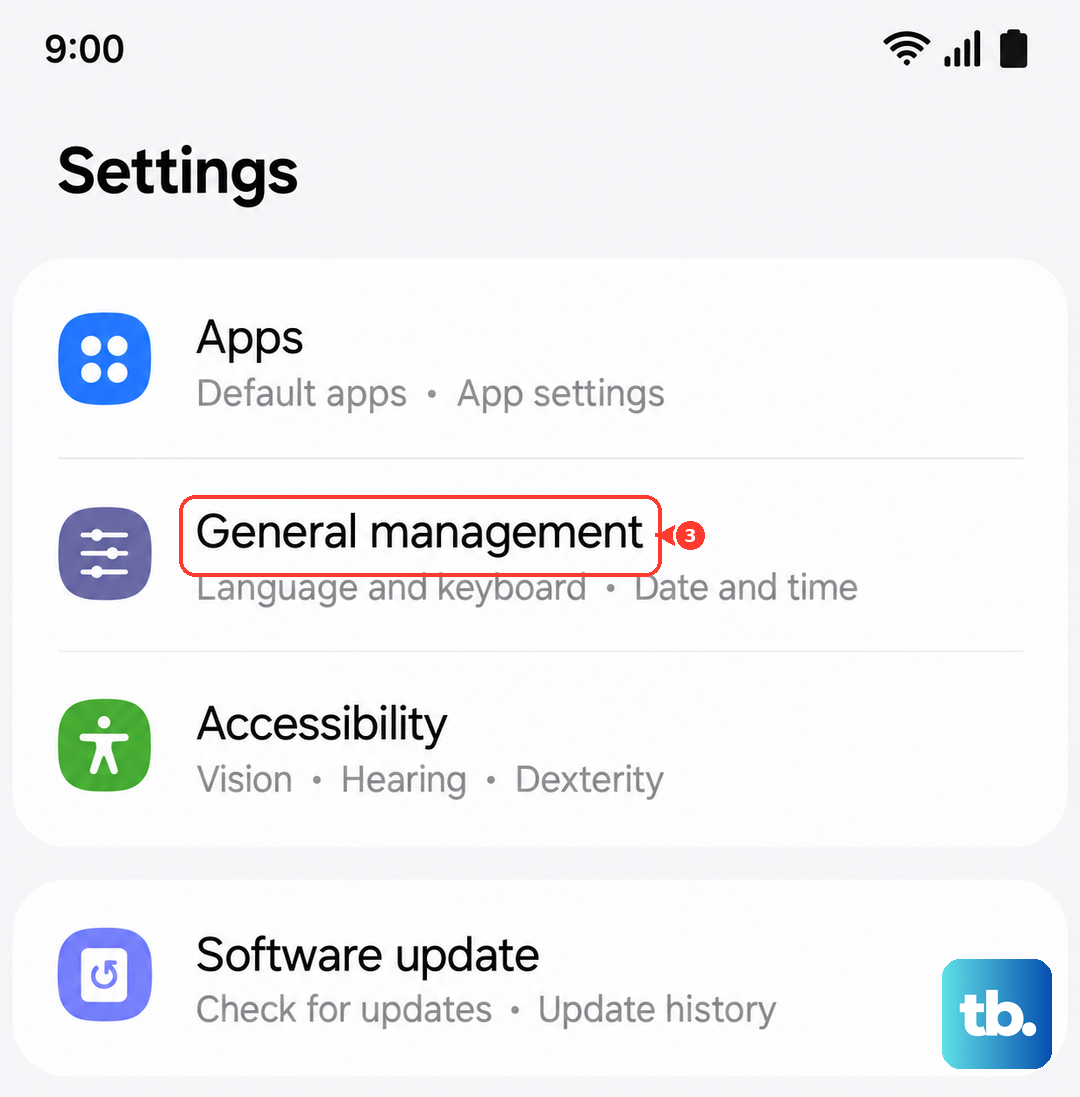
You'll need to re-enter Wi-Fi passwords and reconfigure things like display and sound preferences, but it can resolve deep-seated configuration conflicts that cause sound to fail.