
Missing notifications on your Galaxy S23 can mean you're not seeing important texts, emails, or app alerts. It's a common issue that usually has a software-based fix. I'd start with the quick solutions at the top of this list, as they resolve most cases.
Check Do Not Disturb and Focus Modes
Your phone might be in a mode that silences alerts. Swipe down from the top of your screen twice to open the full Quick Settings panel. Look for the Do Not Disturb icon, which looks like a circle with a line through it, and make sure it's turned off.
Also, check if any Focus Modes are active. Go to Settings > Modes and Routines. If a mode like "Work" or "Sleep" is running, it could be blocking notifications from certain apps.
Restart Your Galaxy S23
A simple restart clears out temporary glitches in the system that can stop notifications from coming through. Just press and hold the Side button and Volume Down button together, then tap "Restart" on the screen. Give it a minute to boot back up.
Verify App Notification Settings
Each app has its own notification controls. Go to Settings > Notifications > App notifications. Find the app that's not alerting you, like Messages or Gmail, and tap on it.
Make sure the toggle at the top is on. Then, check that the alert types you want, like "Pop-up on screen" or "Sound", are enabled for that specific app.
Disable Adaptive Notifications
One UI has a feature that tries to hide "less important" alerts, and it can sometimes get it wrong. To turn this off, go to Settings > Notifications > Advanced settings.
Look for "Adaptive notifications" and toggle it off. This tells your phone to show you every alert without trying to filter them intelligently.
Check Battery Optimization for the App
If an app is put to sleep to save battery, it might not be able to receive notifications in the background. Navigate to Settings > Apps, select the problematic app, and then tap Battery.
Ensure the optimization setting is set to "Unrestricted." This allows the app to run freely in the background so it can check for new alerts.
Clear the App's Cache and Data
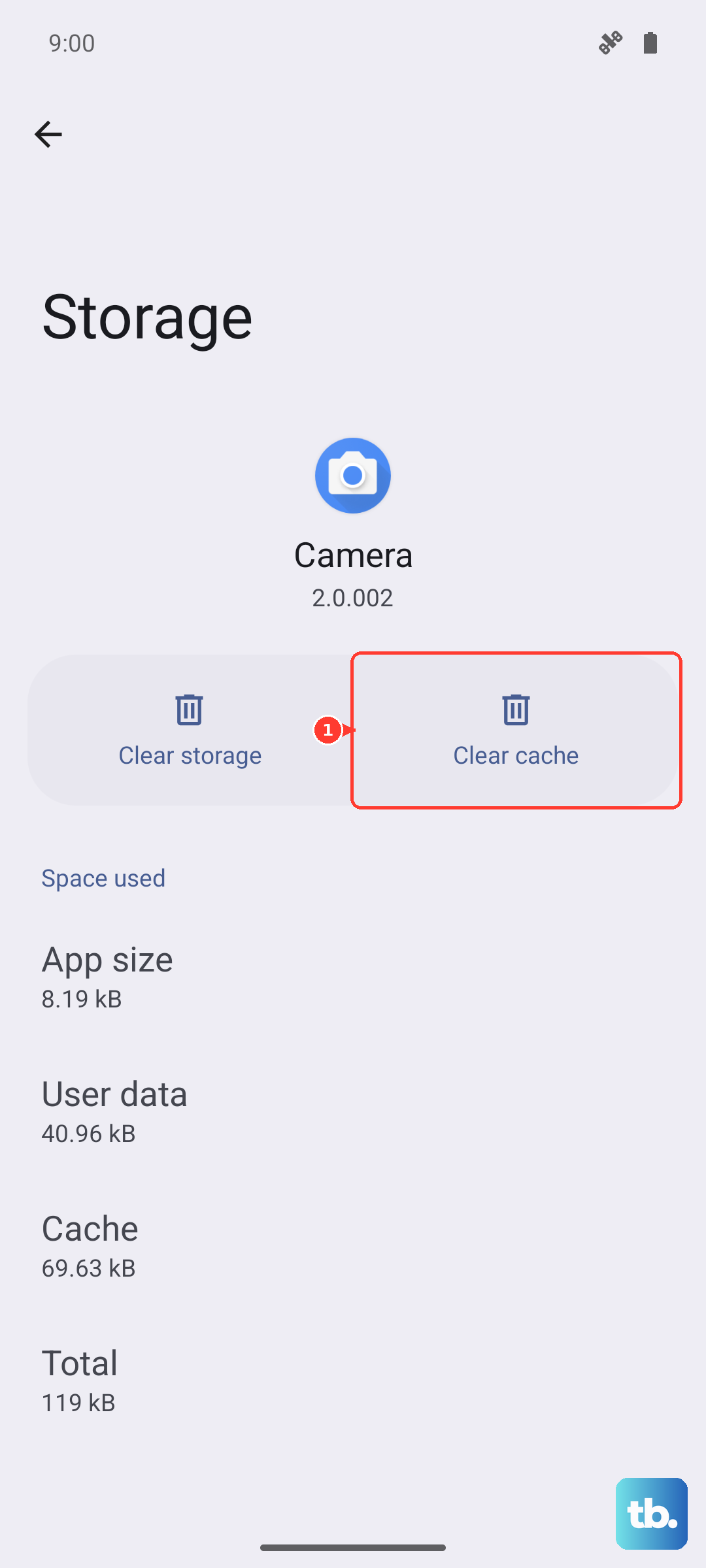
Corrupted temporary files can break an app's notification function. For the app that's failing, go to Settings > Apps, select it, then tap Storage.
Tap "Clear cache" first. If that doesn't work, you can try "Clear data." Be aware that clearing data will reset the app, so you might need to log back in.
Update the App and Your Phone's Software
Outdated software is a frequent cause of bugs. First, open the Galaxy Store and Google Play Store to check for updates to the specific app. Then, check for a system update by going to Settings > Software update > Download and install.
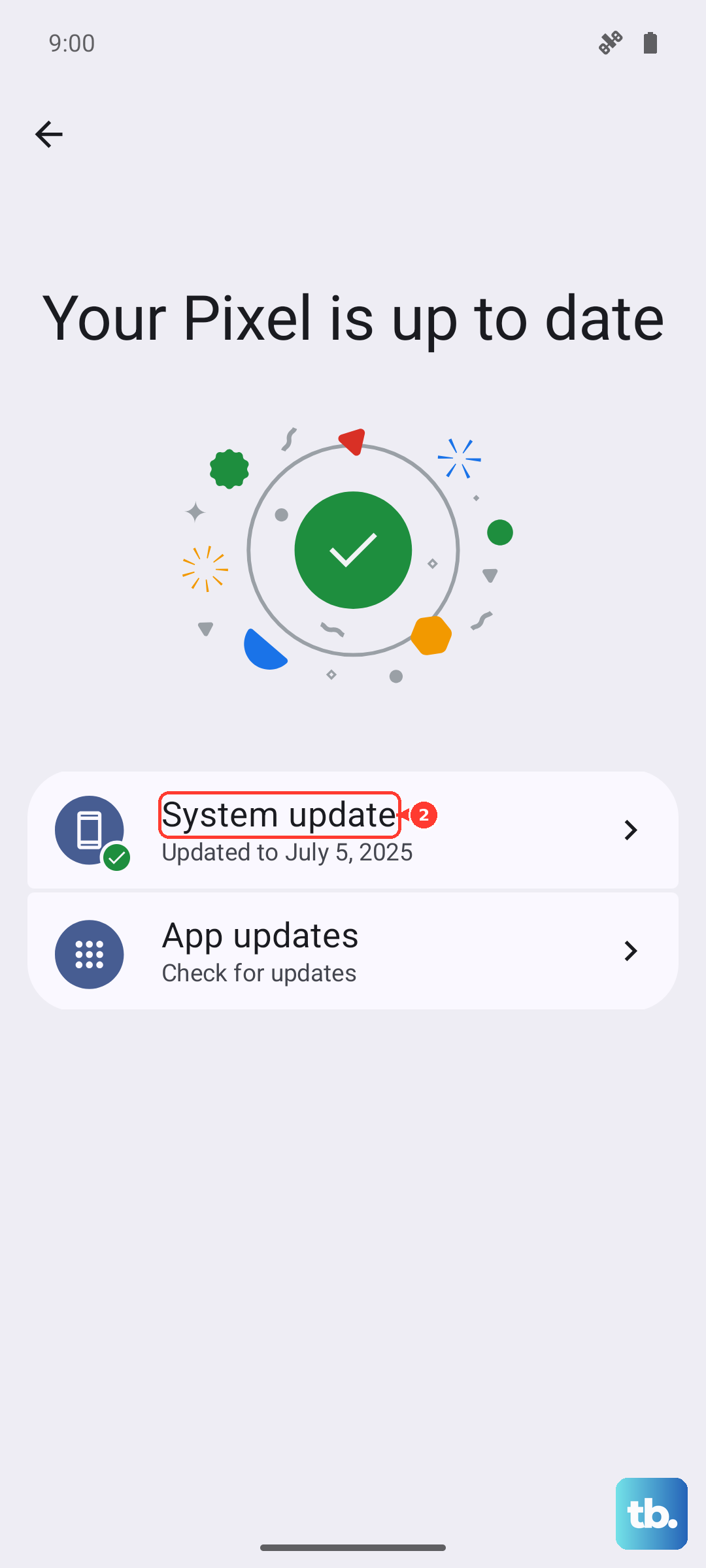
Samsung has released several One UI updates (the S23 now runs One UI 8.5 based on Android 16) that address notification and performance issues, so this is a crucial step.
Boot Into Safe Mode
This will tell you if a third-party app you installed is causing the conflict. Press and hold the Side button until the power menu appears. Then, tap and hold the "Power off" option on your screen until you see the Safe Mode prompt.
Tap to restart in Safe Mode. If notifications work normally here, you know a downloaded app is the culprit. You'll need to uninstall apps one by one to find the offender.
Reset App Preferences
This resets all your app permissions, notification settings, and default apps without deleting any personal data. It's a good broad fix. Go to Settings > Apps, tap the three-dot menu in the top right, and select "Reset app preferences."
You'll have to re-grant permissions like microphone or location to apps when you next use them, but it often clears up strange system behavior.
Check for Network or Sync Issues
For apps like email or cloud messengers, a sync problem can stop alerts. Open the app manually to see if new messages load. Also, try toggling Airplane mode on and off from the Quick Settings panel to reset your network connection.
For Samsung account apps, ensure sync is on by going to Settings > Accounts and backup > Manage accounts > Samsung account and checking the sync settings.
Clear the System Cache Partition
This clears temporary system files that can become corrupted. Turn off your S23. Press and hold the Volume Up button and the Side button at the same time.
When you feel a vibration, release the Side button but keep holding Volume Up until the Android Recovery screen appears. Use the volume buttons to highlight "Wipe cache partition" and press the Side button to select it. Confirm, then select "Reboot system now."