
When your Samsung Galaxy S23 won't download apps, it can feel like you're locked out of your own phone. Apps are how you get things done, so a download that's stuck on "Pending" or failing with an error is incredibly annoying. The good news is that this is almost always a software hiccup you can fix yourself.
Let's go through the most effective ways to get the Google Play Store working again on your S23.
Check Your Internet Connection First
This sounds obvious, but it's the most common culprit. The Play Store needs a stable connection to talk to Google's servers. Pull down your notification shade and make sure your Wi-Fi or mobile data icon is active and has a strong signal.
If you're on Wi-Fi, try switching to mobile data for a moment. Some public or corporate Wi-Fi networks block the specific ports the Play Store uses. Toggle your Wi-Fi off and mobile data on, then try the download again.
Restart Your Galaxy S23
A simple restart clears out temporary glitches in the system memory that can stall app downloads. If downloads were working before and just stopped, this often fixes it right away.
Just press and hold the Side button and Volume Down button together, then tap "Restart" on the screen. Give it a minute to fully boot back up before trying the Play Store again.
Clear the Google Play Store Cache and Data
The Play Store stores temporary data (cache) to run faster. Sometimes this data gets corrupted and prevents downloads. Clearing it forces the app to fetch fresh data from Google.
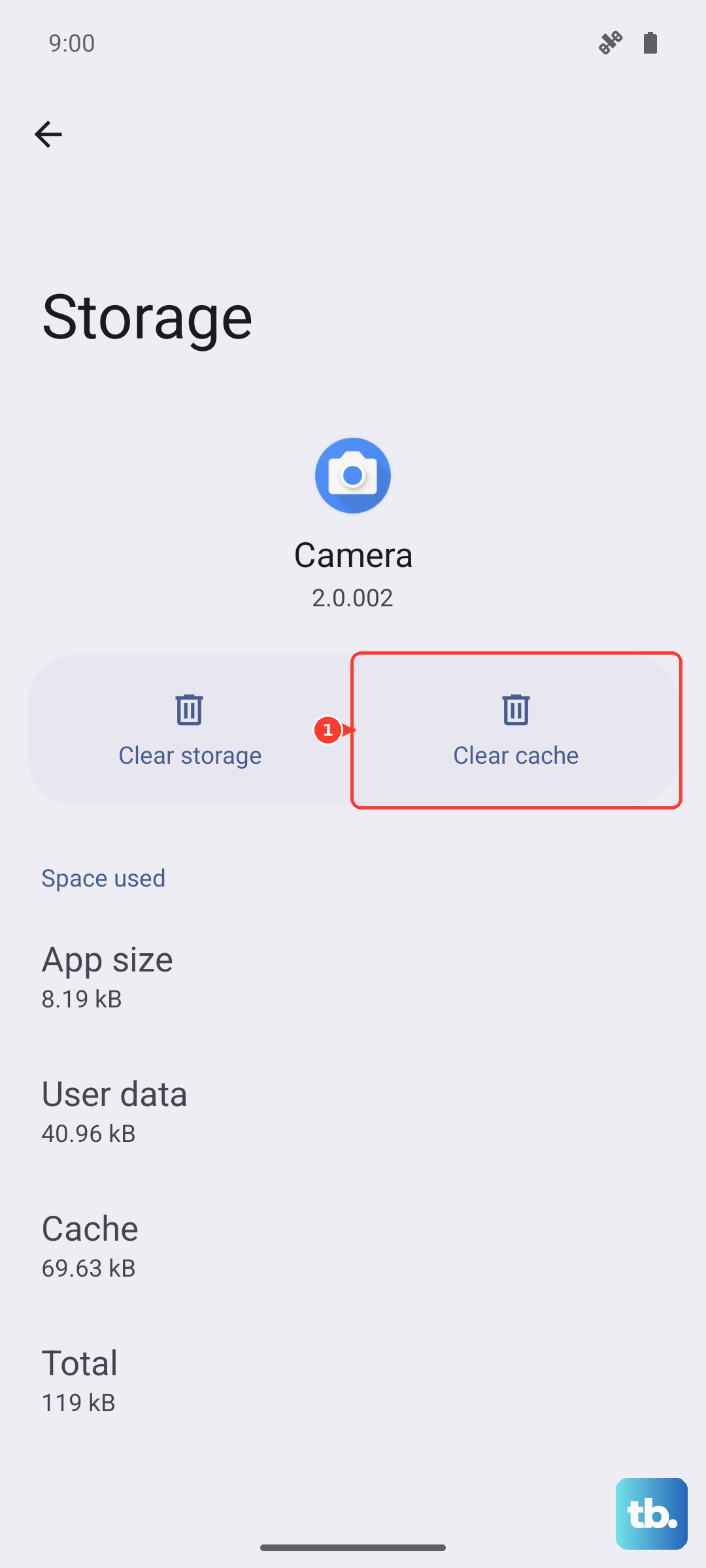
Go to Settings > Apps, then find and select Google Play Store. Tap on Storage, then hit Clear Cache. Try your download again. If it still fails, go back and tap Clear Data. Don't worry, this won't delete your apps or account, just the app's local settings.
Clear Google Play Services Data
Google Play Services is the background engine that handles communication between Google apps and your phone. Problems here are a frequent cause of download failures.
Head to Settings > Apps again, find Google Play Services, and tap on it. Go to Storage and tap Clear Cache. Then, tap Manage Storage at the bottom and select Clear All Data. You'll need to confirm this action. This resets the service without affecting your personal data.
Check for a Software Update
Samsung regularly releases updates for One UI that fix bugs, including ones related to the Play Store and system services. It's a good idea to check, especially if this problem started after a recent update.
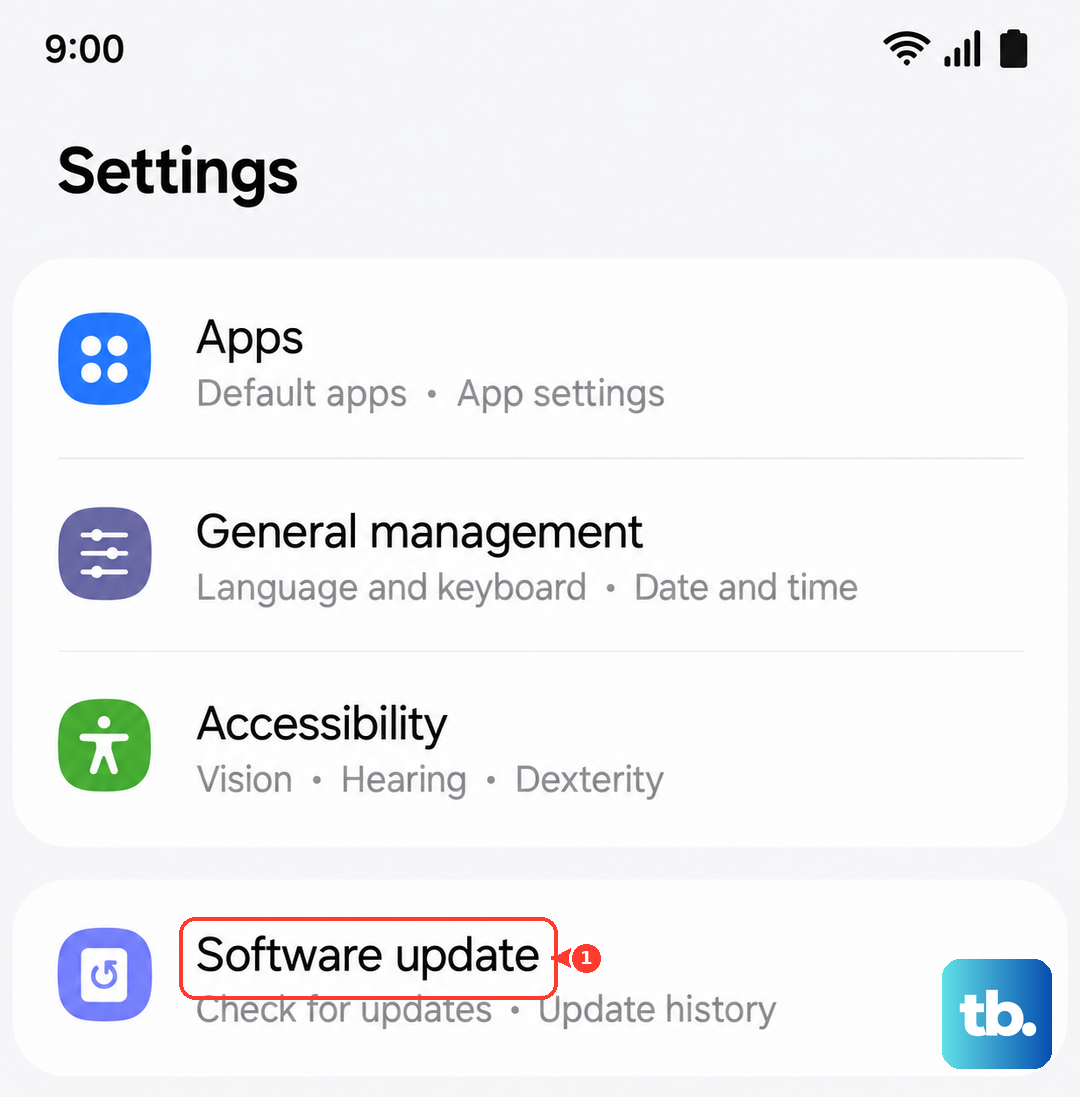
Go to Settings > Software update and tap Download and install. If an update is available, let it install. Your phone will restart, and the update might resolve the underlying compatibility issue causing your download problem.
Verify Your Date and Time Settings
Google's servers use your phone's time to authenticate downloads. If your date or time is incorrect, it can block the process. Your S23 should handle this automatically, but it's worth checking.
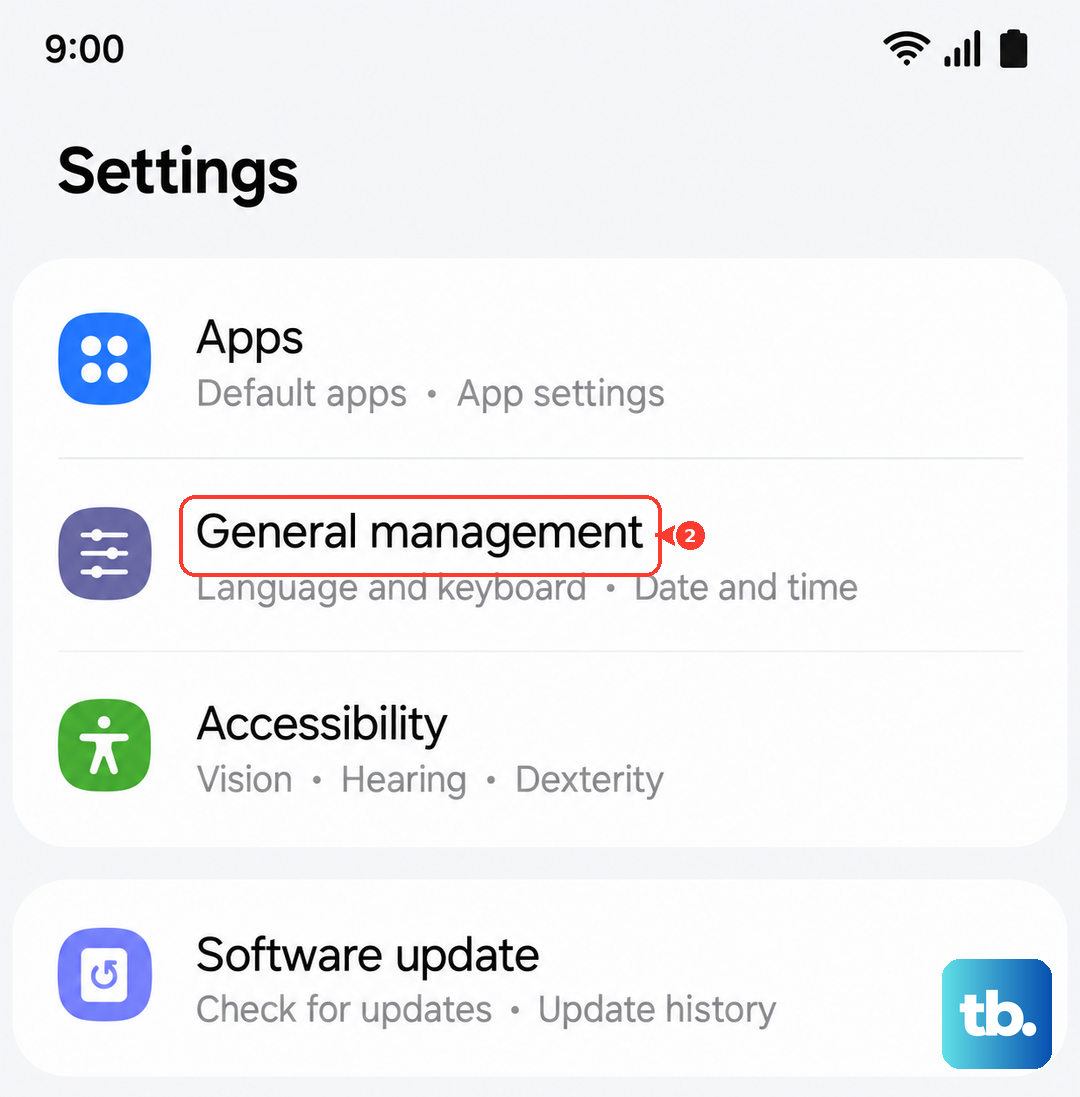
Open Settings > General management > Date and time. Make sure Automatic date and time is switched on. If it's already on and you're having issues, try turning it off briefly, manually setting the correct time, then turning automatic back on.
Review Your Google Account Sync
Sometimes refreshing the sync between your phone and your Google account can kickstart a stalled download process. This is a quick and easy step to try.
Navigate to Settings > Accounts and backup > Manage accounts. Select your main Google account. Tap Sync account and then tap the three-dot menu in the top right. Choose Cancel sync. Wait about 30 seconds, then go back and manually trigger a sync for all items, or just turn sync off and back on for your account.
Ensure Download Manager is Enabled
The Download Manager is a system app that handles all downloads on your phone, including from the Play Store. It should never be disabled, but it's worth confirming.
In Settings > Apps, tap the three-dot menu and select Show system apps. Now search for "Download Manager". If you find it and the button says "Enable", tap it. If it's already enabled, you can try going into its Storage and clearing its cache as well.
Remove and Re-add Your Google Account
This is a more thorough step that can resolve account-specific glitches. It's like giving the connection between your phone and Google a fresh start.
Go to Settings > Accounts and backup > Manage accounts. Tap on your Google account, then tap Remove account. Confirm you want to remove it. Don't worry, your contacts, emails, and other data are safe in the cloud. After it's removed, go back and tap Add account to log back in with the same credentials.
Boot Into Safe Mode
If none of the above works, a third-party app you installed might be interfering with the Play Store. Booting into Safe Mode temporarily disables all downloaded apps, letting you test if one of them is the cause.
Press and hold the Side button and Volume Down button until the power menu appears. Then, press and hold the "Power off" option on your screen. You'll see a prompt to reboot to Safe Mode; tap it. Once in Safe Mode (you'll see "Safe mode" in the bottom corner), try downloading an app from the Play Store. If it works, a recently installed app is likely the problem. Restart normally and try uninstalling apps one by one to find the culprit.