If your Galaxy S23 is suddenly feeling sluggish, you're not imagining it. Even a powerful phone can start to lag, but the fix is usually straightforward. I'd start with a simple restart, as it clears out temporary glitches and refreshes the system.
Press and hold the Volume Down button and the Side button together for about ten seconds. Keep holding until you see the Samsung logo appear on the screen. This force restart is often the quickest way to solve random slowdowns.
Check for Software Updates
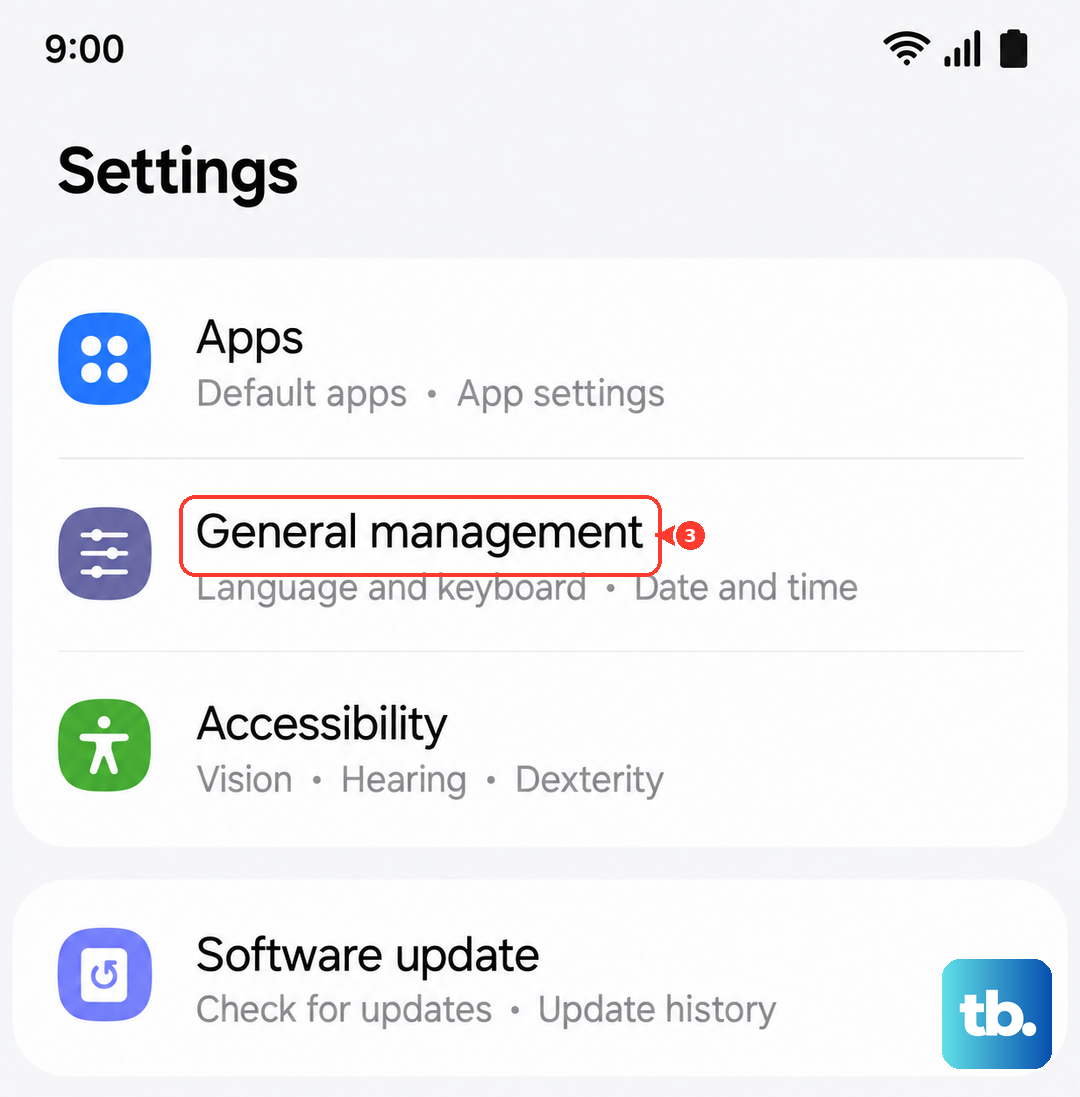
Samsung has continued to release updates for the S23, most recently One UI 8.5 based on Android 16, and many of these updates address performance and stability bugs. An update could be waiting that directly addresses your lag.
Head to Settings > Software update > Download and install. Let it run through and install any available updates. This is one of the most effective fixes for post-update slowdowns.
Free Up Storage Space
When your phone's storage gets too full, it has less room to operate efficiently. Android needs free space for caching and temporary files. Go to Settings > Battery and device care > Storage.
You'll see a breakdown of what's using space. Tap on categories like "Images" or "Apps" to clean them out. The "Clean now" button can also remove junk files quickly. Aim to keep at least 10-15% of your storage free.
Close Apps Running in the Background
While Android is good at managing memory, too many apps left open can still consume resources. Swipe up from the bottom of the screen and hold to enter the recent apps view.
You can swipe each app card away to close it individually, or tap the "Close all" button at the bottom of the recent apps screen to close them all at once. Don't worry about closing everything constantly, but doing this during a slowdown can help.
Boot Into Safe Mode
This is a great way to see if a third-party app is the culprit. Safe Mode temporarily disables all apps you've downloaded. If your phone is fast in Safe Mode, you know an app is causing the problem.
To enter Safe Mode, press and hold the power button until the power menu appears. Then, tap and hold the "Power off" option on the screen. It will ask if you want to reboot to Safe Mode. Tap "Safe mode" to confirm.
Use your phone normally for a bit. If the lag is gone, start uninstalling recently downloaded apps one by one until performance returns.
Clear App Caches
Over time, apps store temporary data that can become corrupted and slow things down. You can clear the cache for individual apps or use Samsung's built-in tool.
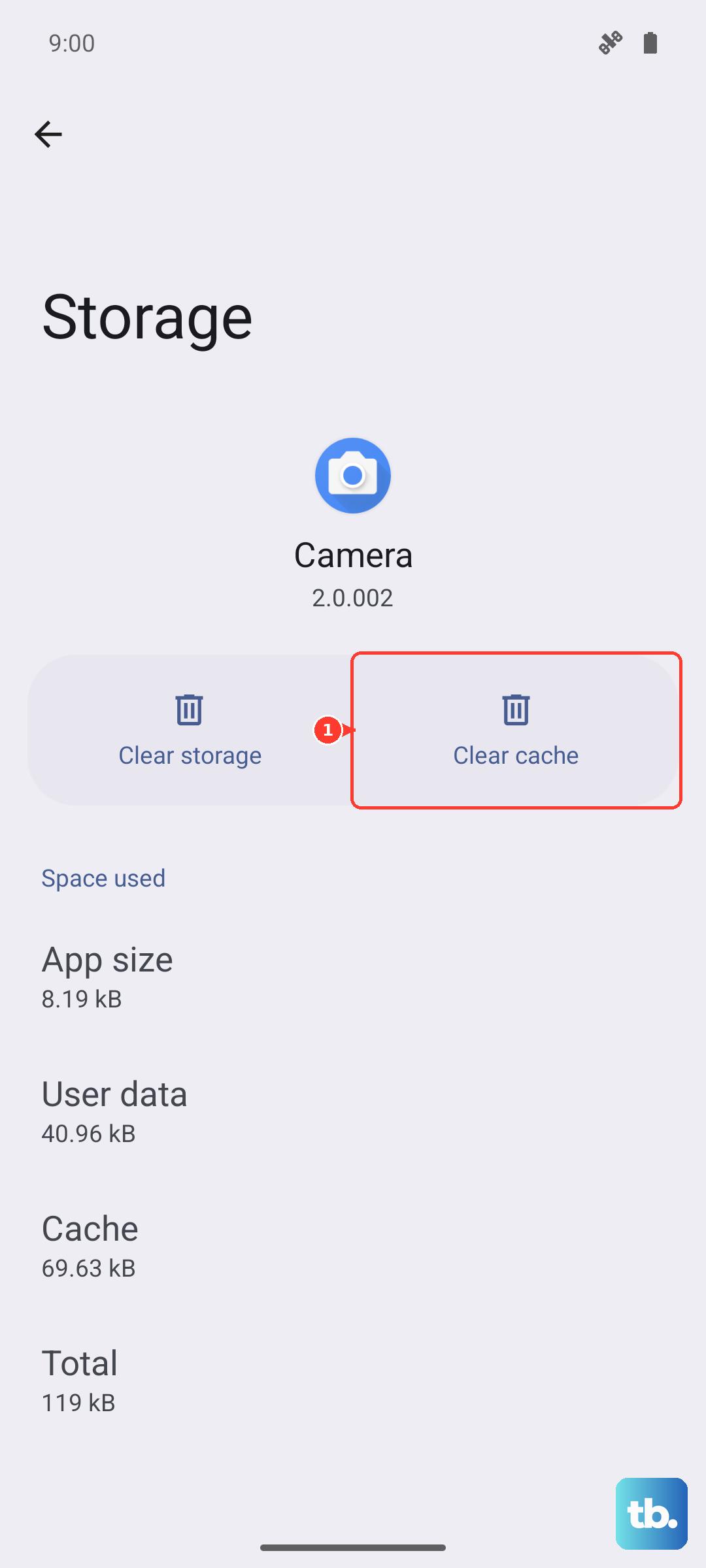
For a broad clean, go to Settings > Battery and device care > Memory > Clean now. To target a specific app, go to Settings > Apps, select the app, then tap "Storage" and hit "Clear cache". Don't use "Clear data" unless you're okay with resetting the app.
Manage Battery and Performance Settings
Your S23 has different performance profiles. Go to Settings > Battery and device care > Battery > More battery settings. Here, you can toggle on "Adaptive battery" which learns your usage patterns.
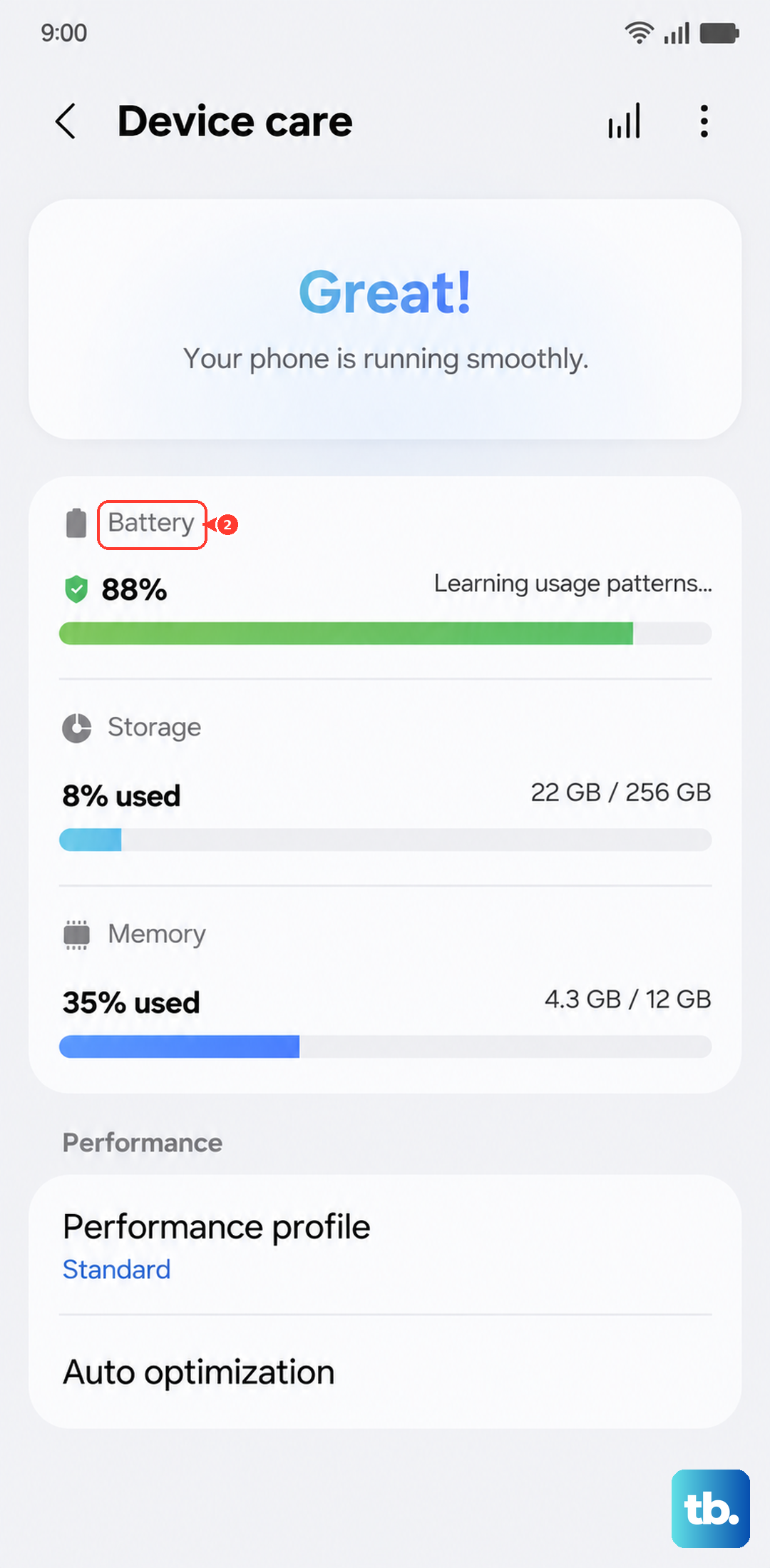
Also, check Settings > Battery and device care > Battery > More battery settings > Performance profile. You can switch between "Standard" and "Light" performance modes. If you're on "Light," switching to "Standard" restores full processing power and might be the boost you need.
Reduce Animations and Visual Effects
Fancy transition animations look great but use processing power. Speeding them up or turning them off can make the phone feel snappier. You'll need to enable Developer Options first.
Go to Settings > About phone > Software information and tap "Build number" seven times. Then, go back to the main Settings menu and find "Developer options." Scroll to the "Drawing" section.
Look for "Window animation scale," "Transition animation scale," and "Animator duration scale." Change each of these from "1x" to ".5x" to speed them up, or "Off" to disable them completely.
Check for Rogue or Battery-Draining Apps
Some apps are poorly optimized and can run heavy processes in the background. Go to Settings > Battery and device care > Battery to see which apps have been using the most power recently.
If you see an app you don't use often at the top of the list, that's a red flag. Tap on the app and select "Put app to sleep" or "Restrict background activity" to limit what it can do.
Reset All Settings
If you've tried everything and the phone is still slow, this can help. It resets all your preferences, like Wi-Fi passwords, wallpaper, and ringtones, back to default without deleting your personal data or apps.
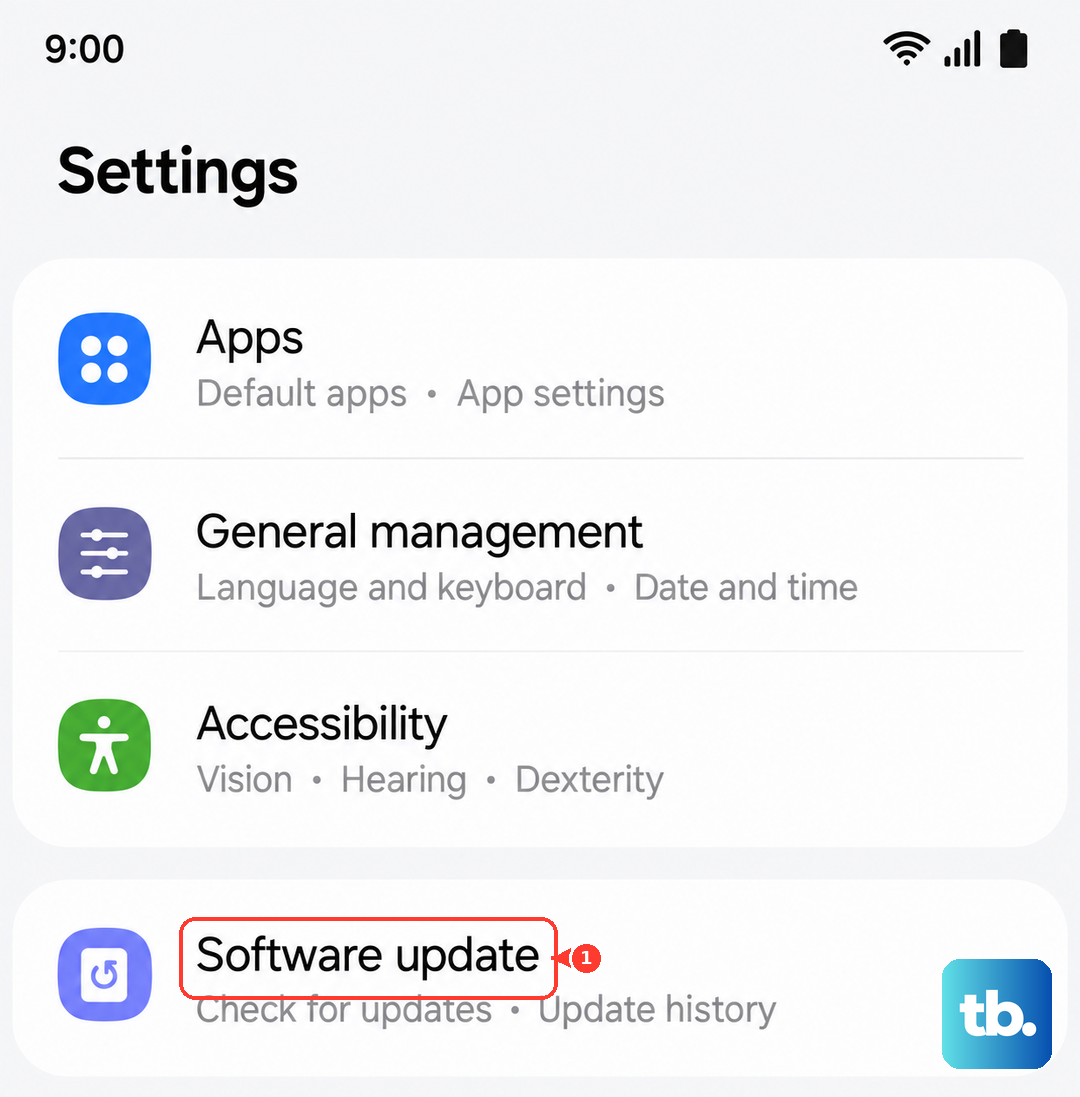
Go to Settings > General management > Reset > Reset all settings. Enter your PIN if prompted and confirm. Your phone will reboot. You'll have to set up your connections and preferences again, but it can clear out deep-seated configuration errors.