
Seeing that "No Service" or "Emergency Calls Only" message on your Samsung Galaxy S23 can stop you in your tracks. It means your phone has lost its connection to your carrier's network, cutting off calls, texts, and mobile data. This is a common hiccup that usually has a simple fix, especially on newer models like the S23.
I'd start with the most common solution, which often works right away.
Restart Your Phone and Check Airplane Mode
A simple restart clears out temporary software glitches that can mess with the cellular radio. Just press and hold the Side button and Volume Down button together for about ten seconds until you see the Samsung logo. While you're at it, swipe down from the top of the screen twice to open the Quick Settings panel and make sure the Airplane Mode icon isn't highlighted.
If that doesn't bring your bars back, the next step is to check your SIM card. Even a slightly loose or dusty SIM can cause connection problems. Grab the SIM ejector tool that came with your phone, pop out the tray, and take a look at the gold contacts.
Give them a gentle wipe with a soft, dry cloth and then reseat the card firmly in the tray. Push the tray all the way back in until it clicks. This simple physical check resolves more "No Service" errors than you might think.
Manually Select Your Network Operator
Sometimes your phone gets stuck trying to connect to a weak or unavailable tower. You can force it to search for and lock onto your proper carrier. Open the Settings app and tap on Connections, then Mobile networks.
Tap on Network operators. Your phone will search for a moment. When the list appears, don't just tap "Select automatically." Instead, choose your specific carrier's name from the list (like "T-Mobile" or "Verizon Wireless"). This tells your S23 to connect directly to that network and can often re-establish a lost connection.
Reset Your Phone's Network Settings
If you're still seeing the error, the next step is to reset all network-related settings. This clears out any corrupted configuration data for Wi-Fi, Bluetooth, and cellular networks. Don't worry, it won't delete your photos, apps, or personal files.
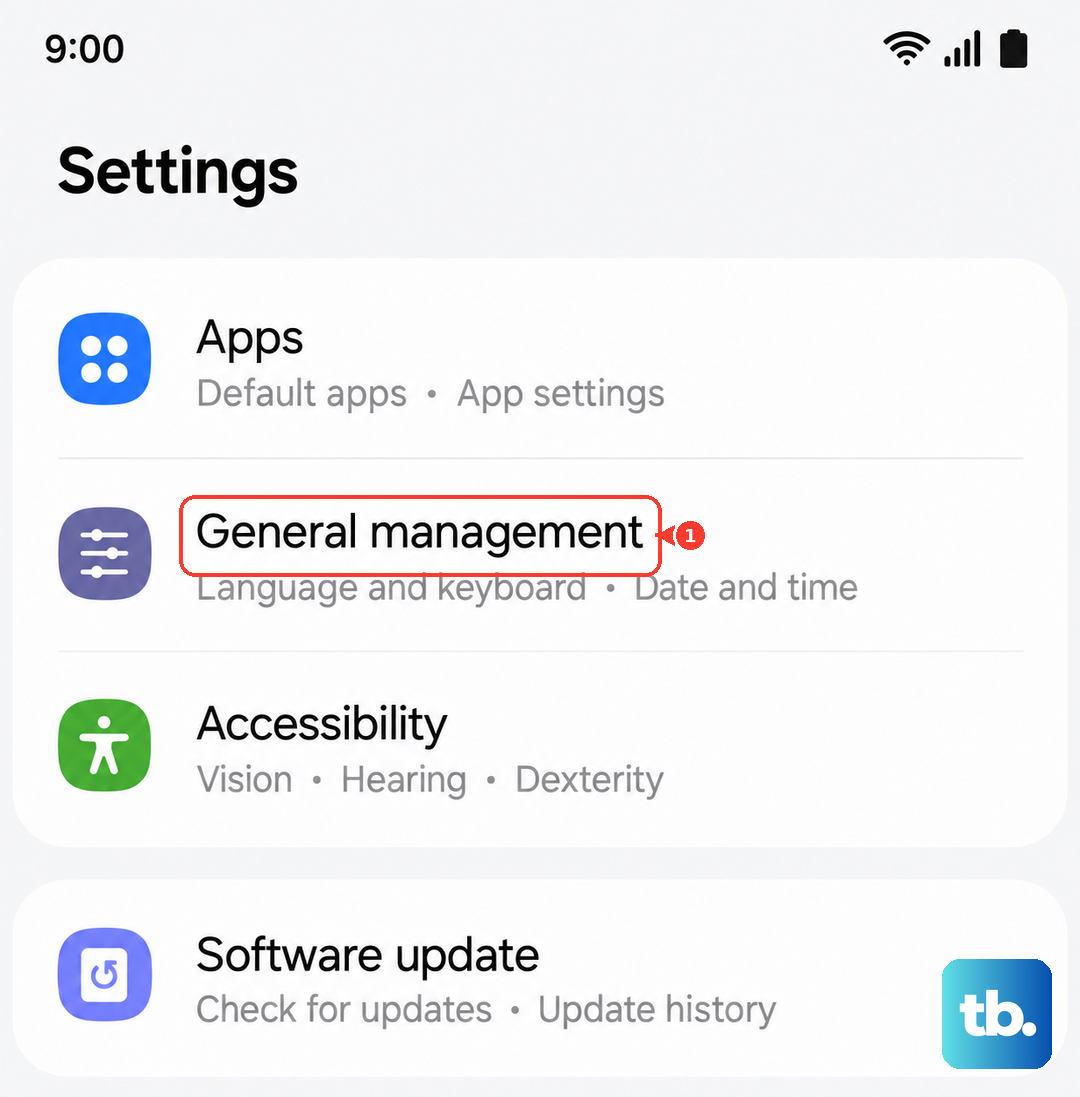
Go to Settings > General Management > Reset. Here, tap on Reset network settings. You'll need to enter your PIN or password to confirm. After the reset, your phone will reboot. You'll have to reconnect to your Wi-Fi networks and re-pair Bluetooth devices, but this often solves persistent cellular issues.
Update Your APN Settings
The Access Point Name (APN) is like the address your phone uses to find your carrier's data network. If these settings are wrong or get corrupted, you'll lose service. First, it's worth trying to reset them to default.
Go back to Settings > Connections > Mobile networks > Access Point Names. Tap the three dots in the top right corner and select Reset to default. If that doesn't work, you may need to enter the settings manually. Your carrier's exact APN details are usually listed on their support website, or you can contact them directly to get the correct info to type in.
Check for a Software Update
Samsung has been proactive with updates for the S23 series, and they've included fixes for various connectivity bugs in patches for One UI 6 and Android 14. It's always worth making sure you're on the latest software.
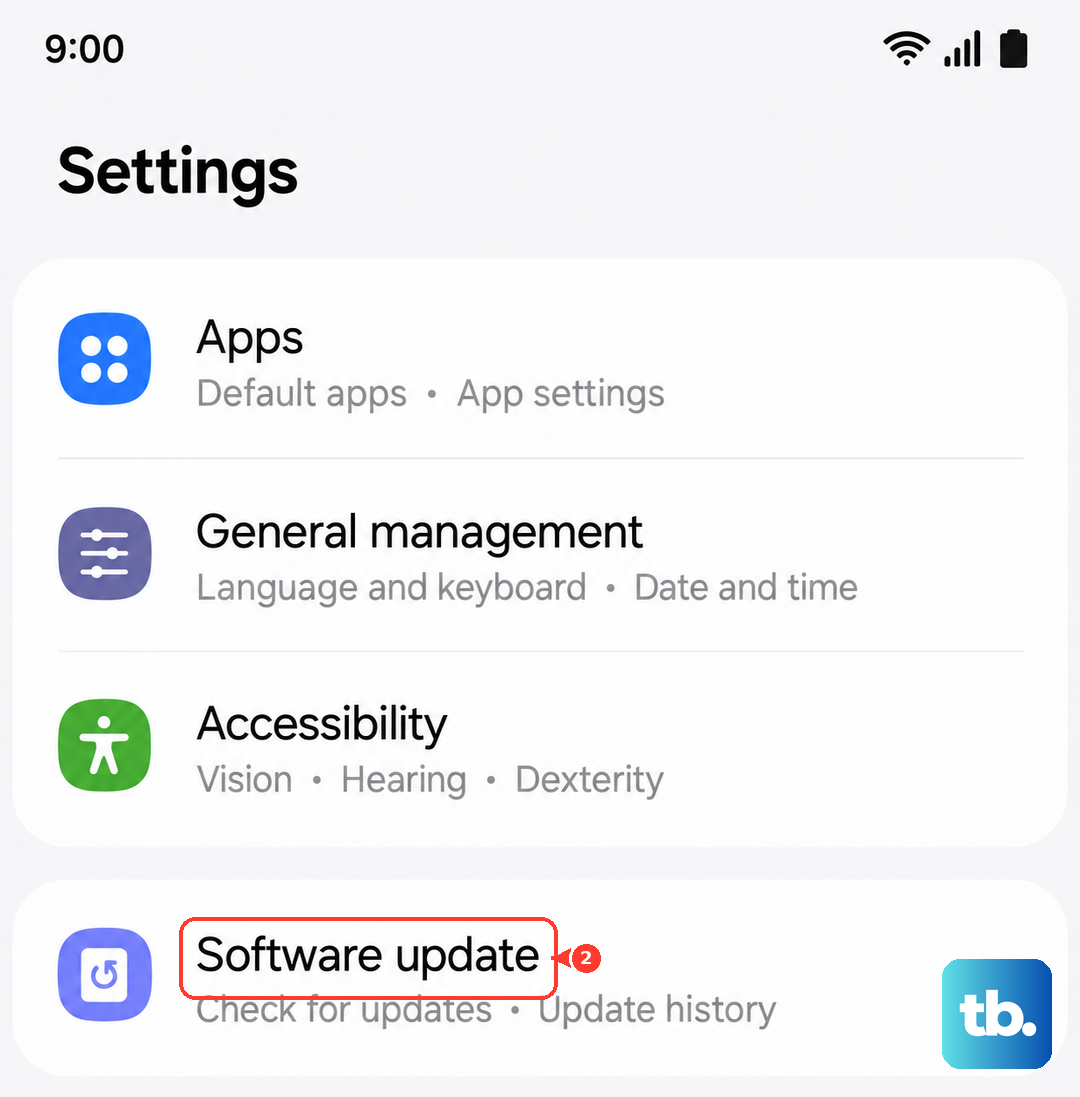
Head to Settings > Software update and tap Download and install. If an update is available, let it download over Wi-Fi and install. Your phone will restart. After a major update, I've seen it take a few minutes for the cellular connection to fully stabilize, so give it a moment.
Use Safe Mode to Check for App Interference
A third-party app you installed could be causing the problem. Booting into Safe Mode temporarily disables all downloaded apps, letting you see if one of them is the culprit. To enter Safe Mode, press and hold the Side button and Volume down button until the power menu appears.
Then, press and hold the "Power off" option on your screen. A prompt will appear asking if you want to reboot to Safe Mode. Tap "OK." If you have full service in Safe Mode, you know a downloaded app is to blame. You'll need to restart normally and then uninstall apps one by one, starting with the most recent, to find the offender.
Try the Diagnostic Menu
Your Galaxy S23 has a built-in diagnostic menu that can give you more insight. Open your Phone app and dial *#0*#. This opens the secret service menu. While you're here, you can run various hardware tests.
More useful for a "No Service" issue is the other hidden menu. Dial *#0011# to see detailed status information about your current network connection. This screen is mostly for informational purposes, but sometimes just opening it can trigger the radio to refresh. You can exit by pressing the Back key.
If you've traveled recently or are in an area near a border, make sure data roaming is turned on if you need it. Go to Settings > Connections > Mobile networks and toggle on Data roaming. Be aware your carrier may charge extra for this.
Contact Your Carrier and Consider Hardware
If none of the software fixes work, the issue might be with your SIM card or your carrier's network. The best way to test this is to put your SIM card into another compatible phone. If the other phone also has no service, you know the problem is with the SIM or the carrier's account.
Contact your carrier's support. They can check for outages in your area, verify your account is active, and often push a network refresh signal directly to your line. If they suspect the SIM card itself is faulty, they can usually issue you a new one for free or a small fee, which has solved many stubborn connectivity issues.
As a last resort, a hardware problem with the phone's internal antenna is possible, though less common. If your phone has suffered any recent physical damage or liquid exposure, and you've ruled out every other cause, it might be time to contact Samsung support or visit a repair professional to have the device examined.