
If your Samsung Galaxy A56 feels unusually warm, you're not alone. It's a common issue with modern phones, especially when you're pushing them with games, videos, or multitasking. A little warmth is normal, but if the back or screen gets uncomfortably hot to the touch, it's time to take action.
Excessive heat can slow your phone down, drain the battery faster, and in rare cases, even trigger a safety shutdown. The good news is that most of the time, you can cool things down with a few simple adjustments.
Check What's Running and Close Apps
Start by swiping up from the bottom of the screen and holding to see your recent apps. Swipe each app window up and off the screen to close it. Don't just tap the home button, as that leaves apps running in the background.
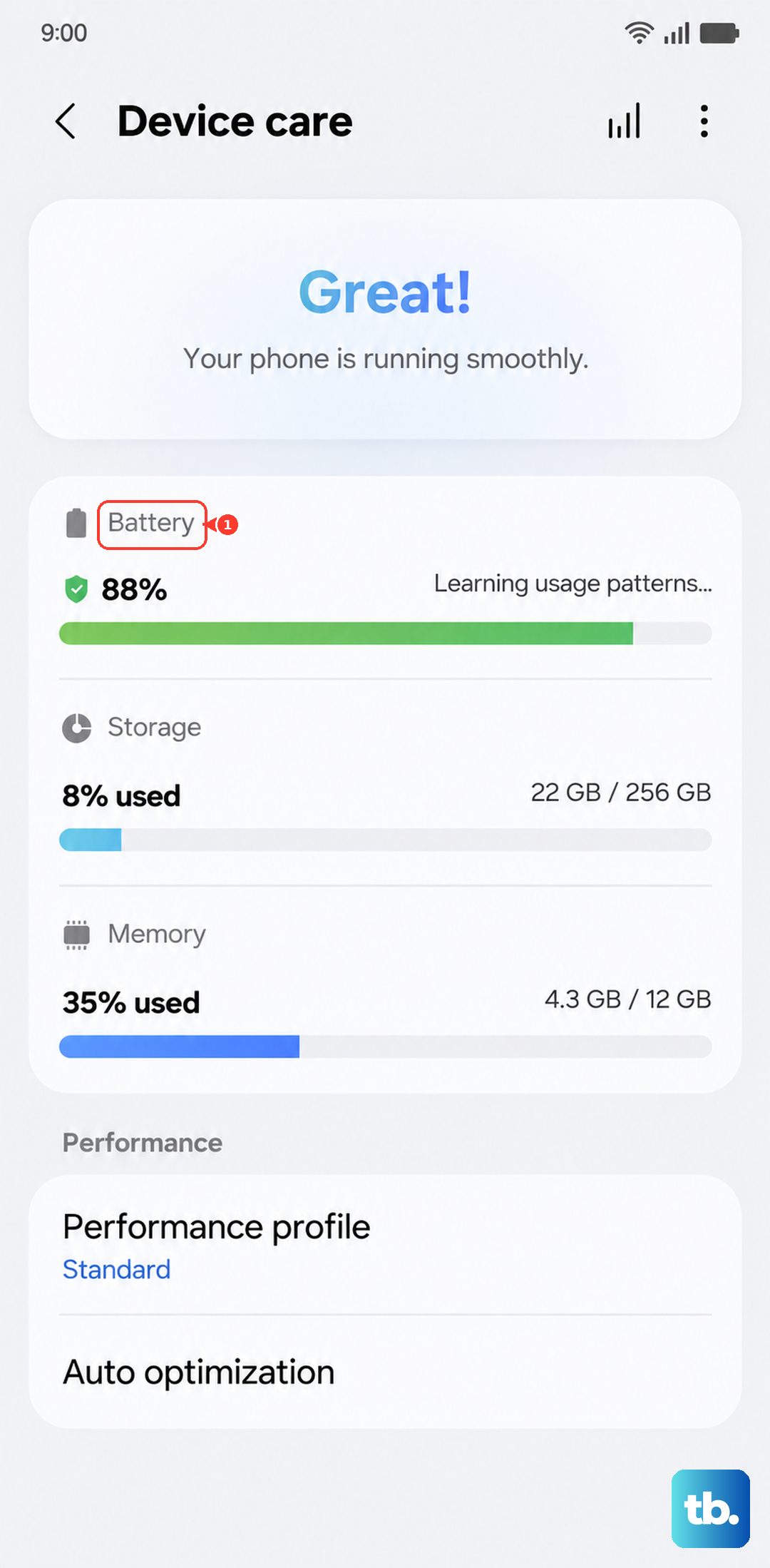
Next, go to Settings > Battery and device care > Battery. Tap on the graph to see which apps have been using the most power recently. A single app, especially a social media app, game, or camera, working overtime is often the culprit.
I've found that apps like Facebook, Instagram, or Snapchat can sometimes get stuck in a loop, causing constant CPU usage and heat. Force stopping the problematic app can give your phone an instant break. Go to Settings > Apps, select the app, and tap Force stop.
Adjust Your Display and Performance Settings
Your screen is one of the biggest power draws. Lowering the brightness can make a noticeable difference in temperature. You can also reduce the screen timeout so it turns off faster when not in use.
Switch to a lighter performance profile. Go to Settings > Battery and device care > Battery > More battery settings. Here, enable Power saving mode. This limits background activity and peak performance, which directly reduces heat.
For a more permanent fix, consider lowering the screen refresh rate if your model supports a variable rate. Go to Settings > Display > Motion smoothness. Switching from "Adaptive" to "Standard" (60Hz) is much easier on the processor and battery.
Manage Your Charging Habits
Charging naturally generates heat. If your A56 is getting hot while plugged in, first make sure you're using a compatible charger. Since it doesn't come in the box, you need to buy one separately. For the fastest 45W charging, look for an official Samsung 45W PD (Power Delivery) charger.
Avoid using the phone for intensive tasks like gaming or video calls while it's charging. This combines two heat-generating activities and can make the phone quite warm. Also, take it out of its case while charging if you can, as cases can trap heat.
Be aware of the moisture detection feature. If you see a water droplet icon in the notification panel warning about moisture in the USB-C port, charging will be disabled to prevent damage. This can sometimes be triggered by humidity. Gently dry the port with compressed air and restart the phone.
Give Your Phone a Fresh Start
Sometimes, a software glitch can cause the processor to work harder than it should. A simple restart can clear this up. If the phone is responsive, hold the side button and tap "Restart" on the screen.
If the phone is unresponsive or too hot to use the menu, you'll need to force restart it. Press and hold the Volume Down button and the Side button together for about 10 seconds. You'll see the Samsung logo appear when it restarts. This is the same method used on the Galaxy S series.
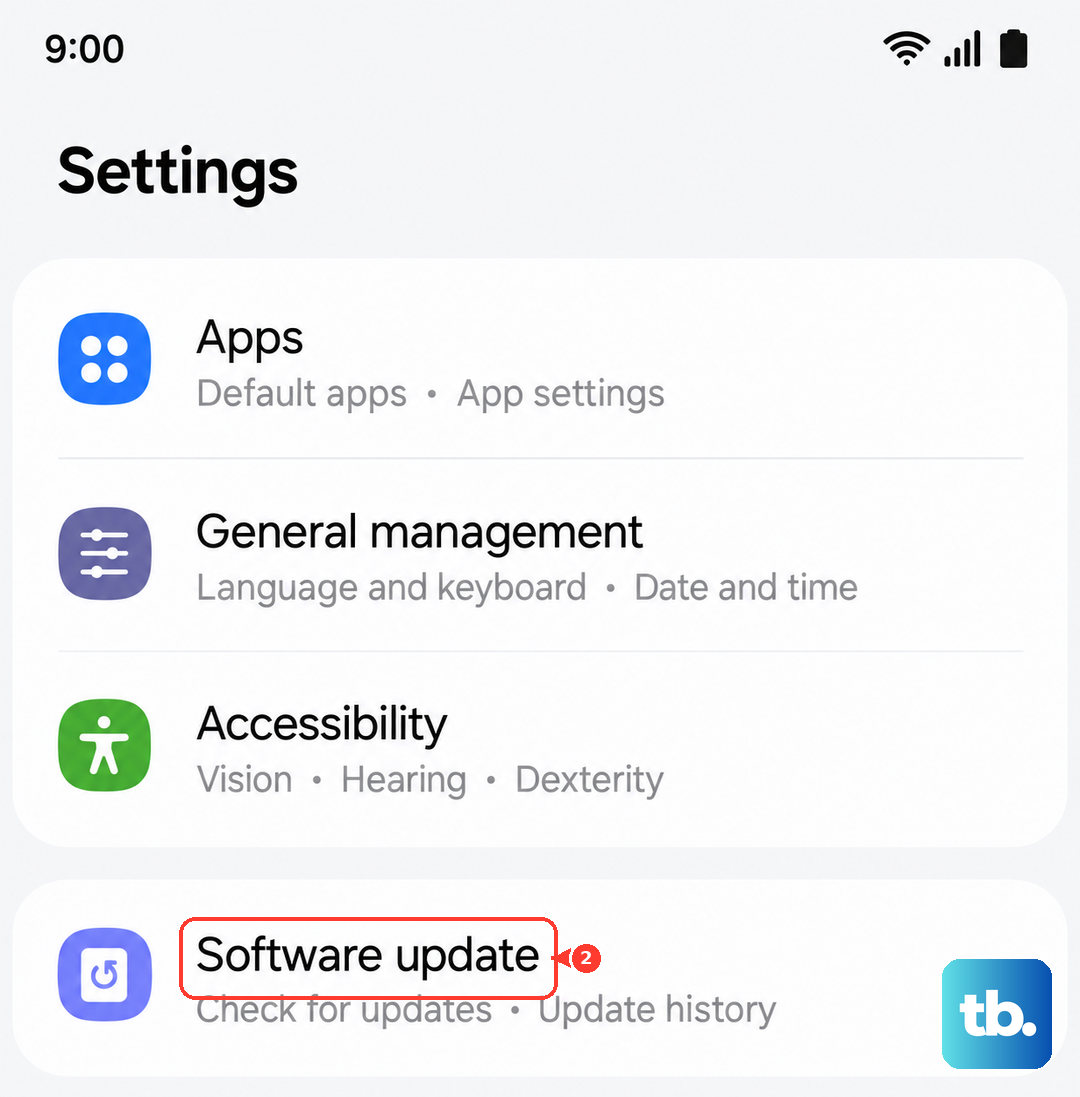
Keeping your software up to date is crucial. Samsung releases updates that often include optimizations and bug fixes for thermal management. Go to Settings > Software update > Download and install to check for the latest version of One UI and Android.
Be Mindful of Your Environment and Case
Don't leave your phone in direct sunlight, like on a car dashboard or by a sunny window. Ambient heat has a huge impact on internal temperature. Similarly, avoid leaving it on soft surfaces like a bed or couch, which can block heat dissipation from the back.
Your phone case might be part of the problem. While cases protect from drops, thick or poorly ventilated ones can act like a blanket. Try removing the case for a while, especially during heavy use or charging, to see if the temperature improves.
If you're in a hot environment and need to cool the phone down quickly, don't put it in the refrigerator or freezer. The sudden temperature change can cause condensation inside the device. Instead, turn it off, remove the case, and let it sit in a cool, shaded room with good airflow.
Identify and Limit Background Activity
Some apps are notorious for running in the background. Go to Settings > Apps and select an app like Facebook or Instagram. Tap Battery and set it to "Restricted" to prevent it from running when you're not using it.
Location services use your GPS, which generates heat. You can turn them off completely via the quick settings panel, or go to Settings > Location and switch it off. Only enable it when you need navigation or a location-based app.
Finally, consider your signal strength. If you're in an area with poor cellular reception, your phone's modem works much harder to maintain a connection, which uses more power and creates heat. Switching to Wi-Fi or enabling Airplane mode in these situations can help it cool down.