If your Samsung Galaxy A55 is making videos look choppy or causing them to buffer endlessly, it can really ruin the experience. The good news is this is usually a software hiccup or a setting that needs adjusting, and I've found most people can get smooth playback back with a few checks.
Check Your Internet Connection First
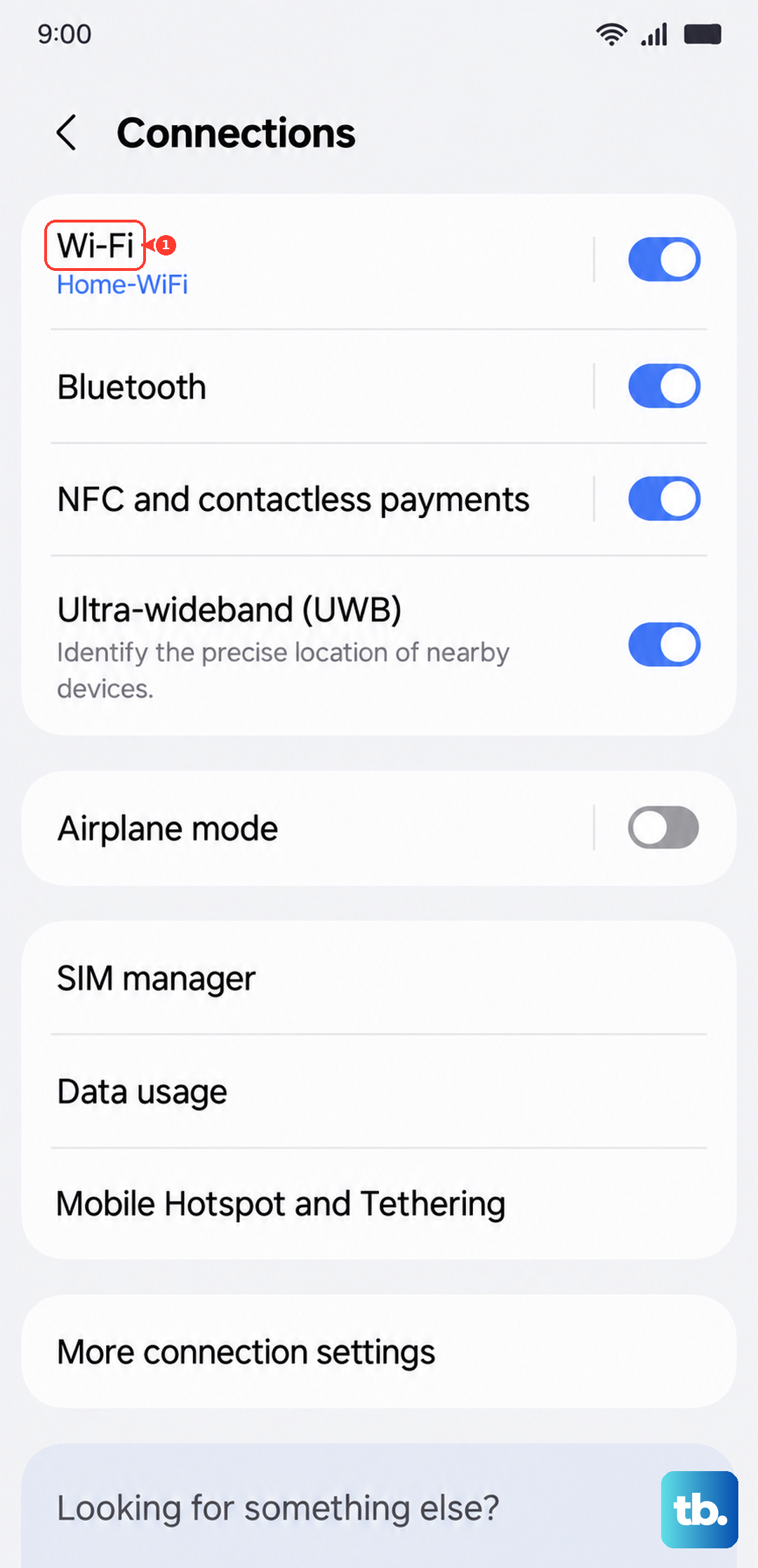
For any video you're streaming online, a weak connection is the most common culprit. The A55 supports fast Wi-Fi 6, but if your router is older or you're far from it, you'll see buffering.
Try switching your Wi-Fi off and on in the Quick Settings panel, or go into Settings > Connections > Wi-Fi to reconnect. If you're using mobile data, make sure you have a strong signal and that your data isn't being throttled by your carrier.
Clear the App's Cache and Data
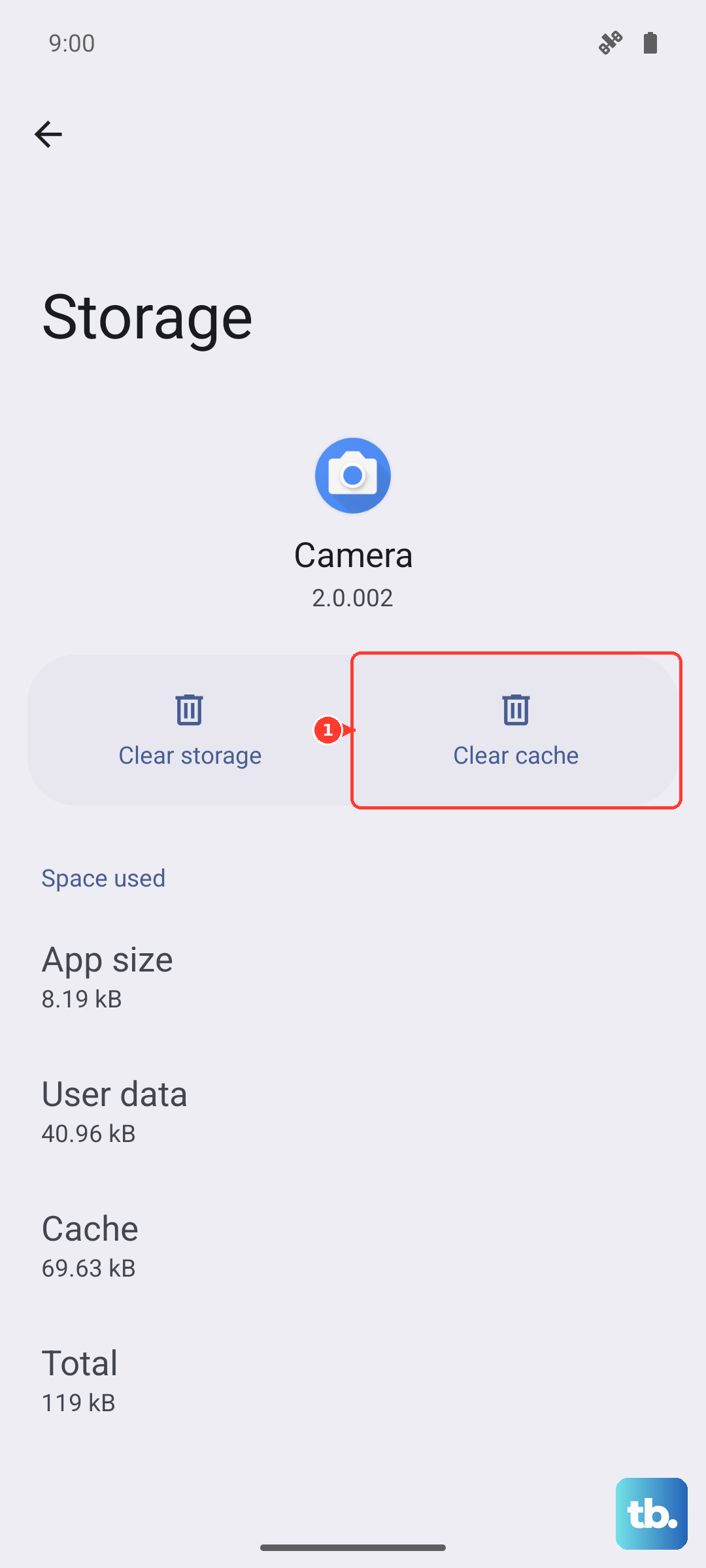
Over time, the app you're using to watch videos, like YouTube, Netflix, or Samsung's Gallery, can accumulate corrupted temporary files. Clearing this cache is a safe first step that won't delete your login info or downloads.
Go to Settings > Apps, select the video app giving you trouble, and tap on Storage. You'll see options to "Clear cache" and "Clear data." Start with the cache. If the problem persists, clearing data is more thorough but will reset the app to its default state, so you may need to log back in.
Make Sure Your Software is Up to Date
Samsung regularly releases updates for One UI that include performance optimizations and bug fixes. An outdated system can struggle with newer video codecs or have conflicts with apps.
Head to Settings > Software update and tap "Download and install." It's a good idea to do this while connected to Wi-Fi. Keeping your apps updated through the Galaxy Store or Google Play Store is just as important for smooth playback.
Free Up Storage Space on Your Phone
When your phone's storage is nearly full, the system has a hard time managing temporary files needed for smooth video decoding. This can lead to stuttering and frame drops, even on videos saved directly to your device.
Check your available space by going to Settings > Battery and device care > Storage. If you're below 5-10GB of free space, consider moving photos and videos to cloud storage like Google Photos or Samsung Cloud, or deleting old downloads and app data you don't need.
Disable Power Saving and Enhanced Processing
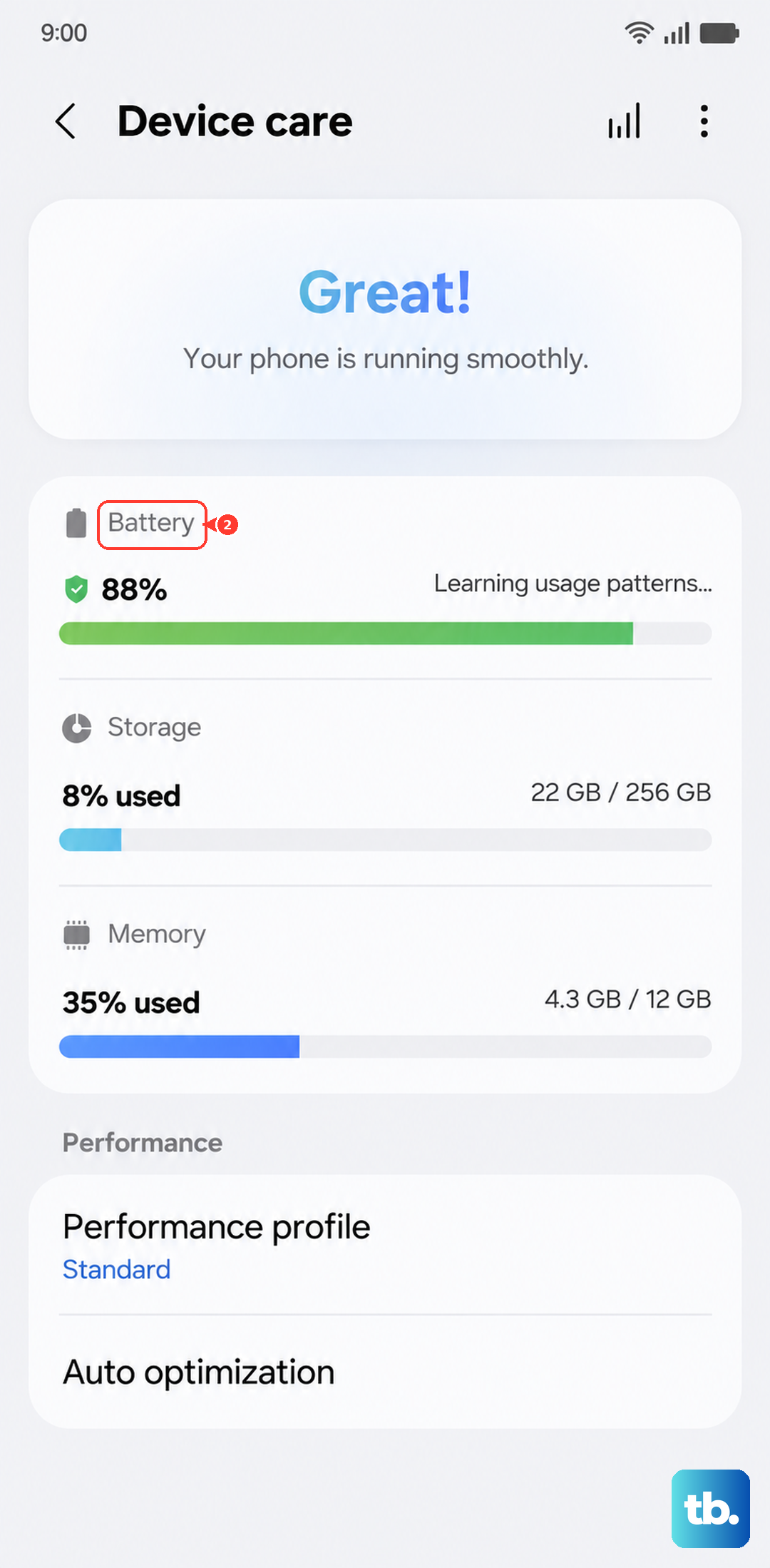
Your Galaxy A55 has different performance modes that can affect video. Power saving mode limits CPU speed to save battery, which can directly cause video lag. Enhanced processing, on the other hand, can sometimes interfere unpredictably.
Go to Settings > Battery and device care > Battery and make sure "Power saving" is turned off. Then, go to Settings > Battery and device care > Performance profile and try switching between "Light," "Standard," and "High" to see if one gives you smoother video playback.
Try a Different Video Player or App
Sometimes the issue is isolated to one specific app. If videos are stuttering in the Samsung Gallery app, try opening the same video file with Google Photos or a third-party player like VLC from the Play Store.
If the video plays fine in another app, you know the problem is with the original app and not your phone's hardware. You can then focus on updating or reinstalling that specific app.
Perform a Soft Reset
A quick restart can clear out temporary system glitches that might be affecting the media processor. For the Galaxy A55, press and hold the Volume Down button and the Side key (power button) together for about 10 seconds until you see the Samsung logo appear.
This forces the phone to reboot and is different from just turning the screen off and on. It's a harmless step that fixes a surprising number of odd performance issues.
Check for Overheating
If your phone feels warm to the touch, it may be thermally throttling its performance to cool down. This can happen if you've been using it for a long time, gaming, or if it's in a hot environment.
Let the phone cool down for a few minutes, ideally out of direct sunlight and without its case on. Playing high-resolution videos, especially 4K or HDR content, generates more heat and can trigger this protection if the phone is already warm.
Reset All Settings
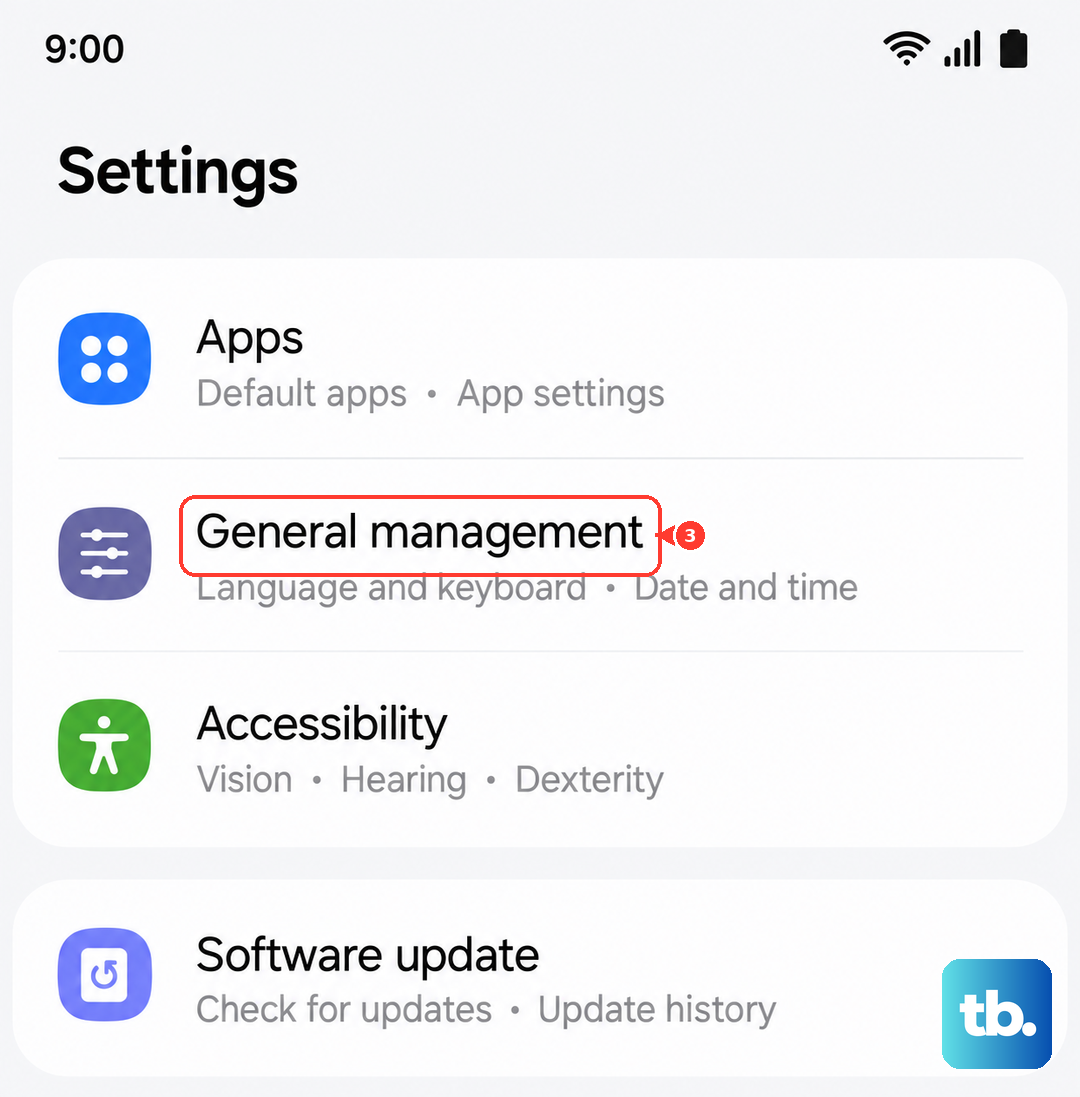
If you're still having issues and you've tried everything else, resetting your phone's settings can help. This won't delete your personal data like photos or messages, but it will revert all your system preferences back to default.
You'll need to re-setup things like Wi-Fi passwords, wallpapers, and ringtones. To do this, go to Settings > General management > Reset > Reset all settings. This can resolve conflicts caused by a setting you may have changed long ago.