
So your Samsung Galaxy A55 won't charge. You've plugged it in, maybe swapped cables, and the screen stays stubbornly black. It's a frustrating spot to be in, but it's almost always something you can fix yourself without a trip to the repair shop.
Whether the phone shows no sign of life at all, the battery icon flickers, or it just charges painfully slow, we'll walk through the fixes. Let's start with the quickest solution that works more often than you'd think.
Force Restart Your Galaxy A55
This should always be your first move. A simple force restart clears out any temporary software glitches that might be blocking the charging circuit. It takes about ten seconds and requires no cables.
For the Galaxy A55, press and hold the Volume Down button and the Side (power) button simultaneously. Keep holding them for about 10 seconds until you feel a vibration and see the Samsung logo appear on the screen.
Once it boots back up, plug it into your charger again. If you see the charging indicator or the battery percentage start to climb, you've solved it.
Clean the USB-C Charging Port
This is the single most common fix for any phone that won't charge, and the A55 is no exception. Lint, dust, and pocket debris get packed into that USB-C port every single day. Eventually, there's so much gunk that the cable's connector can't reach the contacts inside.
Grab a bright light and look directly into the port on the bottom of your phone. If you see a dark mat of lint, you've found the culprit. Turn the phone off first for safety.
Then, take a wooden toothpick or a plastic flosser pick and gently scrape around the sides and bottom of the port. Be very careful not to scratch the shiny gold contact in the center. You can also use a can of compressed air, holding it upright and giving a few short bursts.
Check Your Charger and Cable
Since Samsung doesn't include a charger in the box with the A55, a lot of people use old, underpowered adapters or worn-out cables. You need to systematically test each part of your charging setup.
First, try a different USB-C cable. Make sure it's a good quality one capable of handling data, not just a cheap power-only cord. Next, try a different wall adapter. The Galaxy A55 supports up to 25W wired charging, so using a 25W USB-C Power Delivery (PD) charger will give you the best results.
Finally, plug into a different wall outlet. I've seen cases where a faulty power strip or outlet was the entire problem. Remove your phone case too, as a very thick or misaligned case can sometimes prevent the cable from plugging in all the way.
Wait for a Deeply Drained Battery
If your A55's battery was run down to absolute zero, it won't wake up the instant you plug it in. This is a safety feature. You need to give it some time to absorb a basic charge before it can power on.
Leave it connected to a known-good wall charger (not a computer or car USB port) for at least 30 minutes. Don't touch it or try to turn it on during this time. After the half-hour, try the force restart method again while it's still plugged in.
You should eventually see the large battery icon with a lightning bolt or a percentage indicator. If you see nothing after a full hour, the issue is likely with the hardware or the charging connection itself.
Update Your Phone's Software
Software bugs in One UI or Android can occasionally interfere with the power management system. Samsung releases updates that often include fixes for these kinds of issues.
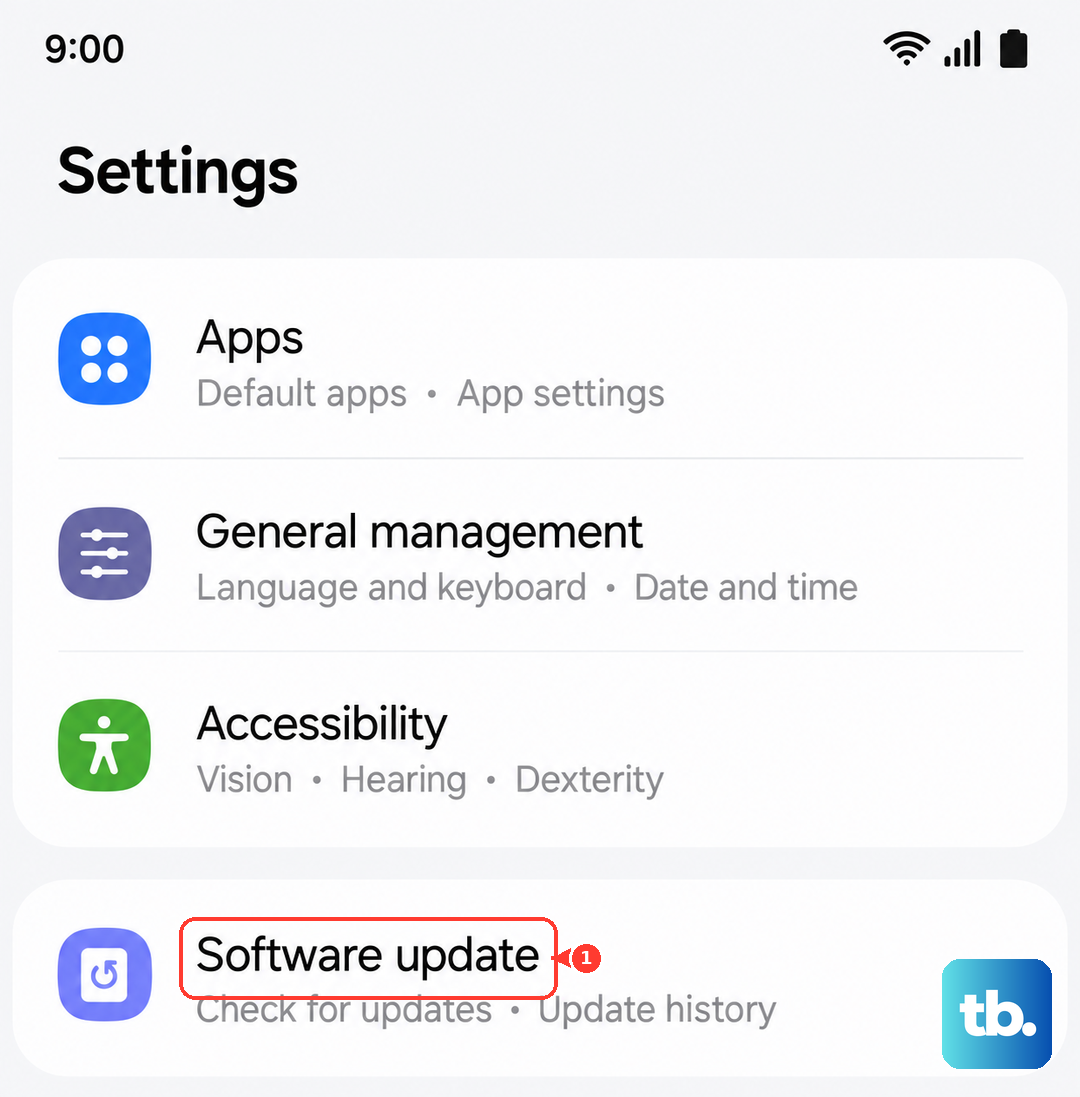
If your phone has enough charge to turn on, go to Settings > Software update and tap Download and install. Make sure you're connected to Wi-Fi and plug the phone in during the update process. An update can clear up a surprising number of charging-related glitches.
Check for Moisture or Damage
The Galaxy A55 has some water resistance, but its USB-C port is less sealed than on Samsung's flagship models. If the phone has been exposed to moisture, liquid could be trapped inside the port.
Look carefully for any signs of corrosion on the metal contacts, a white or greenish crust. If you see it, power the phone off completely and let it dry in a warm, dry place for at least 24 hours before attempting to charge it again. Never use a hairdryer or direct heat, as this can cause damage.
Charge with the Phone Powered Off
Sometimes a background app or process is causing abnormal battery drain that outpaces the incoming charge. You can rule this out by turning the phone completely off and then plugging it in.
If it starts charging normally while off, you know the hardware is fine and the problem is software-related. This is also the fastest way to charge your A55 if you're in a hurry, as no power is being used by the screen or apps.
Try Safe Mode
Safe Mode boots your phone with all third-party apps disabled. If your phone charges normally in Safe Mode, it confirms that a recently downloaded app is causing the problem.
To boot into Safe Mode on the Galaxy A55, press and hold the Side button until the power off menu appears. Then, tap and hold the "Power off" option on your screen. You'll see a prompt to reboot to Safe Mode. Tap it.
Once in Safe Mode (you'll see the words in the bottom corner), try charging. If it works, you'll need to uninstall recently added apps one by one to find the culprit.
Consider a Factory Reset (Last Resort)
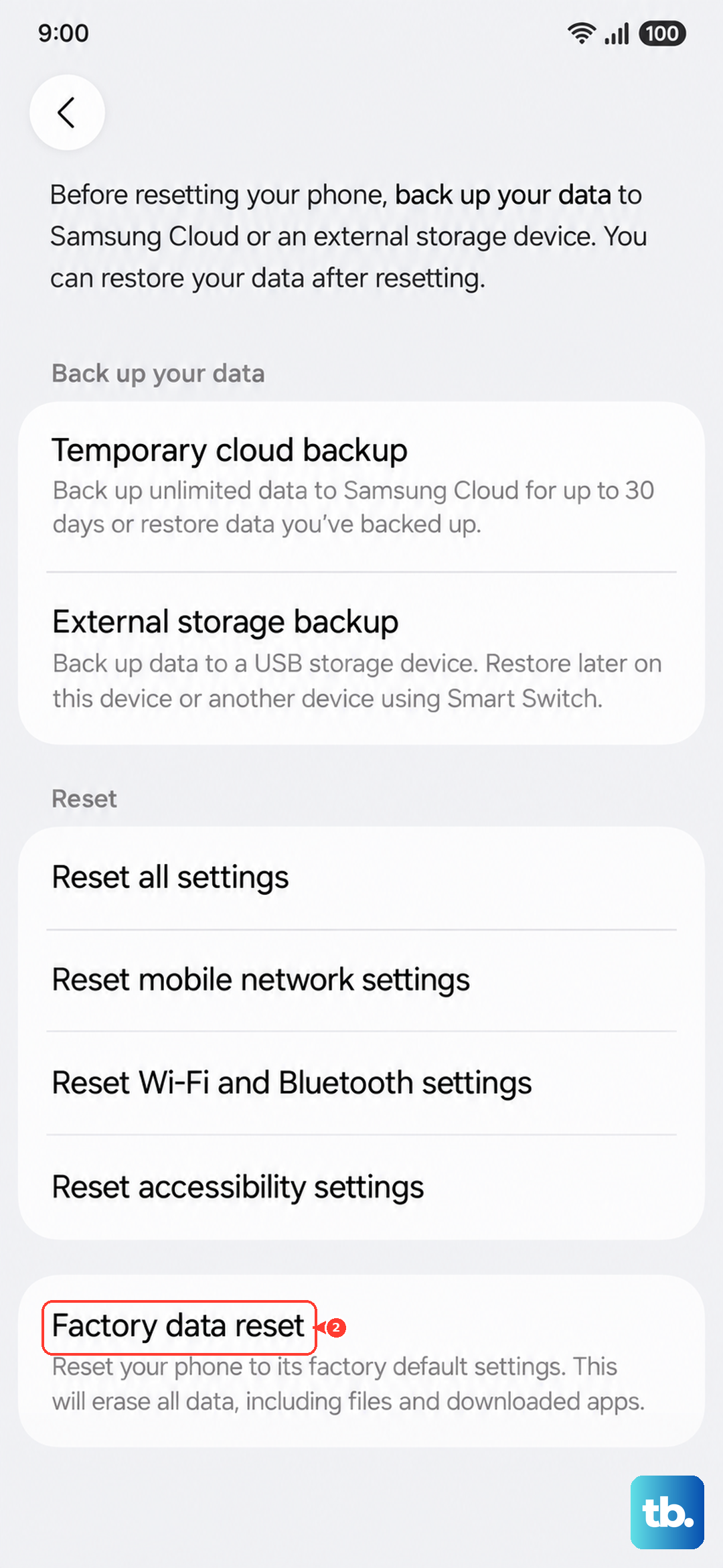
If all else fails, a factory reset can wipe out deep-seated software corruption. This will erase all your data, so it's an absolute last resort. Ensure you have a recent backup via Samsung Cloud or Google.
You can initiate a reset from the settings if the phone is on: go to Settings > General management > Reset > Factory data reset. If the phone won't turn on, you can use the hardware keys: turn it off, connect it to a computer with a USB cable, then press and hold Volume Up and the Side button together until the Android recovery menu appears. Use the volume keys to navigate to "Wipe data/factory reset" and select it with the power button.
After the reset, set the phone up as new and test charging immediately. If it still doesn't work, the issue is almost certainly hardware-based, like a failed battery or damaged charging port, and would require professional repair.











