
If your Samsung Galaxy A55 camera app is crashing, showing a black screen, or just won't open, start with a force restart. Press and hold the Volume Down button and the Side button together for about 10 seconds until you see the Samsung logo appear. I've found this clears up a lot of temporary software glitches that can lock up the camera.
It takes seconds to confirm the camera works with an online camera test. If the preview stays black there too, keep reading, because the steps below target exactly that.
Key Points
- Restart the Camera App: Force close the app from your recent apps menu.
- Check for App and System Updates: Outdated software is a common cause of camera failures.
- Clear the Camera App's Cache: This fixes issues without deleting your photos.
- Check Your Storage Space: A full phone can prevent the camera from saving new photos.
- Verify App Permissions: The camera needs permission to access your phone's storage and camera hardware.
- Boot in Safe Mode: This helps determine if a third-party app is interfering.
- Reset All Settings: A last resort before more drastic measures.
- Inspect for Physical Damage: Look for cracks or moisture around the camera lenses.
Wait for the phone to fully reboot, then try opening the camera again. This simple step fixes the problem more often than you might think.
Restart the Camera App
Sometimes the app itself gets stuck. Swipe up from the bottom of your screen and hold to see your recent apps. Find the Camera app and swipe it all the way up or off the screen to close it completely. Then, tap the Camera icon on your home screen to launch it fresh.
If the camera is still frozen or black, try switching between photo and video mode. You can also try using a different camera app, like Instagram or Snapchat, to see if the problem is with Samsung's app or the hardware itself.
Check for App and System Updates
Outdated software is a frequent culprit. First, check for an update to the Camera app itself. Open the Galaxy Store, tap the menu icon, and go to Updates. If the Camera app is listed, update it.
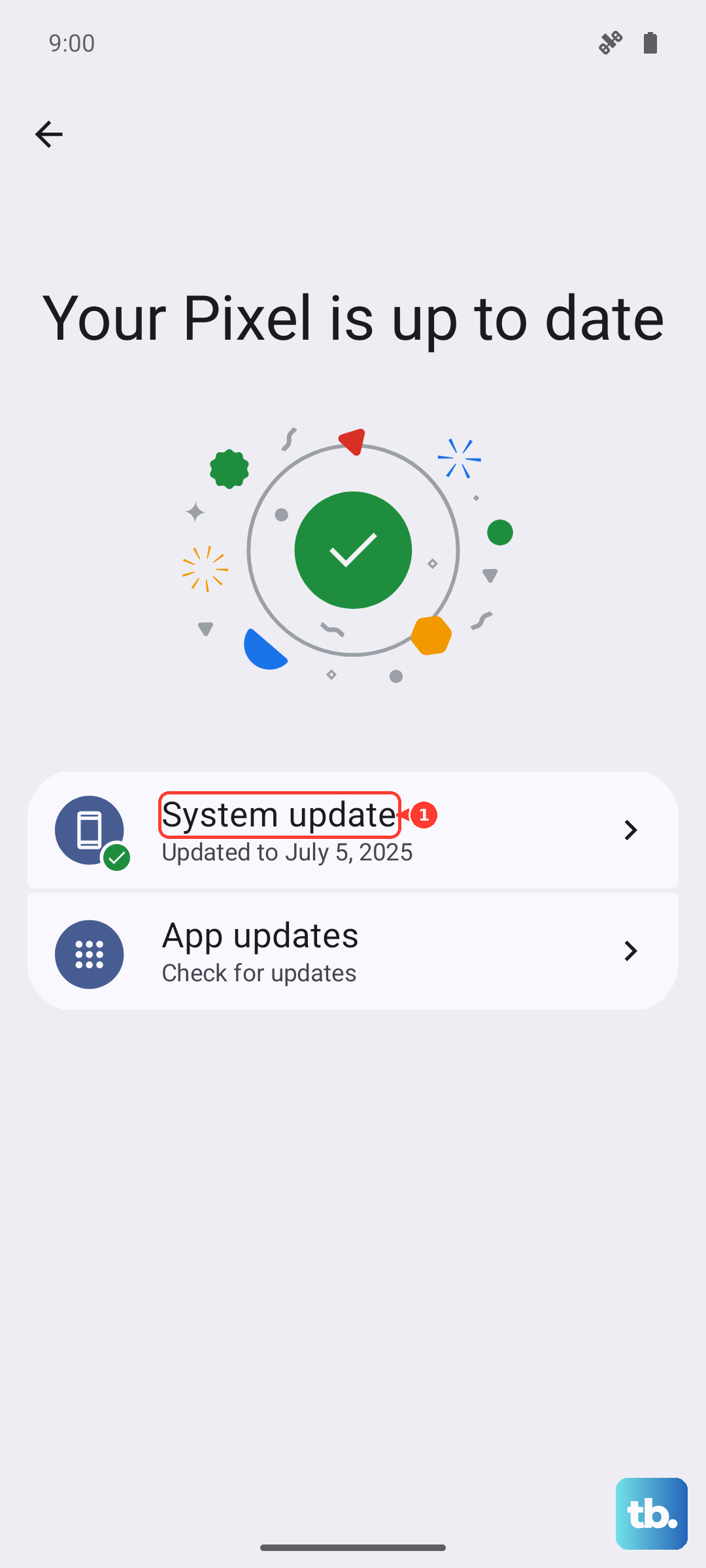
Next, check for a full system update. Go to Settings > Software update > Download and install. Samsung regularly releases updates that fix bugs, including camera issues. Install any available update and restart your phone when it's done.
Clear the Camera App's Cache
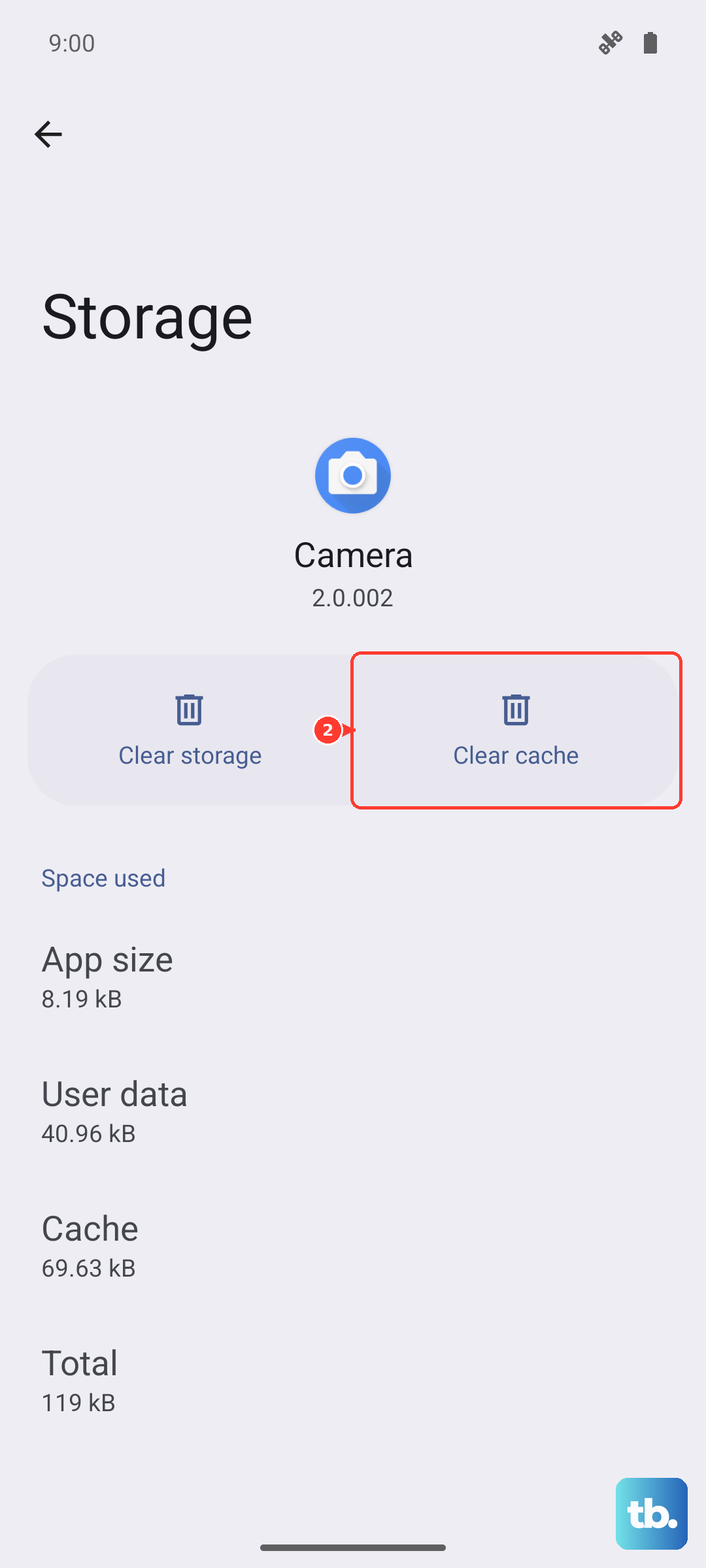
Clearing the cache removes temporary files that can become corrupted. This won't delete your photos or settings. Go to Settings > Apps, then find and tap on Camera.
Tap Storage, and then tap Clear cache. After doing this, go back and force close the app again from your recent apps menu, then reopen it. If this doesn't work, you can try Clear data next, but be aware this will reset the camera app to its default settings.
Check Your Storage Space
If your phone's internal storage is completely full, the camera app may fail to open or save pictures. Go to Settings > Battery and device care > Storage to see how much space you have left.
You generally want to keep at least 1GB free. If you're running low, consider moving photos and videos to a cloud service like Google Photos or Samsung Cloud, or to a microSD card if you have one inserted.
Verify App Permissions
The camera needs the correct permissions to function. Go to Settings > Apps > Camera > Permissions. Make sure both Camera and Microphone (if you use video) are set to "Allow."
Also, check the permission for Storage or Files and media. If this is denied, the app won't be able to save your photos to the gallery. Toggle any off permissions back on and try the camera again.
Boot in Safe Mode
Booting in Safe Mode temporarily disables all third-party apps. This helps you figure out if an app you downloaded is causing a conflict. Press and hold the power button until the power menu appears.
Tap and hold the Power off option until you see a prompt to reboot to Safe Mode. Tap it. If the camera works perfectly in Safe Mode, a recently installed app is likely the problem. You'll need to uninstall apps one by one to find the culprit.
Reset All Settings
This will reset your network settings, display preferences, and other system settings back to default, but it won't touch your personal data like photos or messages. It can fix deeper configuration conflicts. Go to Settings > General management > Reset > Reset all settings.
Enter your PIN if prompted and confirm. Your phone will restart. After it boots up, you'll need to reconfigure things like Wi-Fi passwords and display brightness, but it's worth trying before a factory reset.
Inspect for Physical Damage
Take a close look at the camera module on the back of your A55. Check for any cracks over the lenses or signs of moisture inside the lens cover. Even a small crack can ruin the camera's ability to focus.
The USB-C port on the A55 is also less water-resistant than on flagship models. If the phone has been exposed to significant moisture, it could have affected internal components, including the camera. Look for any corrosion or debris in the charging port as well.