
When your Galaxy A36's predictive text stops working, it can feel like you're typing with one hand tied behind your back. Word suggestions vanish, autocorrect starts making bizarre changes, or the whole keyboard just feels sluggish. This is a common hiccup, especially with the new One UI 7 software, and it's almost always something you can fix yourself.
Let's start with the quickest fix. Pull down the notification shade and tap the power icon, then select "Restart." If your screen is unresponsive, you can force a restart by pressing and holding the Volume Down and Power buttons together for about ten seconds until you see the Samsung logo. This clears out any temporary glitches in the system.
Clear the Keyboard's Cache and Data
If a restart didn't do the trick, the next step is to clear the keyboard's stored temporary files. Go to Settings > Apps. Tap the three-dot menu in the top right and select Show system apps.
Find and tap on Samsung Keyboard. Inside, go to Storage and tap Clear Cache. This deletes temporary data without affecting your personal settings. It's a safe first move that often solves the problem.
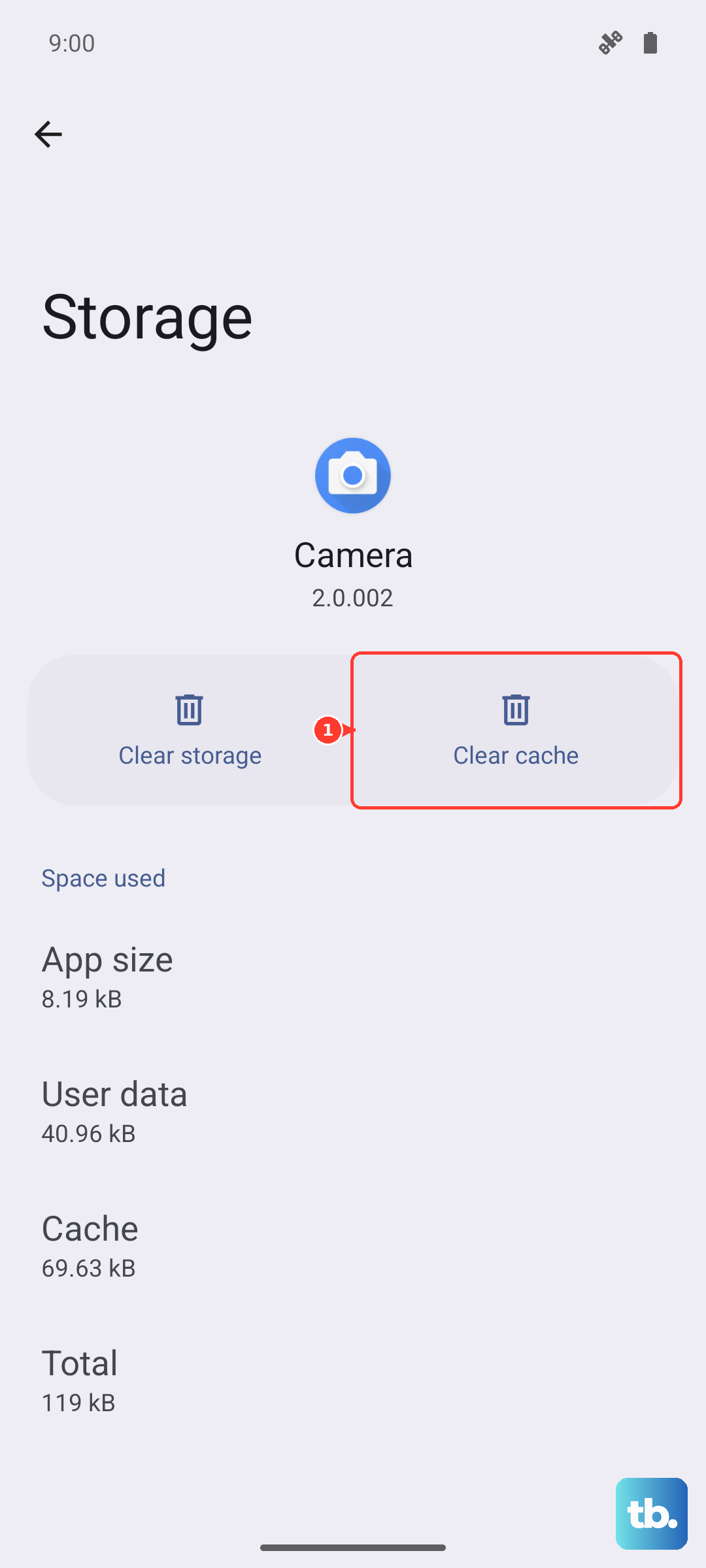
If the predictive text is still broken, you can take the next step. Go back into the Samsung Keyboard's storage settings, but this time tap Clear Data. A warning will pop up letting you know this will reset the keyboard to its default state.
You'll lose any custom dictionary words you've added and your keyboard layout preferences, but it wipes out any corrupted data that's causing the issue. After doing this, you'll need to go through the keyboard's initial setup screen again.
Check and Reset Your Keyboard Settings
Sometimes the feature just gets turned off by accident, or a setting is misconfigured. Open Settings and go to General Management > Language and input > On-screen keyboard > Samsung Keyboard.
Tap on Smart typing. Make sure the switch for Predictive text is turned on. While you're here, you can also toggle it off and back on again to refresh the feature. I've seen this simple toggle fix the issue on several A36 units running the early One UI 7 builds.
If you're still having trouble, scroll to the bottom of the Samsung Keyboard settings menu. Look for an option labeled Reset to default settings. Tapping this will revert all your typing preferences back to factory defaults, which can clear up conflicts causing the predictive engine to fail.
Update Your Keyboard Language and App
An outdated language pack can break word prediction. In the Samsung Keyboard settings, tap Languages and types, then select your primary language (like English US). Tap Manage input languages, hit the three-dot menu, and choose Check for an update.
It's also crucial to make sure the keyboard app itself is up to date. Open the Google Play Store, tap your profile icon, and go to Manage apps & device. Look under "Updates available" for Samsung Keyboard. If you see it, tap update.
Since the A36 is new, Samsung is frequently pushing updates to squash bugs introduced with Android 15 and One UI 7. Keeping the keyboard updated is one of the best ways to ensure stability.
Try a Different Keyboard Temporarily
If none of the above works, it can help to figure out if the problem is with the Samsung keyboard specifically or with the system itself. Install a different keyboard like Gboard from the Play Store.
Go to Settings > General Management > Language and input > On-screen keyboard > Default keyboard. Switch to the new keyboard you installed. Test if predictive text works there.
If it does, the issue is isolated to the Samsung keyboard app. You can either stick with the new keyboard or use this as a sign to revisit clearing the Samsung Keyboard's data again. If predictive text is broken on all keyboards, it points to a deeper system setting or a rare software bug that may require more attention.